> ## Documentation Index
> Fetch the complete documentation index at: https://docs.userpilot.com/llms.txt
> Use this file to discover all available pages before exploring further.
# Agent Conversation Transcripts
> Read the full transcript of any agent conversation — exactly what the user said, how the agent replied, and any signals detected along the way.
## Overview
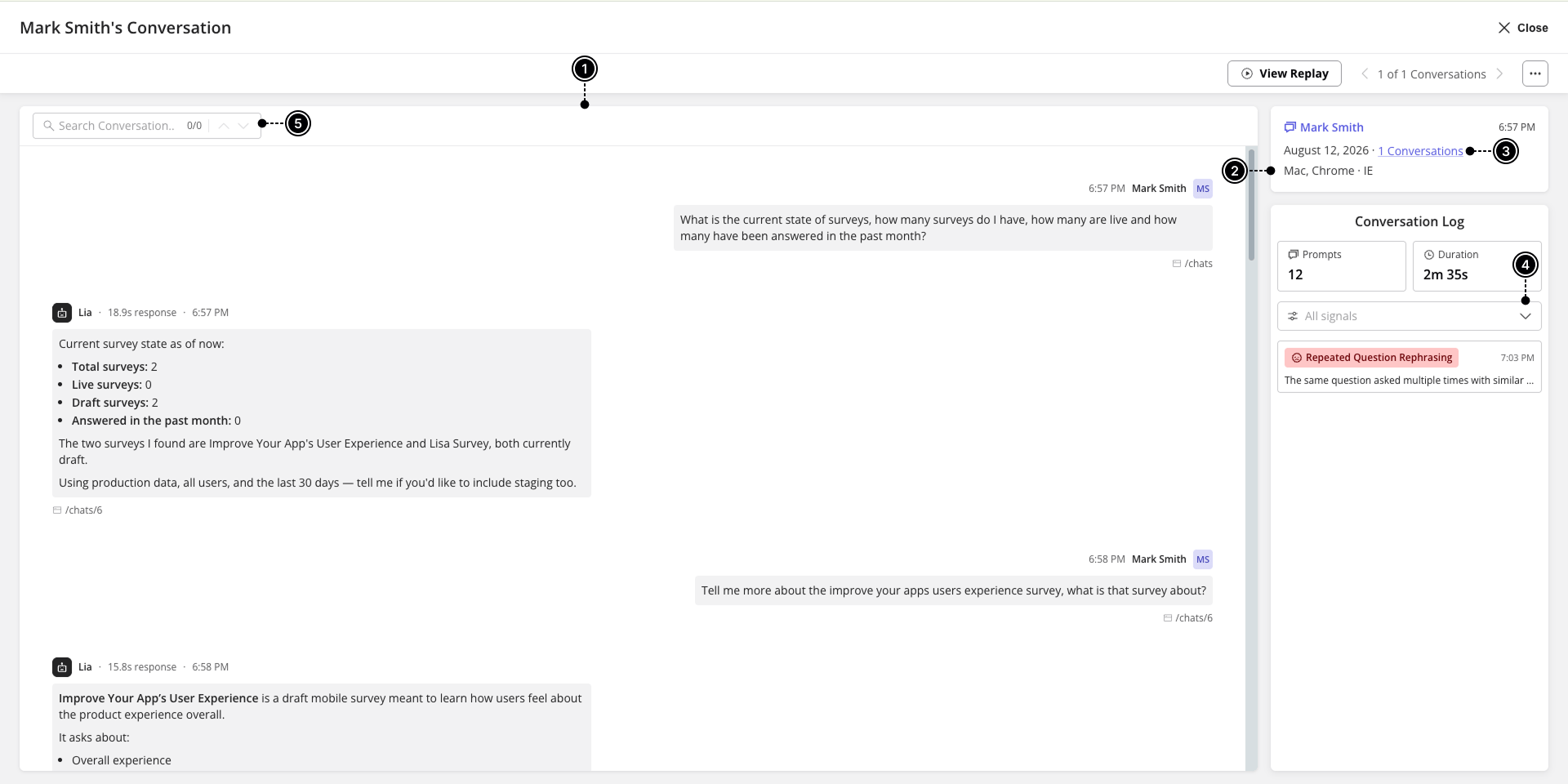
The Conversation Transcript View gives you a full-screen read of a single agent conversation, laid out alongside the user's context (page, company, platform) and the specific signals detected within it.
## Use Cases
* **Investigate a support case or complaint** by reading the exact exchange between a user and the agent.
* **Audit agent quality** by reviewing conversations flagged with a failure or frustration signal.
* **Verify a session replay or export a conversation** for further review outside Userpilot.
## Getting Started
You can open a full conversation transcript from three places:
* A conversation row inside a **Topics** slideout.
* A conversation row inside a **Failure signals** slideout.
* A conversation row in a user's Conversations tab on their profile.
## What you can do from here
1. **Follow the exchange exactly as it happened** — every prompt and reply in order, including if the user changed page mid-conversation, and how long the agent took to respond to each message.
2. **Understand who you're looking at, without leaving the page** — the user's identity, company, platform, and location sit alongside the conversation, and you can jump straight to their profile.
3. **Tell whether this is a one-off or a pattern** — see how many other conversations match the same topic or failure signal, or pull up everything else this user has talked to the agent about.
4. **Jump straight to the moments that matter** — filter down to just the positive or negative feedback, frustration, failure, or slow-response moments in the conversation, instead of reading the whole thing to find them.
5. **Search within a long conversation** to find a specific word or phrase without scrolling.
 * Signals identified throughout a conversation include:
| Signal | What it flags |
| :----------------- | :------------------------------------------------ |
| Slow response | The agent took longer than usual to reply. |
| Positive feedback | The user gave positive feedback on a reply. |
| Negative feedback | The user gave negative feedback on a reply. |
| Frustration signal | AI-detected frustration, e.g. offensive language. |
| Failure signal | AI-detected failure, e.g. a fallback response. |
## Data capture and privacy settings
From the [Data Capture & Privacy Settings](https://run.userpilot.io/settings/data-capture-privacy) page, you can turn capture of conversation content on or off separately for production and staging, and set rules to keep sensitive data out of what's stored — useful if your agent might encounter things like card numbers or other PII in the course of a conversation.
* **Exclude keywords** – define a keyword or phrase to watch for. Any message that matches is masked within the conversation — since a keyword alone can't reliably bound where a sensitive value starts and ends — and you can scope this to user messages, agent messages, or both.
## FAQs
It only appears when a session replay actually exists for that conversation. If replay wasn't enabled, or the conversation is too old, there won't be one to view.
This is controlled by your role's permissions under Settings > Roles > Analytics > Agent Analytics. Account Owners and Admins have both by default; ask your account admin if you need access.
Yes — use **Export data** from the Actions menu in the transcript view.
* Signals identified throughout a conversation include:
| Signal | What it flags |
| :----------------- | :------------------------------------------------ |
| Slow response | The agent took longer than usual to reply. |
| Positive feedback | The user gave positive feedback on a reply. |
| Negative feedback | The user gave negative feedback on a reply. |
| Frustration signal | AI-detected frustration, e.g. offensive language. |
| Failure signal | AI-detected failure, e.g. a fallback response. |
## Data capture and privacy settings
From the [Data Capture & Privacy Settings](https://run.userpilot.io/settings/data-capture-privacy) page, you can turn capture of conversation content on or off separately for production and staging, and set rules to keep sensitive data out of what's stored — useful if your agent might encounter things like card numbers or other PII in the course of a conversation.
* **Exclude keywords** – define a keyword or phrase to watch for. Any message that matches is masked within the conversation — since a keyword alone can't reliably bound where a sensitive value starts and ends — and you can scope this to user messages, agent messages, or both.
## FAQs
It only appears when a session replay actually exists for that conversation. If replay wasn't enabled, or the conversation is too old, there won't be one to view.
This is controlled by your role's permissions under Settings > Roles > Analytics > Agent Analytics. Account Owners and Admins have both by default; ask your account admin if you need access.
Yes — use **Export data** from the Actions menu in the transcript view.