> ## Documentation Index
> Fetch the complete documentation index at: https://docs.userpilot.com/llms.txt
> Use this file to discover all available pages before exploring further.
# Personalize Content
> Personalize Userpilot flows with dynamic variables to show tailored content for each user, increasing relevance, engagement, and overall product adoption.
## **Overview**
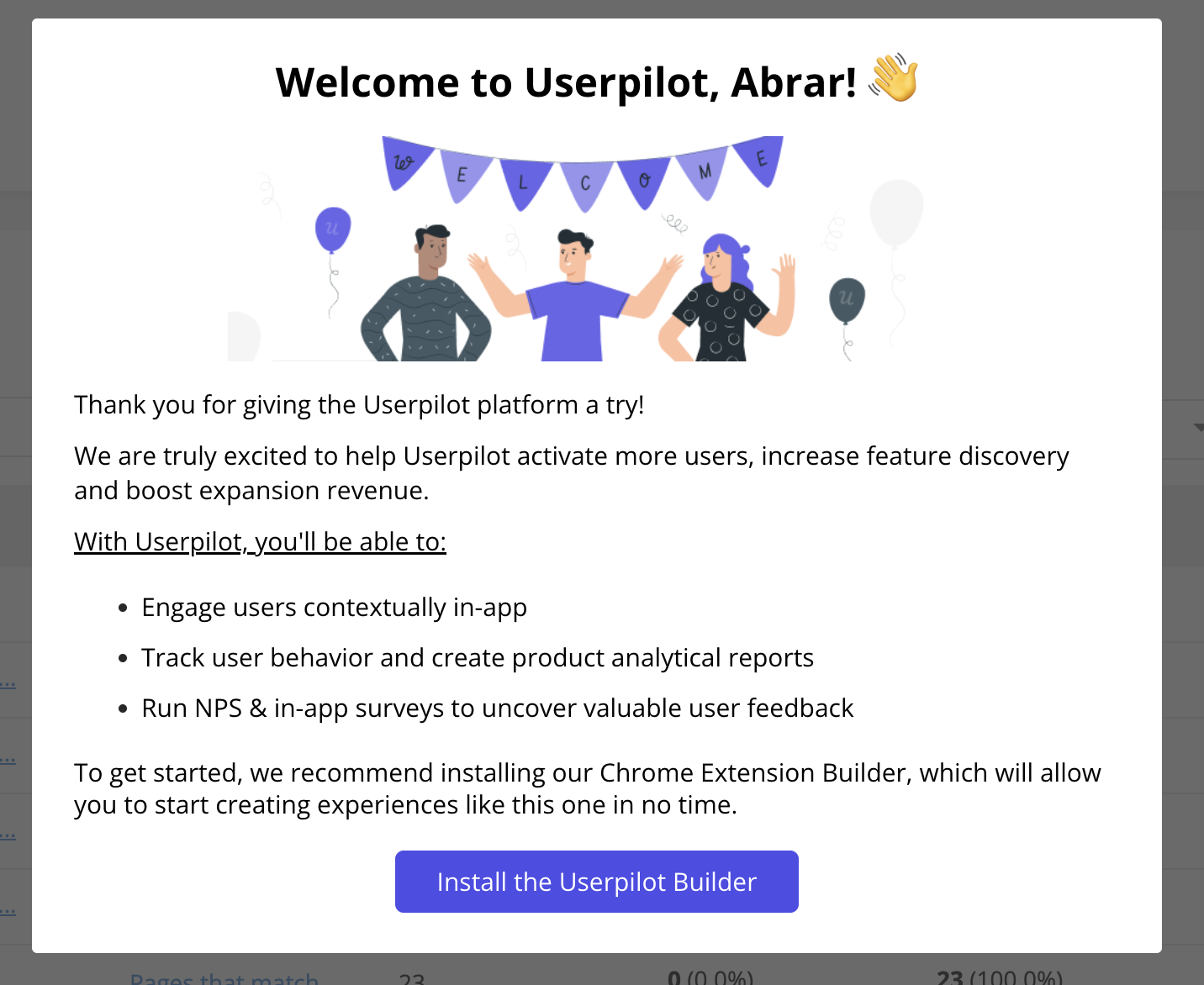
Personalization allows you to dynamically display content within your flow. This feature helps make your interactions feel more personalized and tailored to each user, boosting engagement and enhancing their experience with your product.
## **Use Cases**
* Use dynamic content like the user's name to make the experience feel more personalized and inviting.
* Add personalized messaging throughout your flows to increase relevancy.
* Personalizing content based on user data can create a stronger connection and encourage continued use.
 ### **Sending and Using Variables in Personalization**
To use personalization in your flows, you must first send custom user property data to Userpilot during the installation process. This allows you to pass variables (such as the user’s first name) through the snippet, which will then be dynamically inserted into your UI patterns.
### **Inserting Dynamic Variables into Your Flows**
1. **Create your UI pattern**: Design the flow and add the necessary text sections as you usually would.
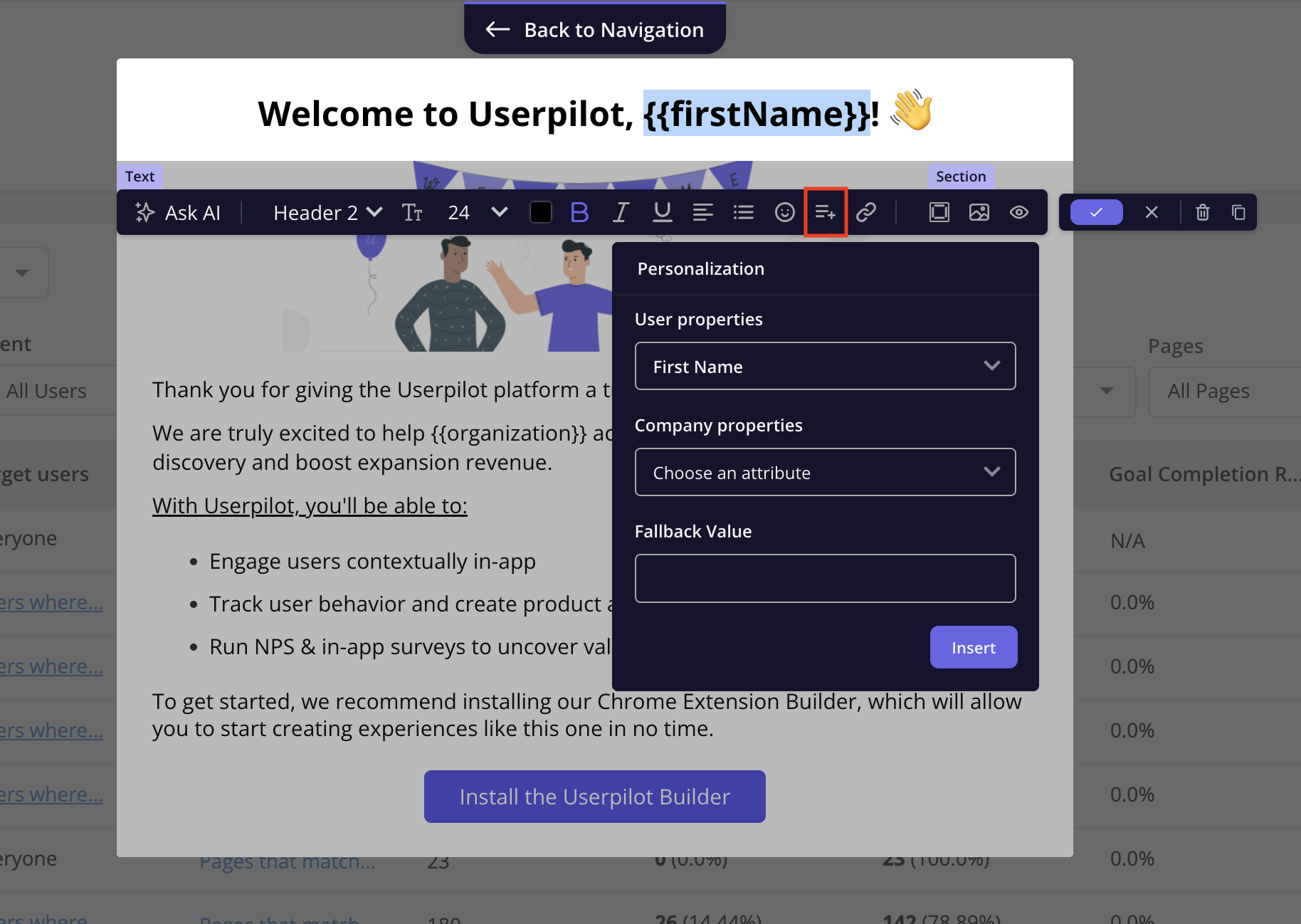
2. **Use the personalization icon**: In the text toolbar, click on the personalization icon to insert a dynamic variable.
3. **Select the dynamic user property**: Choose the variable (like the user's first name) you want to substitute in that part of the text.
### **Sending and Using Variables in Personalization**
To use personalization in your flows, you must first send custom user property data to Userpilot during the installation process. This allows you to pass variables (such as the user’s first name) through the snippet, which will then be dynamically inserted into your UI patterns.
### **Inserting Dynamic Variables into Your Flows**
1. **Create your UI pattern**: Design the flow and add the necessary text sections as you usually would.
2. **Use the personalization icon**: In the text toolbar, click on the personalization icon to insert a dynamic variable.
3. **Select the dynamic user property**: Choose the variable (like the user's first name) you want to substitute in that part of the text.
 ### **Setting Up Fallback Text**
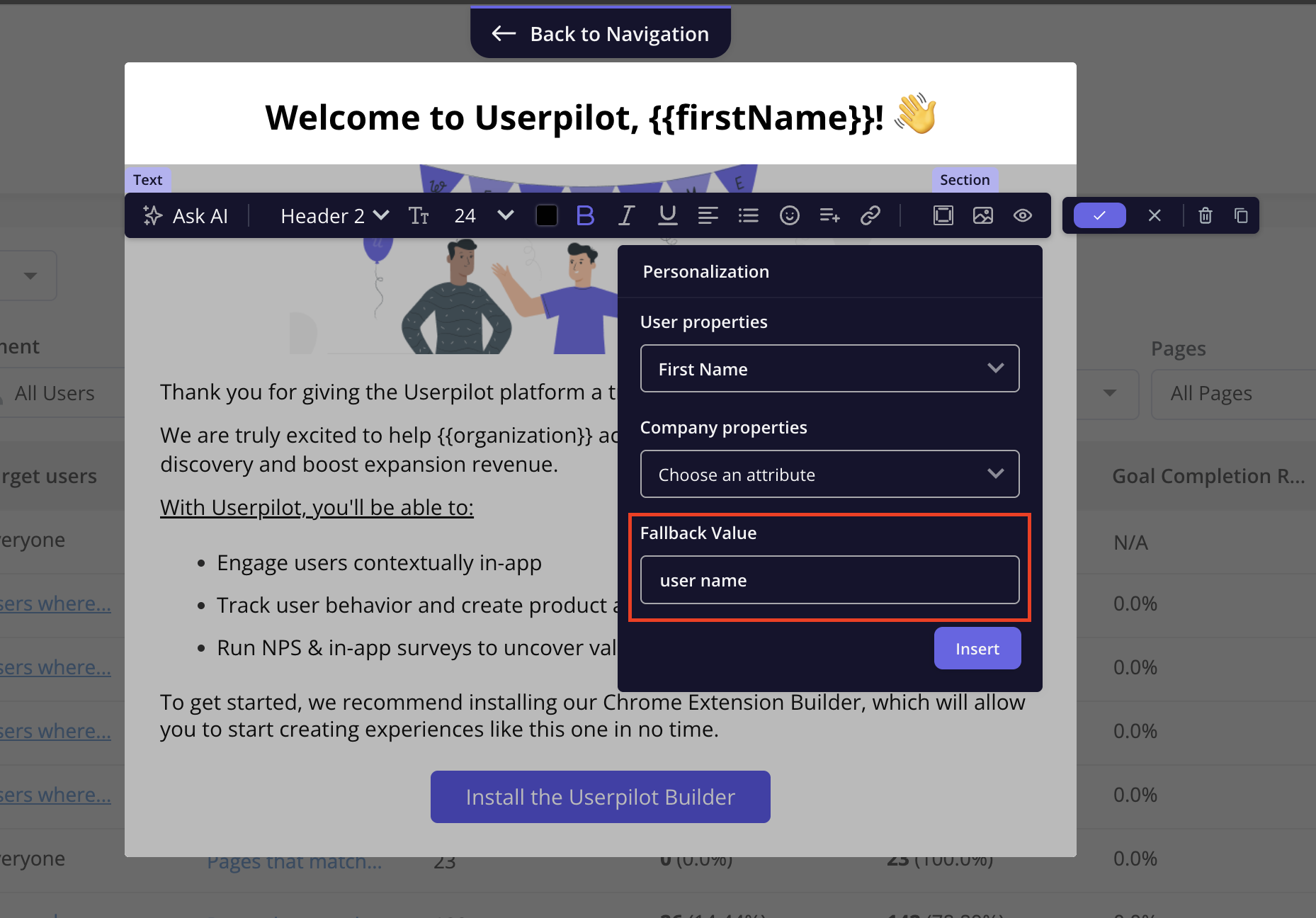
Sometimes, a user property may be missing (e.g., the user's first name hasn't been set). In this case, you can specify a fallback value. Simply type the fallback text in the "Fallback value" box. This ensures that if the dynamic data isn’t available, a default message (like “Hello, valued user!”) is shown instead.
### **Setting Up Fallback Text**
Sometimes, a user property may be missing (e.g., the user's first name hasn't been set). In this case, you can specify a fallback value. Simply type the fallback text in the "Fallback value" box. This ensures that if the dynamic data isn’t available, a default message (like “Hello, valued user!”) is shown instead.
 ***
### **FAQs**
Absolutely! You can preview your flows with dynamic variables to see how the personalization will look in action, ensuring that everything displays correctly before going live. You can also set the flow to "Only Me" for testing.
Anonymous users don’t have passed properties, so personalization cannot be applied to them since they don't have a name or a userid.
[**For any questions or concerns please reach out to support@userpilot.com**](mailto:support@userpilot.com)
***
### **FAQs**
Absolutely! You can preview your flows with dynamic variables to see how the personalization will look in action, ensuring that everything displays correctly before going live. You can also set the flow to "Only Me" for testing.
Anonymous users don’t have passed properties, so personalization cannot be applied to them since they don't have a name or a userid.
[**For any questions or concerns please reach out to support@userpilot.com**](mailto:support@userpilot.com)