> ## Documentation Index
> Fetch the complete documentation index at: https://docs.userpilot.com/llms.txt
> Use this file to discover all available pages before exploring further.
# Create & Preview Content
> Creating, managing, and previewing content can be done directly with the Userpilot Chrome Extension on your web app for Flows, Spotlights, Embeds, and Events.
### Overview
Creating, managing, and previewing content can be done directly with the [Userpilot Chrome Extension](https://chromewebstore.google.com/detail/userpilot/ecmjjdafjebhegfhjincbdhgfonpibfm) on your web app for Flows, Spotlights, Embeds, and Events Labeling. After installing the extension on your browser, simply open your web app and run the extension to start your content building.
### Use Cases
* Create content based on your web application and preview it directly there
* Check how the user journey looks like in your end user's shoes
* Make adjustments and preferences that suit your use case based on how your web app is built
### Desktop & Mobile Preview
After building the content there is an option to preview/test it. For flows, we provide a full-flow preview and certain steps preview as well. Each step can be clicked on to adjust the related settings, add steps into groups, page changes within the same flow, localization, and logic.
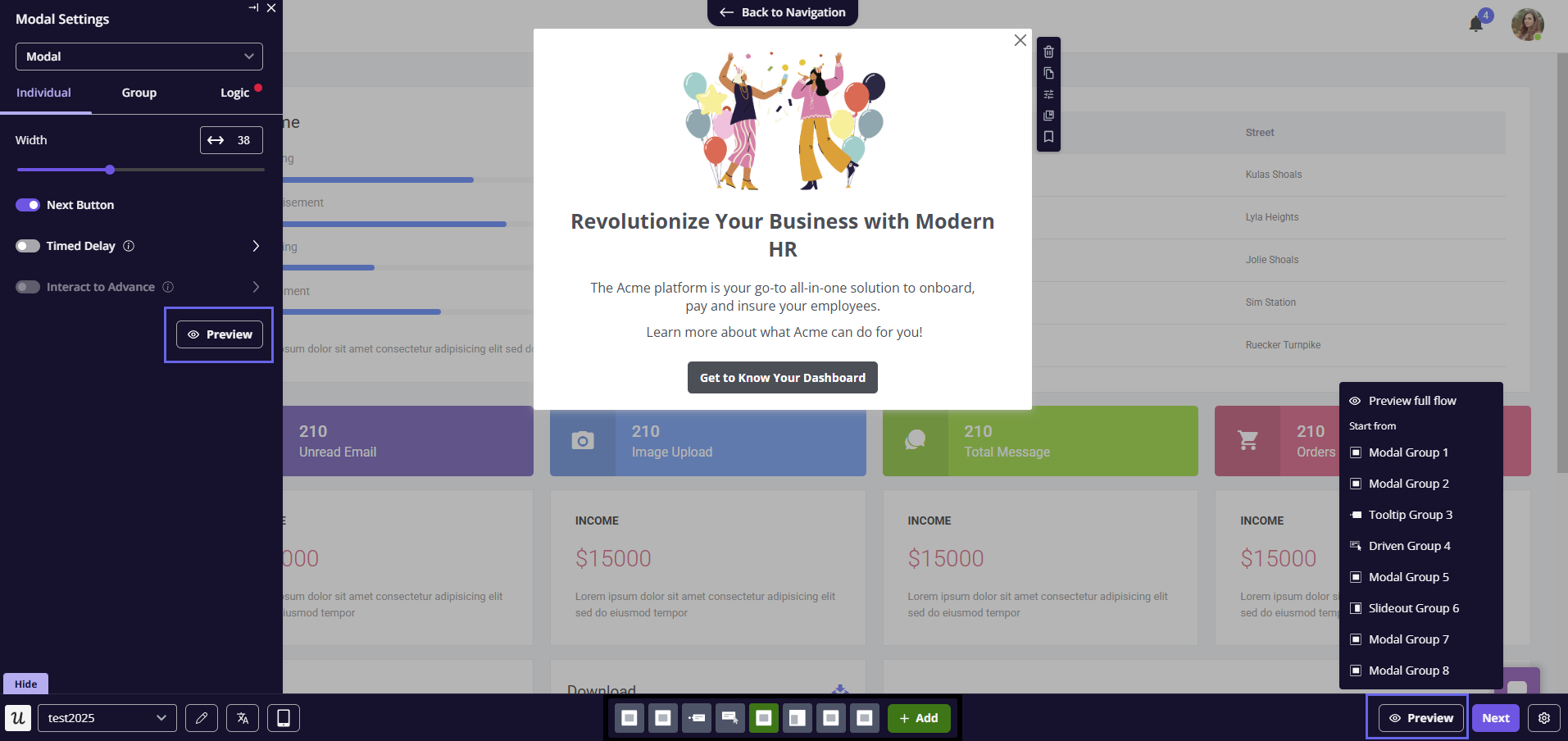 Our builder also supports responsive screens, previewing content on Mobile view can be done by switching the screen to a mobile browser in addition to hiding certain sections to keep things neat, make reading simpler, and remove any extra clutter for smaller screens.
Only the related content can be viewed, triggering other content cannot be tested in preview under the selected one (f.e. setting a certain button to trigger another flow)
### FAQs
This can be done by setting the Device Type under the Audience settings.
Our builder also supports responsive screens, previewing content on Mobile view can be done by switching the screen to a mobile browser in addition to hiding certain sections to keep things neat, make reading simpler, and remove any extra clutter for smaller screens.
Only the related content can be viewed, triggering other content cannot be tested in preview under the selected one (f.e. setting a certain button to trigger another flow)
### FAQs
This can be done by setting the Device Type under the Audience settings.
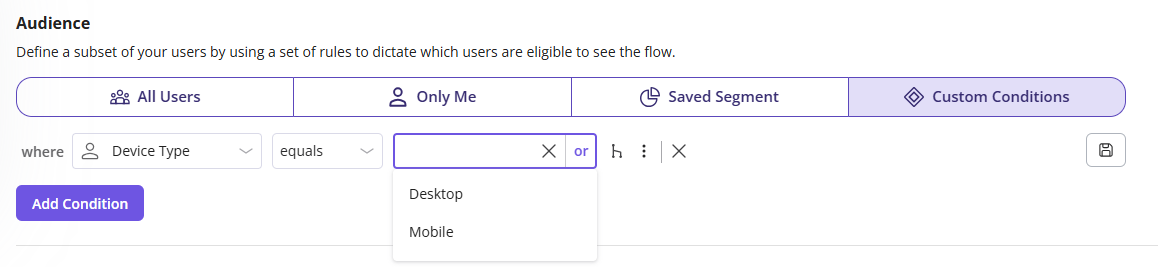 Currently it's only supported for Flows, with the potential of adding it for other content types if needed.
[For any questions or concerns please reach out to **support@userpilot.com**](mailto:support@userpilot.com)
Currently it's only supported for Flows, with the potential of adding it for other content types if needed.
[For any questions or concerns please reach out to **support@userpilot.com**](mailto:support@userpilot.com)