> ## Documentation Index
> Fetch the complete documentation index at: https://docs.userpilot.com/llms.txt
> Use this file to discover all available pages before exploring further.
# Exclude Users and Companies
> Exclude specific users or companies from Userpilot analytics or from seeing in-app messages to keep your reports accurate and ensure insights reflect real end-user behavior.
## Overview
You can exclude users and companies in two different ways, depending on your goal.\
The first option is to exclude them from analytics only, this keeps your reports focused on real end-user behavior, but those users can still see Userpilot in-app messages. Excluded traffic is still recorded in the background and can be re-included in analytics at any time.\
The second option is to exclude users or companies from seeing Userpilot in-app messages, which prevents them from being targeted by in-app experiences such as flows, checklists, or surveys.
## Use cases
* **Excluding internal team members** - If your internal teams (Product, QA, Support, Sales) use your product regularly, excluding them helps prevent their activity from skewing analytics and feedback.
* **Filtering out rest or QA accounts** - During testing, staging, or content validation, test users often generate high volumes of artificial engagement.
* **Cleaning up historical analytics** - If certain users or companies were mistakenly included in the past, excluding them helps restore confidence in reports and long-term trends.
* **Hide experiences from internal/test accounts** - Run targeted experiments, or avoid showing beta content to certain customers.
## Exclude users and companies from Userpilot analytics
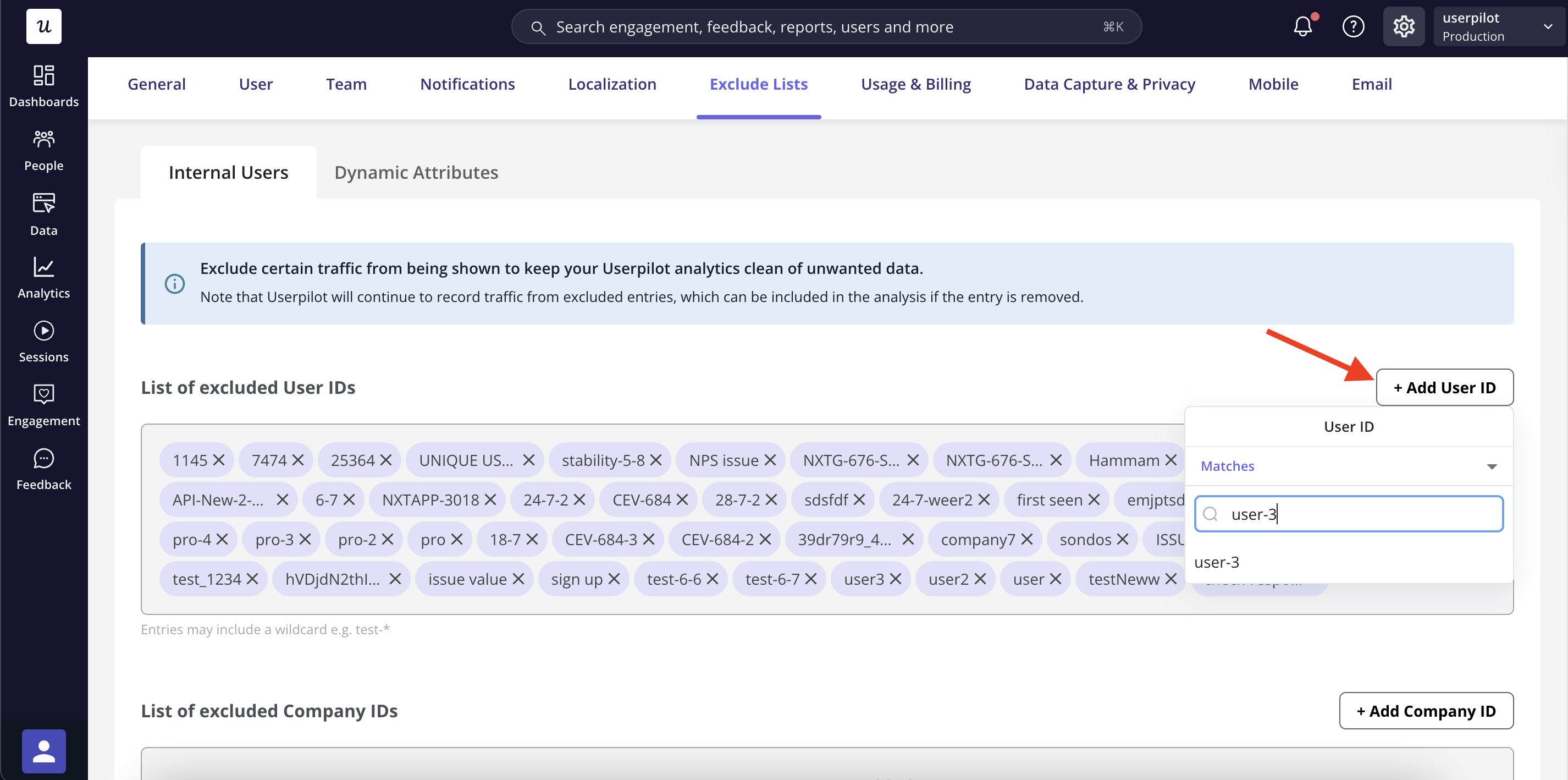
* Go to [****Settings > Exclude Lists → Internal Users****](https://run.userpilot.io/settings/exclude-lists) in your Userpilot dashboard
* Click **+ Add User ID** under List of excluded User IDs
* Enter the **User ID** and select the user ID
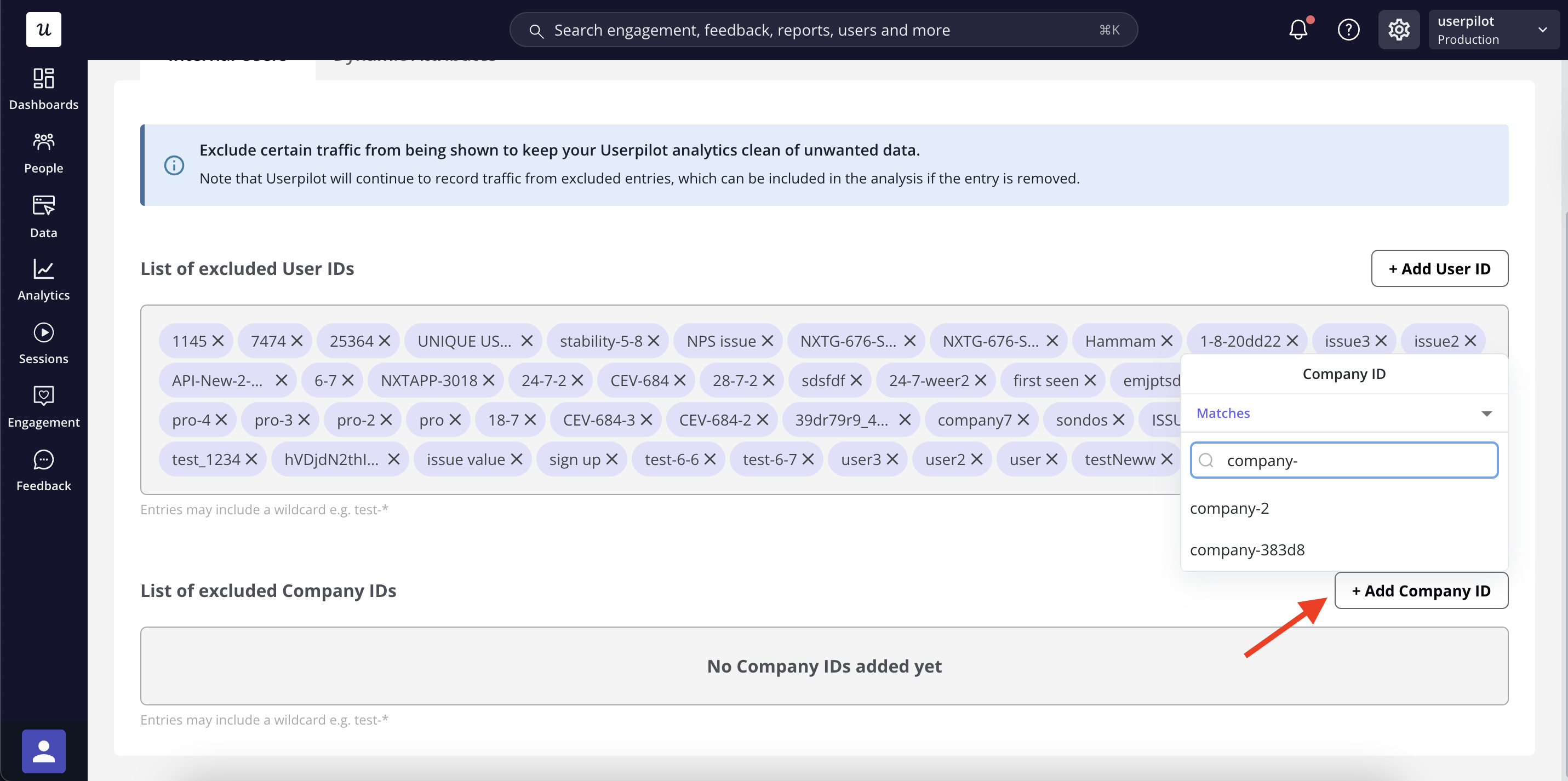
 * To exclude a company, click **+ Add Company ID**, enter the **Company ID**, and select the company ID
 Excluding users or companies **does not affect live experiences**. Excluded users will still:
* See in-app messages in **live mode**
* Trigger engagement events
* Generate notifications related to in-app message interactions
This behavior is intentional today, and we’re considering enhancements in the future to provide more control over live delivery and notifications for excluded users.
## Exclude users and companies from seeing Userpilot in-app messages
* Go to [**Settings > Exclude Lists → Internal Users**](https://run.userpilot.io/settings/exclude-lists) in your Userpilot dashboard
* Under Excluded user IDs from Userpilot content, click **+ Add User ID**
* Enter the **User ID** and select the user ID
Excluding users or companies **does not affect live experiences**. Excluded users will still:
* See in-app messages in **live mode**
* Trigger engagement events
* Generate notifications related to in-app message interactions
This behavior is intentional today, and we’re considering enhancements in the future to provide more control over live delivery and notifications for excluded users.
## Exclude users and companies from seeing Userpilot in-app messages
* Go to [**Settings > Exclude Lists → Internal Users**](https://run.userpilot.io/settings/exclude-lists) in your Userpilot dashboard
* Under Excluded user IDs from Userpilot content, click **+ Add User ID**
* Enter the **User ID** and select the user ID
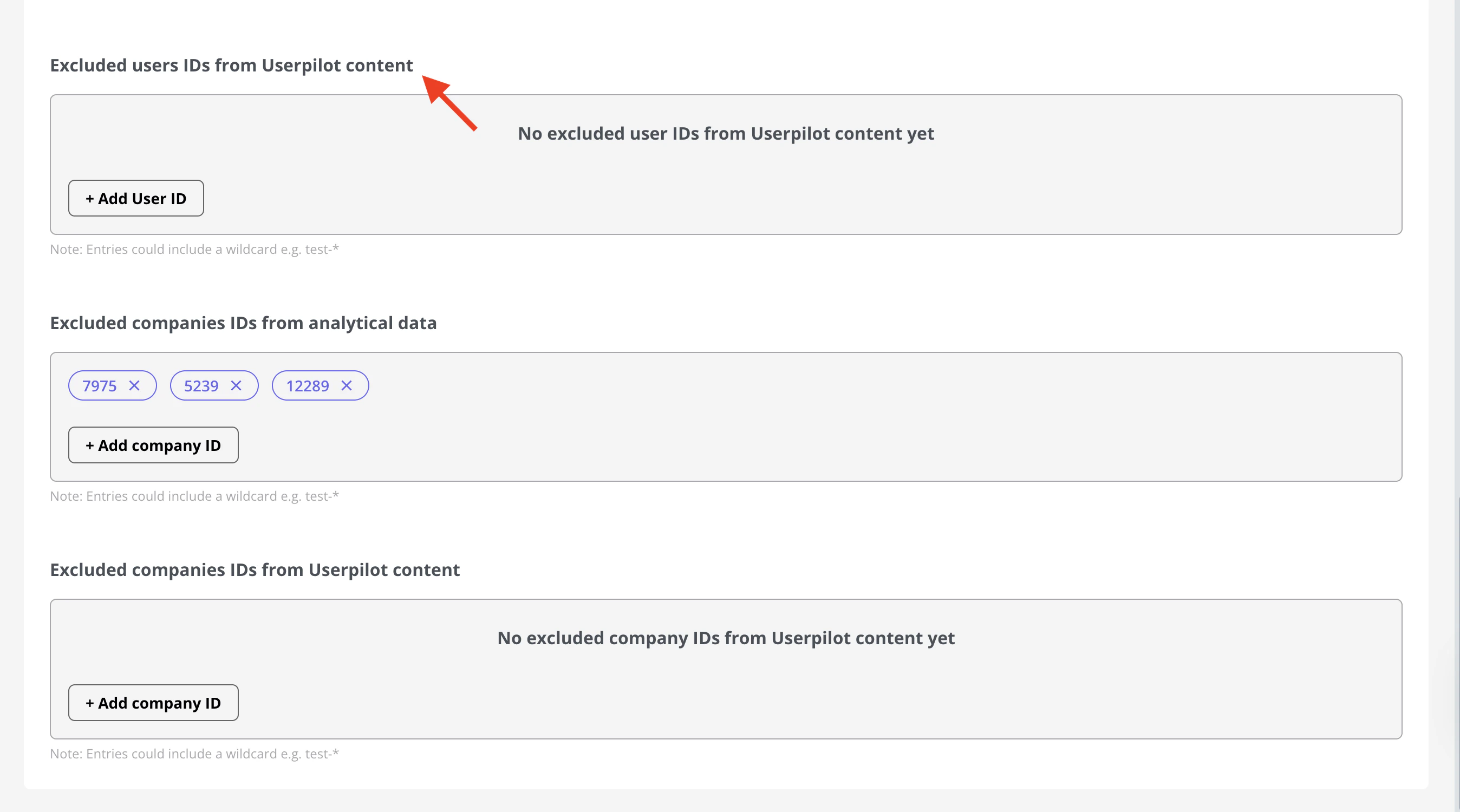 * To exclude a company, go to Excluded company IDs from Userpilot content, click **+ Add Company ID**, enter the Company ID, then select it from the list
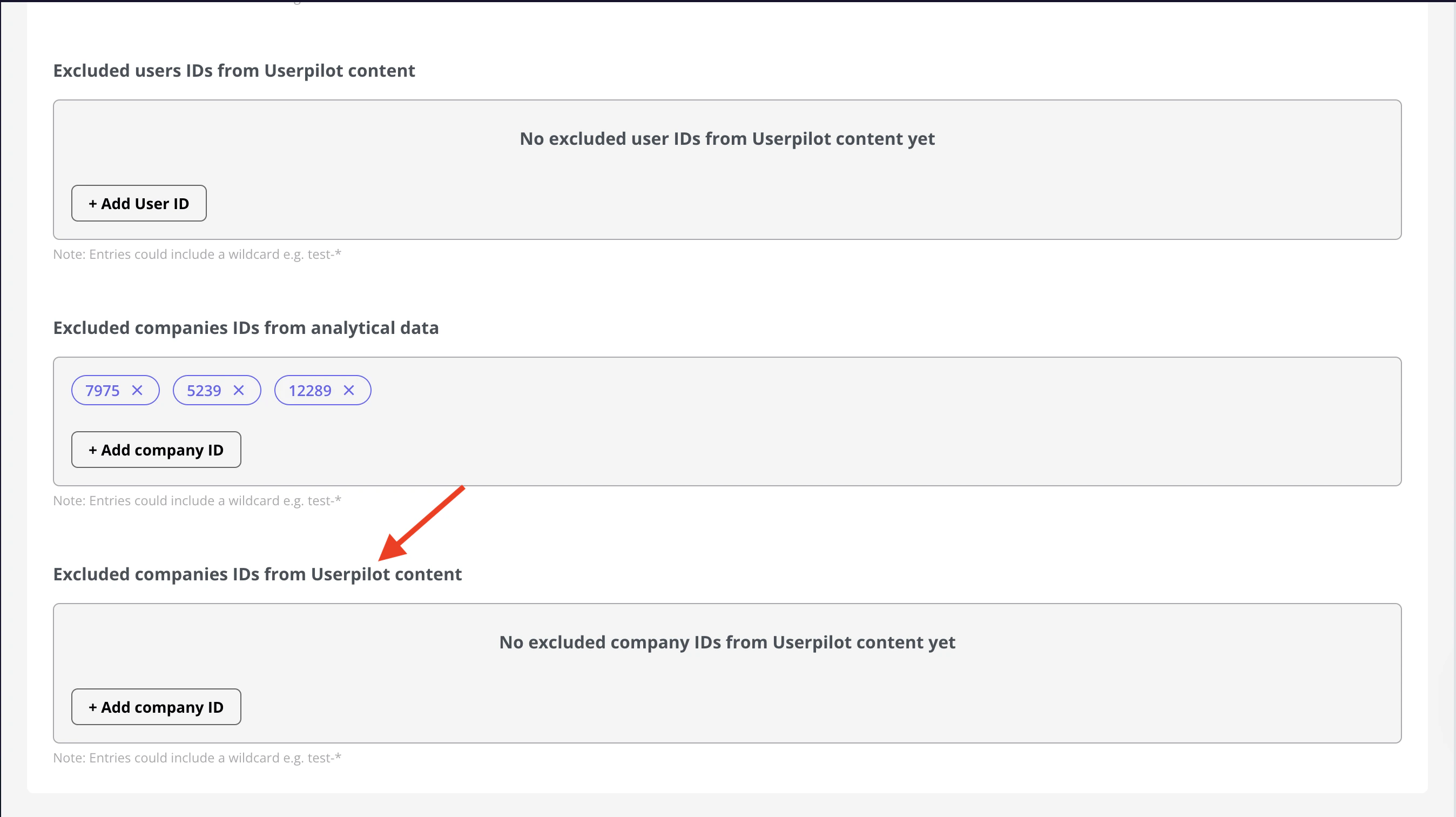 * Changes are applied **automatically**; no additional save action is required.
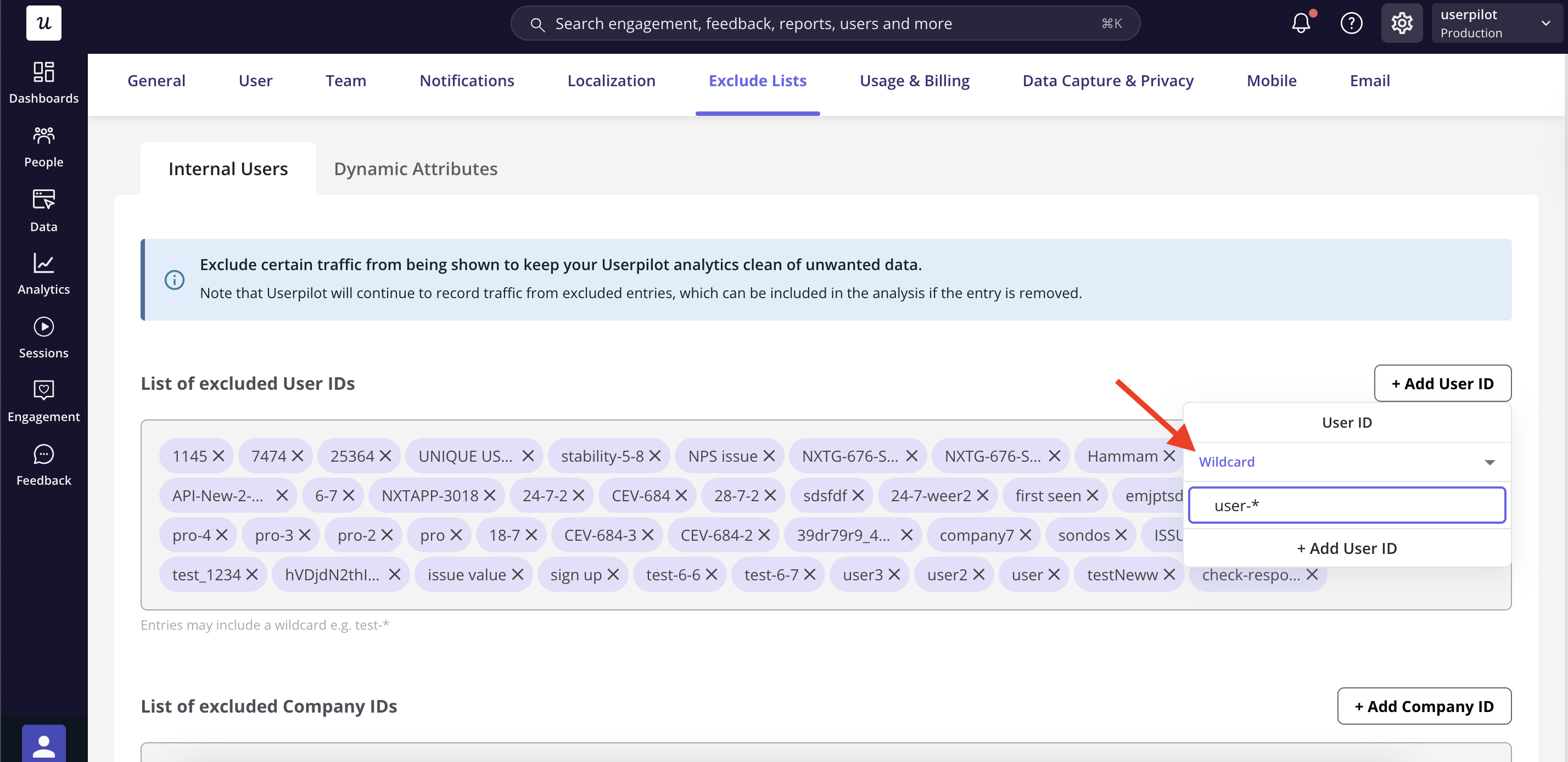
You can also exclude **multiple User or company IDs in bulk** by selecting the **Wildcard** option. Enter the User or company ID, replace the dynamic part with an **asterisk (\*)**, and then click **+ Add User/company ID**.
* Changes are applied **automatically**; no additional save action is required.
You can also exclude **multiple User or company IDs in bulk** by selecting the **Wildcard** option. Enter the User or company ID, replace the dynamic part with an **asterisk (\*)**, and then click **+ Add User/company ID**.