> ## Documentation Index
> Fetch the complete documentation index at: https://docs.userpilot.com/llms.txt
> Use this file to discover all available pages before exploring further.
# Signal notifications
> Use Signal notifications in Userpilot to alert your team about key in-app events in real time or on a schedule via in-app, email, or Slack.
## Overview
Signals in Userpilot allow you and your teammates to stay informed about key in-app activities through automated notifications.\
You can configure personalized signals to alert your team when important events occur, such as when a flow is completed, a survey is submitted, or an NPS response is received, without needing to constantly monitor dashboards.
Signals can be delivered **in real-time** or on a **scheduled basis (hourly, daily, weekly)** through multiple channels:
* **In-app (Inbox)** - visible directly within Userpilot.
* **Email** - sent to selected recipients or teams.
* **Slack** - posted to designated Slack channels for instant visibility.
This flexibility ensures your team never misses critical product or user insights.
## Use cases
1. Get notified when a flow or a checklist is completed to measure adoption.
2. Stay informed the moment a user submits an NPS score and feedback.
3. Track page views or campaign engagement in real-time.
4. Monitor survey submissions or forms to identify customers who need follow-up.
## What Userpilot offers in signals
Userpilot’s **Signals** feature is built for control, flexibility, and collaboration:
1. **Multi-channel delivery**: send alerts via **in-app**, **email**, or **Slack channel(s)**.
2. **Event-based triggers**: choose from **flows**, **checklists**, **surveys**, **forms**, **NPS**, **pages**, **or** **events** to trigger notifications.
3. **Custom frequency**: send alerts in **real-time** or as summaries **hourly**, **daily**, or **weekly**.
4. **Team visibility**: share notifications across team members to align actions across functions.
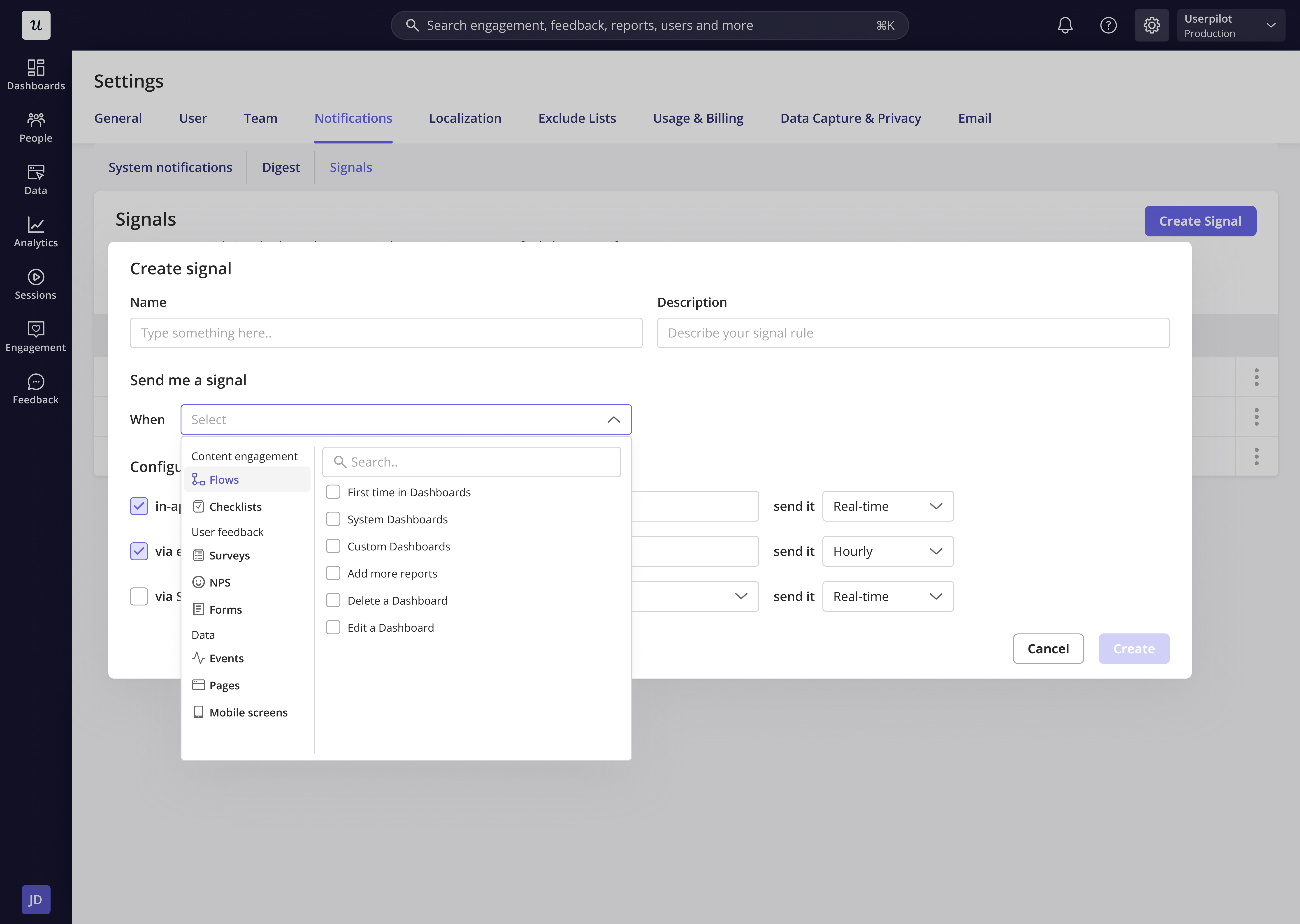 ## How to create a signal
1. Go to **Settings → Notifications → Signals**
2. Click **Create Signal**
3. Select the type of event that should trigger your signal.\
You can choose from:
1. **Flows** - when a user starts, completes, or skips a flow
2. **Checklists** - when a checklist is completed
3. **Surveys or NPS** - when a user submits a response
4. **Pages or Events** - when a user performs a specific action
4. Select the **Channel** where you want your signal to be sent:
1. **Slack** - sends an alert to your selected Slack channel
2. **Email** - sends an email notification to specific recipients
3. **In-App (Inbox)** - delivers the signal directly inside Userpilot
5. Select the users or team members who should receive the notification. You can choose individuals, teams, or connected Slack channels.
6. Set the **Frequency** by choosing how often you’d like the signal to be sent:
1. **Real-time** (as soon as the event happens)
2. **Hourly**, **Daily**, or **Weekly** summaries
7. Click **Save** to finalize your setup. Your new signal will appear in the list; you can toggle it **on/off** anytime.
## How to create a signal
1. Go to **Settings → Notifications → Signals**
2. Click **Create Signal**
3. Select the type of event that should trigger your signal.\
You can choose from:
1. **Flows** - when a user starts, completes, or skips a flow
2. **Checklists** - when a checklist is completed
3. **Surveys or NPS** - when a user submits a response
4. **Pages or Events** - when a user performs a specific action
4. Select the **Channel** where you want your signal to be sent:
1. **Slack** - sends an alert to your selected Slack channel
2. **Email** - sends an email notification to specific recipients
3. **In-App (Inbox)** - delivers the signal directly inside Userpilot
5. Select the users or team members who should receive the notification. You can choose individuals, teams, or connected Slack channels.
6. Set the **Frequency** by choosing how often you’d like the signal to be sent:
1. **Real-time** (as soon as the event happens)
2. **Hourly**, **Daily**, or **Weekly** summaries
7. Click **Save** to finalize your setup. Your new signal will appear in the list; you can toggle it **on/off** anytime.
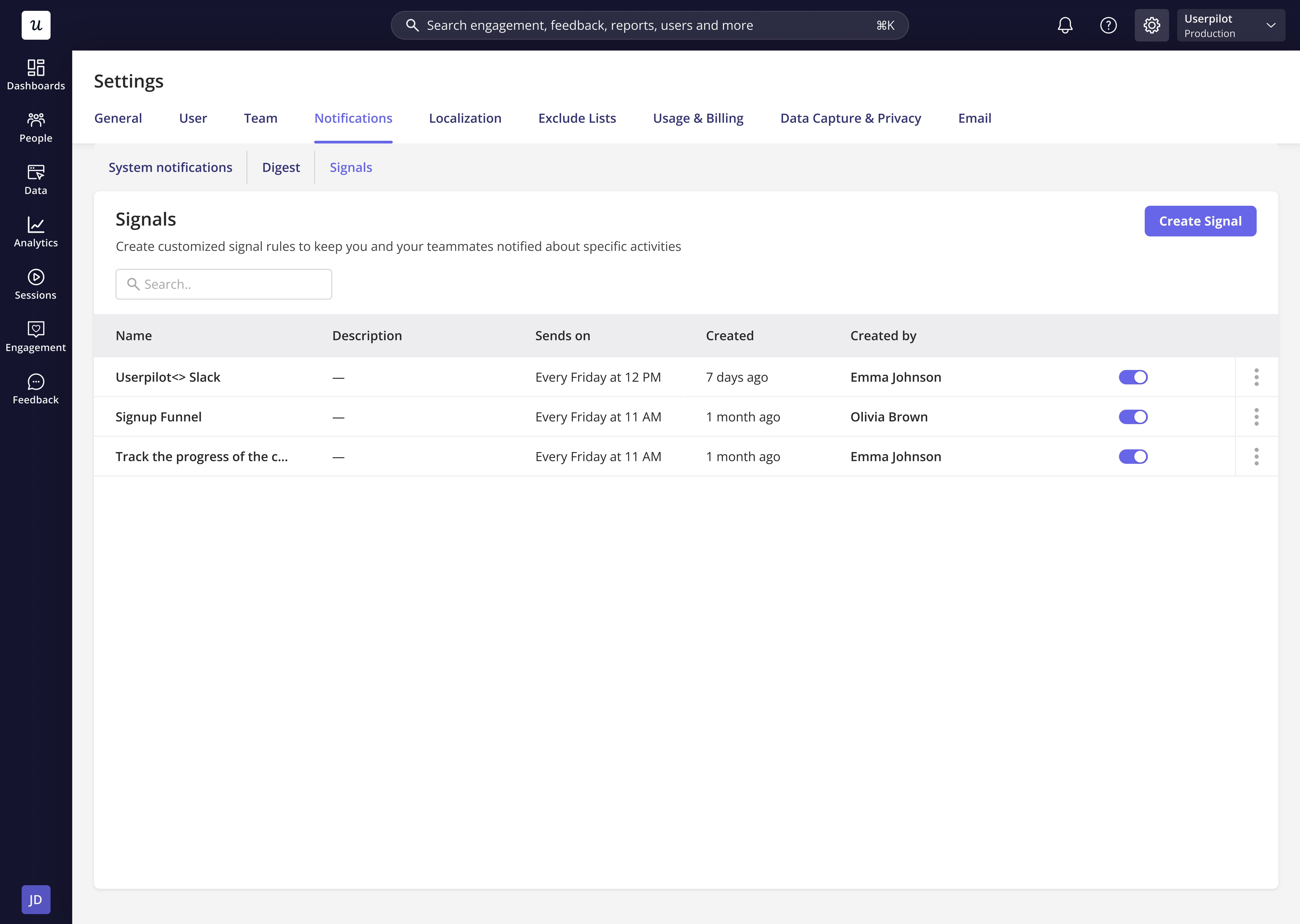 You can create one signal per event type. For example, you can’t use a single signal to receive notifications from both **Flows** and **Events**. If you’d like to track multiple event types, simply create a separate signal for each one.
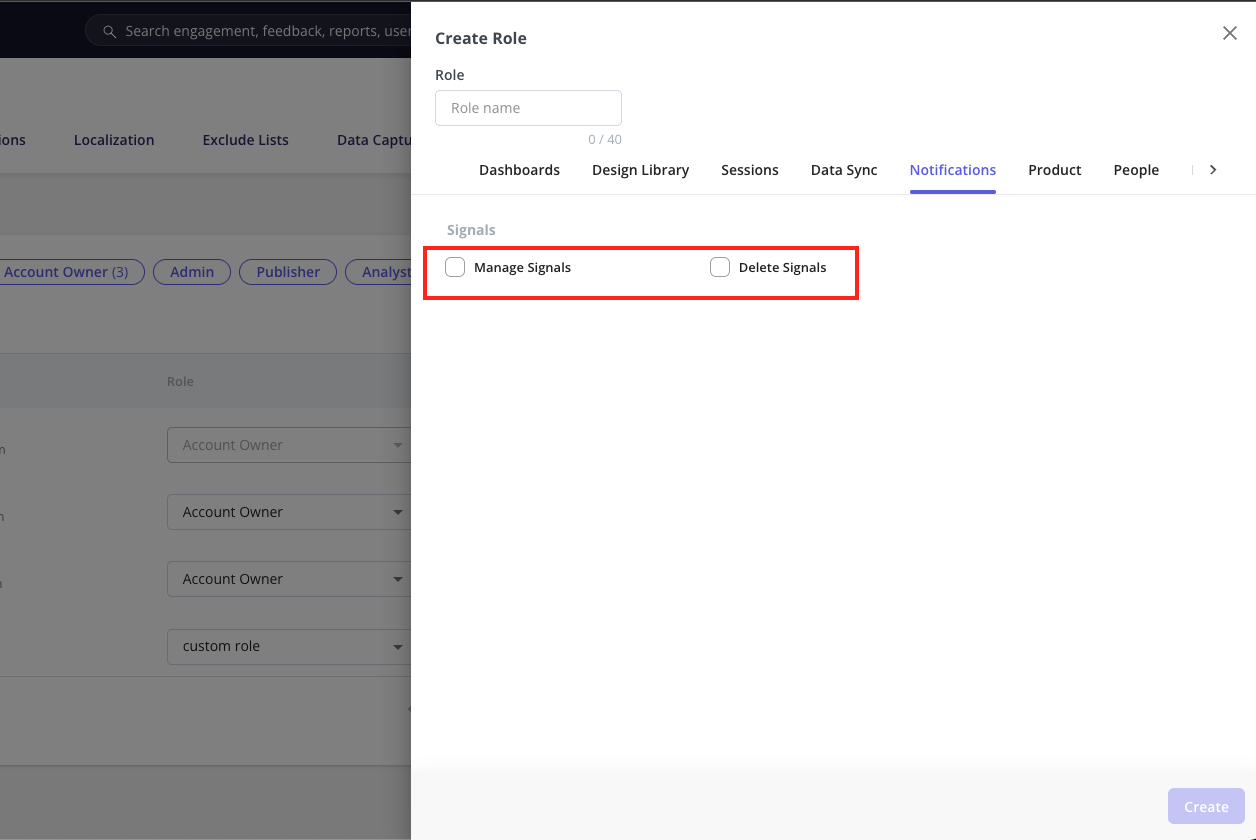
## Permissions and access control
Workspace account owners can manage who can **create** or **delete** signals through the **Permissions** settings.\
This ensures that only authorized users can modify or manage signals, keeping your workspace notifications organized and consistent.
You can create one signal per event type. For example, you can’t use a single signal to receive notifications from both **Flows** and **Events**. If you’d like to track multiple event types, simply create a separate signal for each one.
## Permissions and access control
Workspace account owners can manage who can **create** or **delete** signals through the **Permissions** settings.\
This ensures that only authorized users can modify or manage signals, keeping your workspace notifications organized and consistent.
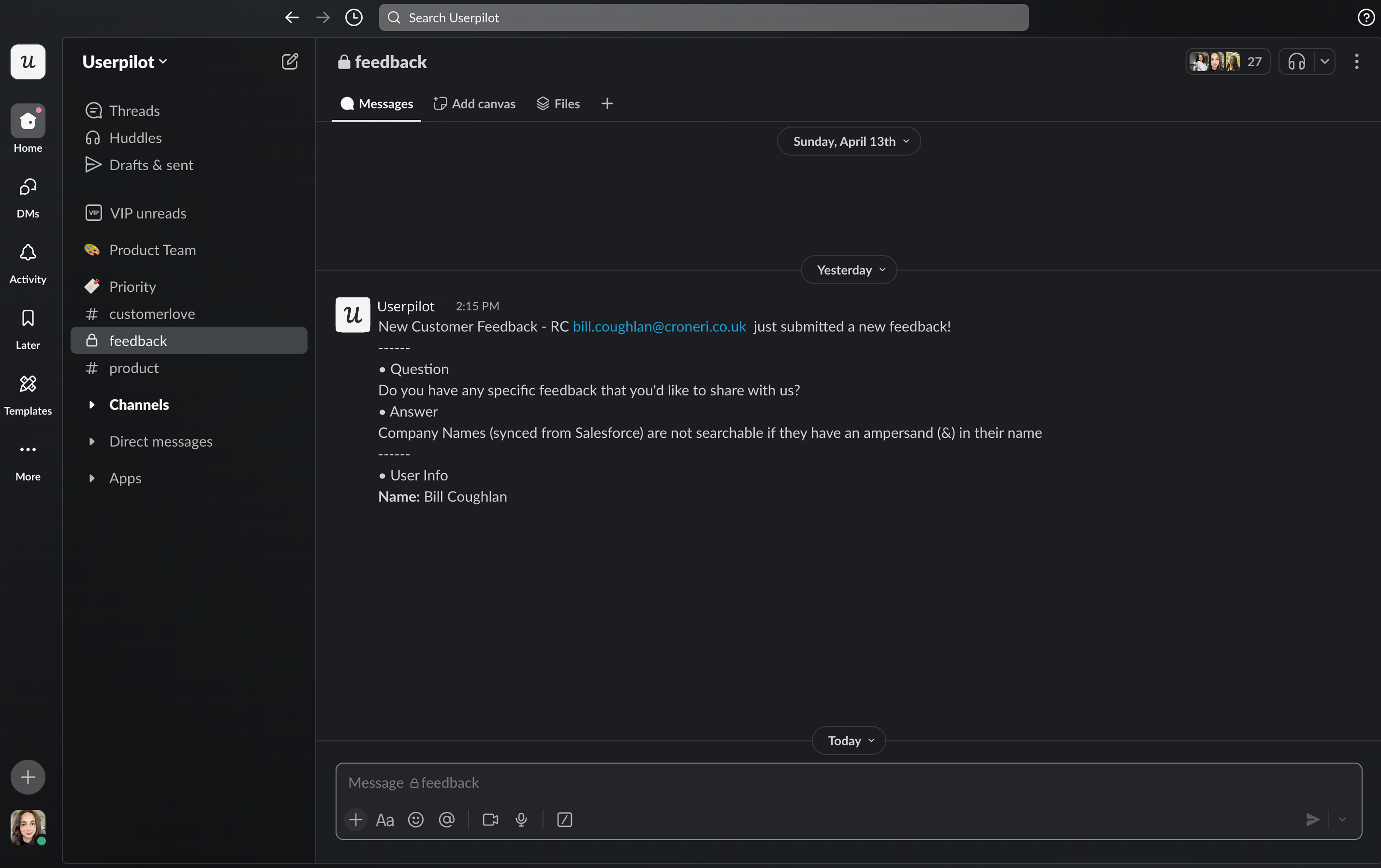
 ## Notification examples
1. Slack notification
## Notification examples
1. Slack notification
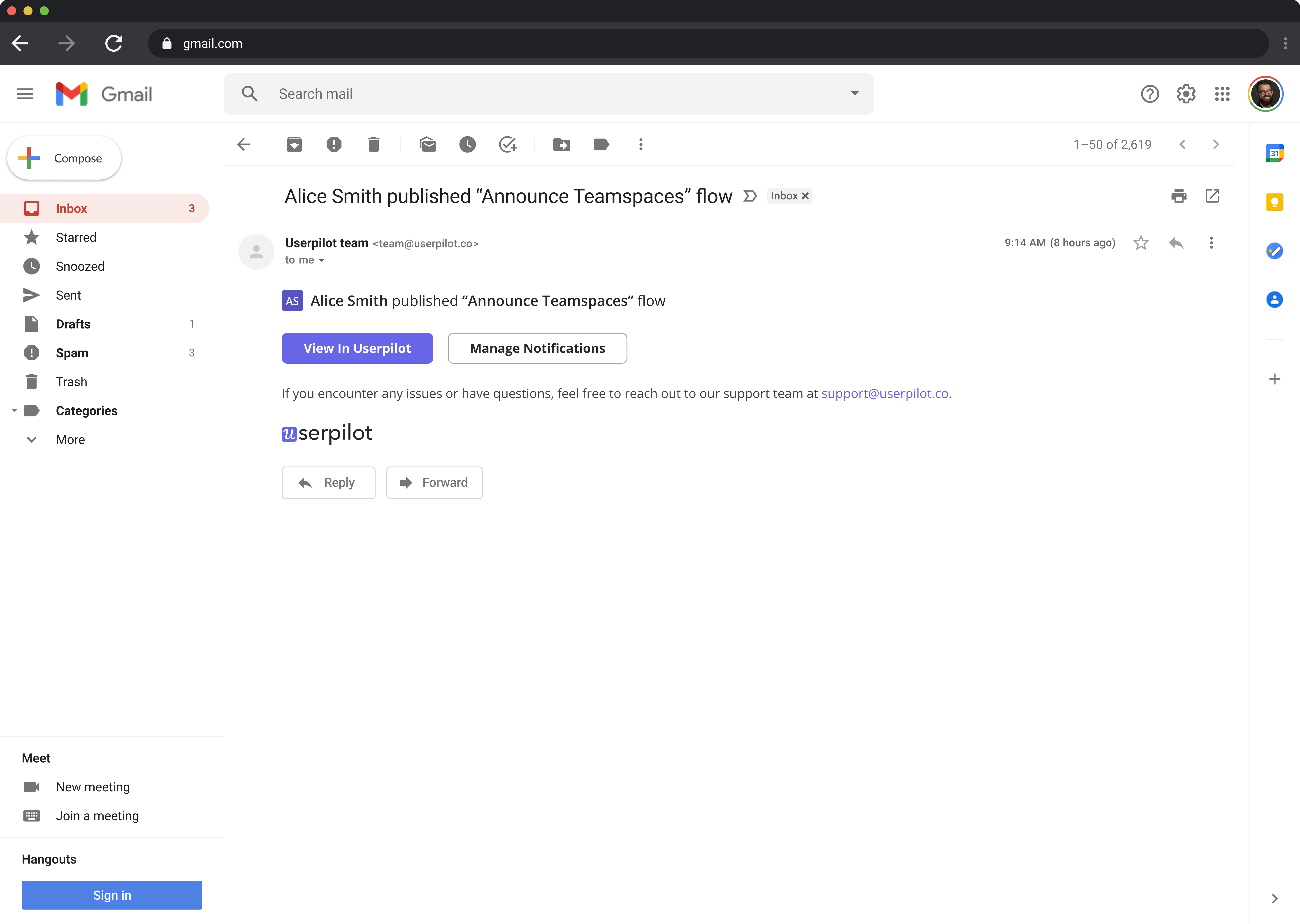
 2. Email notification
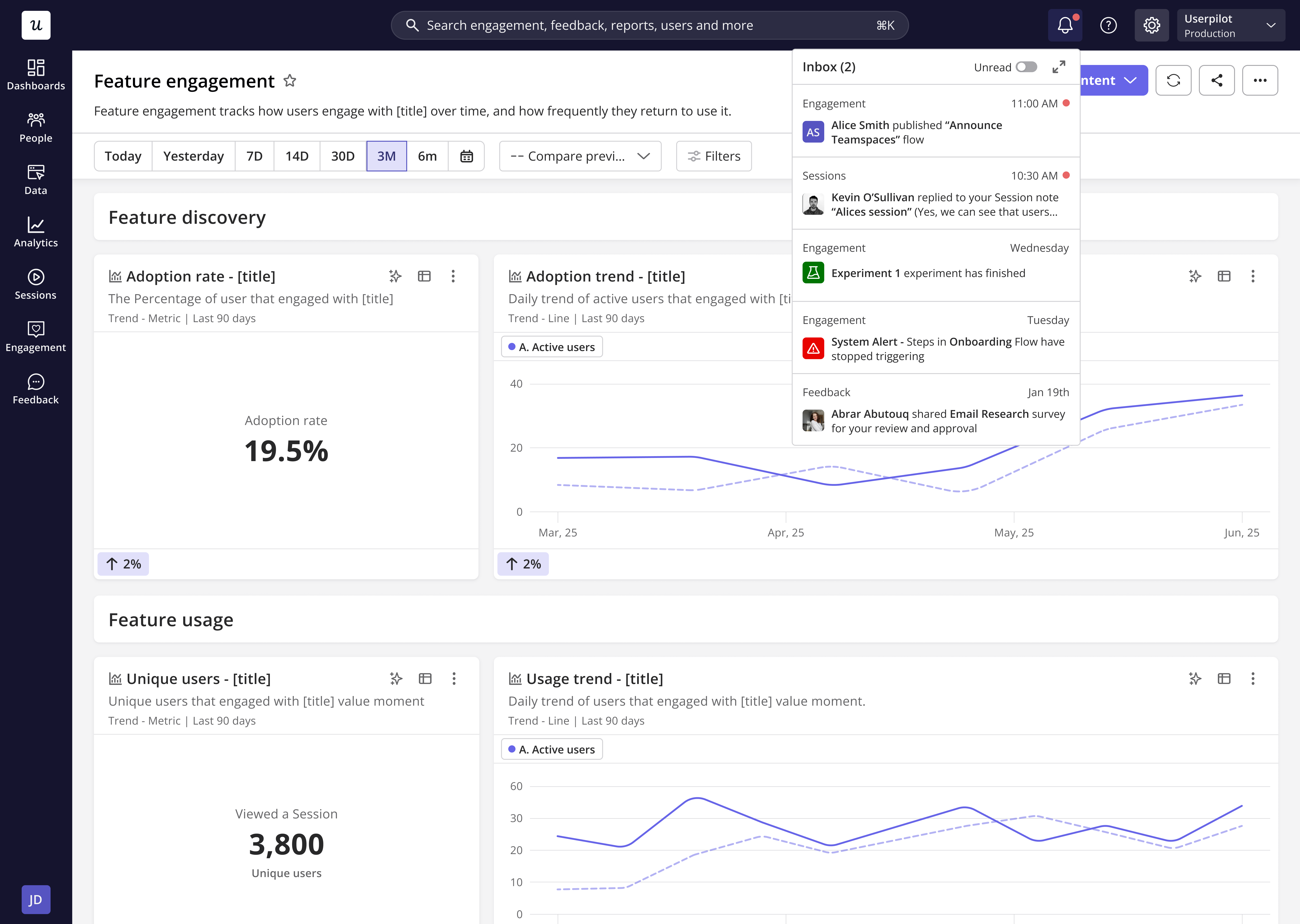
 3. In-app (inbox)
 If you prefer to receive signal notifications **hourly, daily, or weekly**, Userpilot will automatically **aggregate your notifications** and deliver them in a single bulk update based on your selected frequency.
