> ## Documentation Index
> Fetch the complete documentation index at: https://docs.userpilot.com/llms.txt
> Use this file to discover all available pages before exploring further.
# System notifications
> Use System Notifications in Userpilot to stay informed about data health, content updates, and engagement events via in-app, email, or Slack alerts.
## Overview
System Notifications in Userpilot keep you informed about key activities, data issues, and content updates within your workspace.\
They’re designed to help you **stay in control** of your app’s health, from monitoring data flow to tracking content status, so you can act before small issues become big ones.
System Notifications are **user-level**, which means only the logged-in user will receive them through their preferred channel:
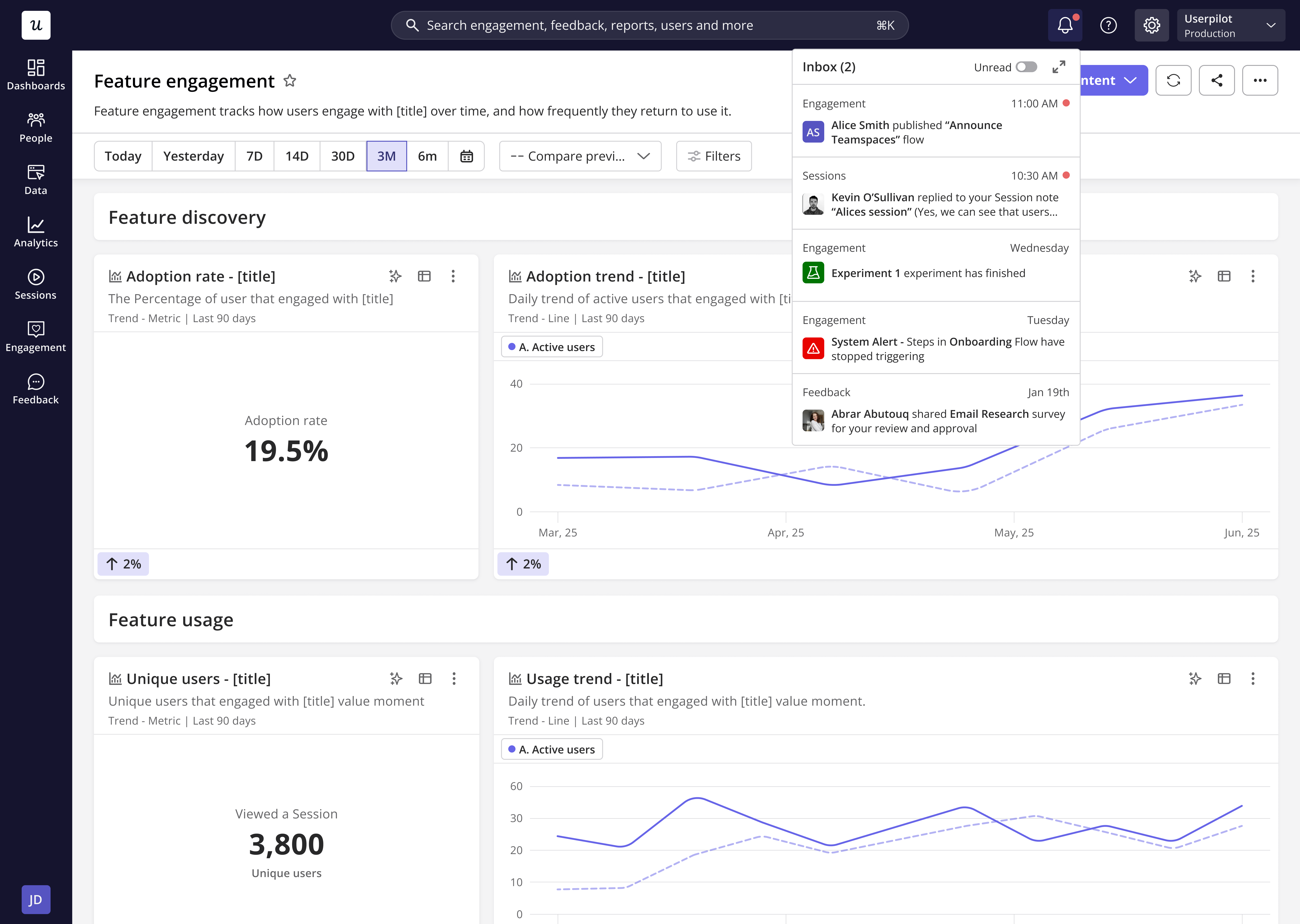
* **In-app (Inbox)** - notifications appear directly inside your Userpilot workspace.
* **Email** - updates are sent to your registered email address.
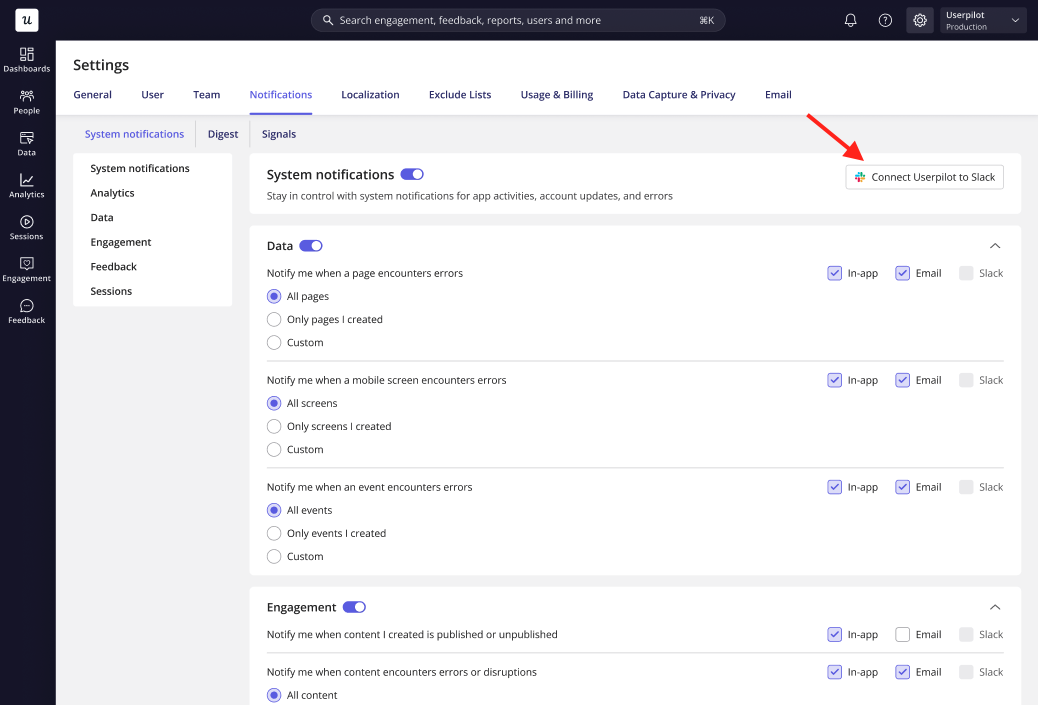
* **Slack** - alerts can be sent to your connected Slack account (once integration is enabled).
## Use cases
1. **Monitor data flow health:** Get notified when a page, mobile screen, or event hasn’t received data for over 21 days.
2. **Get alerted on flow issues:** Get notified when a tooltip or driven action doesn’t appear as expected.
3. **Stay updated on engagement:** Receive alerts when an experiment ends or content you created is published/unpublished.
4. **Track feedback responses:** Be informed when a new survey, NPS, or form response is submitted.
5. **Reduce noise:** Choose exactly what you want to be notified about, all content, only your content, or custom selections.
### How to set up system notifications
1. Go to **Settings → Notifications → System Notifications.**
2. Toggle on the sections you want to receive alerts for (**Data**, **Engagement**, **Feedback**).
3. Choose the content scope:
* **All content**
* **Only content I created**
* **Custom**
4. Select how you want to receive alerts: **In-app**, **Email**, or **Slack**.
5. For Slack, ensure you’ve completed the **Slack integration** under **Settings → Integrations** (this is a one-time setup).
 ## Notification types
Within the **System Notifications** tab, notifications are grouped into three main categories:
#### **1. Data**
Stay informed when data stops flowing to your workspace.
* Page hasn’t received data for 21 days
* The mobile screen hasn’t received data for 21 days
* The event hasn’t received data for 21 days\
You can set these alerts for *all content*, *only the ones you created*, or *custom selections*.
#### **2. Engagement**
Get notified when content is published, unpublished, or encounters an error.
* When your content (flows, checklists, Resource center, mobile content, banners, spotlights ) is published/unpublished.
* When an experiment ends.
* When content encounters errors or disruptions, Userpilot will notify you when content breaks, for example, if a specific step stops displaying in a flow.
#### **3. Feedback**
Keep track of all incoming user feedback.
* When a survey or NPS response is received.
* When a form submission is made.
* When feedback-related content you created is published or unpublished.
## Notification types
Within the **System Notifications** tab, notifications are grouped into three main categories:
#### **1. Data**
Stay informed when data stops flowing to your workspace.
* Page hasn’t received data for 21 days
* The mobile screen hasn’t received data for 21 days
* The event hasn’t received data for 21 days\
You can set these alerts for *all content*, *only the ones you created*, or *custom selections*.
#### **2. Engagement**
Get notified when content is published, unpublished, or encounters an error.
* When your content (flows, checklists, Resource center, mobile content, banners, spotlights ) is published/unpublished.
* When an experiment ends.
* When content encounters errors or disruptions, Userpilot will notify you when content breaks, for example, if a specific step stops displaying in a flow.
#### **3. Feedback**
Keep track of all incoming user feedback.
* When a survey or NPS response is received.
* When a form submission is made.
* When feedback-related content you created is published or unpublished.
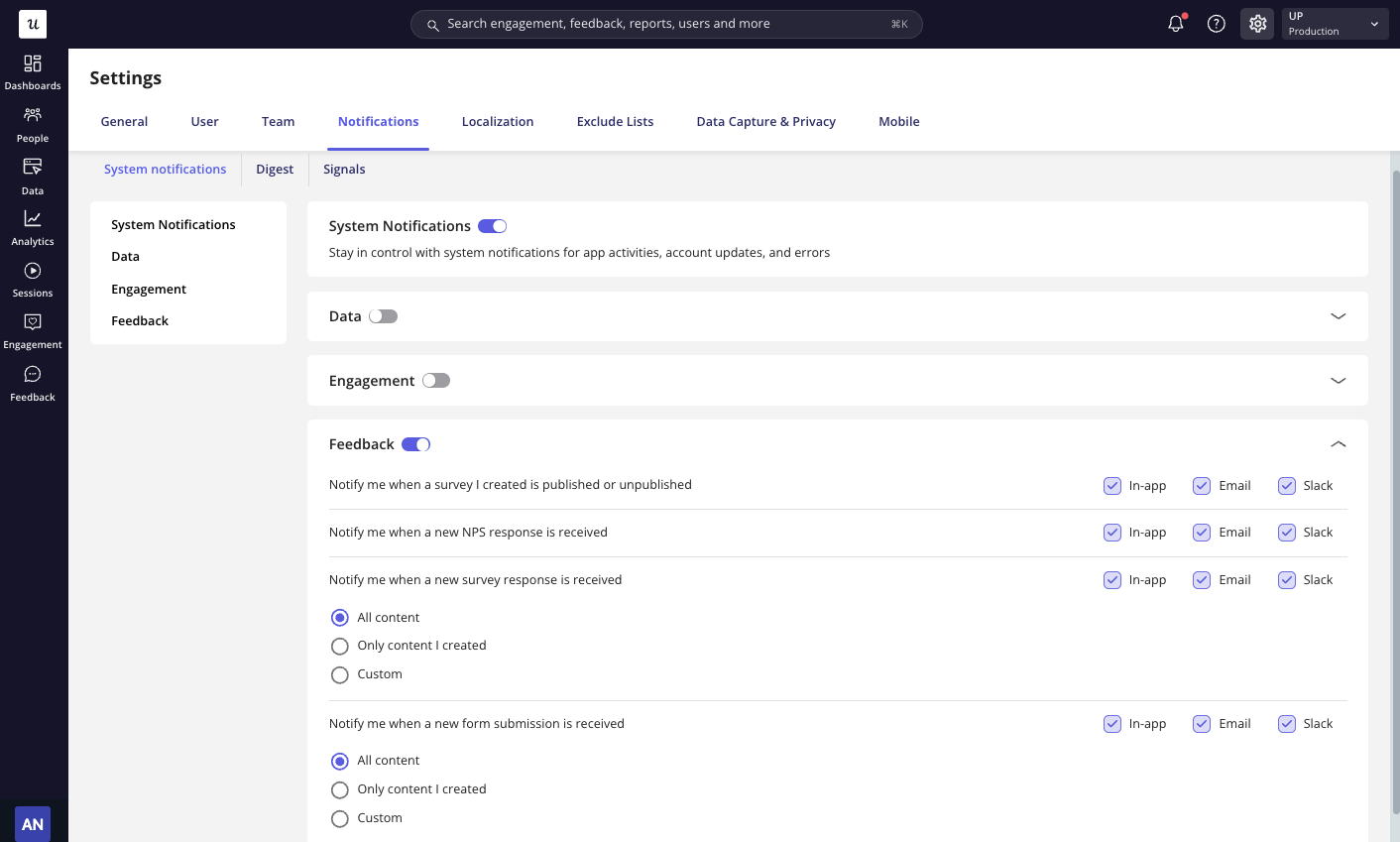 You can stop receiving all notifications by turning off a category.\
Or, if you prefer to receive specific types of notifications on certain channels, customize your preferences by selecting the checkboxes for the channels you want: **In-app**, **Email**, or **Slack**.
## Notification schedule
| **Channel** | **Time** |
| :---------- | :----------------------------------------------------------------------------------------------------------------------------------------------------------------------------- |
| Slack | Real-time notifications for all notification types |
| In-app | Real-time notifications for all notification types |
| Email | 1. Aggregate responses from surveys, NPS, and form submissions, and send them in a batch every 3 hours
You can stop receiving all notifications by turning off a category.\
Or, if you prefer to receive specific types of notifications on certain channels, customize your preferences by selecting the checkboxes for the channels you want: **In-app**, **Email**, or **Slack**.
## Notification schedule
| **Channel** | **Time** |
| :---------- | :----------------------------------------------------------------------------------------------------------------------------------------------------------------------------- |
| Slack | Real-time notifications for all notification types |
| In-app | Real-time notifications for all notification types |
| Email | 1. Aggregate responses from surveys, NPS, and form submissions, and send them in a batch every 3 hours
2. Aggregate all errors and send a summary at the end of each day |
## System notification permission
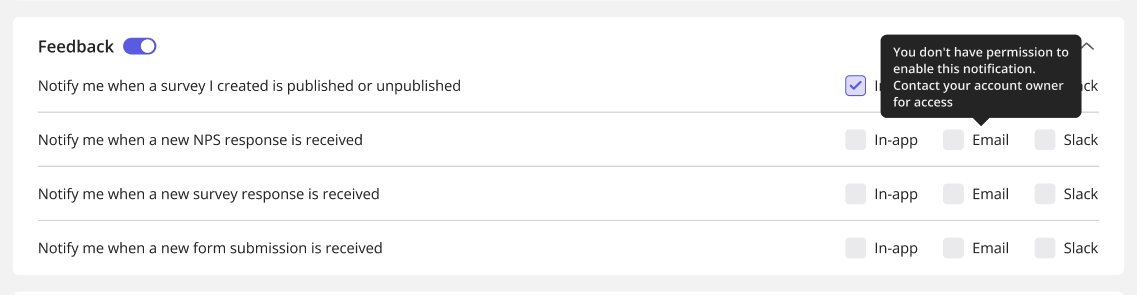
If a team member doesn’t have permission to receive Survey or NPS notifications, Userpilot will prevent them from enabling these notification types and display a message prompting them to contact their account owner to request access.
 ## Notification examples
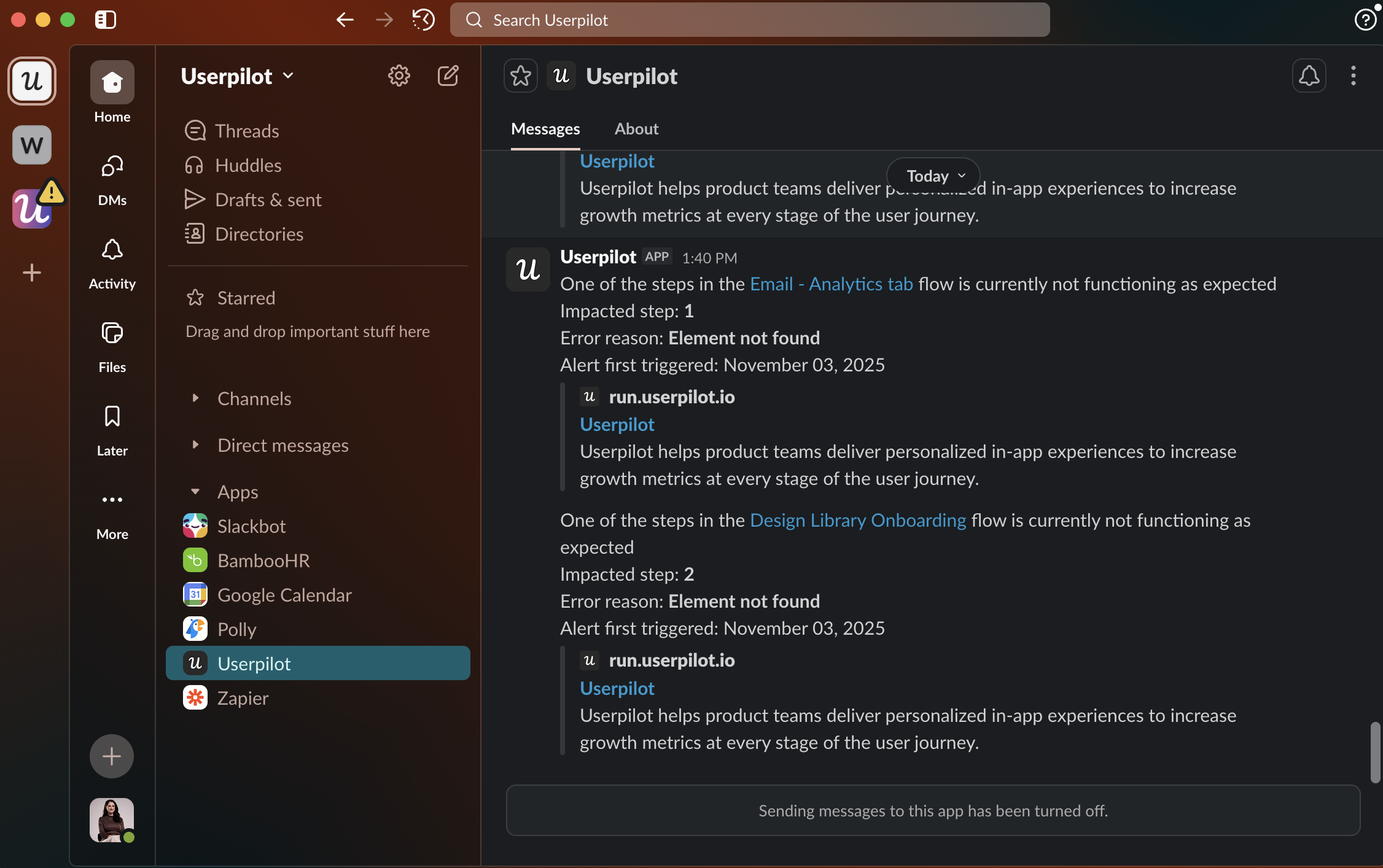
1. Slack notification
## Notification examples
1. Slack notification
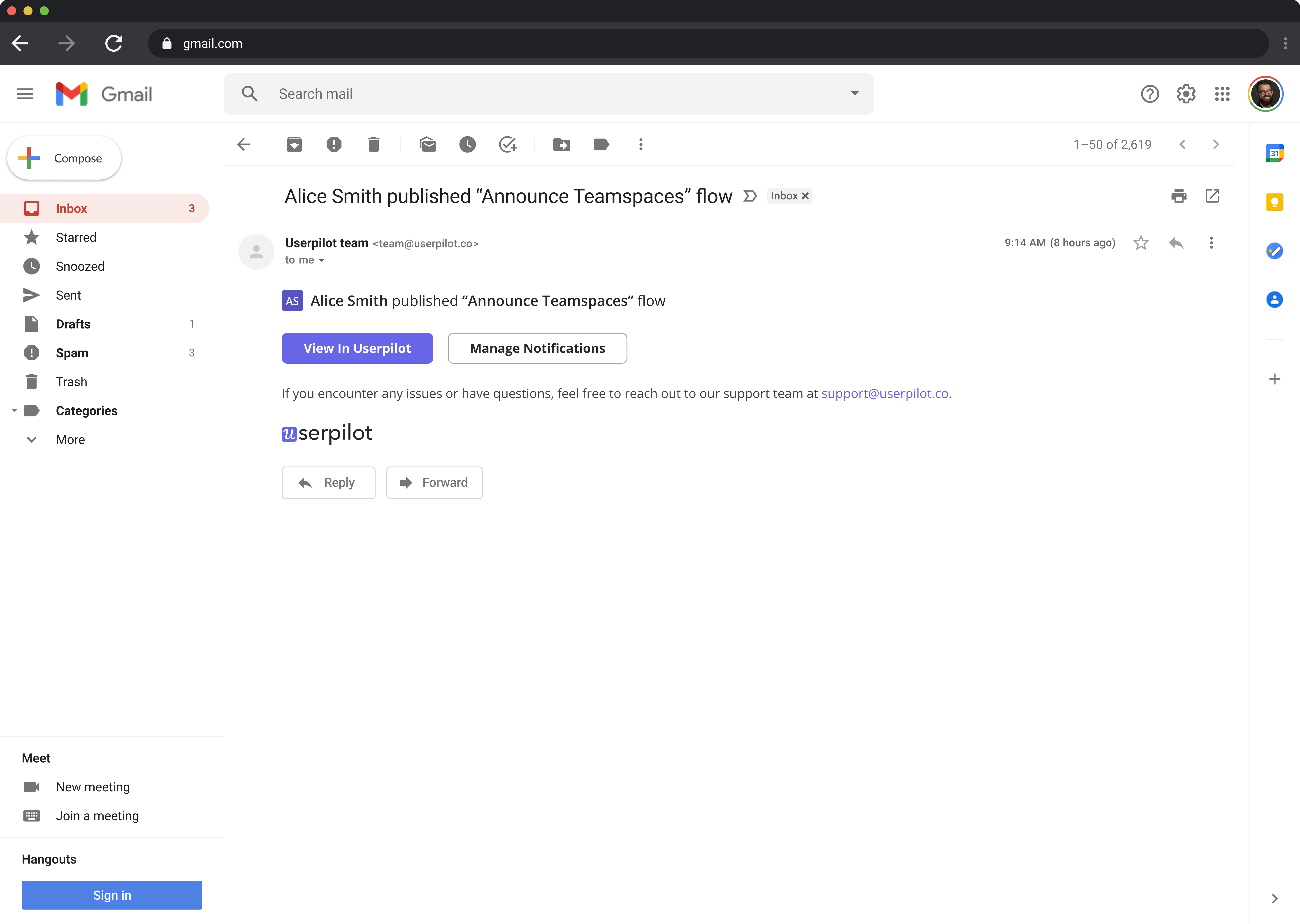
 2. Email notification
 3. In-app (inbox)