> ## Documentation Index
> Fetch the complete documentation index at: https://docs.userpilot.com/llms.txt
> Use this file to discover all available pages before exploring further.
# Bulk Teammate Import (CSV)
> Invite many teammates to Userpilot at once by uploading a CSV with a role per application.
### Overview
The CSV import lets you invite many teammates to your Userpilot applications from a single file, instead of inviting people one at a time. You upload a CSV, review a validation preview, and confirm. Userpilot then invites each teammate with the role you specified.
This is one of three ways to add teammates, alongside manual invites and automated provisioning through [SCIM](/configure/team-and-roles/scim) and [JIT](/configure/team-and-roles/jit). Unlike SCIM and JIT, importing is an invite action and is available on every plan.
You can run the import from two places:
* **Settings > Team** imports teammates into the application you are currently viewing.
* **Admin Console > Team** imports across your whole organization, with each row naming its target application.
### Requirements
* Permission to invite teammates, the same permission used for single invites.
* To assign a given role, you must hold a role with at least that level of access in the target application.
CSV import is disabled whenever SCIM directory sync is active - in every role-management mode, not only when the IdP owns roles (see [SCIM role management](/configure/team-and-roles/scim#choosing-who-owns-roles)) - and while a sync is in progress. Once SCIM is on, teammate membership comes from your IdP.
## Importing teammates
On **Settings > Team** (or the Admin Console's **Team** page), click **Import** to open the importer drawer.
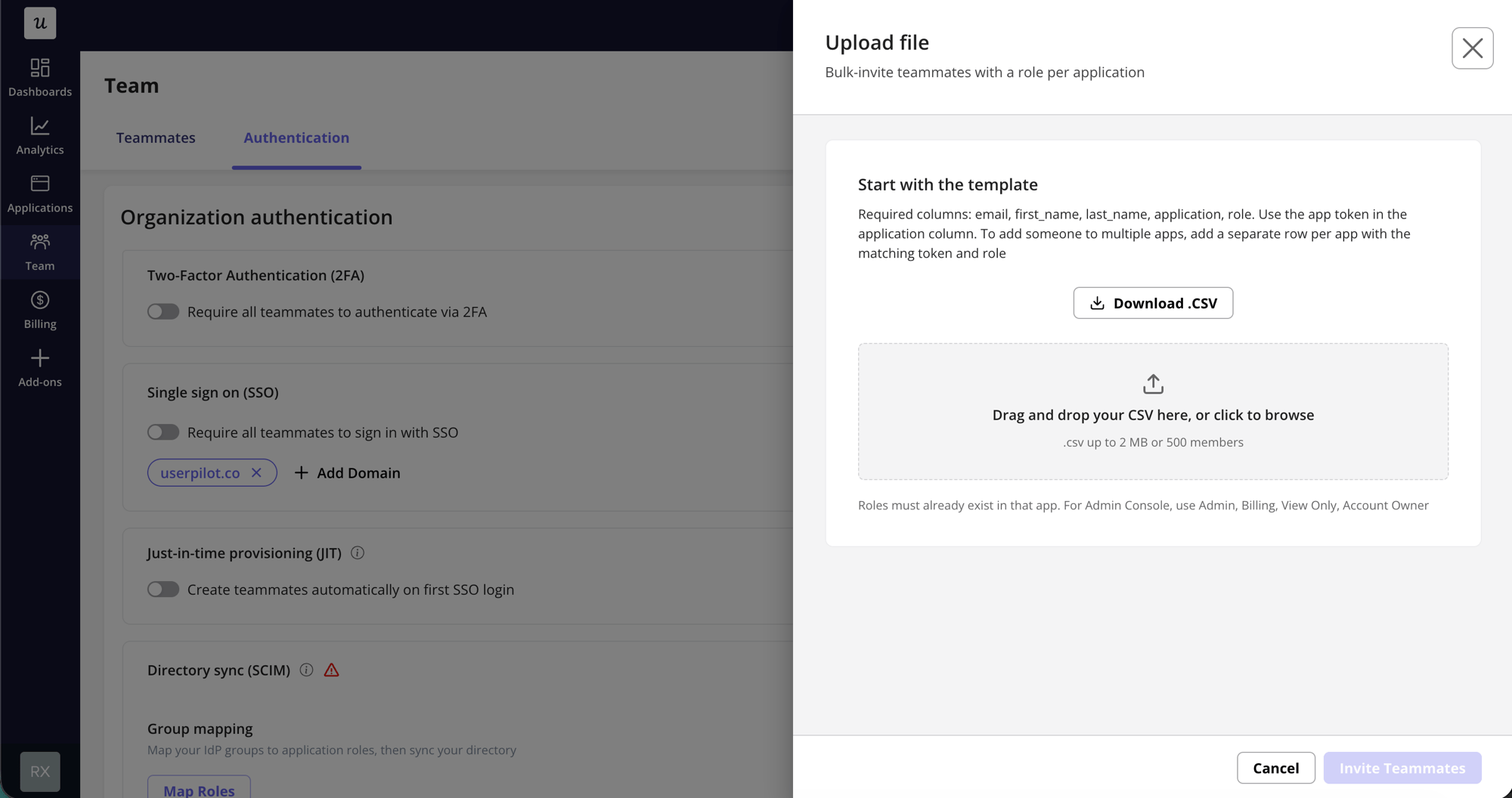 In the **Start with the template** card, click **Download .CSV** to get a correctly formatted file (`userpilot-teammates-template.csv`). The template matches the importer you opened it from, so you can fill it in and upload it as is. In the Admin Console importer, the drawer also lists **Your applications**, with each application's name and token for reference.
Drag and drop your `.csv` onto the dropzone, or click to browse. Files must be `.csv` and up to 2 MB.
Userpilot validates every row and groups them into up to three tables, each showing the teammate, role, and application:
* **Rows with errors.** Invalid rows (bad email, missing or unassignable role, and so on), each with the reason. Fix the file and re-upload - these are not imported.
* **Rows won't be imported.** Rows skipped because the person already exists as a teammate, or the row is a duplicate within the file.
* **Rows ready to import.** Valid rows that will be invited when you confirm.
Click **Invite Teammates** to invite everyone in the **Rows ready to import** list. Importing runs in the background, and rows that fail do not stop the others.
## CSV format
### Admin Console importer
The org-wide import needs these columns, with exactly these headers:
| Column | Required | Notes |
| ------------- | -------- | ---------------------------------------------------------------------------------------------------------------------------------------------------------- |
| `email` | Yes | The teammate's email address. |
| `first_name` | Yes | May be left blank. |
| `last_name` | Yes | May be left blank. |
| `application` | Yes | The application token, shown in the importer under "Your applications". Application names are also accepted, but tokens are safer because they are unique. |
| `role` | Yes | A role that exists in that application. |
Roles are set per application. To add someone to multiple applications, add one row per application, with the same email but a different application token and role on each row.
```csv theme={null}
email,first_name,last_name,application,role
jane.doe@example.com,Jane,Doe,NX-abc123,Admin
john.smith@example.com,John,Smith,NX-abc123,Publisher
john.smith@example.com,John,Smith,NX-def456,Analyst
```
Rows can also target the Admin Console itself. For those rows, use one of the Admin Console roles: `Admin`, `Billing`, `View Only`, or `Account Owner`.
### Team page importer
The importer on **Settings > Team** always targets the application you are viewing, so the `application` column is dropped:
```csv theme={null}
email,first_name,last_name,role
jane.doe@example.com,Jane,Doe,Admin
john.smith@example.com,John,Smith,Publisher
```
Account Owner can be assigned via CSV, but only if you are an Account Owner yourself. In general, you can only assign roles whose access is within your own role's permissions. The same applies to the [JIT](/configure/team-and-roles/jit) and [SCIM](/configure/team-and-roles/scim) default roles, which can also be set to Account Owner.
## Validation and limits
Each row is checked before anything is invited:
* **Email** must be a valid address. If it already belongs to a different Userpilot organization, that row is rejected with a clear message and no invite is sent for it.
* **Application** must exist in your organization (Admin Console importer).
* **Role** must exist in that application, and you must be allowed to assign it.
* **Seat limits** are enforced per application. A row that would exceed your plan's seats is blocked, while the rest of the import continues.
* **File size** is capped at 2 MB and 50,000 rows.
Re-importing a teammate who already exists is treated as already invited and is skipped, so running the same file twice will not create duplicates.
## After import
Each successfully imported teammate:
* Receives an invitation to their application or applications, with the role from the CSV.
* Is created without a password if your organization enforces [SSO](/configure/team-and-roles/sso). In that case they sign in through your identity provider.
* Is recorded in the Access Logs with the source CSV, so you can audit exactly who was added and by whom. See [Access and activity logs](/configure/team-and-roles/access-and-activity-logs).
CSV import is available only while SCIM is off (or in orgs without SCIM). A CSV teammate's role is flagged as manually set, so if you later enable SCIM, a hybrid-mode sync keeps that role. But CSV teammates are not in your IdP directory, so mapping or re-mapping your groups removes them like any other non-IdP member. Role protection covers the role, not membership.
## FAQs
It is hidden or disabled whenever SCIM directory sync is active (in any role-management mode - manage teammates in your IdP), while a SCIM sync is running, or if you do not have permission to invite teammates.
No. Invalid rows are listed under "Needs attention" and skipped, and valid rows still import. Rows that fail during processing, for example by hitting a seat limit, do not stop the rest.
Use the Admin Console importer and add one row per application, with the same email but a different application token and role on each row.
[For any questions or concerns please reach out to **support@userpilot.com**](mailto:support@userpilot.com)
In the **Start with the template** card, click **Download .CSV** to get a correctly formatted file (`userpilot-teammates-template.csv`). The template matches the importer you opened it from, so you can fill it in and upload it as is. In the Admin Console importer, the drawer also lists **Your applications**, with each application's name and token for reference.
Drag and drop your `.csv` onto the dropzone, or click to browse. Files must be `.csv` and up to 2 MB.
Userpilot validates every row and groups them into up to three tables, each showing the teammate, role, and application:
* **Rows with errors.** Invalid rows (bad email, missing or unassignable role, and so on), each with the reason. Fix the file and re-upload - these are not imported.
* **Rows won't be imported.** Rows skipped because the person already exists as a teammate, or the row is a duplicate within the file.
* **Rows ready to import.** Valid rows that will be invited when you confirm.
Click **Invite Teammates** to invite everyone in the **Rows ready to import** list. Importing runs in the background, and rows that fail do not stop the others.
## CSV format
### Admin Console importer
The org-wide import needs these columns, with exactly these headers:
| Column | Required | Notes |
| ------------- | -------- | ---------------------------------------------------------------------------------------------------------------------------------------------------------- |
| `email` | Yes | The teammate's email address. |
| `first_name` | Yes | May be left blank. |
| `last_name` | Yes | May be left blank. |
| `application` | Yes | The application token, shown in the importer under "Your applications". Application names are also accepted, but tokens are safer because they are unique. |
| `role` | Yes | A role that exists in that application. |
Roles are set per application. To add someone to multiple applications, add one row per application, with the same email but a different application token and role on each row.
```csv theme={null}
email,first_name,last_name,application,role
jane.doe@example.com,Jane,Doe,NX-abc123,Admin
john.smith@example.com,John,Smith,NX-abc123,Publisher
john.smith@example.com,John,Smith,NX-def456,Analyst
```
Rows can also target the Admin Console itself. For those rows, use one of the Admin Console roles: `Admin`, `Billing`, `View Only`, or `Account Owner`.
### Team page importer
The importer on **Settings > Team** always targets the application you are viewing, so the `application` column is dropped:
```csv theme={null}
email,first_name,last_name,role
jane.doe@example.com,Jane,Doe,Admin
john.smith@example.com,John,Smith,Publisher
```
Account Owner can be assigned via CSV, but only if you are an Account Owner yourself. In general, you can only assign roles whose access is within your own role's permissions. The same applies to the [JIT](/configure/team-and-roles/jit) and [SCIM](/configure/team-and-roles/scim) default roles, which can also be set to Account Owner.
## Validation and limits
Each row is checked before anything is invited:
* **Email** must be a valid address. If it already belongs to a different Userpilot organization, that row is rejected with a clear message and no invite is sent for it.
* **Application** must exist in your organization (Admin Console importer).
* **Role** must exist in that application, and you must be allowed to assign it.
* **Seat limits** are enforced per application. A row that would exceed your plan's seats is blocked, while the rest of the import continues.
* **File size** is capped at 2 MB and 50,000 rows.
Re-importing a teammate who already exists is treated as already invited and is skipped, so running the same file twice will not create duplicates.
## After import
Each successfully imported teammate:
* Receives an invitation to their application or applications, with the role from the CSV.
* Is created without a password if your organization enforces [SSO](/configure/team-and-roles/sso). In that case they sign in through your identity provider.
* Is recorded in the Access Logs with the source CSV, so you can audit exactly who was added and by whom. See [Access and activity logs](/configure/team-and-roles/access-and-activity-logs).
CSV import is available only while SCIM is off (or in orgs without SCIM). A CSV teammate's role is flagged as manually set, so if you later enable SCIM, a hybrid-mode sync keeps that role. But CSV teammates are not in your IdP directory, so mapping or re-mapping your groups removes them like any other non-IdP member. Role protection covers the role, not membership.
## FAQs
It is hidden or disabled whenever SCIM directory sync is active (in any role-management mode - manage teammates in your IdP), while a SCIM sync is running, or if you do not have permission to invite teammates.
No. Invalid rows are listed under "Needs attention" and skipped, and valid rows still import. Rows that fail during processing, for example by hitting a seat limit, do not stop the rest.
Use the Admin Console importer and add one row per application, with the same email but a different application token and role on each row.
[For any questions or concerns please reach out to **support@userpilot.com**](mailto:support@userpilot.com)