> ## Documentation Index
> Fetch the complete documentation index at: https://docs.userpilot.com/llms.txt
> Use this file to discover all available pages before exploring further.
# Managing your team in Userpilot
> Manage teammates in Userpilot by inviting users, assigning roles and permissions, tracking activity, and securing access with authentication controls.
### Overview
You can manage who has access to your Userpilot workspace by inviting your colleagues and assigning them roles with the right permissions. This gives you flexibility in defining each person’s responsibilities. Userpilot provides predefined roles such as Admin, Account Owner, Publisher, and Analyst, and you can also create custom roles to tailor permissions exactly to your team’s needs.
You can also review [access and activity logs](/configure/team-and-roles/access-and-activity-logs) to monitor who has logged in and what actions they have taken, ensuring everything remains secure and well-tracked. From the Authentication tab, you can also enable [2FA](/configure/team-and-roles/2fa), [SSO login](/configure/team-and-roles/sso), and [SCIM management](/configure/team-and-roles/scim) for enhanced security and user management.
Custom roles, access logs, activity logs, and advanced authentication options are only available on the Enterprise plan. If you’re on a lower plan, you’ll need to [upgrade](https://userpilot.com/pricing/) to access these features.
### Teammates
The **Team** tab in Userpilot allows you to control who has access to your workspace, assign the right permissions, and keep track of activity. Whether you're collaborating with product managers, designers, analysts, or engineers, this section helps you manage roles and maintain workspace security with ease.
* **Filters and role tags** - At the top, you will find role-based filters that help you quickly sort teammates by their responsibilities or permission levels.
* **Search** - Use the search bar to find teammates instantly by typing their name or email.
* **User List** - This section shows all workspace members, and you can easily update their roles or manage their permissions directly from here.
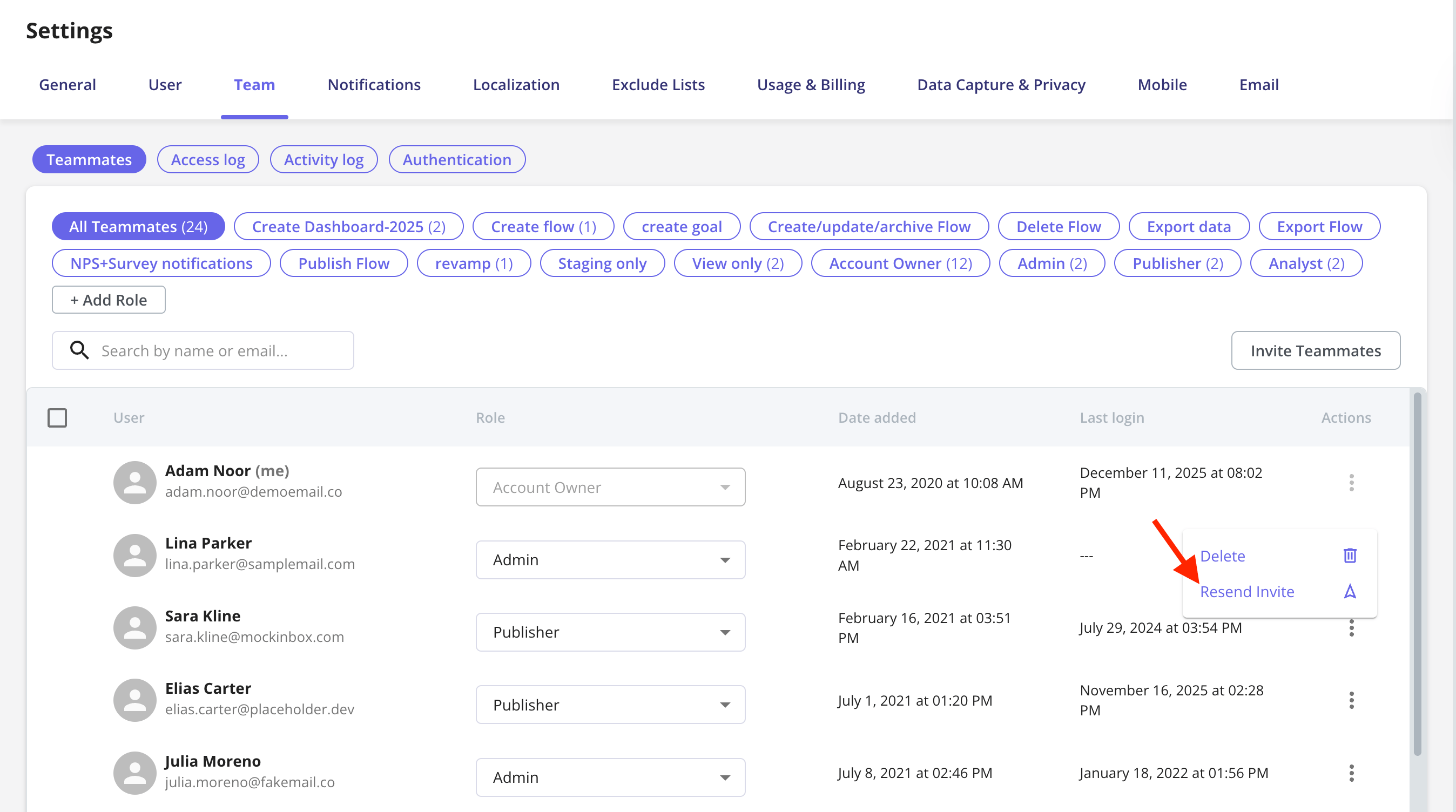
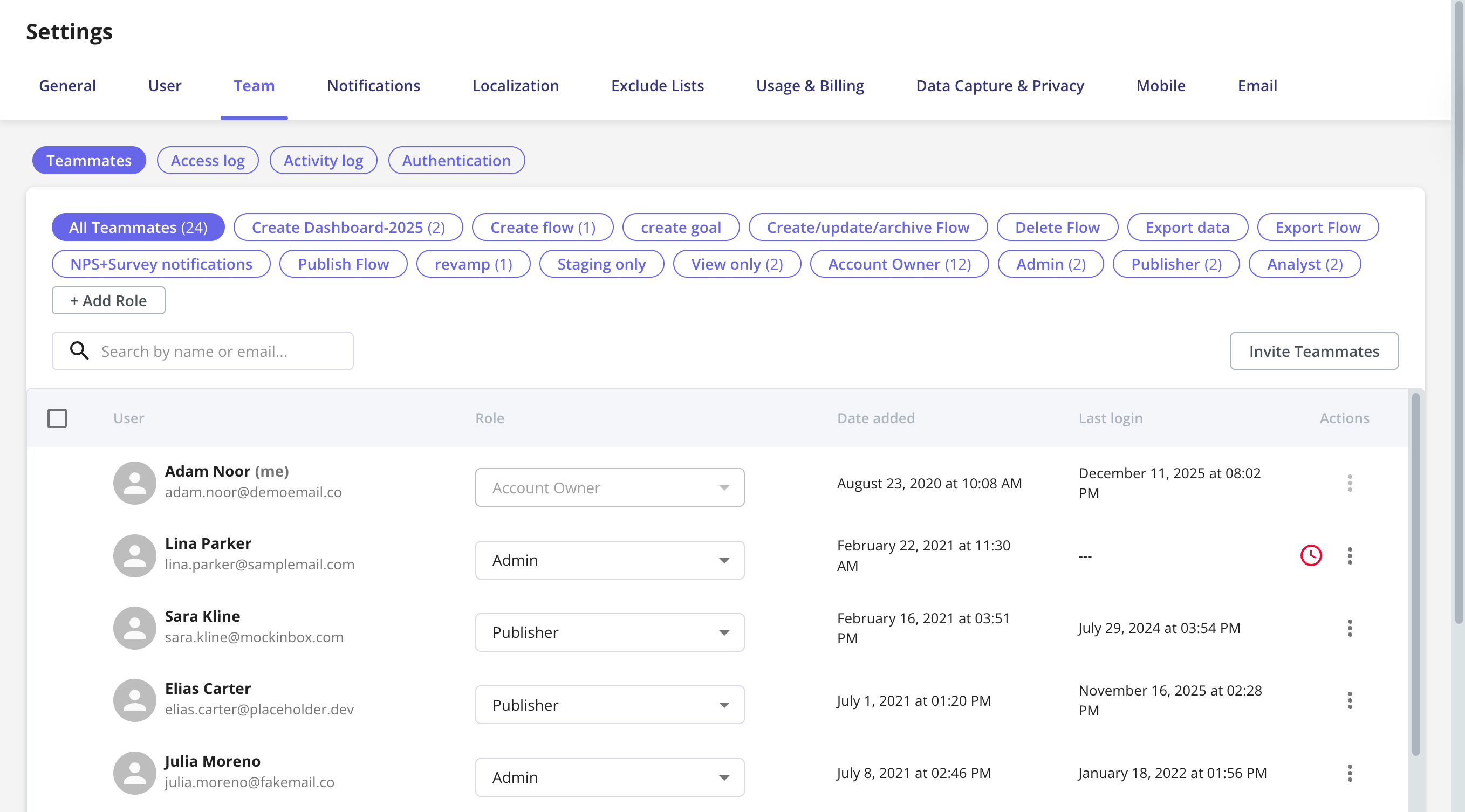 If a teammate hasn’t accepted their invitation yet, Userpilot will show a red clock icon beside their name. You can resend the invitation to keep your workspace setup on track.
 ### Roles
By default, Userpilot offers four predefined roles:
| **Role** | **Description** | **Access level** |
| :---------------- | :----------------------------------------------------------------- | :------------------------------------------------------------------------------ |
| **Account Owner** | Automatically assigned to the first user who creates the workspace | Full access to everything, including billing |
| **Admin** | Similar to Account Owner but without billing access | Full access except for billing |
| **Publisher** | Focused on content creation and publishing | Can create and publish content |
| **Analyst** | Works with analytics and event tracking | Access to session replay, playlists, events, pages, mobile screens, and reports |
If SCIM is connected, roles are assigned automatically based on your identity provider’s group mappings and can’t be changed from the Userpilot UI. To update a teammate’s role, make the change in your IdP instead.
#### Custom Roles
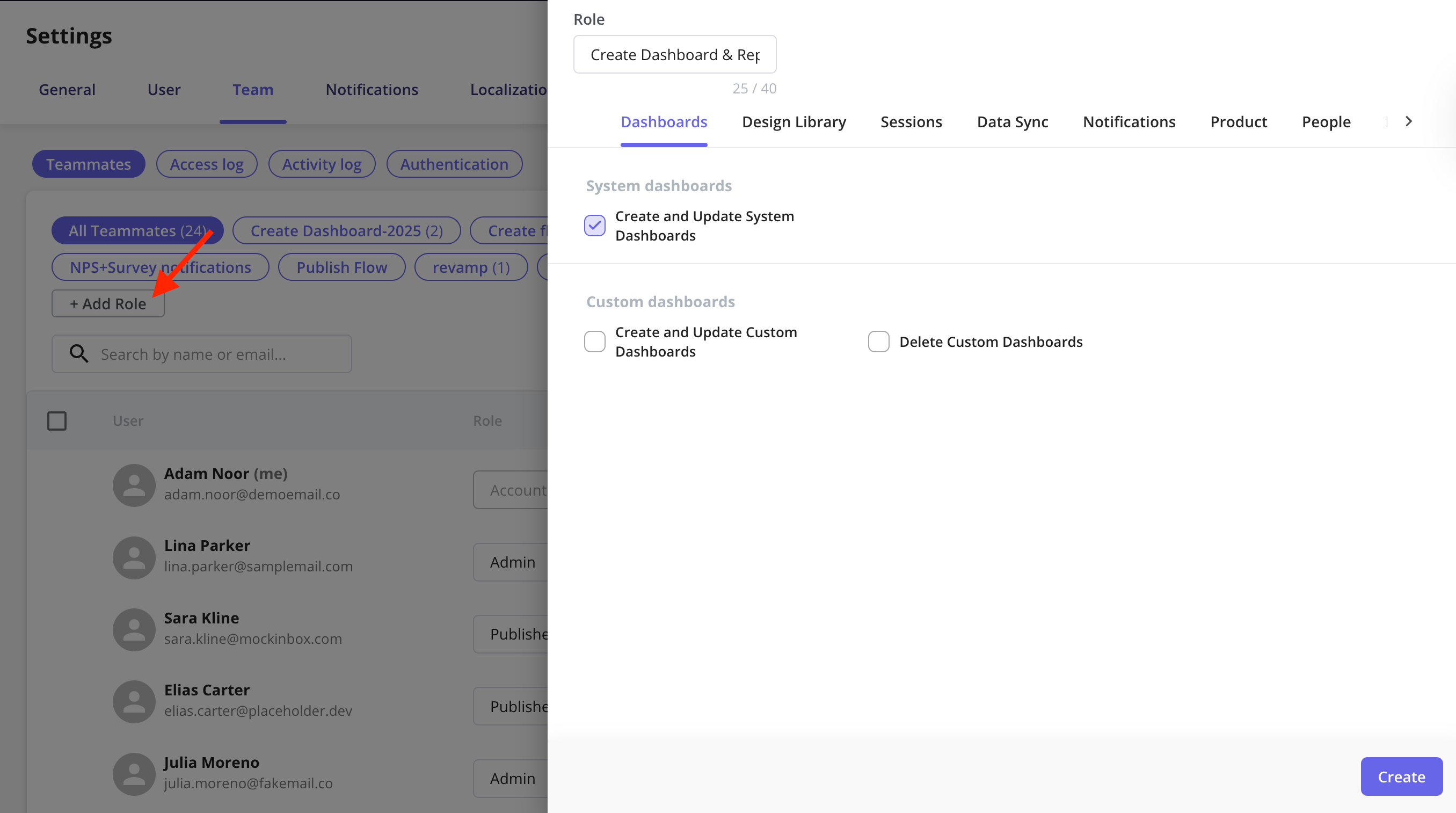
You can also create **Custom Roles** (Enterprise plan only) if you need more control.\
Just click **+ Add Role**, then choose exactly which permissions to enable or restrict.
### Roles
By default, Userpilot offers four predefined roles:
| **Role** | **Description** | **Access level** |
| :---------------- | :----------------------------------------------------------------- | :------------------------------------------------------------------------------ |
| **Account Owner** | Automatically assigned to the first user who creates the workspace | Full access to everything, including billing |
| **Admin** | Similar to Account Owner but without billing access | Full access except for billing |
| **Publisher** | Focused on content creation and publishing | Can create and publish content |
| **Analyst** | Works with analytics and event tracking | Access to session replay, playlists, events, pages, mobile screens, and reports |
If SCIM is connected, roles are assigned automatically based on your identity provider’s group mappings and can’t be changed from the Userpilot UI. To update a teammate’s role, make the change in your IdP instead.
#### Custom Roles
You can also create **Custom Roles** (Enterprise plan only) if you need more control.\
Just click **+ Add Role**, then choose exactly which permissions to enable or restrict.
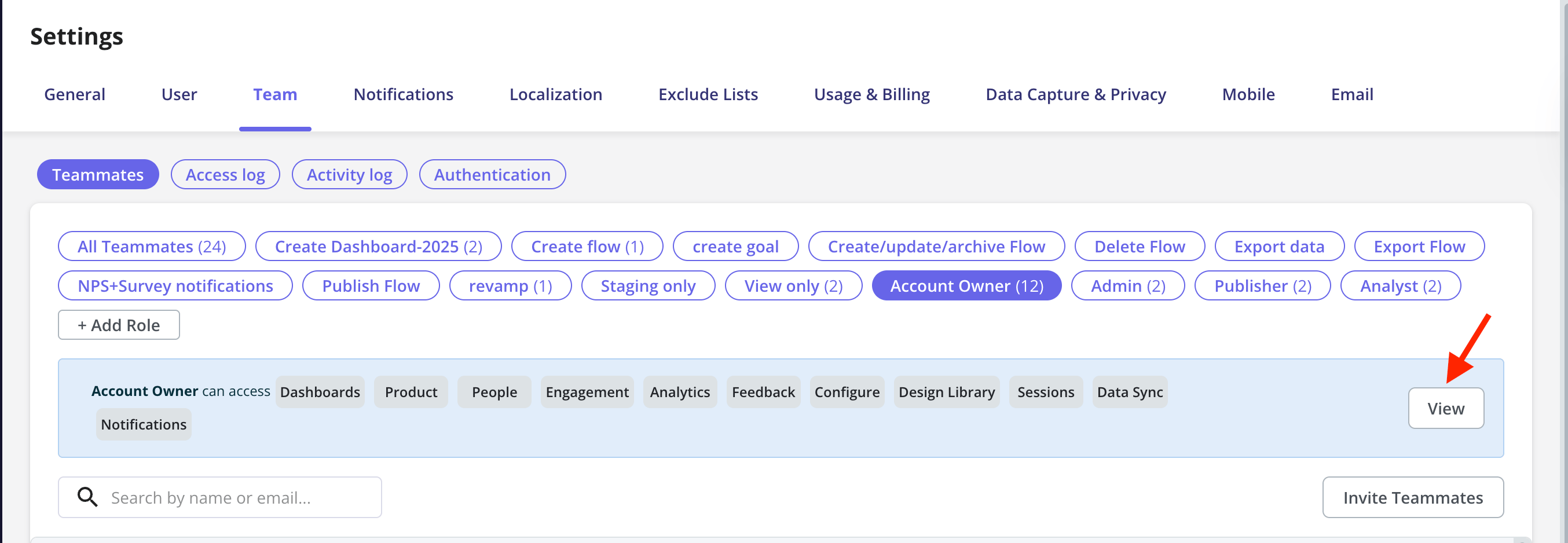
 If you want to view or edit the permissions for a specific role, simply click on the role and then select View.
 Userpilot’s premade roles (Account Owner, Admin, Publisher, and Analyst) can’t be edited. If you need different permissions, create a Custom Role instead, since custom roles can be edited at any time.
[For any questions or concerns please reach out to **support@userpilot.com**](mailto:support@userpilot.com)
Userpilot’s premade roles (Account Owner, Admin, Publisher, and Analyst) can’t be edited. If you need different permissions, create a Custom Role instead, since custom roles can be edited at any time.
[For any questions or concerns please reach out to **support@userpilot.com**](mailto:support@userpilot.com)