> ## Documentation Index
> Fetch the complete documentation index at: https://docs.userpilot.com/llms.txt
> Use this file to discover all available pages before exploring further.
# Fonts
> Configure custom fonts in Ionic-Capacitor for the Userpilot plugin
To use custom fonts in Userpilot Experiences that are rendering inside of Ionic applications, those fonts must be registered with the native iOS and Android projects for your app. Please follow the instructions in each section below to register the fonts.
## Naming Font Files
The file name for a font must match the PostScript name of the font for your flows to properly load the custom font on both Android and iOS.
This is because in native Android apps, fonts are referenced by their resource name which is the filename[^1], while in native iOS apps, fonts are referenced by their PostScript name[^2].
On macOS, you can find the PostScript name of a font by opening it with the Font Book app and selecting the Font Info tab.
## iOS
1. Open your Ionic application's iOS project workspace in Xcode - for example ./ios/App/App.xcworkspace
2. Under the root of the `App` project, create a `Fonts` group, and add all of the font files into this group.
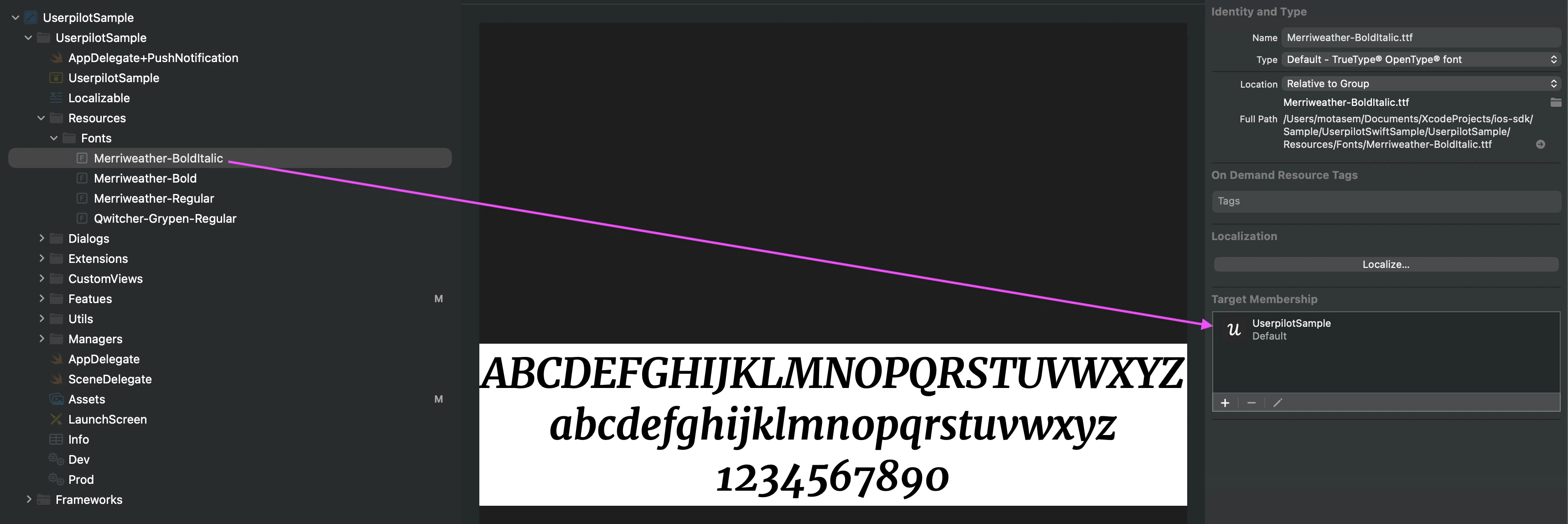
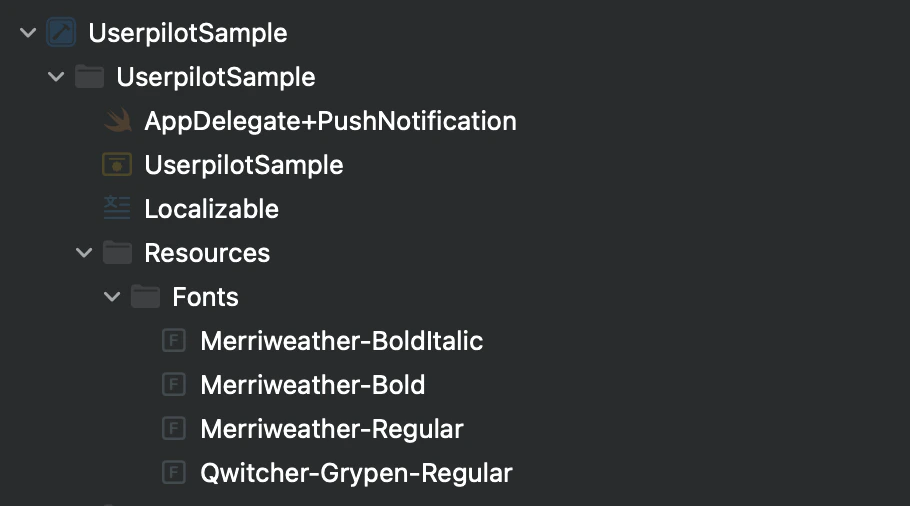 3. Ensure that the font files are included in the target membership of the app project.
 4. Open the `Info.plist` in the project and add a section for "Fonts provided by application". Add a row for each font and specify the matching font file name.
 In source code view (xml) this section will look like:
```xml theme={null}
UIAppFonts
Merriweather-Bold.ttf
Merriweather-Regular.ttf
Merriweather-BoldItalic.ttf
```
For more information, please refer to [iOS Reference Documentation](https://developer.apple.com/documentation/uikit/text_display_and_fonts/adding_a_custom_font_to_your_app)
## Android
1. Open your Ionic application's Android project in Android Studio - for example ./android
2. Under the `app` module, navigate to the `res` (resources) folder, an add a `font` subdirectory, if not already there.
3. Add the font files into the `font` resource directory. Note, Android resource naming is all lower case, and any `-` should be replaced with `_`.
In source code view (xml) this section will look like:
```xml theme={null}
UIAppFonts
Merriweather-Bold.ttf
Merriweather-Regular.ttf
Merriweather-BoldItalic.ttf
```
For more information, please refer to [iOS Reference Documentation](https://developer.apple.com/documentation/uikit/text_display_and_fonts/adding_a_custom_font_to_your_app)
## Android
1. Open your Ionic application's Android project in Android Studio - for example ./android
2. Under the `app` module, navigate to the `res` (resources) folder, an add a `font` subdirectory, if not already there.
3. Add the font files into the `font` resource directory. Note, Android resource naming is all lower case, and any `-` should be replaced with `_`.
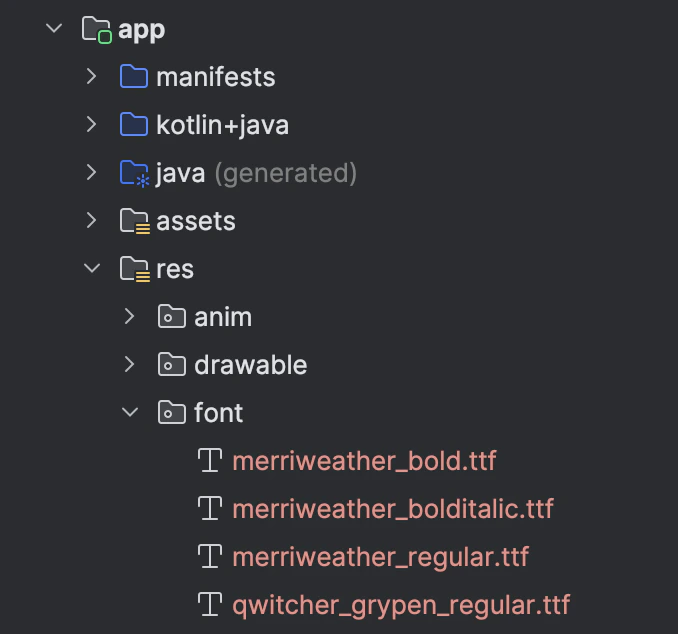 For more information, please refer to [Android Reference Documentation](https://developer.android.com/develop/ui/views/text-and-emoji/fonts-in-xml)
## Build and Test
After the above steps are completed, rebuild your application. Create an Experience in the Userpilot Mobile Builder that specifies a custom font, and try it out by using either the builder preview or publishing.
[^1]: "The resource name, which is either the filename excluding the extension..." [https://developer.android.com/guide/topics/resources/providing-resources](https://developer.android.com/guide/topics/resources/providing-resources)
[^2]: "When retrieving the font with `custom(_:size:)`, match the name of the font with the font’s PostScript name." [https://developer.apple.com/documentation/swiftui/applying-custom-fonts-to-text/#Apply-a-font-supporting-dynamic-sizing](https://developer.apple.com/documentation/swiftui/applying-custom-fonts-to-text/#Apply-a-font-supporting-dynamic-sizing)
[**For any questions or concerns please reach out to support@userpilot.com**](mailto:support@userpilot.com)
For more information, please refer to [Android Reference Documentation](https://developer.android.com/develop/ui/views/text-and-emoji/fonts-in-xml)
## Build and Test
After the above steps are completed, rebuild your application. Create an Experience in the Userpilot Mobile Builder that specifies a custom font, and try it out by using either the builder preview or publishing.
[^1]: "The resource name, which is either the filename excluding the extension..." [https://developer.android.com/guide/topics/resources/providing-resources](https://developer.android.com/guide/topics/resources/providing-resources)
[^2]: "When retrieving the font with `custom(_:size:)`, match the name of the font with the font’s PostScript name." [https://developer.apple.com/documentation/swiftui/applying-custom-fonts-to-text/#Apply-a-font-supporting-dynamic-sizing](https://developer.apple.com/documentation/swiftui/applying-custom-fonts-to-text/#Apply-a-font-supporting-dynamic-sizing)
[**For any questions or concerns please reach out to support@userpilot.com**](mailto:support@userpilot.com)