> ## Documentation Index
> Fetch the complete documentation index at: https://docs.userpilot.com/llms.txt
> Use this file to discover all available pages before exploring further.
# Create a Checklist
> Checklists are increasingly becoming a vital tool for guiding new users toward successful activation.
## Overview
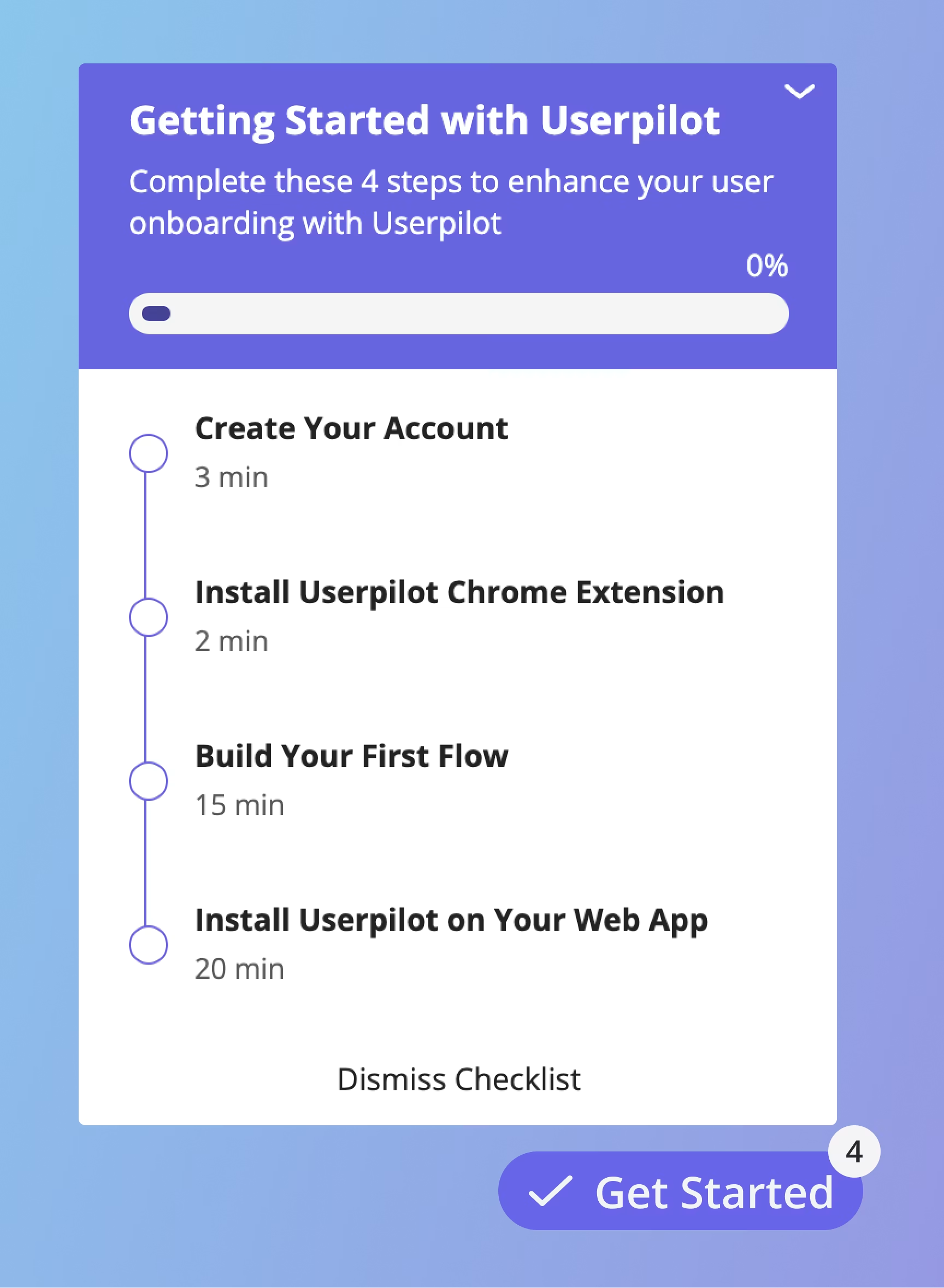
Checklists are increasingly becoming a vital tool for guiding new users toward successful activation. They serve as a structured roadmap, ensuring that users stay on track and complete the key tasks necessary to derive value from your product.
By implementing checklists, you can help users navigate their journey more effectively, reduce churn, and improve product adoption. These lists can include actions like exploring features, completing a setup, or performing specific tasks within the app.
 ## Use Cases
* **Improved User Engagement:** Checklists encourage users to interact more with your product by providing clear, actionable steps.
* **Faster Time to Value:** By guiding users through the essential steps, checklists help them achieve their goals quicker.
* **Enhanced Onboarding Experience:** They simplify the onboarding process, making it less overwhelming for new users.
* **Increased Retention:** A well-implemented checklist ensures users remain engaged and reduces the likelihood of churn.
## **How to create a checklist**
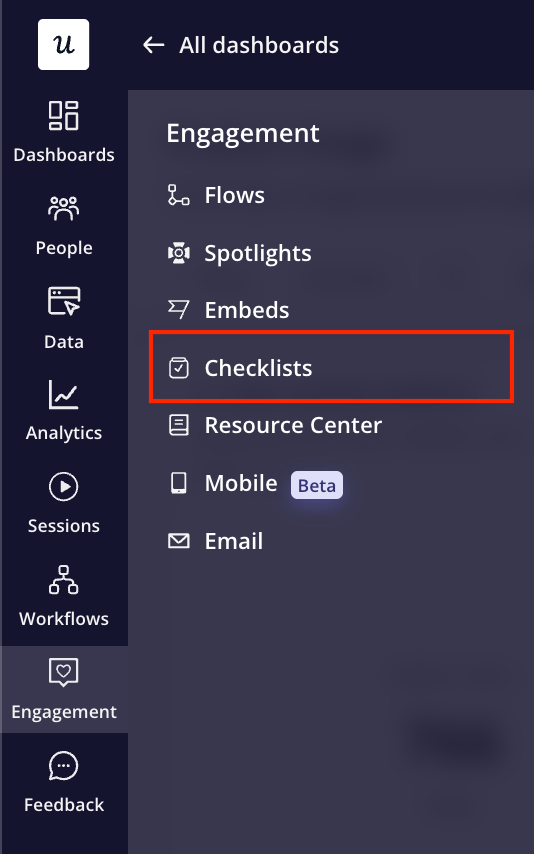
**Navigate to Engagement > Checklists** from the sidebar.
## Use Cases
* **Improved User Engagement:** Checklists encourage users to interact more with your product by providing clear, actionable steps.
* **Faster Time to Value:** By guiding users through the essential steps, checklists help them achieve their goals quicker.
* **Enhanced Onboarding Experience:** They simplify the onboarding process, making it less overwhelming for new users.
* **Increased Retention:** A well-implemented checklist ensures users remain engaged and reduces the likelihood of churn.
## **How to create a checklist**
**Navigate to Engagement > Checklists** from the sidebar.
 Then, click **Create Checklist** and enter the **checklist title** in the pop-up window.
 ### Tasks tab
The first step of **creating a checklist** is to add tasks to your Checklist.
### Tasks tab
The first step of **creating a checklist** is to add tasks to your Checklist.
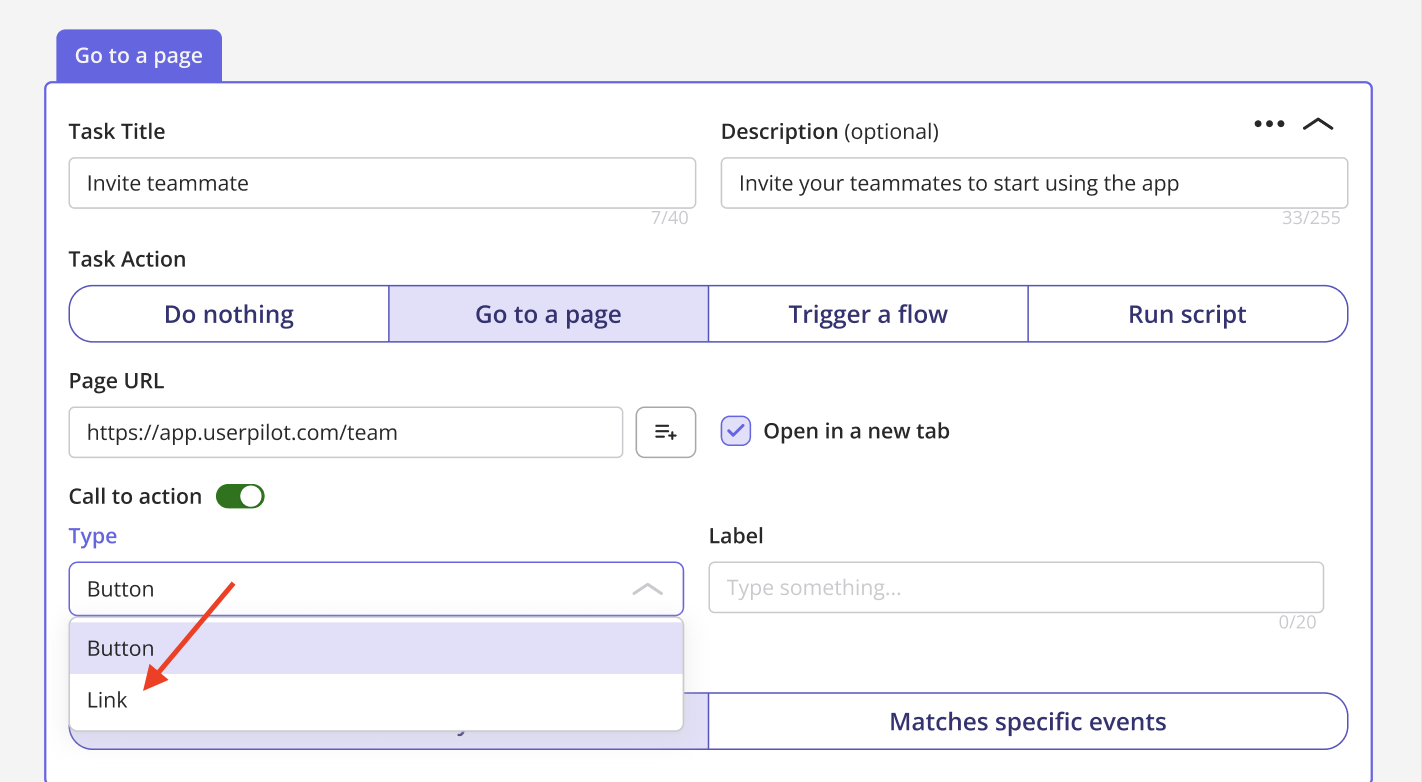
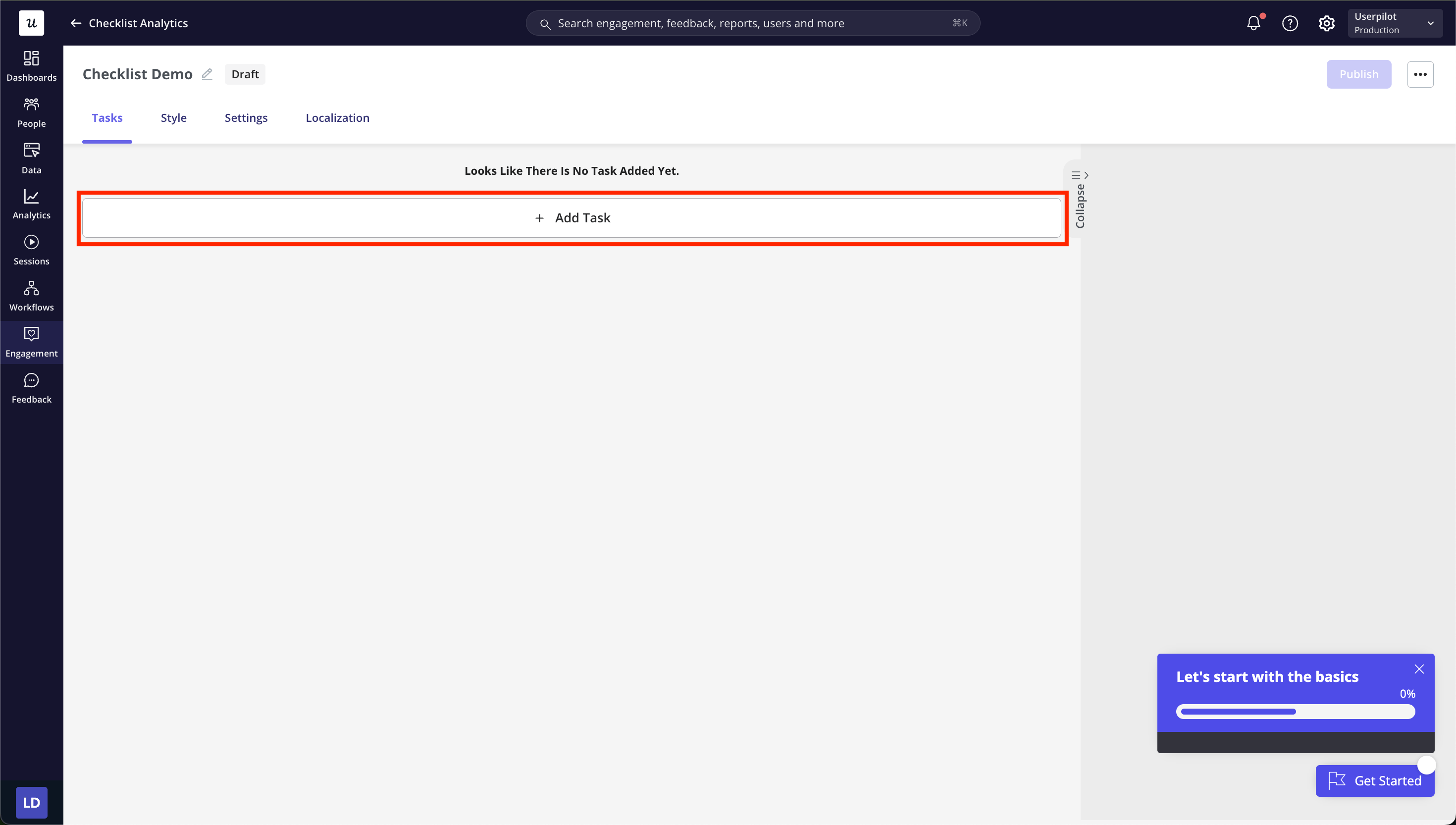 After clicking the **Add Task** button, a drawer will slide out where you can enter the task details. In the **Task Action** section, specify what should happen when a user clicks on the task.
* **Do Nothing**: The task will automatically be marked as complete in this case, without prior action.
* **Go to page**: To navigate the user to a certain URL.
* **Trigger a flow**: To trigger a flow that you have created from a checklist task.
* **Run script**: To run a JavaScript function once the user clicks on the task.
After clicking the **Add Task** button, a drawer will slide out where you can enter the task details. In the **Task Action** section, specify what should happen when a user clicks on the task.
* **Do Nothing**: The task will automatically be marked as complete in this case, without prior action.
* **Go to page**: To navigate the user to a certain URL.
* **Trigger a flow**: To trigger a flow that you have created from a checklist task.
* **Run script**: To run a JavaScript function once the user clicks on the task.
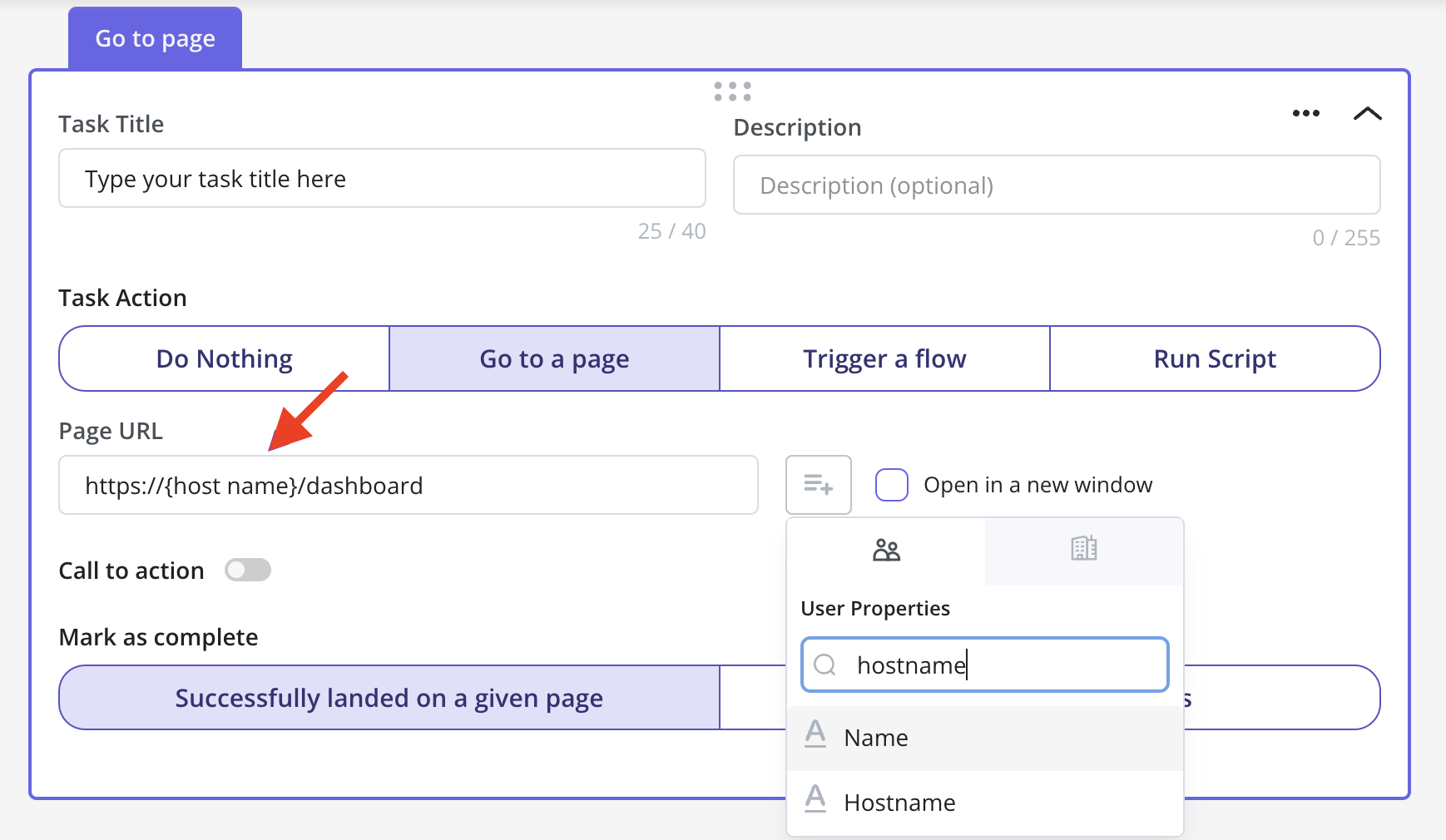 In the checklist task, you can set the task "Go to Page" or use the flow "Route to URL" to direct users to a dynamic domain by replacing the desired domain with the "hostname" property. Additionally, you can ask your development team to pass a property for any dynamic parts of the page, and then replace the dynamic part with the passed property.
You can set an Action for the Task to follow through with, as well as advanced settings to use when needed.
In the checklist task, you can set the task "Go to Page" or use the flow "Route to URL" to direct users to a dynamic domain by replacing the desired domain with the "hostname" property. Additionally, you can ask your development team to pass a property for any dynamic parts of the page, and then replace the dynamic part with the passed property.
You can set an Action for the Task to follow through with, as well as advanced settings to use when needed.
 ### Style tab
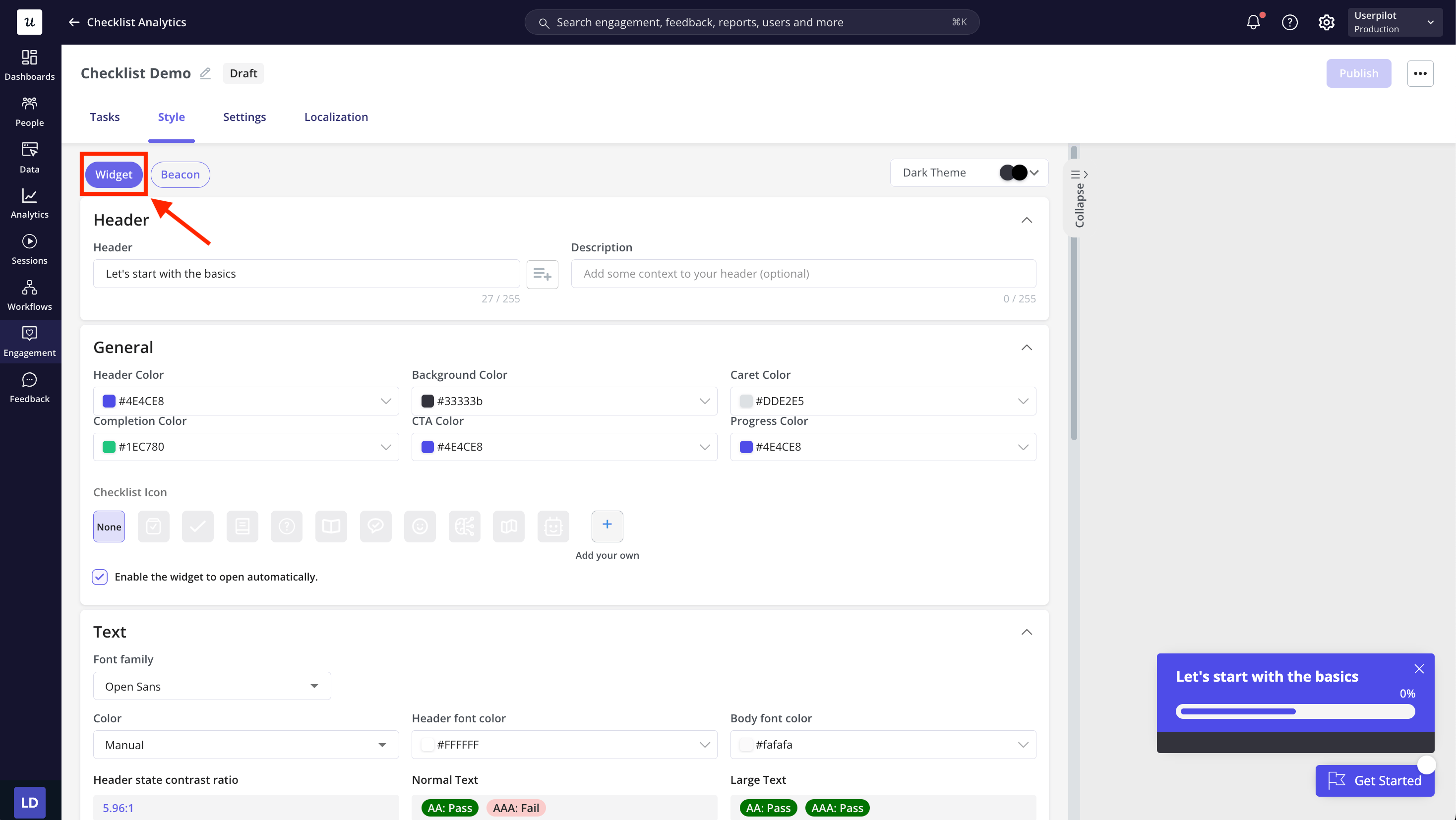
Under the **Style** tab, you’ll find two sections: **Widget** and **Beacon**. Each has its own set of style settings to help you customize your checklist to suit your use case.
Let’s take a closer look at each section.
**Widget**
The Widget tab lets you style the overall checklist, including task appearance, text, minimize button, dismiss behavior, and completion behavior.
* **Header:** Start by setting up the Header of the checklist. You can also add a subtitle to provide extra information or context.
* **Theme:** Select from your pre-created themes and choose them from a list to quickly apply a consistent style.
* **General:** Customize colors, icons, and automatic opening to match your brand.
* **Text:** Choose the font and set the header and body text colors.
* **Minimize button:** Define the style and colors of the minimize button.
* **Dismiss content:** Customize the dismiss button text and confirmation prompts.
* **Completion:** Set the title, description, and button text shown when all tasks are completed.
### Style tab
Under the **Style** tab, you’ll find two sections: **Widget** and **Beacon**. Each has its own set of style settings to help you customize your checklist to suit your use case.
Let’s take a closer look at each section.
**Widget**
The Widget tab lets you style the overall checklist, including task appearance, text, minimize button, dismiss behavior, and completion behavior.
* **Header:** Start by setting up the Header of the checklist. You can also add a subtitle to provide extra information or context.
* **Theme:** Select from your pre-created themes and choose them from a list to quickly apply a consistent style.
* **General:** Customize colors, icons, and automatic opening to match your brand.
* **Text:** Choose the font and set the header and body text colors.
* **Minimize button:** Define the style and colors of the minimize button.
* **Dismiss content:** Customize the dismiss button text and confirmation prompts.
* **Completion:** Set the title, description, and button text shown when all tasks are completed.
 **Beacon**
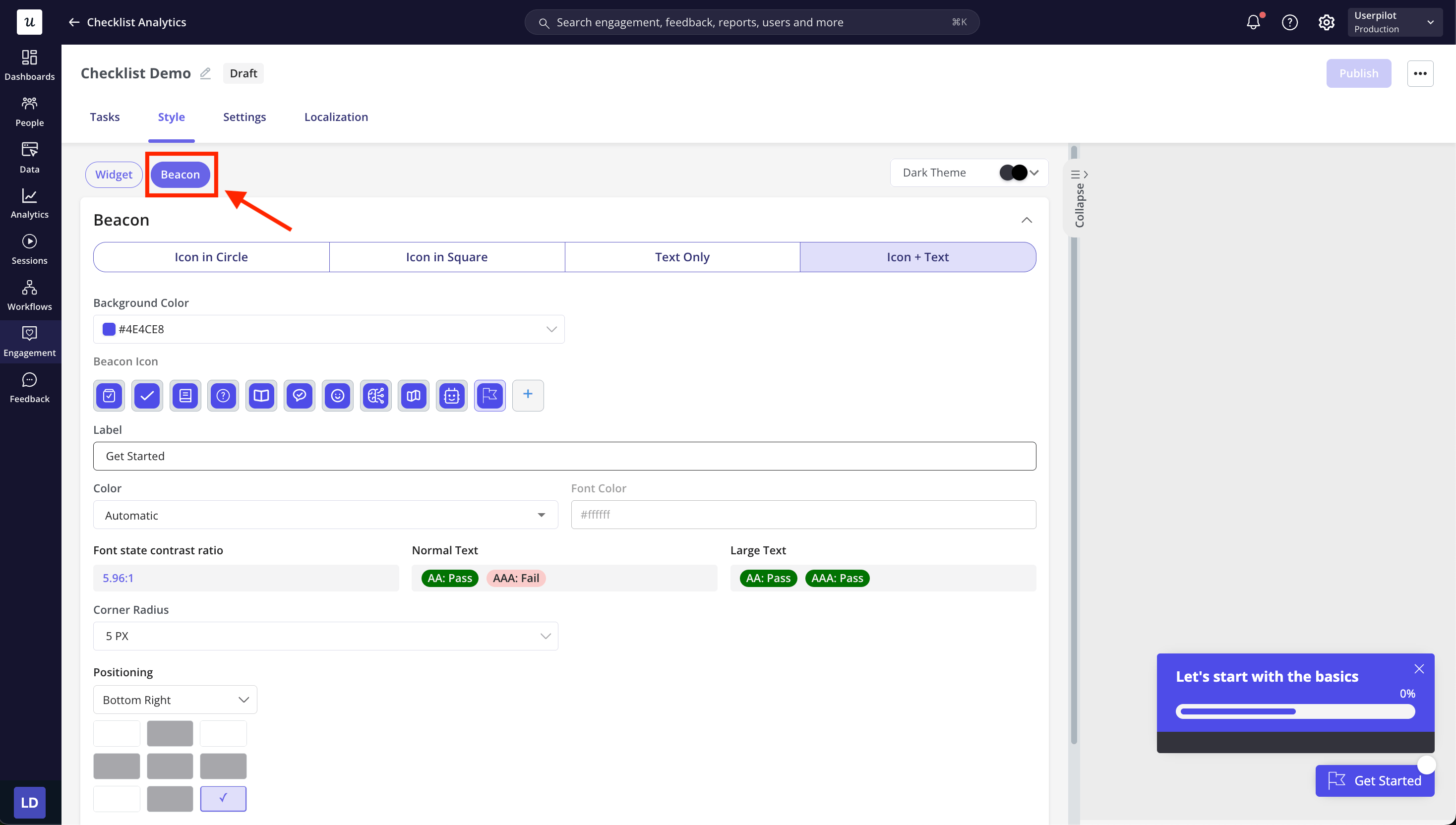
The Beacon tab controls how the checklist looks when it’s collapsed.
* **Icon style:** Choose how the beacon appears, Icon in Circle, Icon in Square, Text Only, Icon + Text.
* **Background color:** Set the background color of the beacon.
* **Beacon Icon:** Select or upload the icon that represents your checklist when collapsed.
* **Label:** Add text to appear next to the icon (e.g., “Get Started”).
* **Color:** Choose the main color for the beacon.
* **Font color:** Set the color of the label text.
* **Corner radius:** Adjust how rounded the beacon’s corners are.
* **Positioning:** Choose where on the screen the beacon will appear.
* **Z-index:** Define layering to control how the beacon stacks over other page elements.
**Beacon**
The Beacon tab controls how the checklist looks when it’s collapsed.
* **Icon style:** Choose how the beacon appears, Icon in Circle, Icon in Square, Text Only, Icon + Text.
* **Background color:** Set the background color of the beacon.
* **Beacon Icon:** Select or upload the icon that represents your checklist when collapsed.
* **Label:** Add text to appear next to the icon (e.g., “Get Started”).
* **Color:** Choose the main color for the beacon.
* **Font color:** Set the color of the label text.
* **Corner radius:** Adjust how rounded the beacon’s corners are.
* **Positioning:** Choose where on the screen the beacon will appear.
* **Z-index:** Define layering to control how the beacon stacks over other page elements.
 ### FAQs
The maximum number of tasks that you can add per Checklist is 15.
No, Currently only one checklist can be triggered on a page at a given point of time. However, you can add another checklist in a Resource Center Module for the users to access both of the Checklists at the same time.
### FAQs
The maximum number of tasks that you can add per Checklist is 15.
No, Currently only one checklist can be triggered on a page at a given point of time. However, you can add another checklist in a Resource Center Module for the users to access both of the Checklists at the same time.
 [**For any questions or concerns, please reach out to support@userpilot.com**](mailto:support@userpilot.com)