> ## Documentation Index
> Fetch the complete documentation index at: https://docs.userpilot.com/llms.txt
> Use this file to discover all available pages before exploring further.
# Targeting a Checklist
> Fine-tune your checklist's reach with domain, page, and audience targeting.
## Domain Targeting
When you’re finished designing your **Beacon**, you can move on to **Page Settings**. **Page Settings** let you choose **where** you want your checklist to be triggered. You can set it to trigger on **all domains** or select a **specific domain**. The same applies to **Pages** and **Audiences**.
### **Options**
* **All domains (Default):** This will show the Checklist on all domains that have the Userpilot snippet installed
* **Specific domain:** Specify which domain(s) or sub-domain(s) the Checklist should appear on.
**Note:** You can list all the domains that you have Userpilot installed on the [Environments tab](https://run.userpilot.io/environment) to automatically find the domains listed in the drop-down.
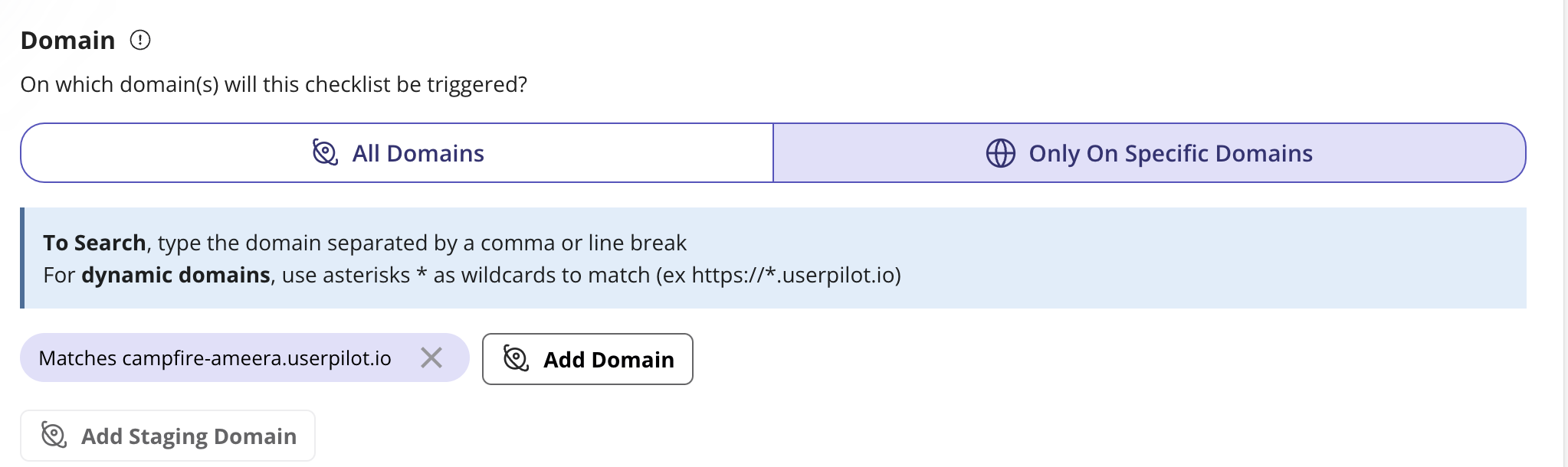 **Pro tip:** Specific domains can be extremely helpful while testing the Checklist on your testing environment.
## Page Targeting
This section will allow you to specify where to show the Checklist based on the URL the user is currently on.
### **Options**
* **Any page (Default)**: This will show the Checklist on any page that has the Userpilot script installed
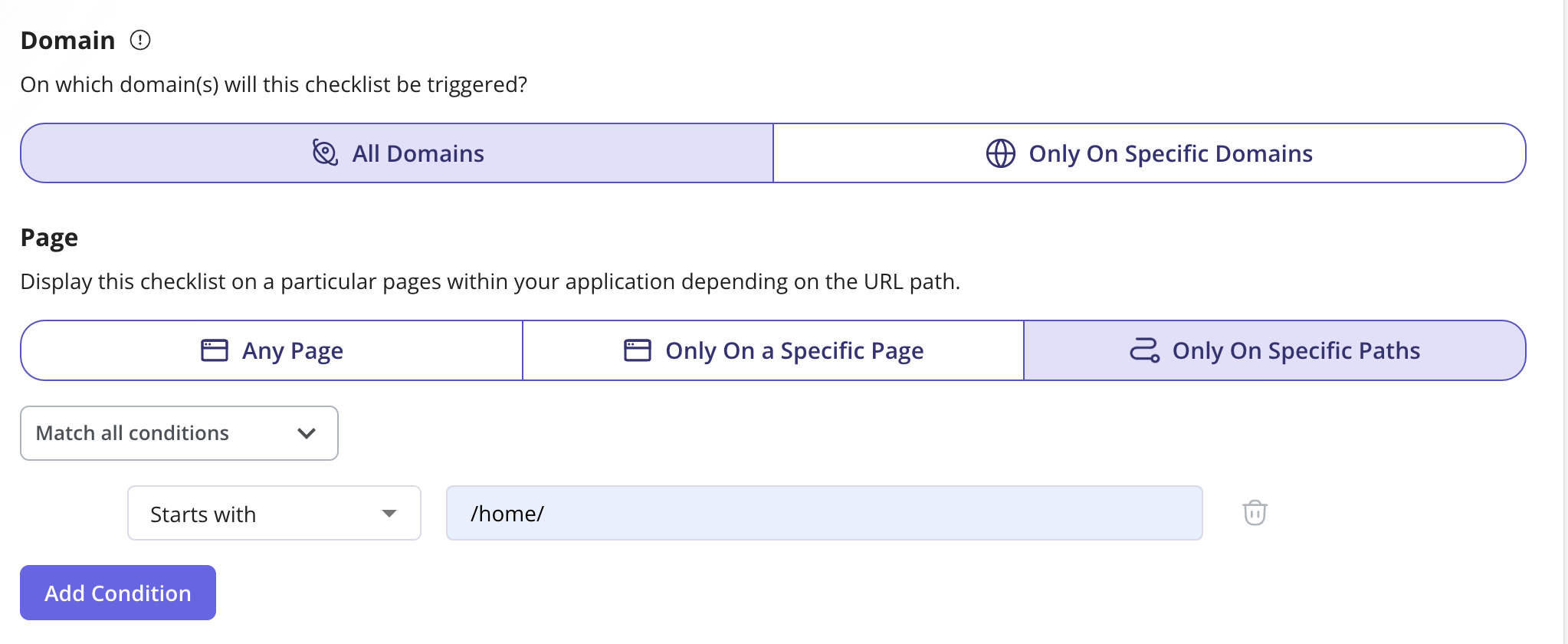
* **Only on Specific Paths:** Here you can limit the Checklist to be shown on specific URL path(s) within your web app.
**Pro tip:** Specific domains can be extremely helpful while testing the Checklist on your testing environment.
## Page Targeting
This section will allow you to specify where to show the Checklist based on the URL the user is currently on.
### **Options**
* **Any page (Default)**: This will show the Checklist on any page that has the Userpilot script installed
* **Only on Specific Paths:** Here you can limit the Checklist to be shown on specific URL path(s) within your web app.
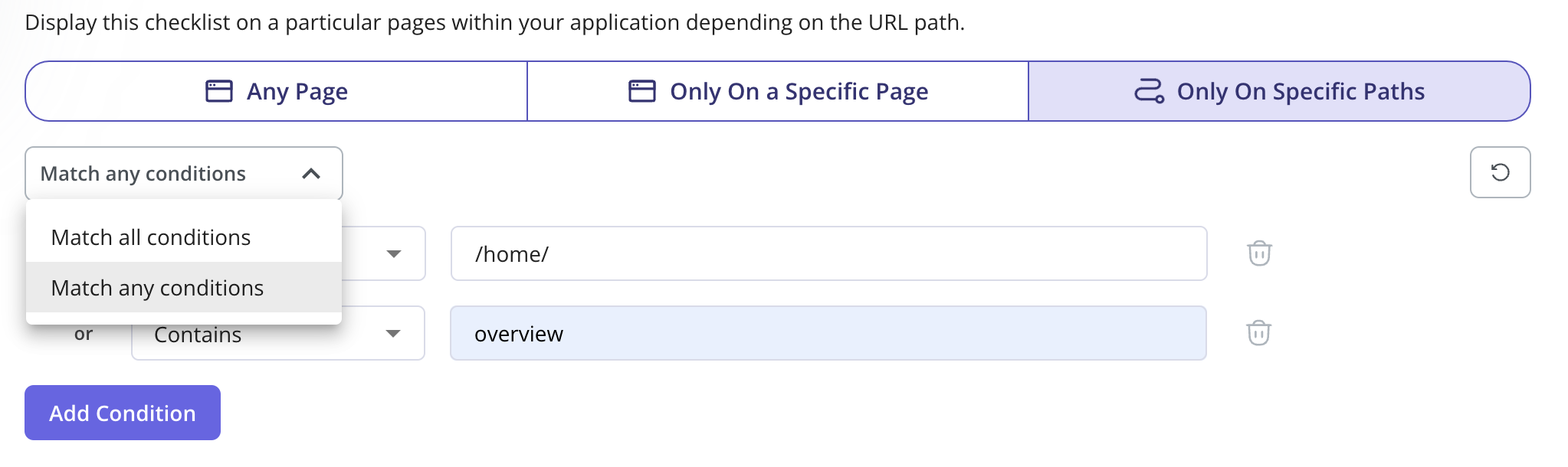
 You can add **one** or **multiple conditions** to a **URL path**. For example, if you want the **module** to appear in the **Checklist** when a user is on one of two specific pages, you can add a **condition** for each **URL path** and select the **"Any"** option.
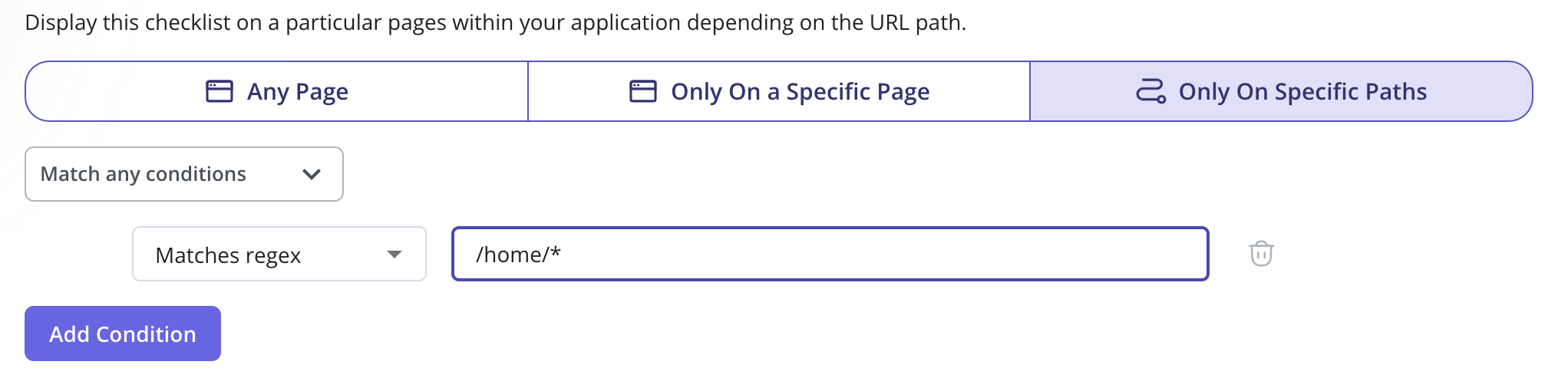
 ### **What if my URL contains dynamic URL paths?**
In the case of dynamic URL paths, you can select the page condition **Match Regex** and replace the dynamic part of the URL with an asterisk.
### **What if my URL contains dynamic URL paths?**
In the case of dynamic URL paths, you can select the page condition **Match Regex** and replace the dynamic part of the URL with an asterisk.
 ## Audience targeting
Audience targeting is important in deciding who should see the module in the Checklist.
### **Options**
* **All Users (Default):** Show the Checklist to any user that visits the page(s) where the Checklist is shown
* **Only Me:** Show the Checklist only to your colleagues who are in your Userpilot account and have the Chrome extension installed.
## Audience targeting
Audience targeting is important in deciding who should see the module in the Checklist.
### **Options**
* **All Users (Default):** Show the Checklist to any user that visits the page(s) where the Checklist is shown
* **Only Me:** Show the Checklist only to your colleagues who are in your Userpilot account and have the Chrome extension installed.
 * **A Specific Segment:** Show the Checklist to a specific segment you've previously specified from the [Users](https://run.userpilot.io/users) page
 * **Users That Match Specific Conditions:** Narrow down the eligibility of your users to see the module by a single or a combination of operators; namely: User Properties, Segments, Form Responses, Location, Flow Events, NPS Events, and Tracked Events.
 If a user is not eligible to see any of the modules listed in the Checklist, then the beacon will not appear.
Finally, you can set how often your checklist will trigger your users in **Frequency**.
If a user is not eligible to see any of the modules listed in the Checklist, then the beacon will not appear.
Finally, you can set how often your checklist will trigger your users in **Frequency**.
 The green **"Live" icon** indicates that **all changes** have been successfully pushed to the **live version**. Conversely, a yellow **"Live" icon** signals that **some changes** haven’t been applied to the **live version** yet, prompting you to **push the updates** to ensure they appear live.
### FAQs
If the Checklist is set to dismiss when it is manually dismissed by a user, then it would not reappear when a new task is added.
[For any questions or concerns please reach out to **support@userpilot.com**](mailto:support@userpilot.com)
The green **"Live" icon** indicates that **all changes** have been successfully pushed to the **live version**. Conversely, a yellow **"Live" icon** signals that **some changes** haven’t been applied to the **live version** yet, prompting you to **push the updates** to ensure they appear live.
### FAQs
If the Checklist is set to dismiss when it is manually dismissed by a user, then it would not reappear when a new task is added.
[For any questions or concerns please reach out to **support@userpilot.com**](mailto:support@userpilot.com)