> ## Documentation Index
> Fetch the complete documentation index at: https://docs.userpilot.com/llms.txt
> Use this file to discover all available pages before exploring further.
# Customize email signature
> Each user can create one email signature per added email address, and it will always appear at the bottom of the email.
## Overview
Each user can create **one email signature per added email address**, and it will always appear at the bottom of the email. A signature can include your company contact details, logo, or profile image, and is automatically added as a footer to all outgoing emails, including replies.
## Get started
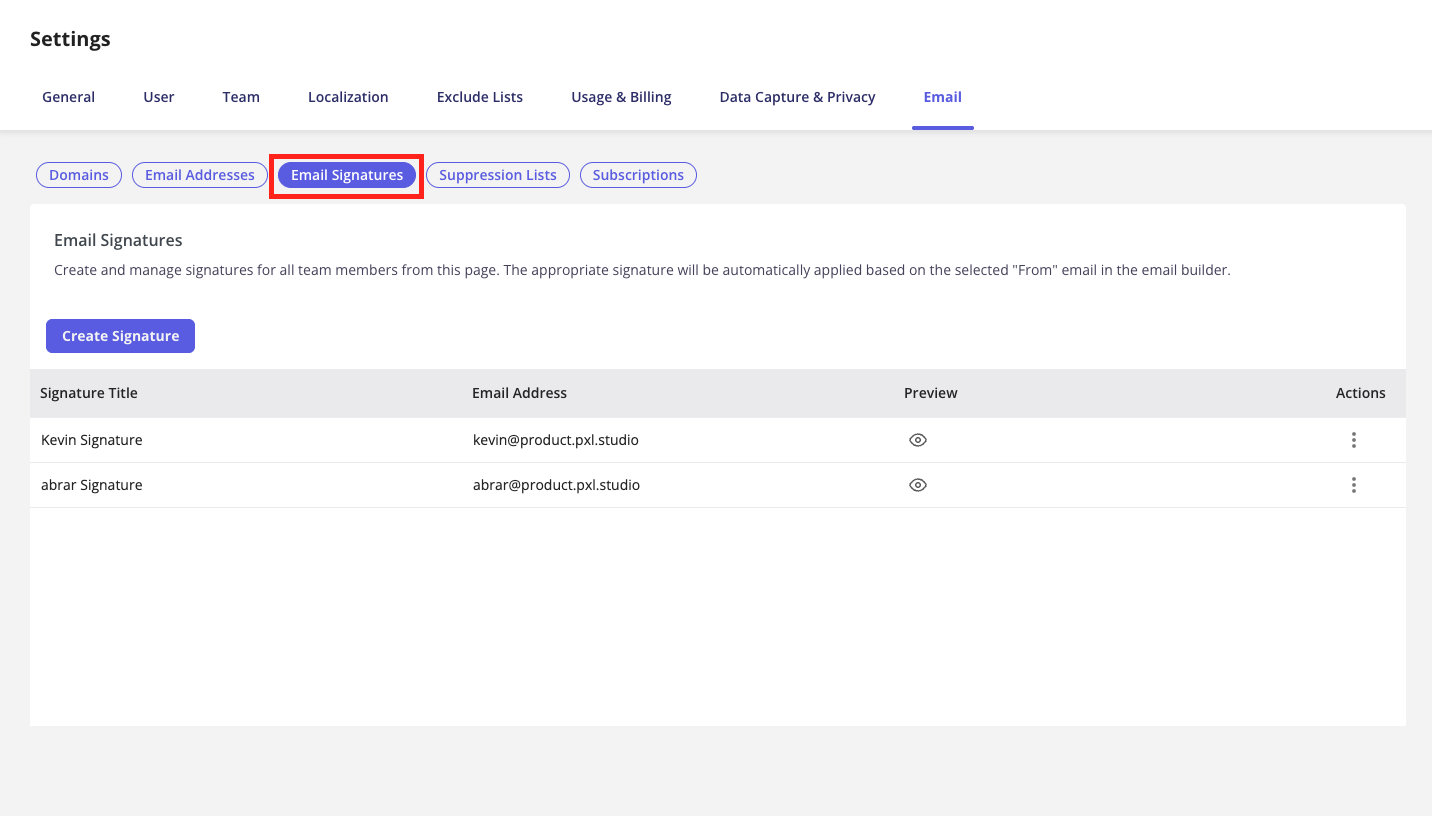
Go to [Configure > Settings > Email >](https://run.userpilot.io/settings/email-settings/email-signatures) where you'll find your **Email signature**.
 ### Step 1: Create your signature
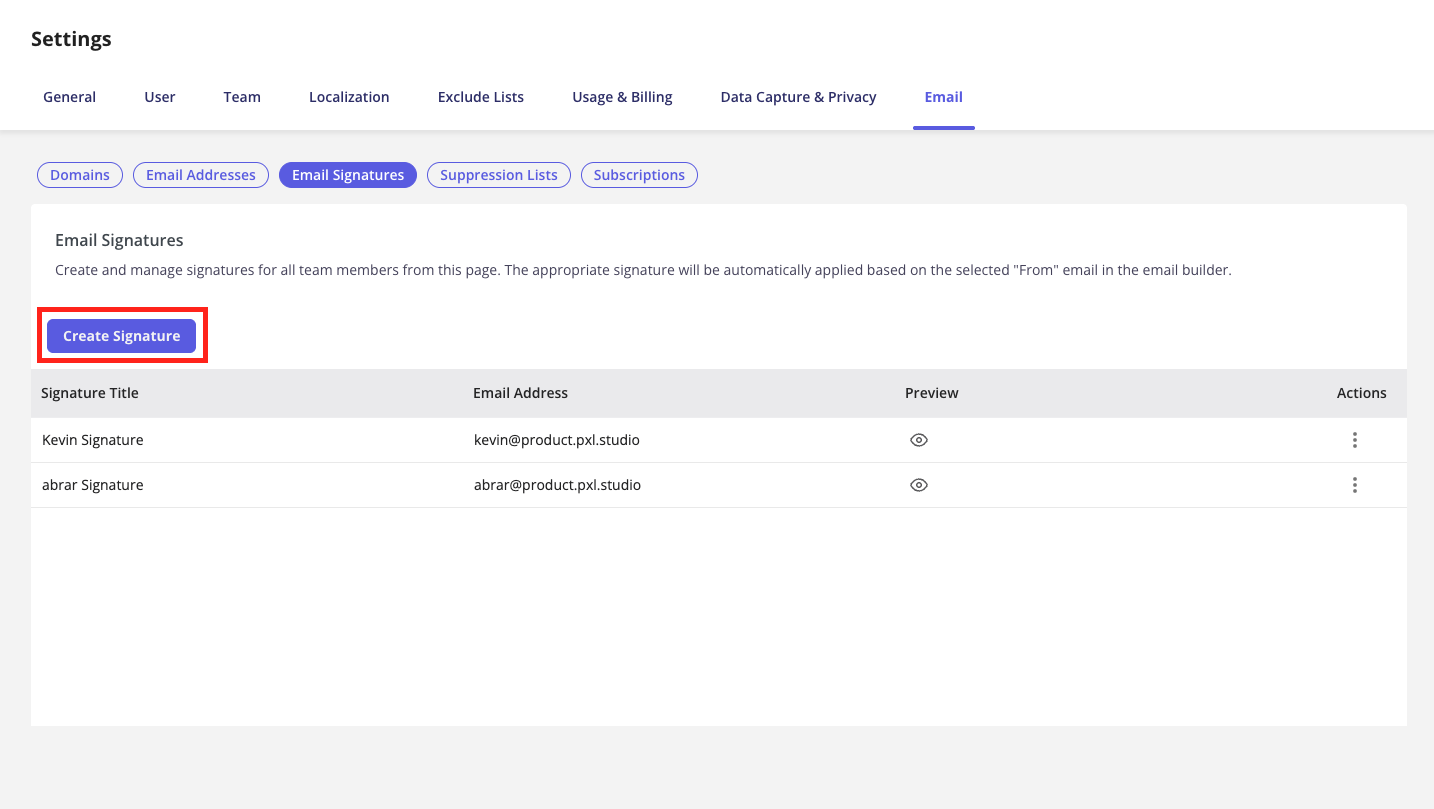
Click **Create Signature** to begin customizing your email signature.
### Step 1: Create your signature
Click **Create Signature** to begin customizing your email signature.
 ### **Step 2:** Select the email address and assign a name to the signature
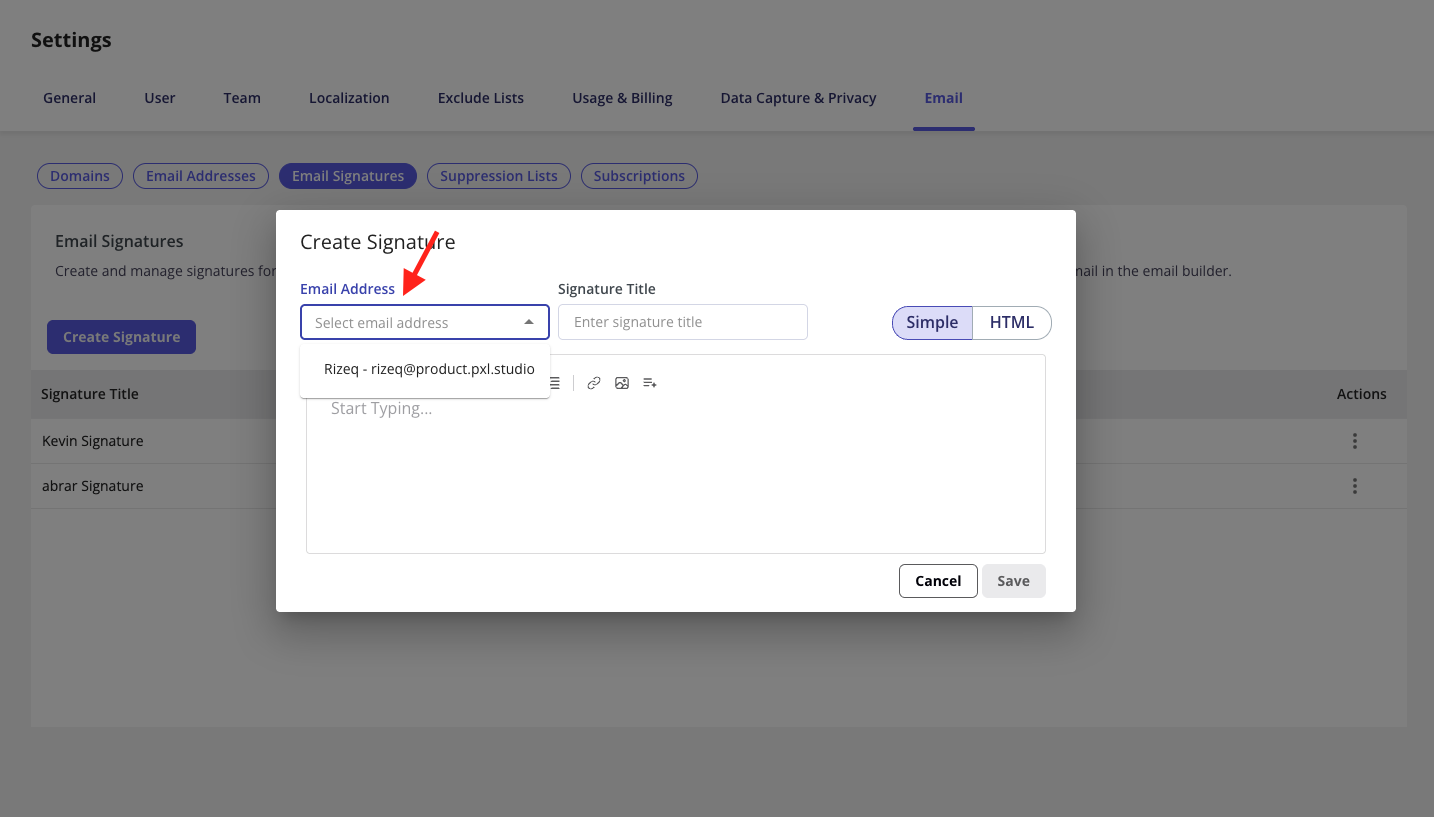
The email address list is pulled from the addresses you added under the "Send Email Addresses" tab. You can give each signature a name to help differentiate them in the table.
### **Step 2:** Select the email address and assign a name to the signature
The email address list is pulled from the addresses you added under the "Send Email Addresses" tab. You can give each signature a name to help differentiate them in the table.
 ### **Step 3:** Select how you want to create your signature
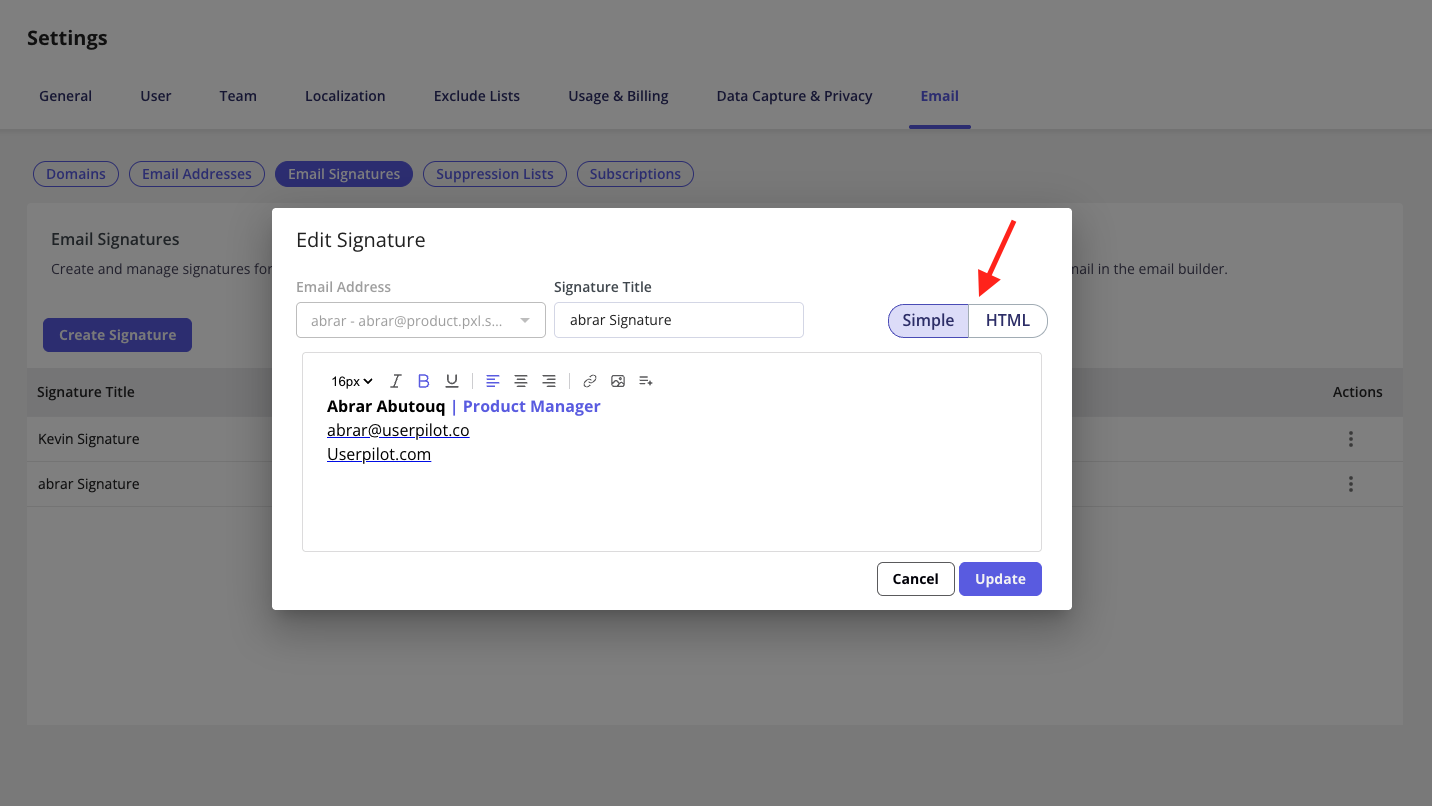
There are two ways to create your signature in Userpilot:
**Simple:** Use a full WYSIWYG text editor to customize your signature. You can adjust:
* Text size, color, bold, italic, underline
* Text alignment
* Bulleted and numbered lists
* Images to add your company logo
* Links to add your company website URL
* Personalization tokens
- You can upload a JPEG, PNG, or GIF for your logo
- The default image size is set to 40 pixels in height
- It's only possible to have one logo
**HTML:** For greater flexibility and advanced styling, use the HTML option to fully customize your signature’s design.
When you’re happy with the preview, click **Save**.
### **Step 3:** Select how you want to create your signature
There are two ways to create your signature in Userpilot:
**Simple:** Use a full WYSIWYG text editor to customize your signature. You can adjust:
* Text size, color, bold, italic, underline
* Text alignment
* Bulleted and numbered lists
* Images to add your company logo
* Links to add your company website URL
* Personalization tokens
- You can upload a JPEG, PNG, or GIF for your logo
- The default image size is set to 40 pixels in height
- It's only possible to have one logo
**HTML:** For greater flexibility and advanced styling, use the HTML option to fully customize your signature’s design.
When you’re happy with the preview, click **Save**.
 **Note**
The email signature will always be included in outgoing emails, using the sender’s **“From”** address.
**Note**
The email signature will always be included in outgoing emails, using the sender’s **“From”** address.