> ## Documentation Index
> Fetch the complete documentation index at: https://docs.userpilot.com/llms.txt
> Use this file to discover all available pages before exploring further.
# Design email theme
> Userpilot makes it easy to customize your email theme to align seamlessly with your brand identity. You can configure colors, fonts, button styles, and more.
## Overview
Userpilot makes it easy to customize your email theme to align seamlessly with your brand identity. You can configure colors, fonts, button styles, and other design elements to deliver a consistent, branded experience in every email. With flexible styling options, you can maintain brand consistency across all communications without the need for ongoing design adjustments.
## Get started
To start creating your email theme, go to [Configure > Themes](https://run.userpilot.io/themes). You’ll find the option to customize the email theme when editing any existing theme.
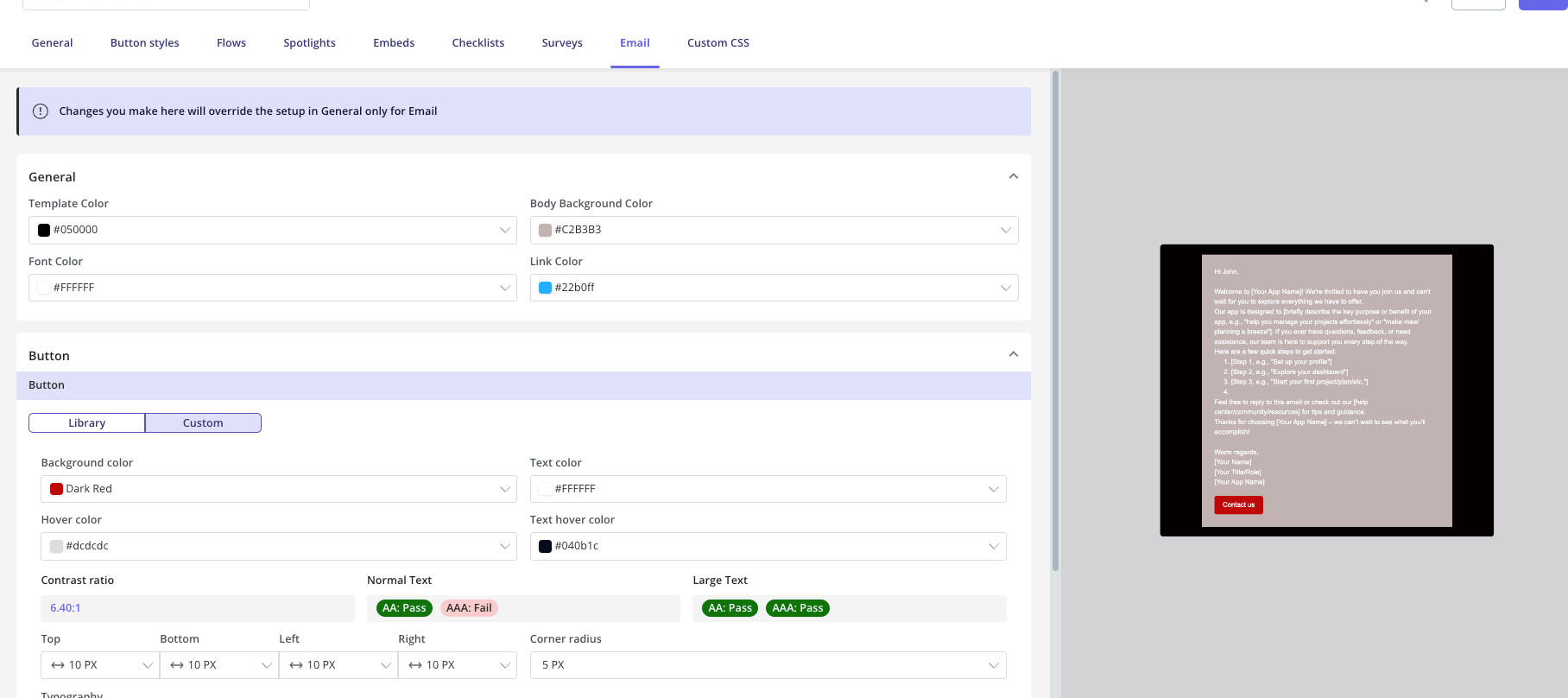 ### General section
Start with the General settings to customize your email’s overall appearance:
1. **Template color:** set the background color for the main content area of your email to match your brand or enhance visual clarity.
2. **Body background color:** set a template color for all email sections to keep your design consistent.
3. **Font color:** customize the text and button label colors in your email content.
4. **Link color:** customize the color of hyperlinks within your email content to make them stand out and stay on-brand.
When you’re satisfied with your email theme settings, click **Save** to apply your changes.
[For any questions or concerns please reach out to **support@userpilot.com**](mailto:support@userpilot.com)
### General section
Start with the General settings to customize your email’s overall appearance:
1. **Template color:** set the background color for the main content area of your email to match your brand or enhance visual clarity.
2. **Body background color:** set a template color for all email sections to keep your design consistent.
3. **Font color:** customize the text and button label colors in your email content.
4. **Link color:** customize the color of hyperlinks within your email content to make them stand out and stay on-brand.
When you’re satisfied with your email theme settings, click **Save** to apply your changes.
[For any questions or concerns please reach out to **support@userpilot.com**](mailto:support@userpilot.com)