> ## Documentation Index
> Fetch the complete documentation index at: https://docs.userpilot.com/llms.txt
> Use this file to discover all available pages before exploring further.
# Manage unsubscribes
> See who unsubscribed from each email subscription type, import an opted out list from another tool, and add or remove addresses by hand.
## Overview
Most teams send email from more than one tool. If someone opts out in your CRM, that decision doesn't reach Userpilot on its own, and they keep hearing from you.
The **Subscriptions** page lets unsubscribes move in both directions. You can see who opted out of each subscription type, load a list of opted-out addresses from another tool, and add or remove a single address yourself. Changes apply from the next send.
To send unsubscribes the other way, out of Userpilot and into your other systems, see [the Emails webhook event](/integrations/webhooks).
## Where to find it
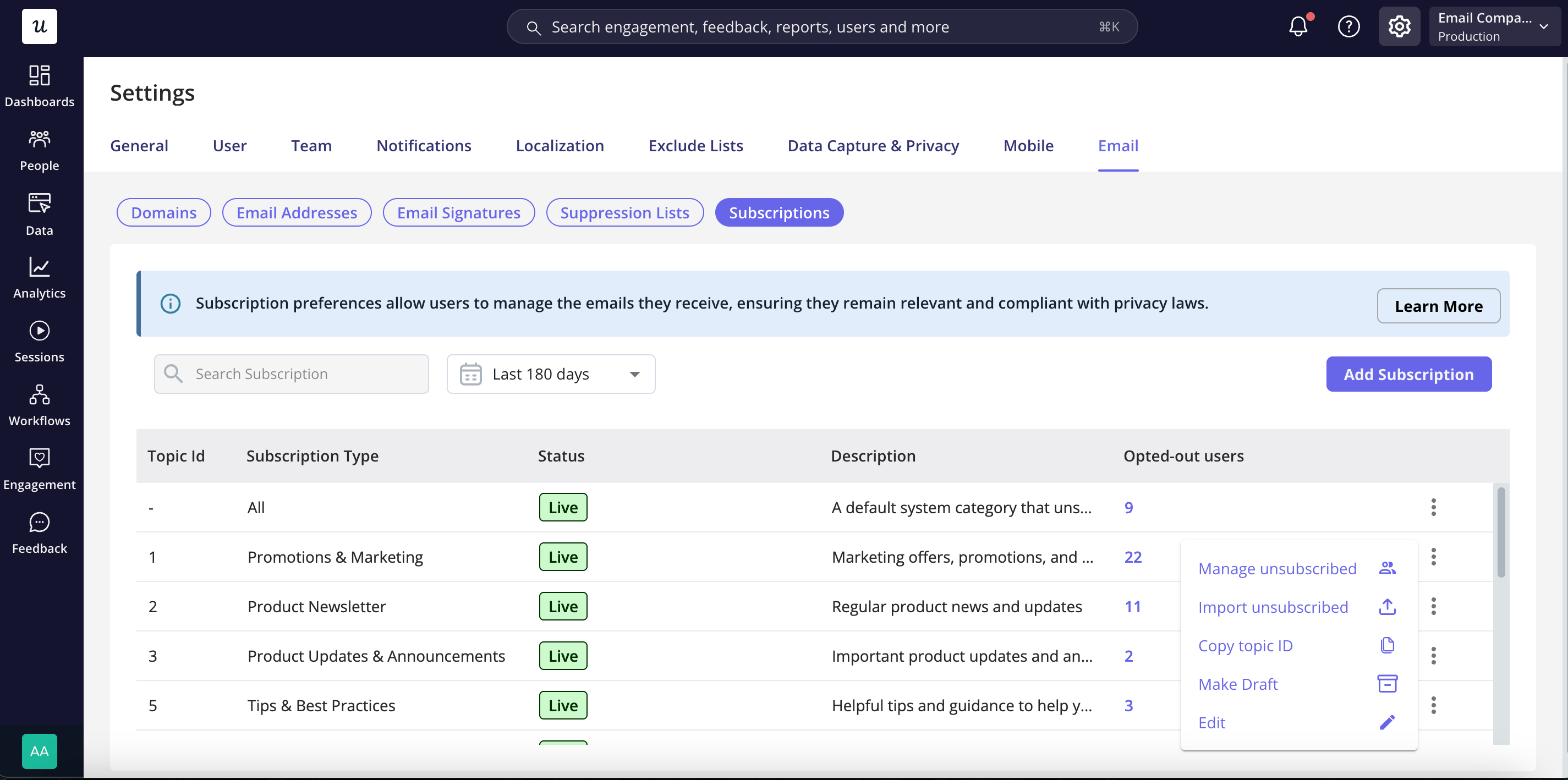
Go to [**Settings > Email > Subscriptions**](https://run.userpilot.io/settings/email-settings/email-subscriptions). Every row has an action menu with three new options:
* **Manage unsubscribed:** see who unsubscribed from that subscription type, and add or remove addresses.
* **Import unsubscribed:** upload a list of email addresses to unsubscribe from that subscription type.
* **Copy topic ID:** copy the ID you need when calling the [subscription preferences API](/api-references/email-subscriptions/set-preferences).
The **Unsubscribed from all** row works the same way, except that it has no ID to copy. An address on that list is blocked from every Userpilot email you send, including emails with no subscription type set.
 ## See who unsubscribed
Click **Manage users** from the action menu to view everyone who has opted out of that subscription type. The list includes four columns:
| Column | What it shows |
| ---------- | --------------------------------------------------------------- |
| **Email** | The address that opted out. |
| **Date** | When the most recent change happened. Hover for the exact time. |
| **Source** | How it happened. See [sources](#sources) below. |
| **By** | The teammate who did it, when a teammate did it by hand. |
The panel header shows how many email addresses are in the period you have selected. You can search by address, change the period, and export to CSV. The export follows the period and search you have set.
The period defaults to the last 180 days rather than the 14 days the Subscriptions page uses, so a long list doesn't look shorter than it is.
### Sources
| Source | What it means |
| ------------------------- | ------------------------------------------------------------------- |
| **Preference center** | User unsubscribed through the preference/unsubscribe page |
| **One-click unsubscribe** | User used Gmail, Yahoo, or another provider’s one-click unsubscribe |
| **CSV import** | An import added the address. |
| **API** | One of your own systems set it through the API. |
| **Manual** | A teammate added it from the dashboard. |
## Import unsubscribed
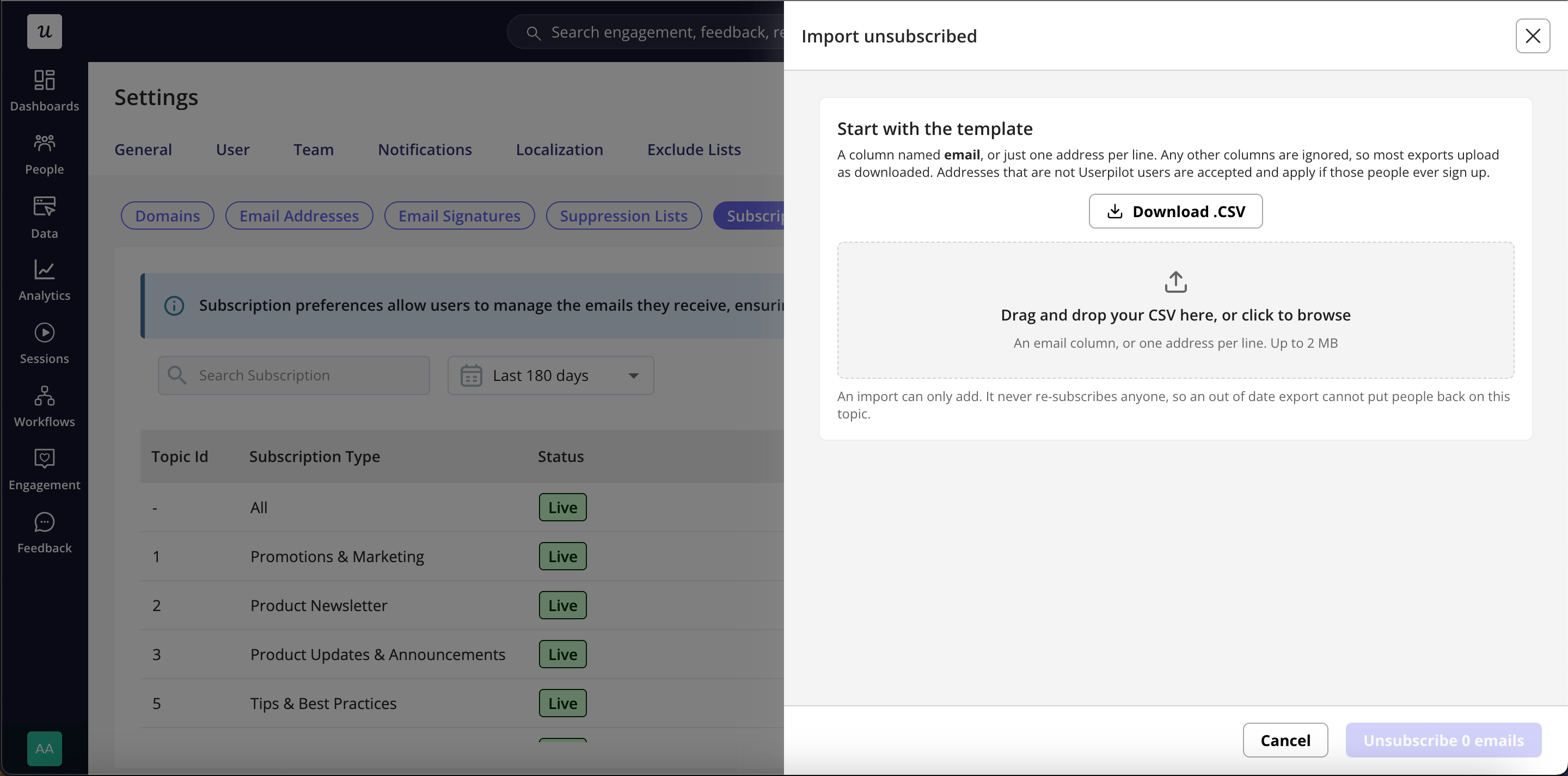
Use Import unsubscribed to load a list of email addresses from another tool into one subscription type. The subscription type comes from the row you started from, so the file itself says nothing about subscription types.
On the subscription type you want, open the action menu and select **Import unsubscribed**
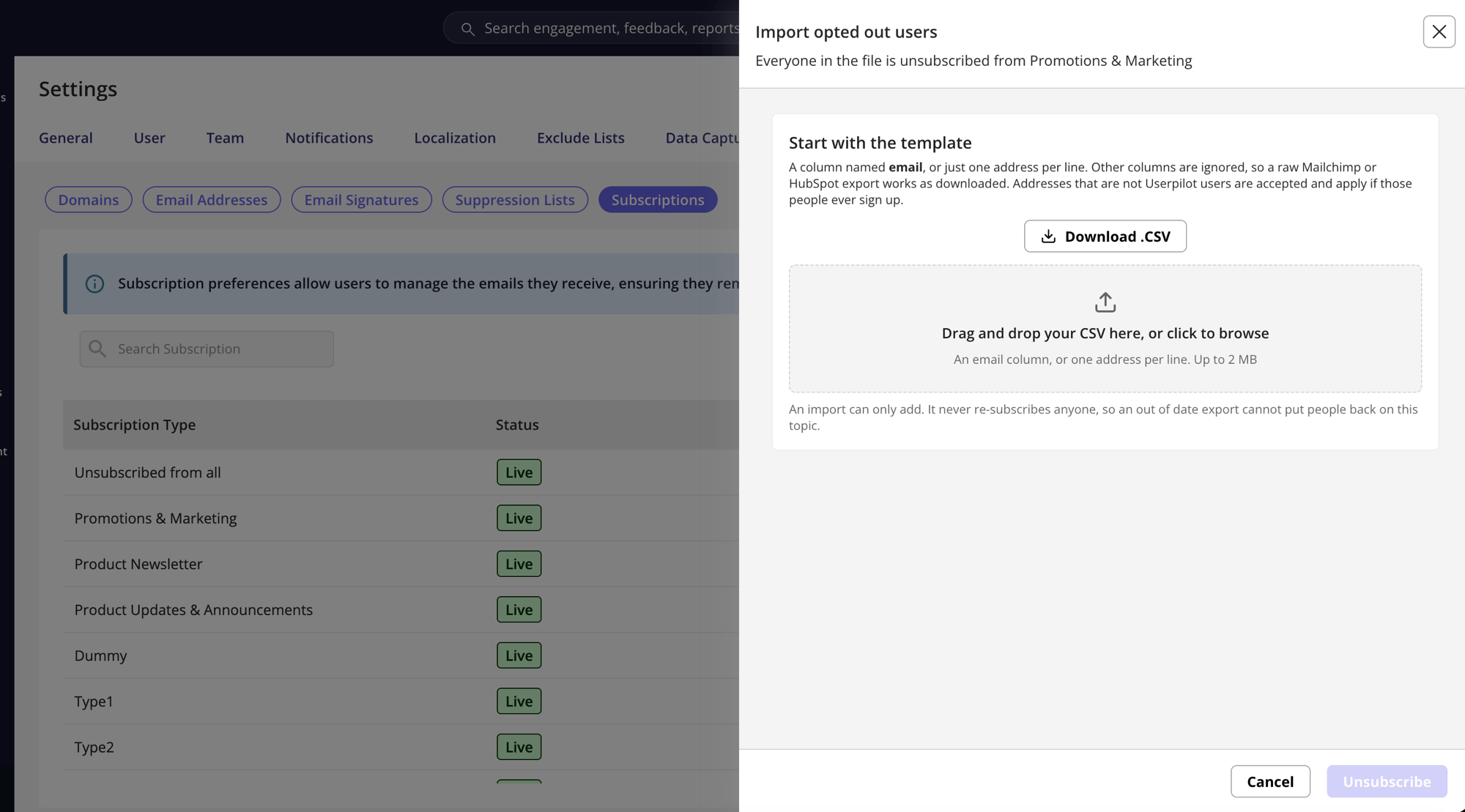
Download the template if needed, then upload your `.csv` file. It must contain an email column, such as `email`, `Email Address`, `email_address`, `e-mail`, or `Recipient`,or list one email address per row without a header. Any additional columns are ignored, so you can upload a Mailchimp or HubSpot export as is.
## See who unsubscribed
Click **Manage users** from the action menu to view everyone who has opted out of that subscription type. The list includes four columns:
| Column | What it shows |
| ---------- | --------------------------------------------------------------- |
| **Email** | The address that opted out. |
| **Date** | When the most recent change happened. Hover for the exact time. |
| **Source** | How it happened. See [sources](#sources) below. |
| **By** | The teammate who did it, when a teammate did it by hand. |
The panel header shows how many email addresses are in the period you have selected. You can search by address, change the period, and export to CSV. The export follows the period and search you have set.
The period defaults to the last 180 days rather than the 14 days the Subscriptions page uses, so a long list doesn't look shorter than it is.
### Sources
| Source | What it means |
| ------------------------- | ------------------------------------------------------------------- |
| **Preference center** | User unsubscribed through the preference/unsubscribe page |
| **One-click unsubscribe** | User used Gmail, Yahoo, or another provider’s one-click unsubscribe |
| **CSV import** | An import added the address. |
| **API** | One of your own systems set it through the API. |
| **Manual** | A teammate added it from the dashboard. |
## Import unsubscribed
Use Import unsubscribed to load a list of email addresses from another tool into one subscription type. The subscription type comes from the row you started from, so the file itself says nothing about subscription types.
On the subscription type you want, open the action menu and select **Import unsubscribed**
Download the template if needed, then upload your `.csv` file. It must contain an email column, such as `email`, `Email Address`, `email_address`, `e-mail`, or `Recipient`,or list one email address per row without a header. Any additional columns are ignored, so you can upload a Mailchimp or HubSpot export as is.
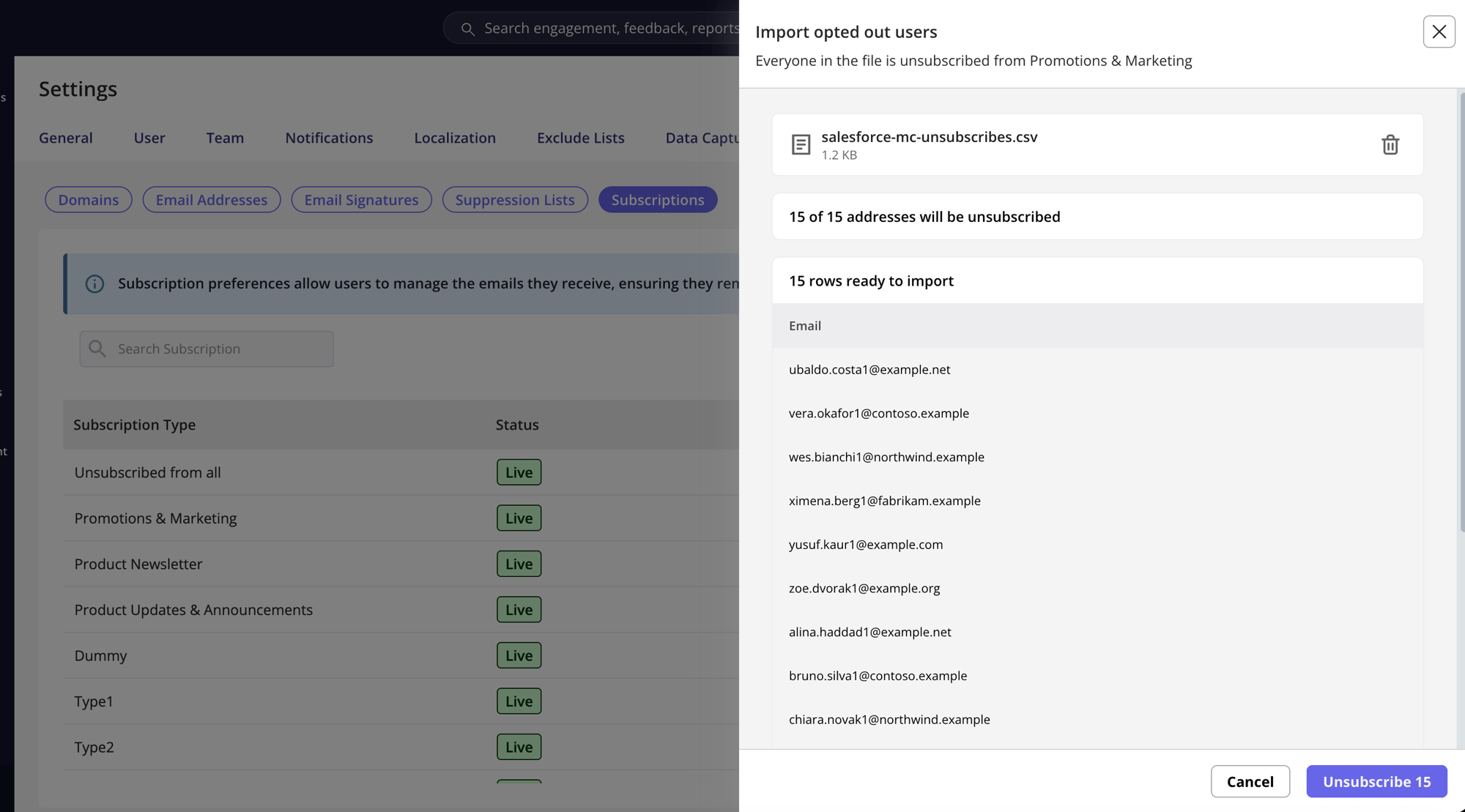
 Userpilot scans the file and shows how many email addresses are ready to import. It also identifies duplicates that will be skipped and invalid addresses that will be rejected. Nothing is imported until you confirm.
To apply the action to the displayed number of email addresses. The import runs in the background, and the list updates shortly after you close the panel.
Userpilot scans the file and shows how many email addresses are ready to import. It also identifies duplicates that will be skipped and invalid addresses that will be rejected. Nothing is imported until you confirm.
To apply the action to the displayed number of email addresses. The import runs in the background, and the list updates shortly after you close the panel.
 The limits are 2 MB and 50,000 rows per file. Email addresses are matched without regard to case or surrounding spaces, so `Kevin@Acme.com` and `kevin@acme.com` are the same recipient.
Imports can only add email addresses to the opt-out list; they cannot resubscribe anyone. Uploading an older file will not resubscribe users who have since opted out.
An address that isn't a Userpilot user yet is accepted, not rejected. The opt-out applies automatically if that recipient ever signs up. This is what makes importing a CRM list worth doing, since most of those email addresses are people who have never used your product.
## Add an address manually
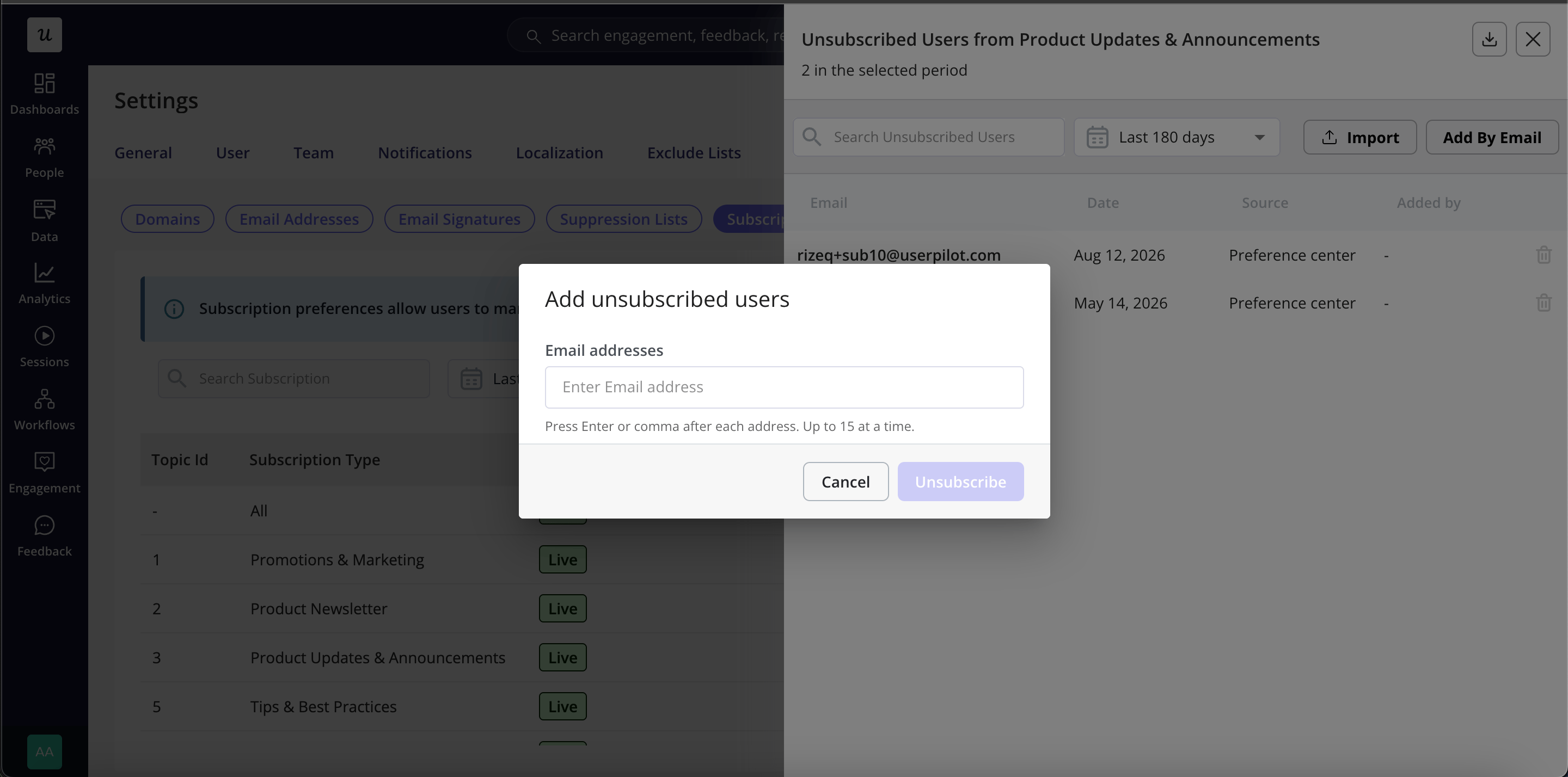
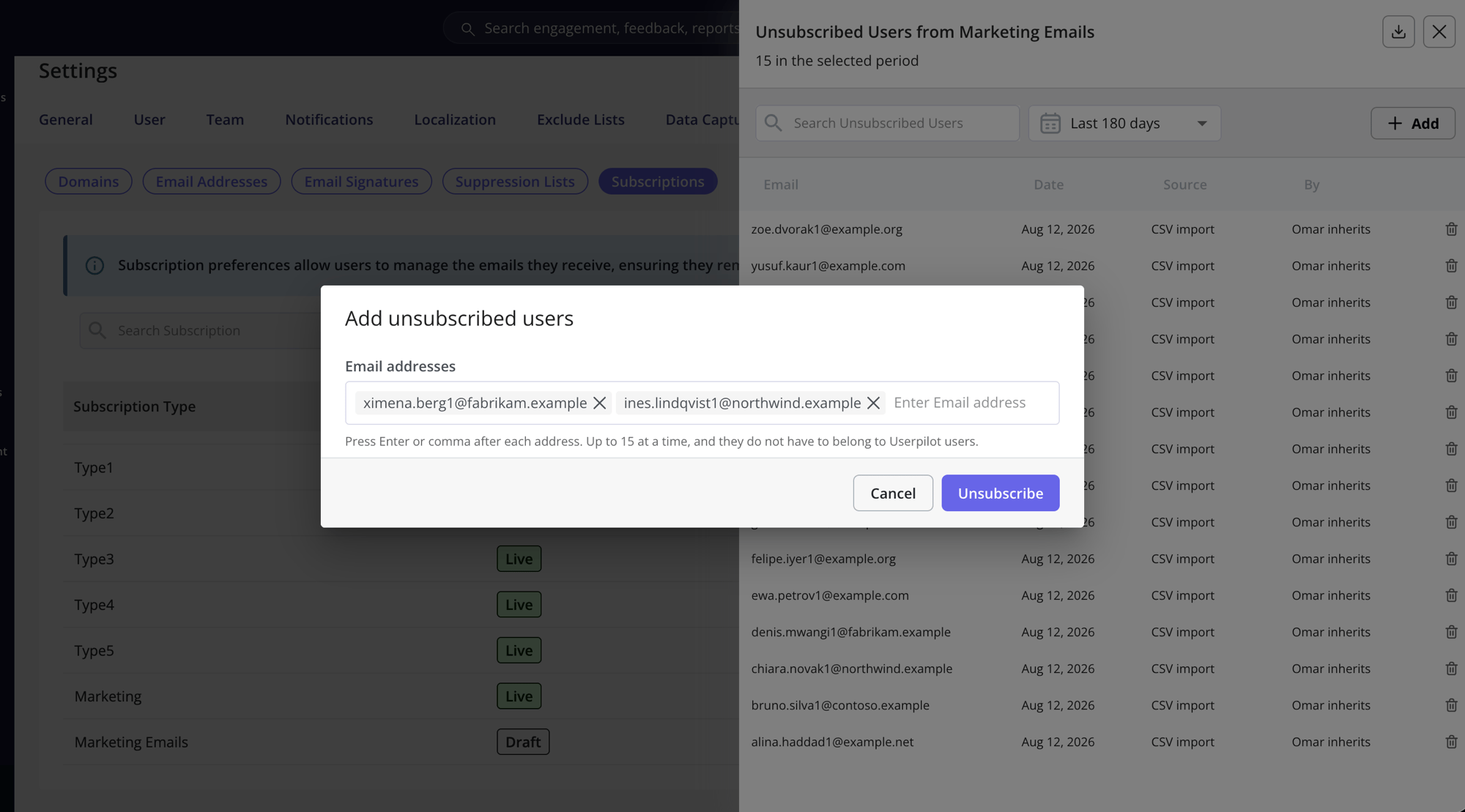
Select **Add by Email** from the **Manage unsubscribed** list to manually unsubscribe email addresses without waiting for recipients to opt out. You can add up to 15 email addresses at a time. For larger lists, use the import option.
If an email address is already unsubscribed from that subscription type, it won’t be added again. The confirmation message shows how many new addresses were successfully added.
The limits are 2 MB and 50,000 rows per file. Email addresses are matched without regard to case or surrounding spaces, so `Kevin@Acme.com` and `kevin@acme.com` are the same recipient.
Imports can only add email addresses to the opt-out list; they cannot resubscribe anyone. Uploading an older file will not resubscribe users who have since opted out.
An address that isn't a Userpilot user yet is accepted, not rejected. The opt-out applies automatically if that recipient ever signs up. This is what makes importing a CRM list worth doing, since most of those email addresses are people who have never used your product.
## Add an address manually
Select **Add by Email** from the **Manage unsubscribed** list to manually unsubscribe email addresses without waiting for recipients to opt out. You can add up to 15 email addresses at a time. For larger lists, use the import option.
If an email address is already unsubscribed from that subscription type, it won’t be added again. The confirmation message shows how many new addresses were successfully added.
 ## Resubscribe an email address
To resubscribe an address, select **Remove** next to the email address it in **Manage unsubscribed**. Once confirmed, the email address is removed from the opt-out list and can receive emails for that subscription type again.
Whether a teammate can resubscribe someone depends on how they unsubscribed:
| Unsubscribed by | Can a teammate re-subscribe them? |
| ----------------------------------------------------------------- | --------------------------------- |
| A teammate, CSV import, or API | Yes |
| The recipient, using an unsubscribe link or one-click unsubscribe | No |
If a recipient unsubscribed themselves, the **Remove** action is disabled and the row explains why. Only the recipient can resubscribe by updating their preferences through the unsubscribe link in an email. This protects their consent and follows common email-marketing practices.
This restriction applies to the email address across all subscription types. Once a recipient has managed their own preferences through an unsubscribe link or one-click unsubscribe, teammates cannot resubscribe that address to any subscription type.
The restriction remains even if the recipient later subscribes again. Any future opt-out added for that address, whether by a teammate or an import can only be reversed by the recipient.
## Other changes to unsubscribes
Unsubscribes are now managed by email address, which affects the following:
* **Unsubscribe from all applies to emails without a subscription type:** Emails without a subscription type are no longer sent to recipients who have unsubscribed from all emails. Review your live emails to ensure each one has the appropriate subscription type.
* **One-click unsubscribe is supported:** Unsubscribes made using the button displayed by providers such as Gmail and Yahoo are now recorded as recipient-initiated. These providers have required one-click unsubscribe for bulk senders since February 2024, making it important for deliverability.
* **One email address represents one recipient:** If the same address appears across multiple Userpilot accounts, unsubscribing it prevents emails from being sent to that address from any of those accounts. Previously, the opt-out applied only to the account from which the recipient unsubscribed.
To import or manually add email addresses, you need permission to manage subscription types. To download the list, you need export permission.
### FAQs
They're accepted and stored against the address. If that person is later identified in Userpilot, the opt-out already applies, so they never receive the email they opted out of.
No. An import only adds opt-outs. To re-subscribe someone, remove them from the list in **Manage users**, or use the [subscription preferences API](/api-references/email-subscriptions/set-preferences) with `status` set to `subscribed`. Either way, people who unsubscribed themselves stay unsubscribed.
It depends on the email. An email triggered by an event, or sent from a workflow, checks the person's preferences as it goes out, so the change applies right away. A send to a segment works out its recipients when the send starts, so an opt-out that arrives after that point applies to the next send rather than the one already running.
Yes. The opt-out sits dormant and starts applying the moment that subscription type goes live. Use **Copy topic ID** to get the ID, since the API only lists live subscription types.
No. A test send never writes real unsubscribe state and never fires the webhook.
[For any questions or concerns please reach out to **support@userpilot.com**](mailto:support@userpilot.com)
## Resubscribe an email address
To resubscribe an address, select **Remove** next to the email address it in **Manage unsubscribed**. Once confirmed, the email address is removed from the opt-out list and can receive emails for that subscription type again.
Whether a teammate can resubscribe someone depends on how they unsubscribed:
| Unsubscribed by | Can a teammate re-subscribe them? |
| ----------------------------------------------------------------- | --------------------------------- |
| A teammate, CSV import, or API | Yes |
| The recipient, using an unsubscribe link or one-click unsubscribe | No |
If a recipient unsubscribed themselves, the **Remove** action is disabled and the row explains why. Only the recipient can resubscribe by updating their preferences through the unsubscribe link in an email. This protects their consent and follows common email-marketing practices.
This restriction applies to the email address across all subscription types. Once a recipient has managed their own preferences through an unsubscribe link or one-click unsubscribe, teammates cannot resubscribe that address to any subscription type.
The restriction remains even if the recipient later subscribes again. Any future opt-out added for that address, whether by a teammate or an import can only be reversed by the recipient.
## Other changes to unsubscribes
Unsubscribes are now managed by email address, which affects the following:
* **Unsubscribe from all applies to emails without a subscription type:** Emails without a subscription type are no longer sent to recipients who have unsubscribed from all emails. Review your live emails to ensure each one has the appropriate subscription type.
* **One-click unsubscribe is supported:** Unsubscribes made using the button displayed by providers such as Gmail and Yahoo are now recorded as recipient-initiated. These providers have required one-click unsubscribe for bulk senders since February 2024, making it important for deliverability.
* **One email address represents one recipient:** If the same address appears across multiple Userpilot accounts, unsubscribing it prevents emails from being sent to that address from any of those accounts. Previously, the opt-out applied only to the account from which the recipient unsubscribed.
To import or manually add email addresses, you need permission to manage subscription types. To download the list, you need export permission.
### FAQs
They're accepted and stored against the address. If that person is later identified in Userpilot, the opt-out already applies, so they never receive the email they opted out of.
No. An import only adds opt-outs. To re-subscribe someone, remove them from the list in **Manage users**, or use the [subscription preferences API](/api-references/email-subscriptions/set-preferences) with `status` set to `subscribed`. Either way, people who unsubscribed themselves stay unsubscribed.
It depends on the email. An email triggered by an event, or sent from a workflow, checks the person's preferences as it goes out, so the change applies right away. A send to a segment works out its recipients when the send starts, so an opt-out that arrives after that point applies to the next send rather than the one already running.
Yes. The opt-out sits dormant and starts applying the moment that subscription type goes live. Use **Copy topic ID** to get the ID, since the API only lists live subscription types.
No. A test send never writes real unsubscribe state and never fires the webhook.
[For any questions or concerns please reach out to **support@userpilot.com**](mailto:support@userpilot.com)