> ## Documentation Index
> Fetch the complete documentation index at: https://docs.userpilot.com/llms.txt
> Use this file to discover all available pages before exploring further.
# Create Banner
> Highlight important updates at the top or bottom of your app — without interrupting the user.
## Overview
Banners are floating messages that appear at the top or bottom of your web app, making it easy to highlight important updates without disrupting the user's workflow.
## Use Cases
* **Feature Announcements**: Promote new features or updates to users directly on your web app.
* **Maintenance and Updates**: Proactively communicate known issues, scheduled maintenance, or any downtime.
* **Feedback Requests**: Gather user feedback in a non-intrusive way without disrupting their current activity.
## Create a banner in Userpilot
1. Open the **Userpilot Chrome Extension** and navigate to the page where you want the banner to appear
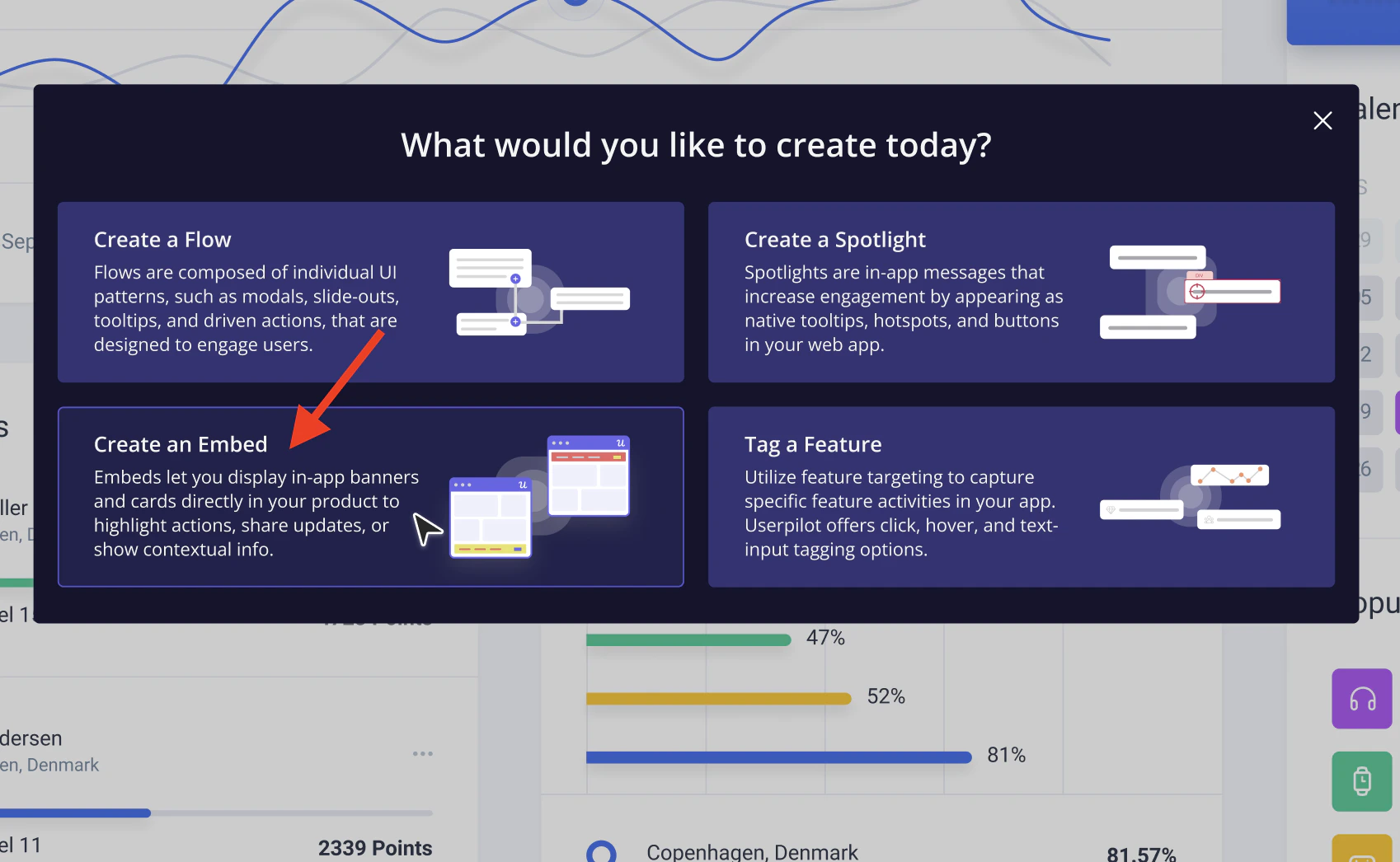
2. Click **"Start here"** and select **"Create an Embed"**
3. Name your **Embed**, select the **Banner type**, and apply a theme that fits your design
4. Customize your banner by adding **text, icons, and buttons** to grab users’ attention
 ## Banner settings and design
You can customize both the **appearance** and **behavior** of the Banner in your Userpilot account. Use the tabs below to configure the **settings**:
### Placement
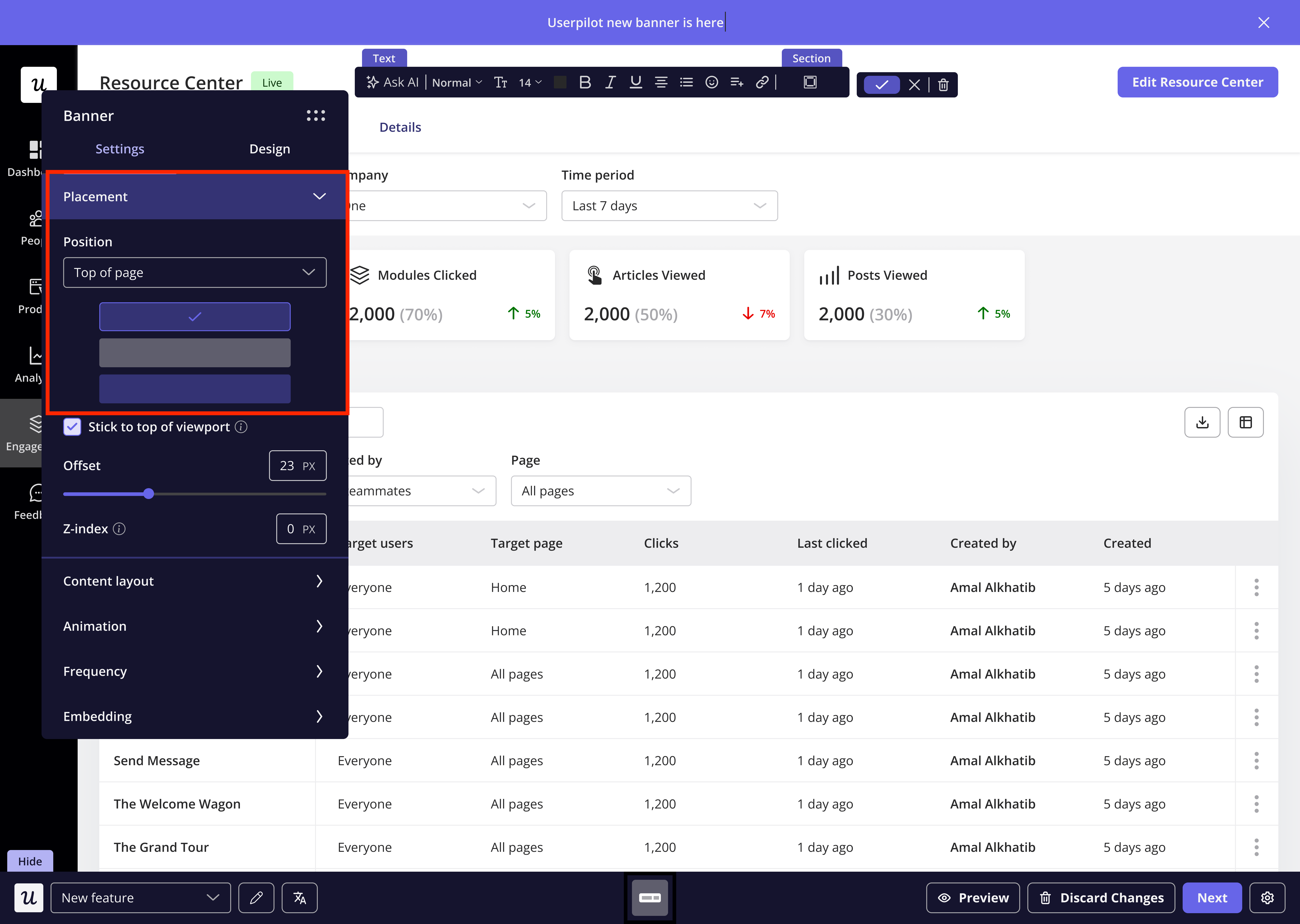
Select where the Banner will appear: top or bottom of the page. You can further fine-tune the placement using offset adjustments to suit your design preferences.
## Banner settings and design
You can customize both the **appearance** and **behavior** of the Banner in your Userpilot account. Use the tabs below to configure the **settings**:
### Placement
Select where the Banner will appear: top or bottom of the page. You can further fine-tune the placement using offset adjustments to suit your design preferences.
 ### Content Layout
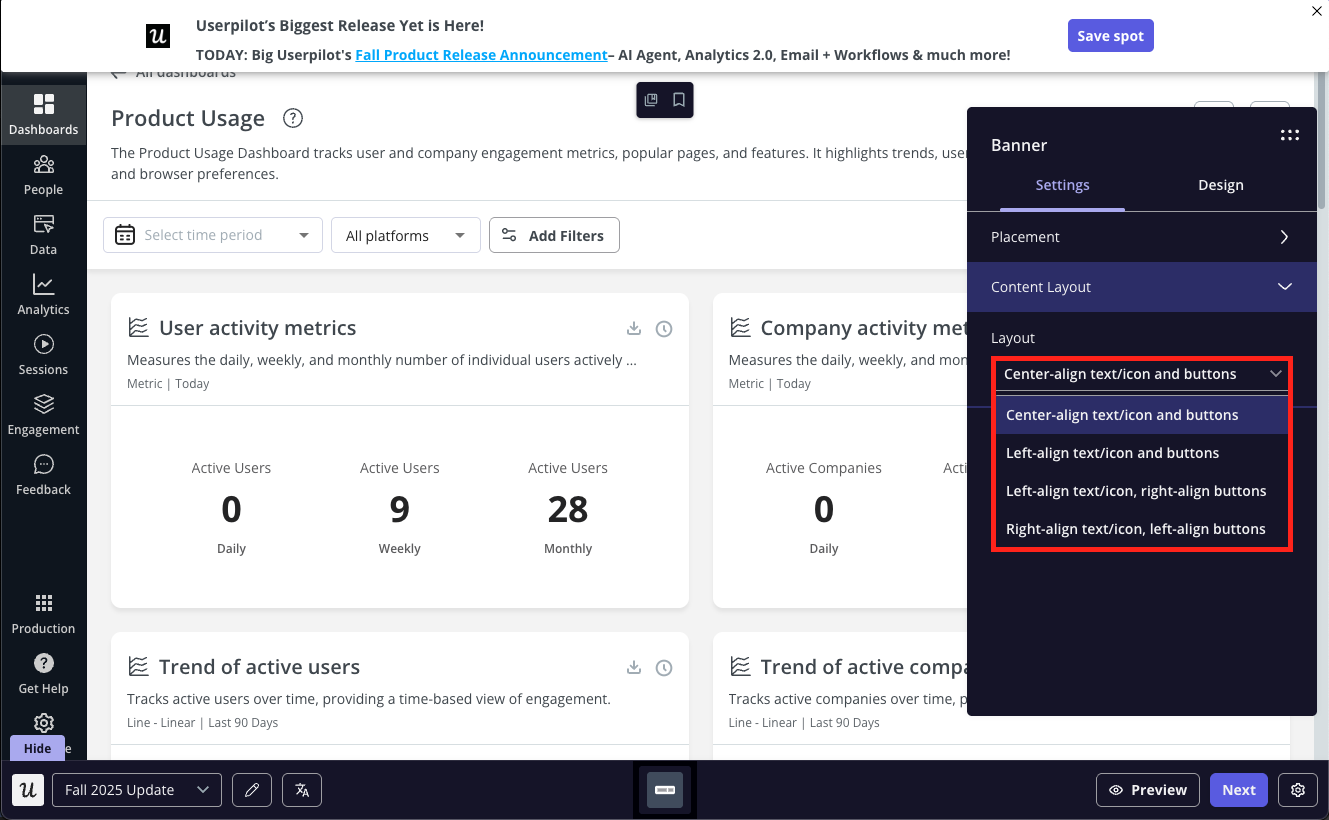
The Content Layout setting allows you to customize how the elements (text/icon and buttons) are aligned within the Banner.
### Content Layout
The Content Layout setting allows you to customize how the elements (text/icon and buttons) are aligned within the Banner.
 ### Animation
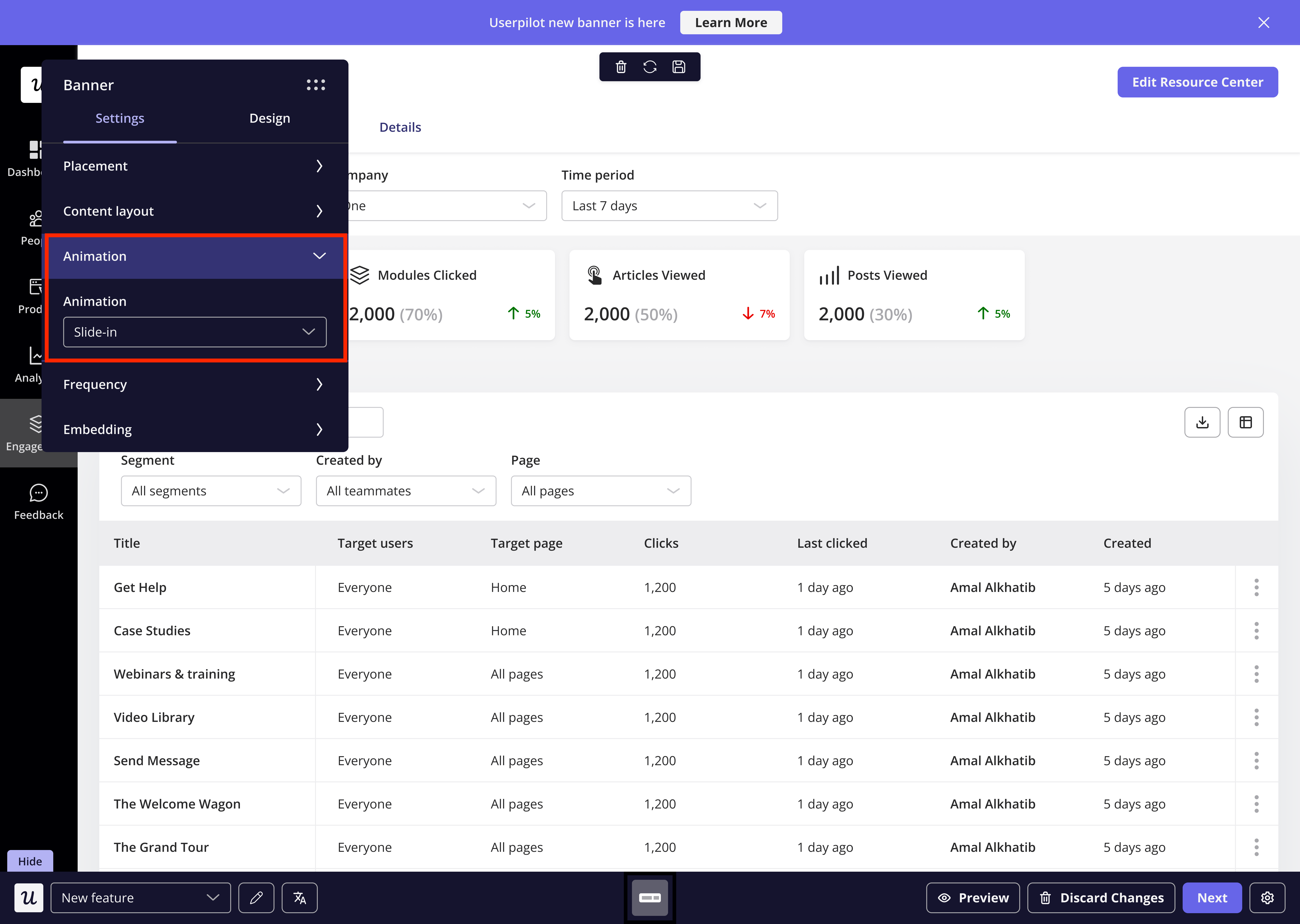
Adding animation can help draw attention to your Banner or make the transition more engaging for users.
### Animation
Adding animation can help draw attention to your Banner or make the transition more engaging for users.
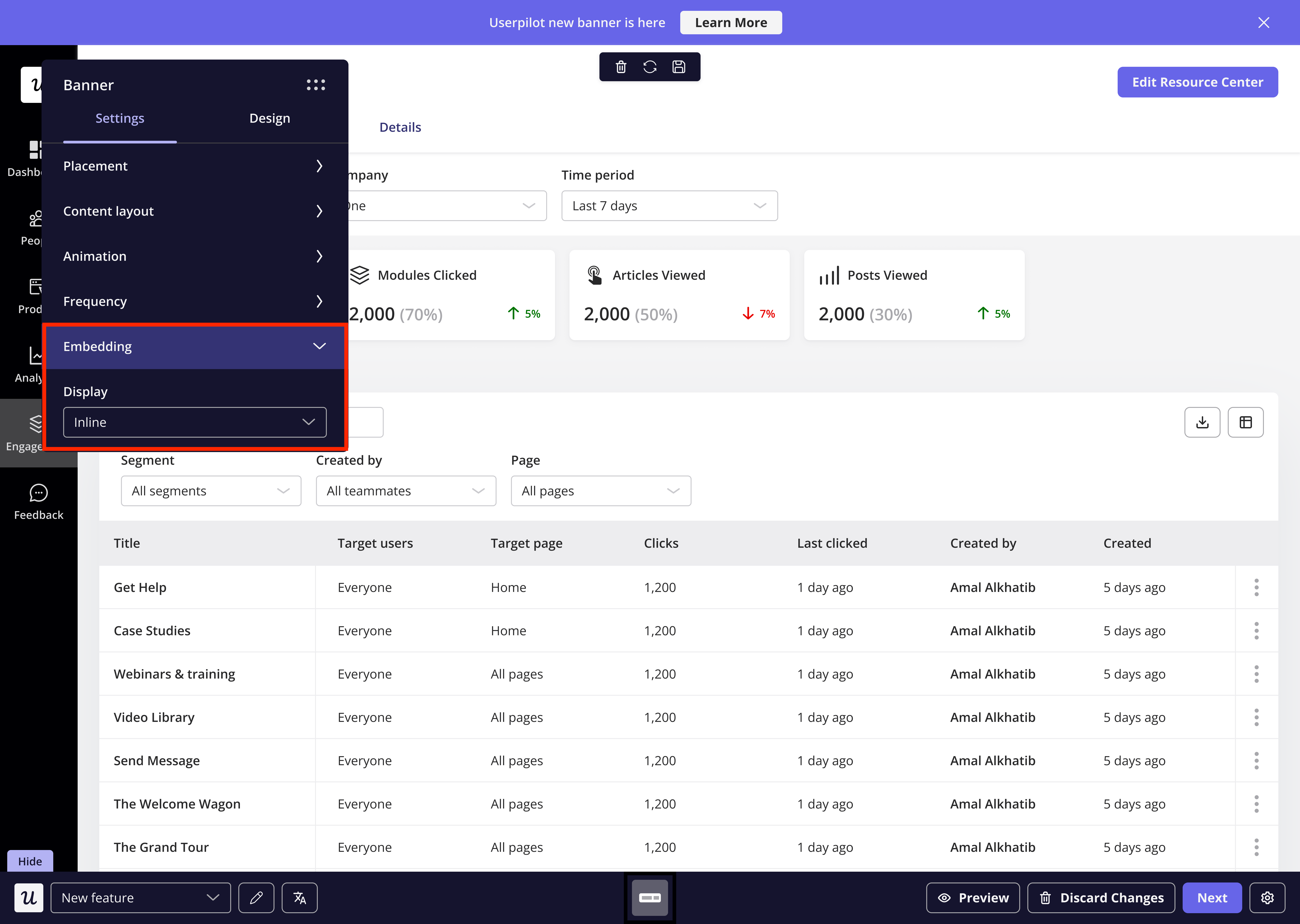
 ### Embedding
The Embedding setting allows you to control how the Banner interacts with the page content.
* **Inline**: The Banner will appear as part of the page content, aligning with other elements on the page. It behaves like any other content on the page and does not overlay the rest of the UI.
* **Overlay**: The Banner will appear on top of the content as an overlay, ensuring it grabs the user's attention without interfering with the underlying page layout.
### Embedding
The Embedding setting allows you to control how the Banner interacts with the page content.
* **Inline**: The Banner will appear as part of the page content, aligning with other elements on the page. It behaves like any other content on the page and does not overlay the rest of the UI.
* **Overlay**: The Banner will appear on top of the content as an overlay, ensuring it grabs the user's attention without interfering with the underlying page layout.
 ### Design
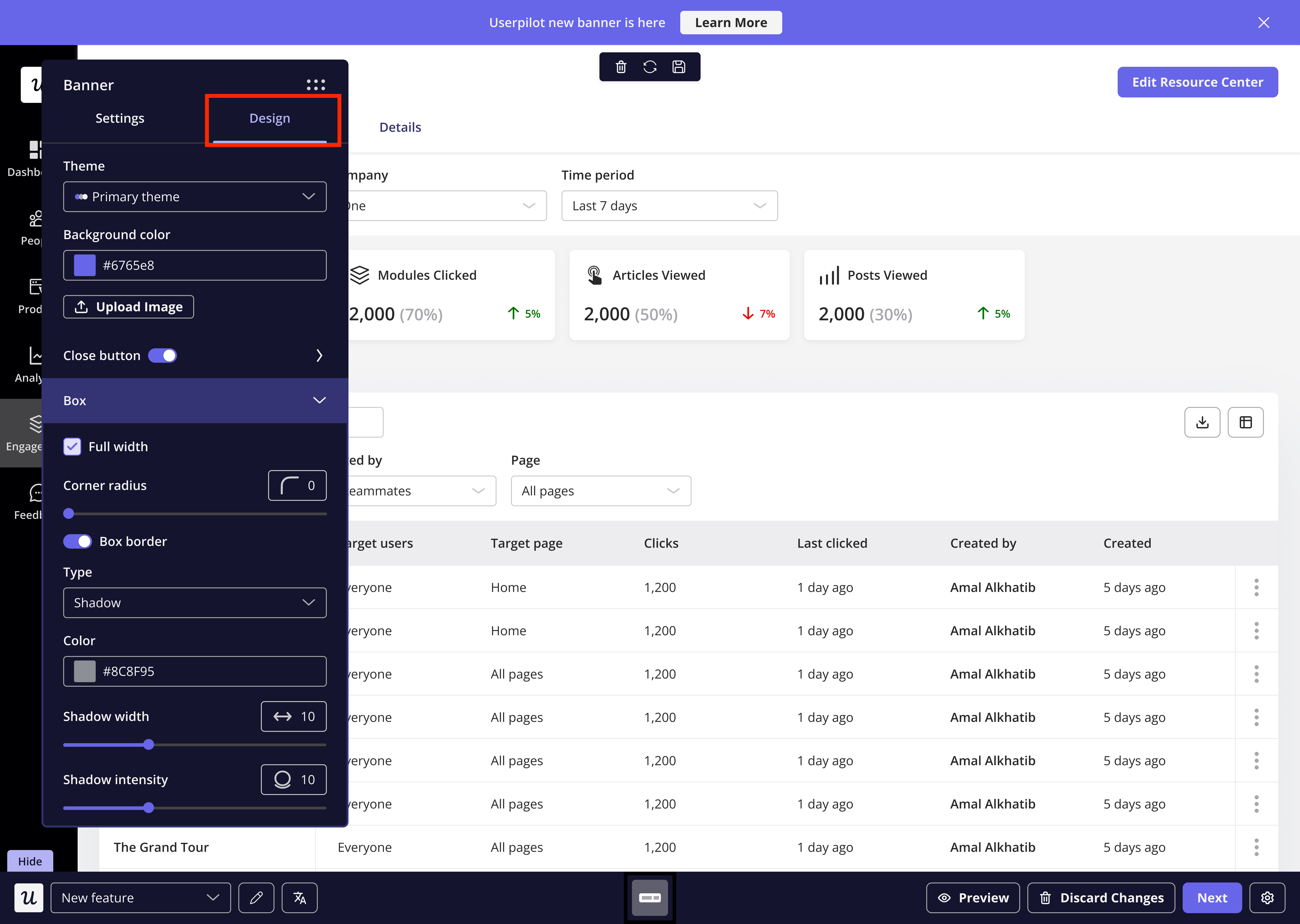
Customize your Banner's look in the **Design tab**:
* **Theme**: Select from different themes to change the overall design of your Banner.
* **Background:** Choose a background color for the banner, or upload your own image to use as the background. Userpilot will then apply your selection to the entire banner.
* **Close Button**: Enable a close button to dismiss the Banner. You can control its behavior with three options:
* **Dismiss**: The Banner will reappear if the frequency is set to "Every time".
* **Dismiss and never show again**: The Banner will not trigger again.
* **Dismiss and show in the next session**: The Banner will reappear after a new session (defined after 30 minutes of inactivity).
* **Box Settings**: Adjust the width, corner roundness, and border settings to refine the look of your Banner.
### Design
Customize your Banner's look in the **Design tab**:
* **Theme**: Select from different themes to change the overall design of your Banner.
* **Background:** Choose a background color for the banner, or upload your own image to use as the background. Userpilot will then apply your selection to the entire banner.
* **Close Button**: Enable a close button to dismiss the Banner. You can control its behavior with three options:
* **Dismiss**: The Banner will reappear if the frequency is set to "Every time".
* **Dismiss and never show again**: The Banner will not trigger again.
* **Dismiss and show in the next session**: The Banner will reappear after a new session (defined after 30 minutes of inactivity).
* **Box Settings**: Adjust the width, corner roundness, and border settings to refine the look of your Banner.
 ### FAQs
Yes! If the dismiss icon is for example set to "never show again," it will override the frequency setting. Even if the frequency is set to "Every time," the Banner won't appear again once dismissed.
Overlay positions the Banner above the content, which may sometimes block important elements. Adjusting the **placement** or **width** of the Banner can help avoid overlap with key UI components.
To adjust the width, go to the **Design** tab, then navigate to the **Box** settings. Uncheck the **Full Width** option, and once that's done, you'll be able to customize the width of the Banner to your preference.
[For any questions or concerns please reach out to **support@userpilot.com**](mailto:support@userpilot.com)
### FAQs
Yes! If the dismiss icon is for example set to "never show again," it will override the frequency setting. Even if the frequency is set to "Every time," the Banner won't appear again once dismissed.
Overlay positions the Banner above the content, which may sometimes block important elements. Adjusting the **placement** or **width** of the Banner can help avoid overlap with key UI components.
To adjust the width, go to the **Design** tab, then navigate to the **Box** settings. Uncheck the **Full Width** option, and once that's done, you'll be able to customize the width of the Banner to your preference.
[For any questions or concerns please reach out to **support@userpilot.com**](mailto:support@userpilot.com)