> ## Documentation Index
> Fetch the complete documentation index at: https://docs.userpilot.com/llms.txt
> Use this file to discover all available pages before exploring further.
# Set up Flow Settings
> Configure flow settings in Userpilot to control when, where, and how flows are triggered, ensuring personalized and relevant in-app experiences.
## Overview
Userpilot enables your team to create **highly personalized and customizable** product flows, tailored to user attributes, behaviors, and their journey within the application. These flows ensure that users receive the right guidance at the right time, enhancing their overall experience.
By showing users **relevant experiences**, you can drive **higher adoption and engagement**, ensuring a more seamless and impactful product journey.
## Flow settings
After creating your flow, the next step is to customize its settings.
Navigate to the **Settings** tab, where you'll find various options to customize your flow. This article will walk you through each configuration in detail.
The green "live" icon indicates that all changes have been successfully pushed to the live version. Conversely, a yellow "pending" icon means that some changes haven't been applied to the live version yet, prompting you to push the updates to ensure they appear live.
## Trigger type
Three options can be used to determine when to trigger a flow:
 When selecting this option, the flow will trigger based on the following conditions that you can set up in the 'Page-Specific' section of the flow settings.
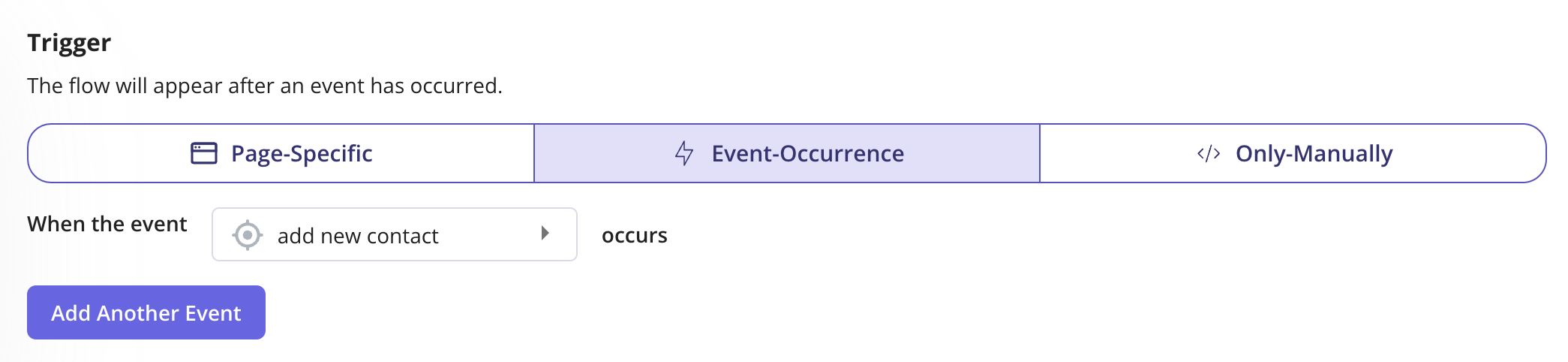 Trigger a flow precisely when users perform a specific event, ensuring a smooth and seamless experience. For example, you can trigger a flow when the users create a new invoice, guiding them through the next steps.
For better targeting, it's highly recommended to pass tracked event metadata, allowing you to leverage event attributes effectively.
Trigger a flow precisely when users perform a specific event, ensuring a smooth and seamless experience. For example, you can trigger a flow when the users create a new invoice, guiding them through the next steps.
For better targeting, it's highly recommended to pass tracked event metadata, allowing you to leverage event attributes effectively.
 Flows can be triggered through a **button**, or a **checklist task** as well as the **Resource Center**. If you would like the flow to trigger only from Userpilot content without it triggering on its own, then selecting the option **Only manually** is the way to go.
Add the provided query to the end of any URL in your web app to automatically trigger a flow. This is a great way to test your flow internally and easily share it with your teammates.
A JavaScript snippet is available for programmatically starting a flow, such as from a button in your app. Simply copy the code and share it with your development team to include it in the code of the desired element in your web application.
Triggering a flow manually will **override** all other flow settings, such as the segment, domain, and page settings.
## Environment
Trigger the flow in your preferred environment to ensure a smooth user experience.
If you want to test the flow in your staging environment before deploying it to production, simply enable the staging checkbox. This ensures the flow runs only in staging, allowing you to review and refine it before making it live for all users.
Flows can be triggered through a **button**, or a **checklist task** as well as the **Resource Center**. If you would like the flow to trigger only from Userpilot content without it triggering on its own, then selecting the option **Only manually** is the way to go.
Add the provided query to the end of any URL in your web app to automatically trigger a flow. This is a great way to test your flow internally and easily share it with your teammates.
A JavaScript snippet is available for programmatically starting a flow, such as from a button in your app. Simply copy the code and share it with your development team to include it in the code of the desired element in your web application.
Triggering a flow manually will **override** all other flow settings, such as the segment, domain, and page settings.
## Environment
Trigger the flow in your preferred environment to ensure a smooth user experience.
If you want to test the flow in your staging environment before deploying it to production, simply enable the staging checkbox. This ensures the flow runs only in staging, allowing you to review and refine it before making it live for all users.
 ## Domain
In many cases, you might want to install the Userpilot code snippet across multiple environments. This is especially helpful for testing flows locally or on a staging domain before deploying them to production.
You have full control over where Userpilot Flows appear, depending on the domains or subdomains where the Userpilot snippet is installed.
* **All Domains (Default):** The flow will display on any domain where the Userpilot script is installed.
* **Only on Specific Domains:** The flow will only appear if the domain matches the specified input string.
If you choose a specific domain, click **"Add Domain"** to set up one of the following conditions:
* **Matches**: Displays the flow on an exact domain match.
* **Doesn’t match**: Prevents the flow from appearing on a specific domain.
* **Matches regex**: Uses a regular expression to define dynamic domain matching rules.
This flexibility allows you to control flow visibility across different environments with precision.
### **Use matches regex to match dynamic domains**
In many cases, your domain may contain dynamic elements that vary between users. A common example is applications that assign a personalized subdomain for each user or account.
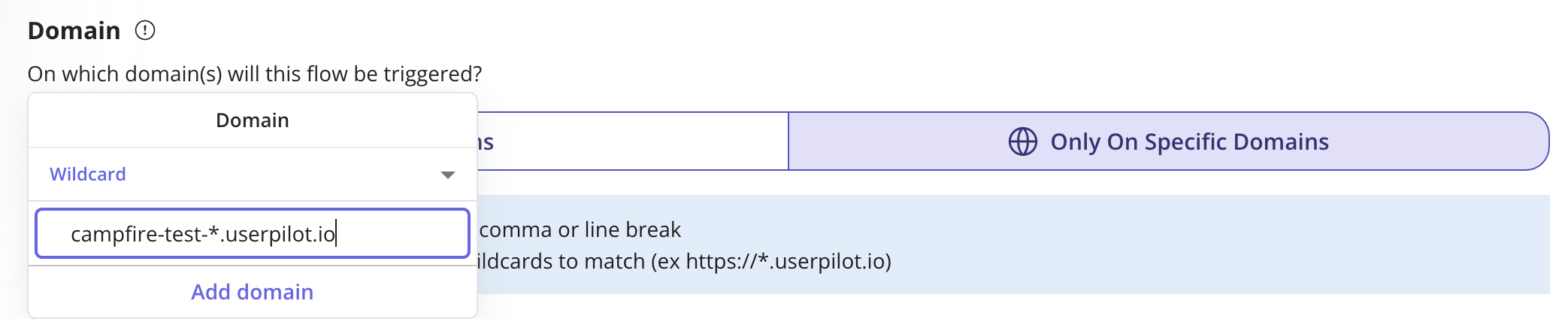
To accommodate this, you can use the **asterisk (\*) as a wildcard** to replace the dynamic portion of the domain. For instance, if you want to display a flow on "campfire-test-name.userpilot.io", where "name" is dynamic, you can set the domain as follows:
## Domain
In many cases, you might want to install the Userpilot code snippet across multiple environments. This is especially helpful for testing flows locally or on a staging domain before deploying them to production.
You have full control over where Userpilot Flows appear, depending on the domains or subdomains where the Userpilot snippet is installed.
* **All Domains (Default):** The flow will display on any domain where the Userpilot script is installed.
* **Only on Specific Domains:** The flow will only appear if the domain matches the specified input string.
If you choose a specific domain, click **"Add Domain"** to set up one of the following conditions:
* **Matches**: Displays the flow on an exact domain match.
* **Doesn’t match**: Prevents the flow from appearing on a specific domain.
* **Matches regex**: Uses a regular expression to define dynamic domain matching rules.
This flexibility allows you to control flow visibility across different environments with precision.
### **Use matches regex to match dynamic domains**
In many cases, your domain may contain dynamic elements that vary between users. A common example is applications that assign a personalized subdomain for each user or account.
To accommodate this, you can use the **asterisk (\*) as a wildcard** to replace the dynamic portion of the domain. For instance, if you want to display a flow on "campfire-test-name.userpilot.io", where "name" is dynamic, you can set the domain as follows:
 ### Page
Userpilot offers a variety of operators to fine-tune page-targeting settings, ensuring that the flow appears only on the intended URLs within your application.
### Page
Userpilot offers a variety of operators to fine-tune page-targeting settings, ensuring that the flow appears only on the intended URLs within your application.
 "Any Page" option allows the flow to appear on any page within your application, no matter where the user is.
 If you are already tracking a specific page in your application, you can select the page from the dropdown options to trigger the flow when users access that specific page.
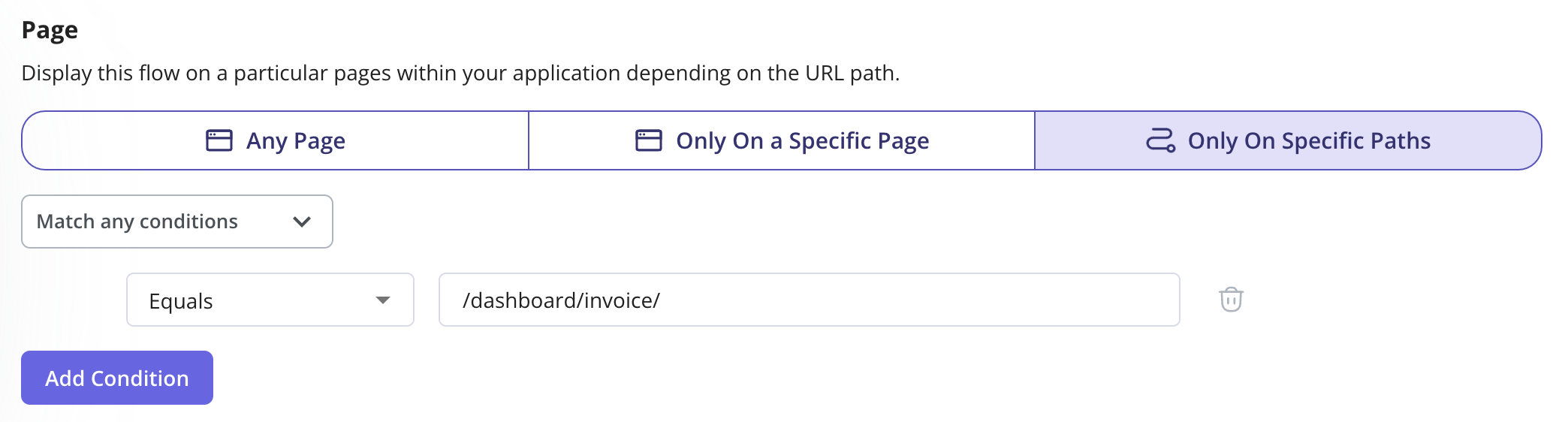 You can also trigger the flow on designated pages within your application based on the URL path.
**What is a URL Path?** URLs consist of the following parts:
You can also trigger the flow on designated pages within your application based on the URL path.
**What is a URL Path?** URLs consist of the following parts:
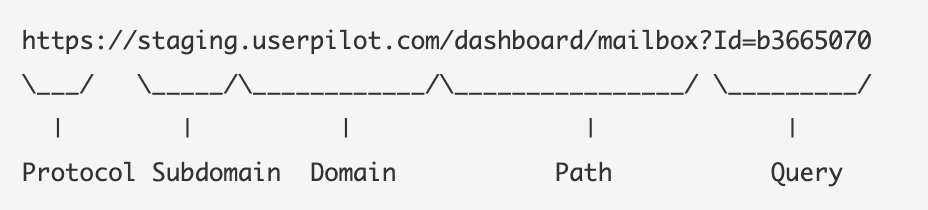 A URL path is the portion of a URL that comes after the top-level domain (TLD)—such as “.com” or “.io”—and before any query parameters (which start with **"?"**).
**URL Path Matching Options**
To ensure a flow appears on the correct page, you can use various matching options, along with their opposites:
* **Starts With** – Shows the flow on paths that **begin with** the specified substring.
* **Contains** – Shows the flow on paths that **include** the specified substring.
* **Ends With** – Shows the flow on paths that **end with** the specified substring.
* **Equals** – Shows the flow only when the path **exactly matches** the specified string.
* **Matches Regex** – Shows the flow on paths that **match a regular expression** (regex).
**Handling Dynamic URLs**
If your application has dynamically changing URLs, you can use the "Matches Regex" option along with the asterisk (\*) wildcard to replace the dynamic part and ensure the flow triggers on the correct pages.
### Audience
You can target your flows to a specific cohort of users for a more personalized experience by using user, company, and product usage data.
For example, you may want to **target a flow based on a user’s role** or show it only to users who **haven’t invited a teammate** yet.
This section outlines how to define which users are eligible to see your flow.
A URL path is the portion of a URL that comes after the top-level domain (TLD)—such as “.com” or “.io”—and before any query parameters (which start with **"?"**).
**URL Path Matching Options**
To ensure a flow appears on the correct page, you can use various matching options, along with their opposites:
* **Starts With** – Shows the flow on paths that **begin with** the specified substring.
* **Contains** – Shows the flow on paths that **include** the specified substring.
* **Ends With** – Shows the flow on paths that **end with** the specified substring.
* **Equals** – Shows the flow only when the path **exactly matches** the specified string.
* **Matches Regex** – Shows the flow on paths that **match a regular expression** (regex).
**Handling Dynamic URLs**
If your application has dynamically changing URLs, you can use the "Matches Regex" option along with the asterisk (\*) wildcard to replace the dynamic part and ensure the flow triggers on the correct pages.
### Audience
You can target your flows to a specific cohort of users for a more personalized experience by using user, company, and product usage data.
For example, you may want to **target a flow based on a user’s role** or show it only to users who **haven’t invited a teammate** yet.
This section outlines how to define which users are eligible to see your flow.
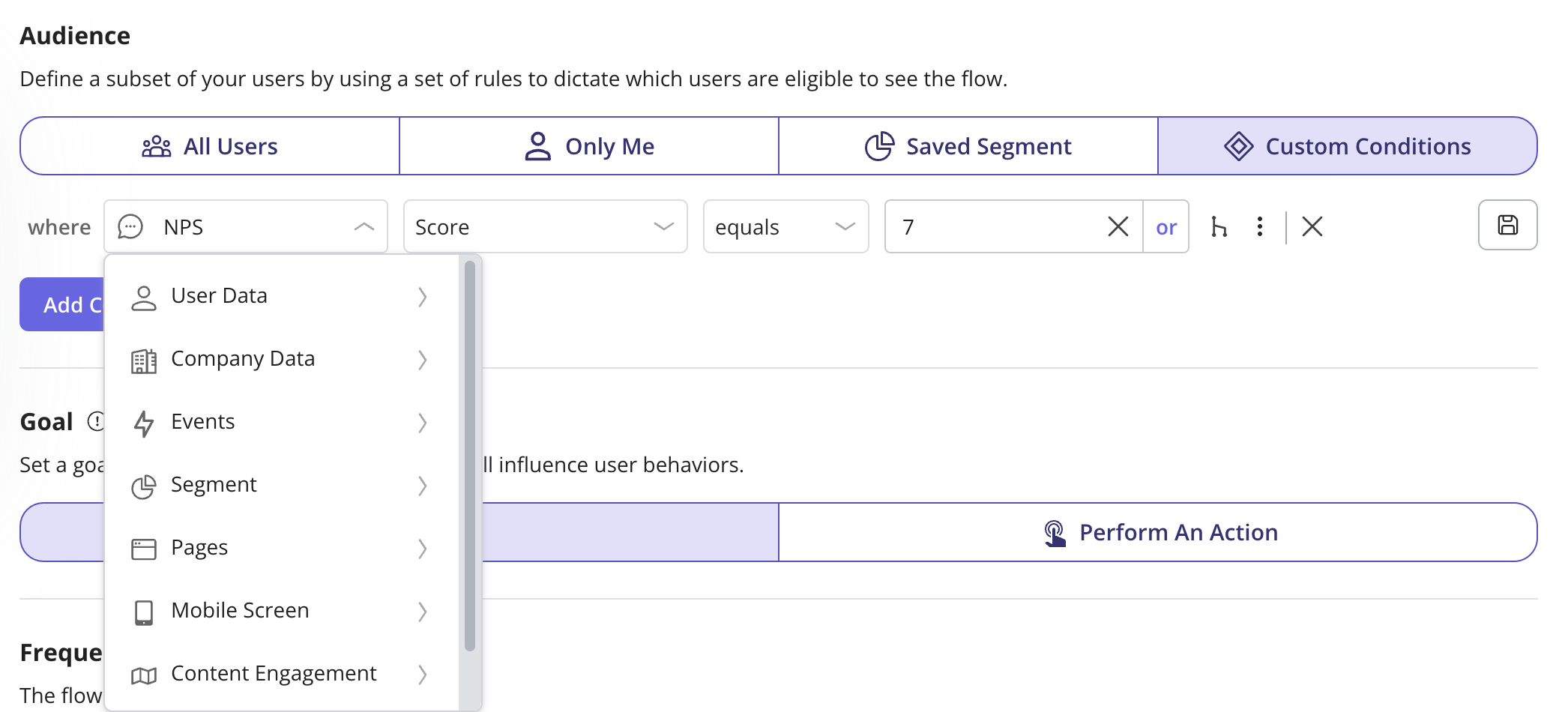
 * **All Users (Default):** Any identified user can see the flow.
* **Only Me (For Testing):** Limits the flow to users who have access to your Userpilot account and have the Chrome Extension builder installed.
* **Saved Segment:** Use a predefined user segment to target a specific group. This is helpful if you want to reuse the same targeting criteria across multiple flows.
* **Custom Conditions:** Create a targeted subset of users by setting specific rules that determine who can see the flow. This includes user and company data passed through your snippet, auto-properties automatically collected by Userpilot, and user events and actions within your app, among other criteria.
* **All Users (Default):** Any identified user can see the flow.
* **Only Me (For Testing):** Limits the flow to users who have access to your Userpilot account and have the Chrome Extension builder installed.
* **Saved Segment:** Use a predefined user segment to target a specific group. This is helpful if you want to reuse the same targeting criteria across multiple flows.
* **Custom Conditions:** Create a targeted subset of users by setting specific rules that determine who can see the flow. This includes user and company data passed through your snippet, auto-properties automatically collected by Userpilot, and user events and actions within your app, among other criteria.
 ### Goal
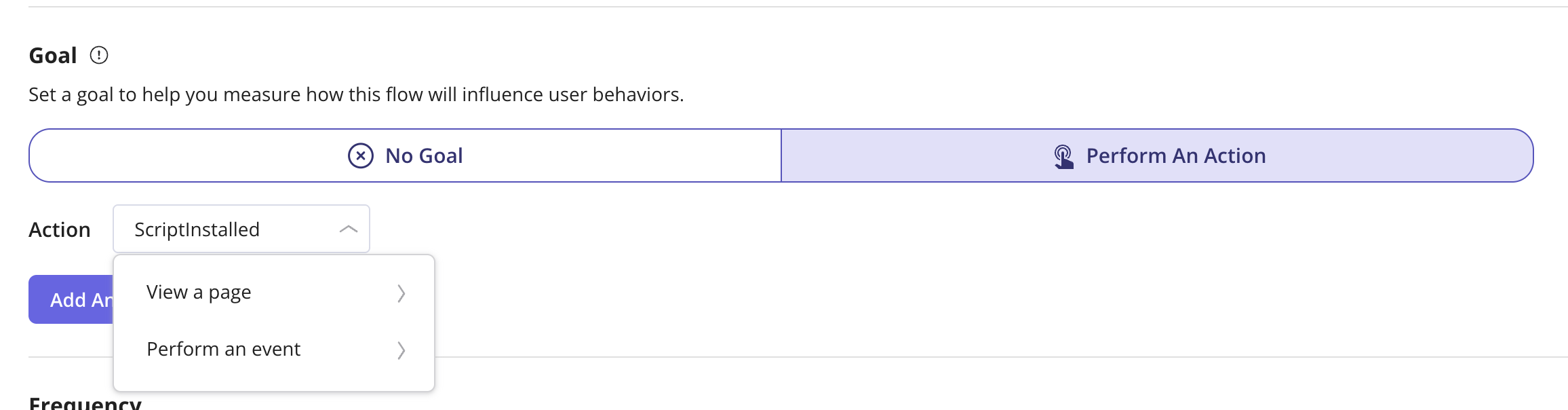
You can define a goal to measure how your flow impacts user behavior and track key interactions.
1. **No Goal:** No goals will be tracked.
2. **Perform an Action:** Track when users complete specific actions, such as:
* **Viewing a Page:** When a user visits a page tracked in Userpilot.
* **Clicking an element:** When a user interacts with a Labeled event (no-code events).
* **Performing a Tracked Event:** When a user triggers a Tracked Event (code-based events).
* **Achieving a Custom Event:** When a user completes a Custom Event, which can include multiple grouped events.
### Goal
You can define a goal to measure how your flow impacts user behavior and track key interactions.
1. **No Goal:** No goals will be tracked.
2. **Perform an Action:** Track when users complete specific actions, such as:
* **Viewing a Page:** When a user visits a page tracked in Userpilot.
* **Clicking an element:** When a user interacts with a Labeled event (no-code events).
* **Performing a Tracked Event:** When a user triggers a Tracked Event (code-based events).
* **Achieving a Custom Event:** When a user completes a Custom Event, which can include multiple grouped events.
 By setting a goal, you can gain valuable insights into how users engage with your flow and optimize their experience accordingly.
### Frequency
Define how often the flow should trigger for users based on your preferred settings:
**Only Once:** The flow will trigger only one time per user.
**Time-Based Recurrence:** The flow will trigger at specified intervals based on the selected timing.
* **Trigger Every Time:** The flow will trigger each time the user meets all the defined conditions, including domain, page, audience, goal, and other selected settings.
* **Repeat Flow Every:** Set the flow to trigger at specific intervals, such as a certain number of days, months, or sessions, until the flow is completed, dismissed, or unpublished.
By setting a goal, you can gain valuable insights into how users engage with your flow and optimize their experience accordingly.
### Frequency
Define how often the flow should trigger for users based on your preferred settings:
**Only Once:** The flow will trigger only one time per user.
**Time-Based Recurrence:** The flow will trigger at specified intervals based on the selected timing.
* **Trigger Every Time:** The flow will trigger each time the user meets all the defined conditions, including domain, page, audience, goal, and other selected settings.
* **Repeat Flow Every:** Set the flow to trigger at specific intervals, such as a certain number of days, months, or sessions, until the flow is completed, dismissed, or unpublished.
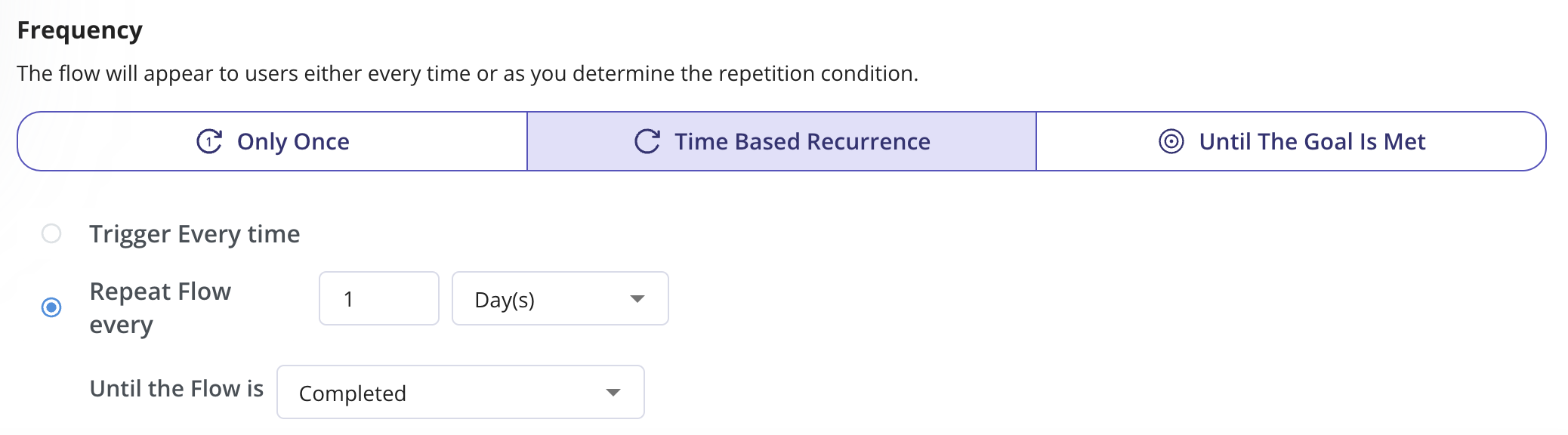 **Until the Goal is Met:** If you have defined an in the previous step, the flow will continue to trigger until the user meets the defined goal. You can configure the flow to repeat at set intervals, such as a specific number of days, months, or sessions until the goal is met. Once the goal is achieved, the flow will automatically stop triggering for the user.
 These options ensure the flow appears at the right frequency to optimize user engagement.
### FAQs
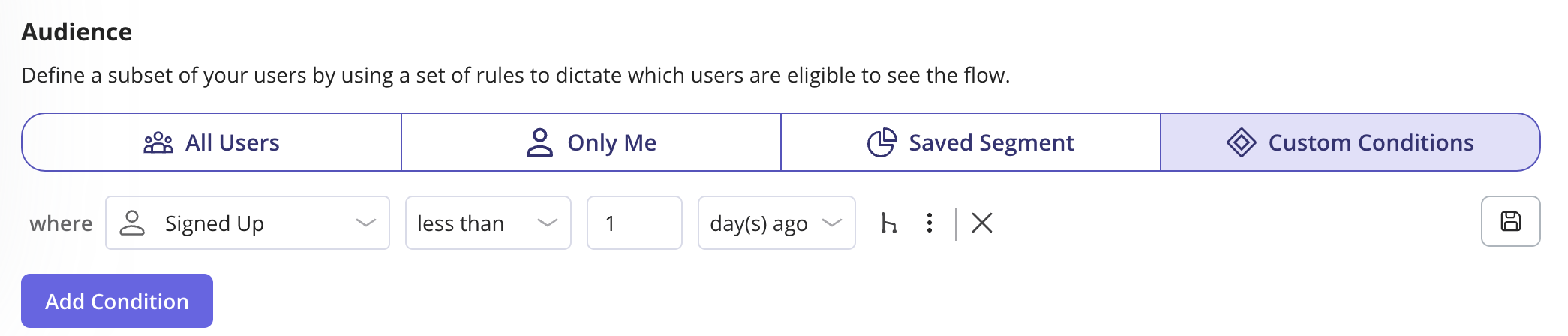
Yes, you can set the flow to trigger the users whose Signed Up date or First Seen is less than the 'n' number of days. Please note that the "Signed Up" date needs to be sent to Userpilot by your dev team through the identify method.
These options ensure the flow appears at the right frequency to optimize user engagement.
### FAQs
Yes, you can set the flow to trigger the users whose Signed Up date or First Seen is less than the 'n' number of days. Please note that the "Signed Up" date needs to be sent to Userpilot by your dev team through the identify method.
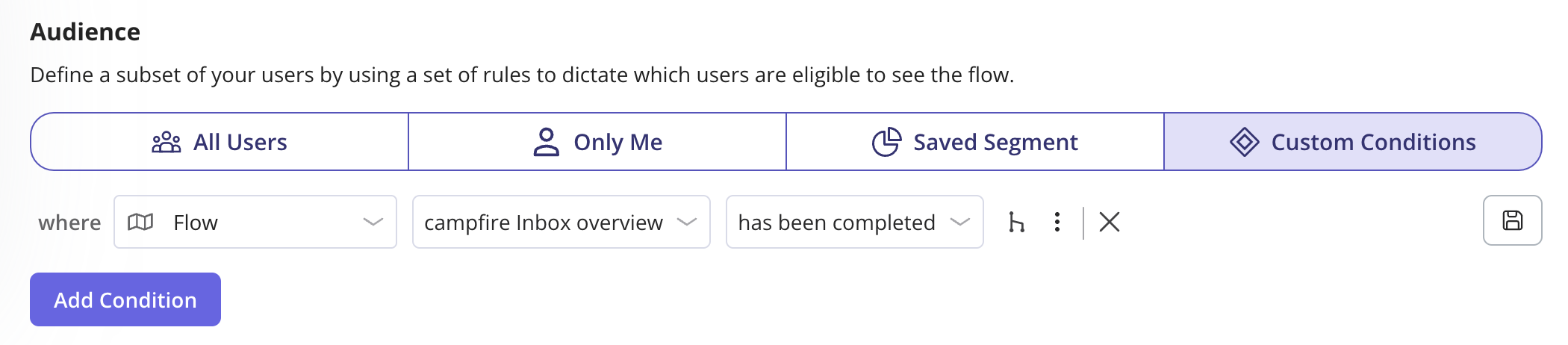
 You can set the below Audience Condition to trigger the flow to the users who have completed a certain flow in your application.
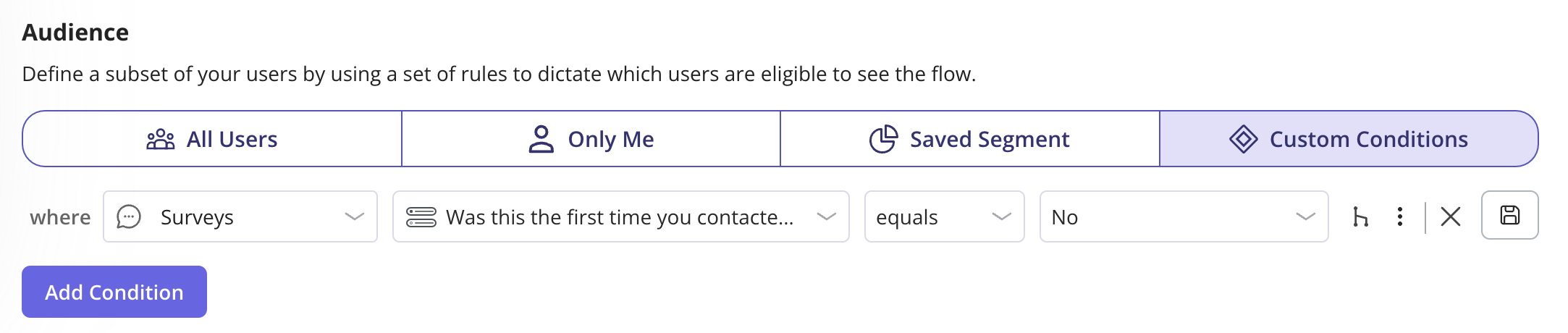
 Yes, you can achieve this by following the below steps: Audience -> Custom Conditions -> User Feedback -> Survey -> Select the Survey -> Select the Question -> Equals -> Select the desired answer.
 [**For any questions or concerns please reach out to support@userpilot.com**](mailto:support@userpilot.com)