> ## Documentation Index
> Fetch the complete documentation index at: https://docs.userpilot.com/llms.txt
> Use this file to discover all available pages before exploring further.
# Form Responses
> Collect structured user inputs directly inside Userpilot flows to capture feedback, data, and responses without additional coding or engineering effort.
### Overview
Form responses allow collecting all types of inputs, responses, feedback, and any other desired information from your end-users, without requiring any additional coding or engineering resources. As opposed to [surveys](../../../user-feedback/surveys/create-survey), forms can be added within flows, this means that forms can be added to any flow UI pattern (modals, slideouts, driven actions, tooltips).
### Use Cases
* Collecting end-users' contact details and data such as emails, phone numbers, etc.
* Capturing feedback and thoughts on newly implemented designs
* Gathering the date of establishment for your end-users companies
* Getting information from users who didn't complete certain Userpilot experiences
* Asking multiple-choice questions on whether your users like a certain feature or not
### Form Types
Userpilot provides 4 form types, each can be added to flows directly from the Userpilot editor (Chrome Extension). In addition to creating new user properties based on form responses and setting them as required fields.
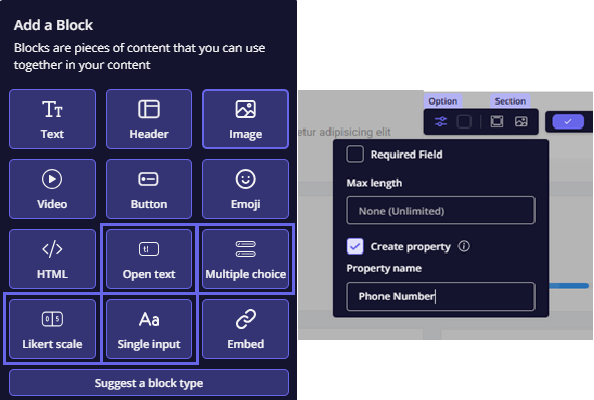 Open text forms allow users to provide any answer in the related placeholder, which could be used for general questions.
 Multiple choice gives the ability to add choices for the user to choose from, in addition to multiple selections and an "other" option if needed.
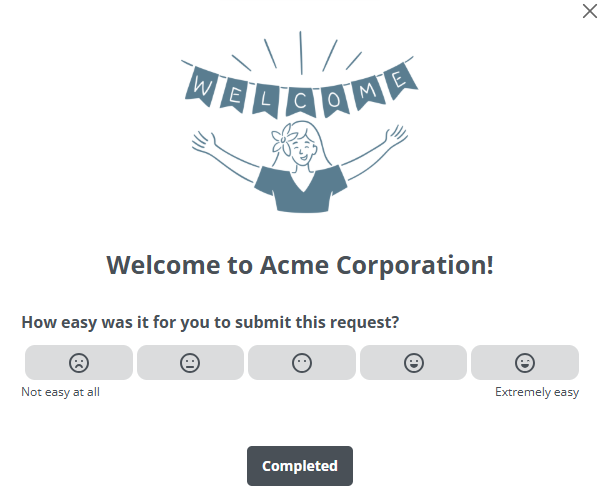
 Likert scales are used to add a satisfaction scale to learn more about how users feel about your product, brand, or new feature. There are different numeric ranges to choose from, as well as 4 types of answers (numbers, starts, hearts, and smileys).
 Single inputs force users to comply with a certain input type, we provide General (any text), Text (except numbers), Number, E-mail, Date, and Phone.
 ### Form Responses
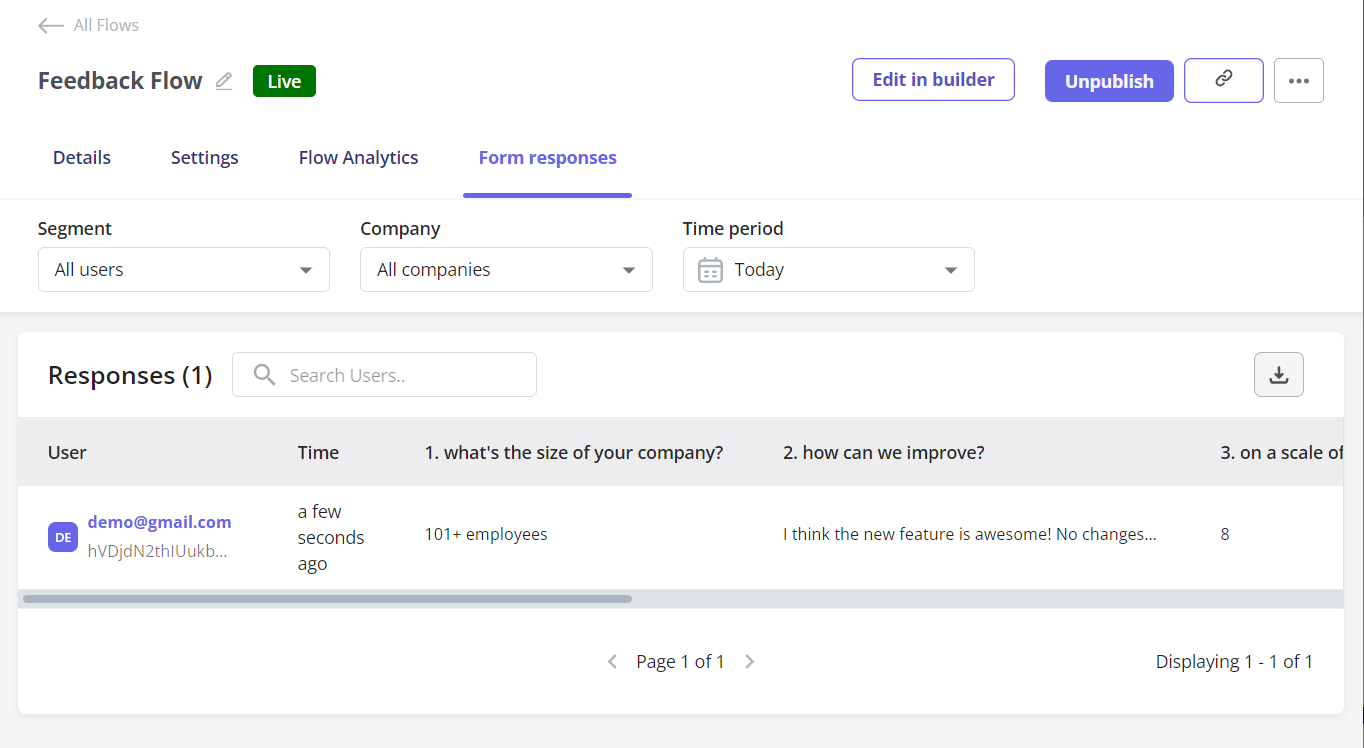
Once a form response has been submitted by a user you can find the related data under the same flow in the Form responses tab. Users have to submit the response by either clicking on the related button in the flow or the X button (skippable step), if the user refreshes the page or navigates away the answer won't be saved.
### Form Responses
Once a form response has been submitted by a user you can find the related data under the same flow in the Form responses tab. Users have to submit the response by either clicking on the related button in the flow or the X button (skippable step), if the user refreshes the page or navigates away the answer won't be saved.
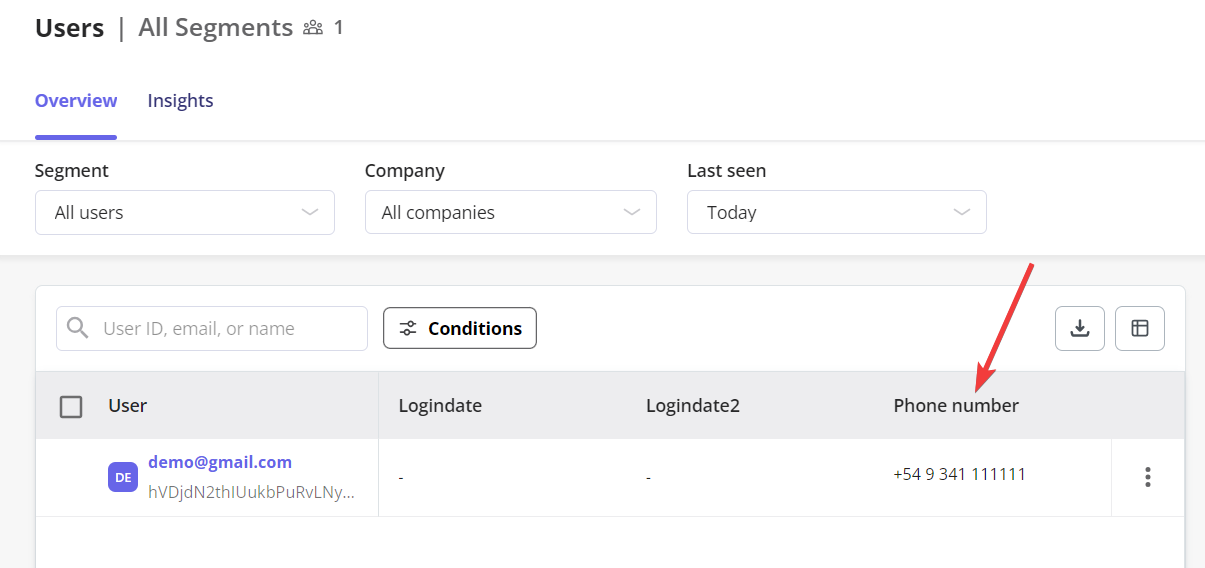
 As for newly created properties from Form responses, they can be found in the [Users Dashboard](https://run.userpilot.io/users) with the same name given and the answer the user provided next to each user.
 ### FAQs
It should be right away, data is updated in real time.
We'll update the provided answer and only keep the last one submitted.
[**For any questions or concerns please reach out to support@userpilot.com**](mailto:support@userpilot.com)
### FAQs
It should be right away, data is updated in real time.
We'll update the provided answer and only keep the last one submitted.
[**For any questions or concerns please reach out to support@userpilot.com**](mailto:support@userpilot.com)