> ## Documentation Index
> Fetch the complete documentation index at: https://docs.userpilot.com/llms.txt
> Use this file to discover all available pages before exploring further.
# Mobile content overview
> See every mobile Carousel, Slideout, and Push Notification in one place and track status, analytics, and ownership at a glance.
## Overview
The overview tab provides general analytics for all of your mobile content, allowing you to monitor live performance and determine the effectiveness of your mobile content.
## Mobile content overview
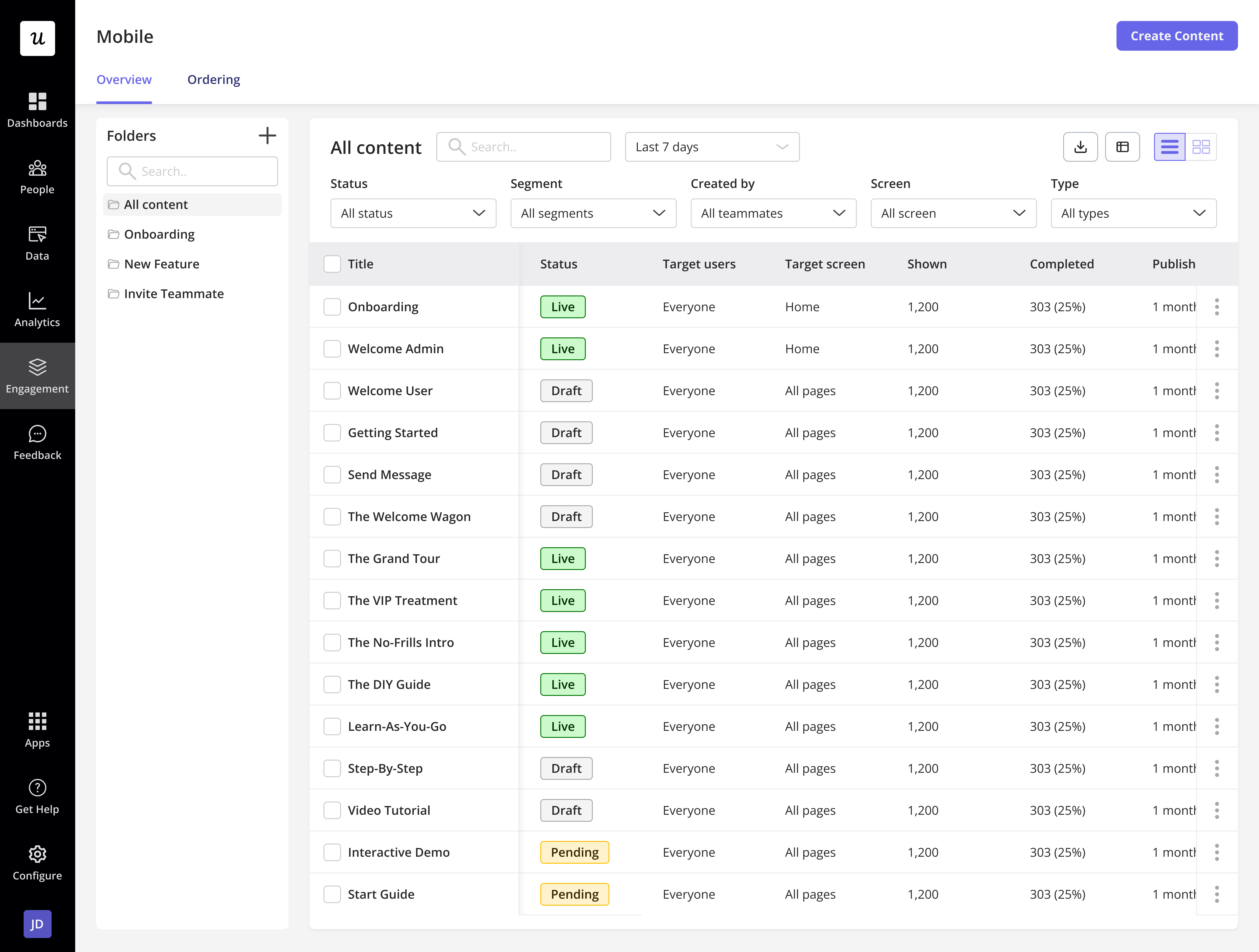
This section will show a table with a list of all the mobile content you've created, as well as data about each one's settings.
### Mobile overview table
* **Mobile Content Settings**: Status (Draft, live, live with unpublished changes, sent, and archived), target users, and target screens.
* **Mobile Content Analytics**: Shown, completed, and goal completion rated.
* **Mobile Content Creation Details**: Published time, created time, created by, last updated, and updated by.
 ### Overview table filters
You'll also be able to search for certain mobile content or filter them based on their status and teammates.
* **Search:** Free text search to find checklists by title to quickly locate a specific checklist.
* **Date Range:** Filter the **Started, Completed, and Goal Completion Rate** columns in the table based on the selected date range to analyze performance over time.
* **Status:** Filter by mobile content status such as All status, Draft, Live, Pending, sent, and Archived, to manage and review mobile content at different stages.
* **Segment:** Filter by the user segment targeted by the mobile content to focus on specific audience groups you have created.
* **Created by:** Filter mobile content by the teammate who created them to track ownership and collaboration.
* **Screen:** Filter by the screen where the mobile content is displayed to review targeting and placement.
* **Type:** Filter by the mobile content type, such as Carousel, Slideout, and Push Notification.
### Overview table filters
You'll also be able to search for certain mobile content or filter them based on their status and teammates.
* **Search:** Free text search to find checklists by title to quickly locate a specific checklist.
* **Date Range:** Filter the **Started, Completed, and Goal Completion Rate** columns in the table based on the selected date range to analyze performance over time.
* **Status:** Filter by mobile content status such as All status, Draft, Live, Pending, sent, and Archived, to manage and review mobile content at different stages.
* **Segment:** Filter by the user segment targeted by the mobile content to focus on specific audience groups you have created.
* **Created by:** Filter mobile content by the teammate who created them to track ownership and collaboration.
* **Screen:** Filter by the screen where the mobile content is displayed to review targeting and placement.
* **Type:** Filter by the mobile content type, such as Carousel, Slideout, and Push Notification.
.png?fit=max&auto=format&n=wmxQrQyJqRV1jwFr&q=85&s=84b7e3267d8c367f5250994895b11322) ### Action menu
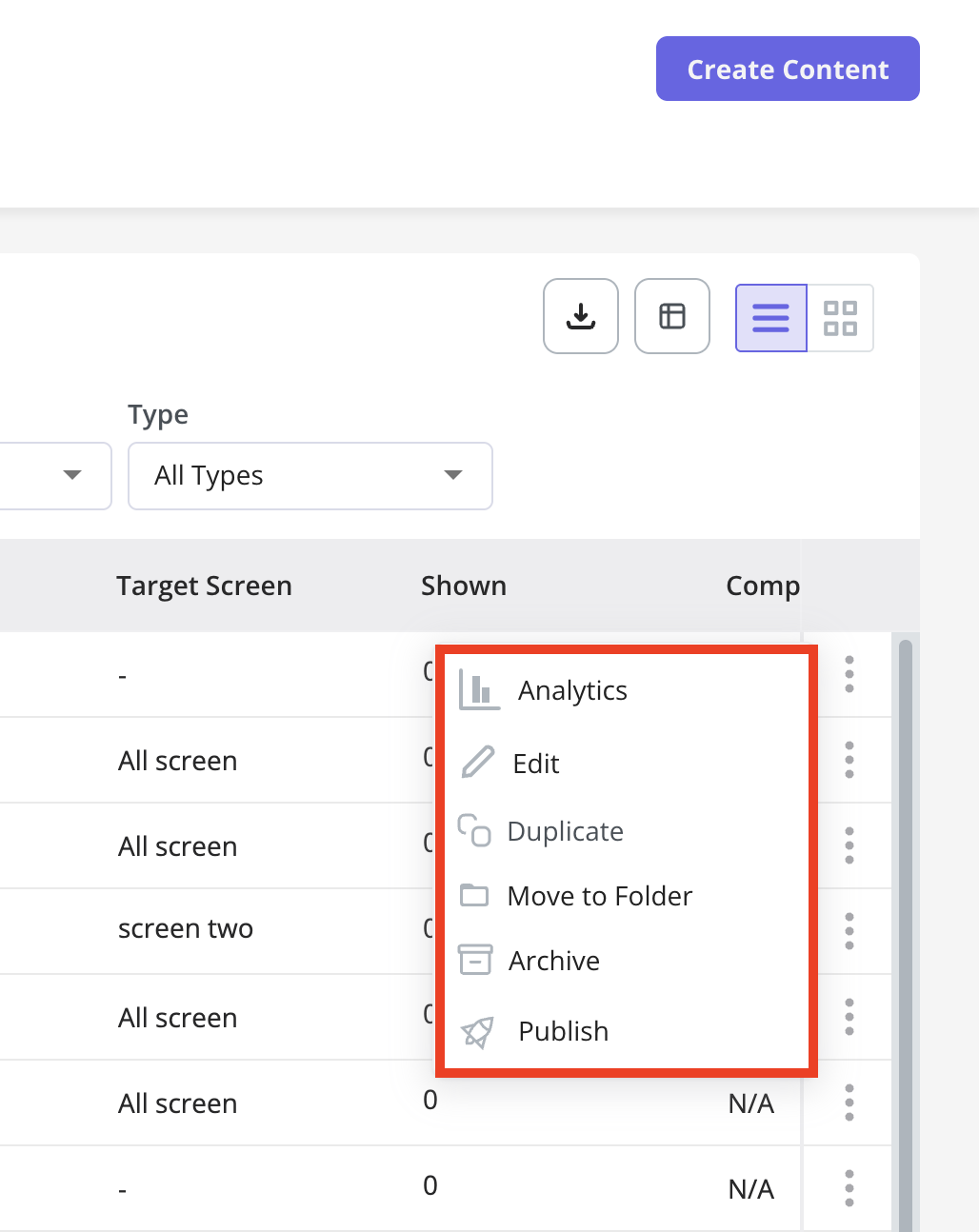
Click the three dots in the Actions column to view, edit, adjust settings, archive, publish, or manage other mobile content options.
* **Analytics:** Open the mobile content analytics tab to review its performance.
* **Edit:** Open the mobile content editor to modify content, steps, or targeting settings.
* **Duplicate:** Create a copy of the mobile content to reuse or adapt for other scenarios.
* **Archive:** Remove the mobile content from active use while keeping it stored for future reference.
* **Publish:** Make the mobile content live and visible to users based on its targeting and trigger rules.
### Action menu
Click the three dots in the Actions column to view, edit, adjust settings, archive, publish, or manage other mobile content options.
* **Analytics:** Open the mobile content analytics tab to review its performance.
* **Edit:** Open the mobile content editor to modify content, steps, or targeting settings.
* **Duplicate:** Create a copy of the mobile content to reuse or adapt for other scenarios.
* **Archive:** Remove the mobile content from active use while keeping it stored for future reference.
* **Publish:** Make the mobile content live and visible to users based on its targeting and trigger rules.
 ### Export overview table
Export the mobile content data as a CSV file to share with your team, review performance, and analyze user engagement. The file will be sent to the email registered with your Userpilot account.
Keep in mind that exporting won’t follow your current filters or column arrangement. Userpilot will send **all the checklist data,** no matter how you have it set up on your table.
### Export overview table
Export the mobile content data as a CSV file to share with your team, review performance, and analyze user engagement. The file will be sent to the email registered with your Userpilot account.
Keep in mind that exporting won’t follow your current filters or column arrangement. Userpilot will send **all the checklist data,** no matter how you have it set up on your table.
.png?fit=max&auto=format&n=wmxQrQyJqRV1jwFr&q=85&s=5e51ae2df53a5d01a95d70eeddab4f01) ### Manage columns
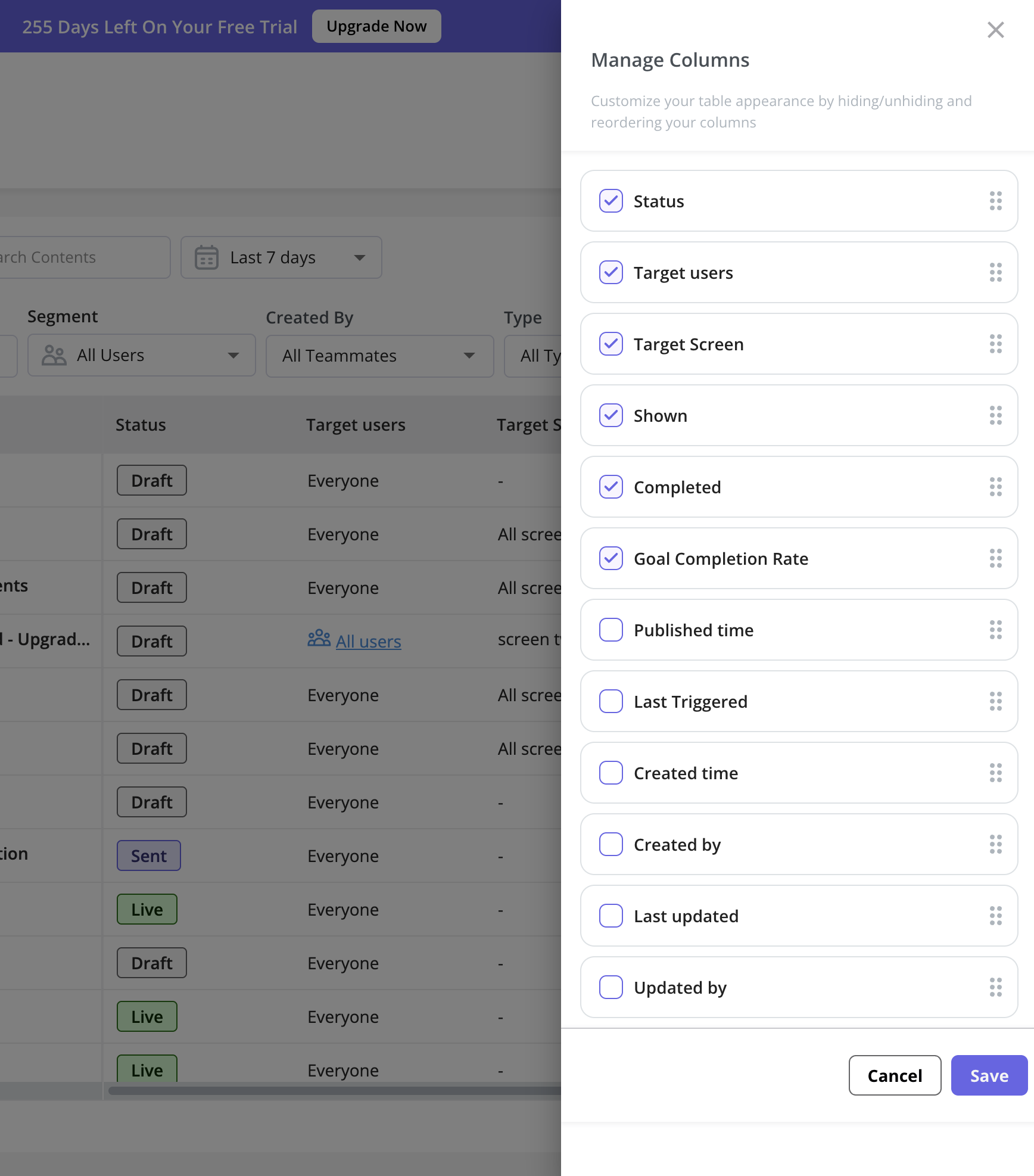
Use the manage columns feature to customize your table view based on your preferences. Easily select and reorder the columns that are most relevant to your work with a simple drag-and-drop experience in the side panel.
### Manage columns
Use the manage columns feature to customize your table view based on your preferences. Easily select and reorder the columns that are most relevant to your work with a simple drag-and-drop experience in the side panel.
.png?fit=max&auto=format&n=wmxQrQyJqRV1jwFr&q=85&s=2435063e8b640dbb6e6e7cc4e9faf44e)
 ### Change the checklist overview view
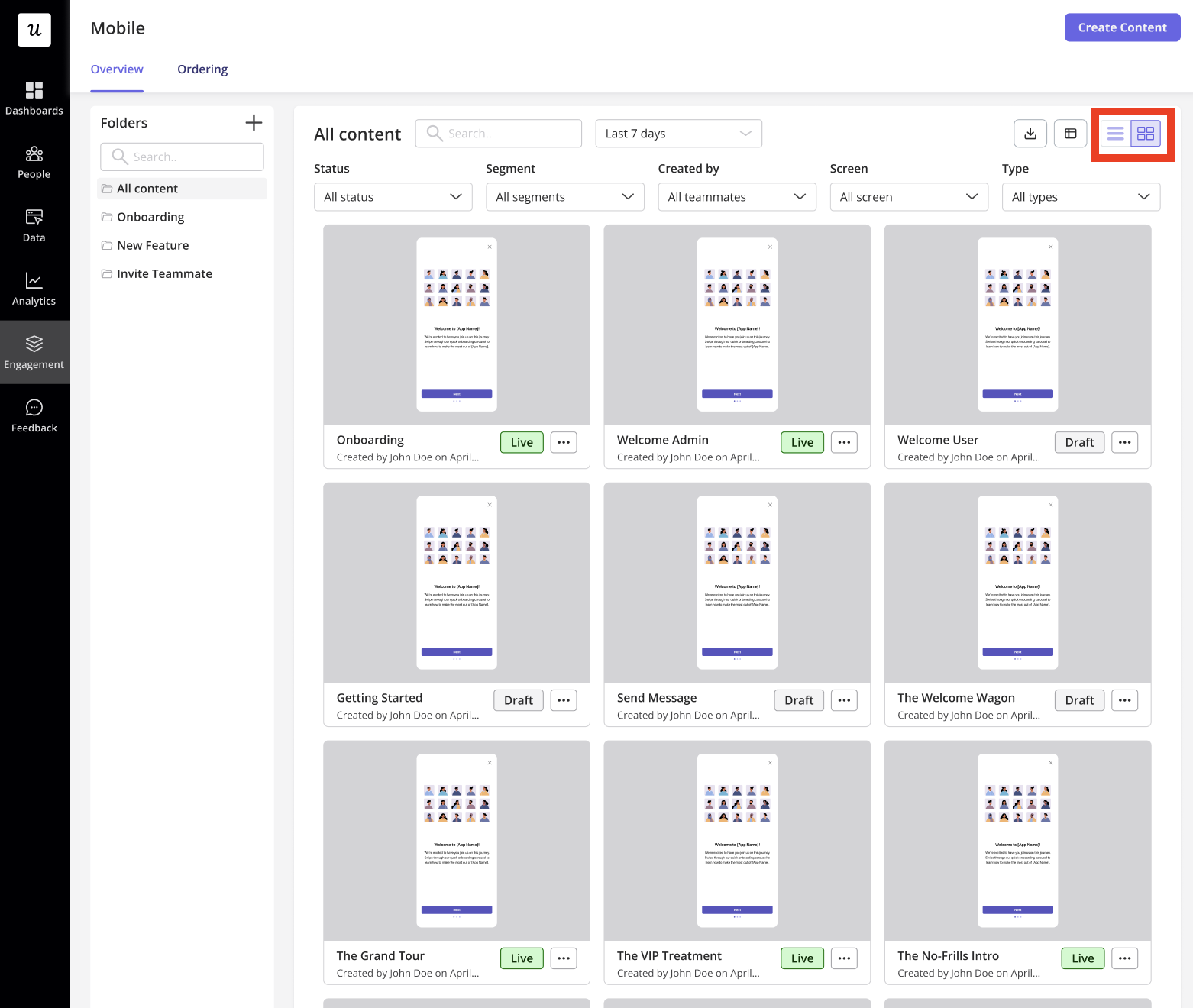
You can switch between table view and card view to choose the layout that best suits how you want to see your mobile content.
### Change the checklist overview view
You can switch between table view and card view to choose the layout that best suits how you want to see your mobile content.
 ### FAQs
The analytics data is not deleted when the related mobile content is archived. You can un-archive the content anytime.
[For any questions or concerns please reach out to **support@userpilot.com**](mailto:support@userpilot.com)
### FAQs
The analytics data is not deleted when the related mobile content is archived. You can un-archive the content anytime.
[For any questions or concerns please reach out to **support@userpilot.com**](mailto:support@userpilot.com)