> ## Documentation Index
> Fetch the complete documentation index at: https://docs.userpilot.com/llms.txt
> Use this file to discover all available pages before exploring further.
# Adding a Video to the Resource Center
> Learn how to add video content to your Userpilot Resource Center by embedding video scripts from YouTube, Vimeo, Loom, etc.
## Overview
To add video content to the Userpilot Resource Center, the video itself must be hosted externally either on your own servers or on a third-party platform such as YouTube, Vimeo, or Loom. Userpilot does not host the video file directly. Instead, it embeds it using an HTML embed code.
## How to add a video?
To add a video to the Resource Center, simply navigate to the Userpilot web app > **Engagement Layer > Resource Center.**
Click on the **Add Module > Select Video >** Copy and paste the video script into the box.
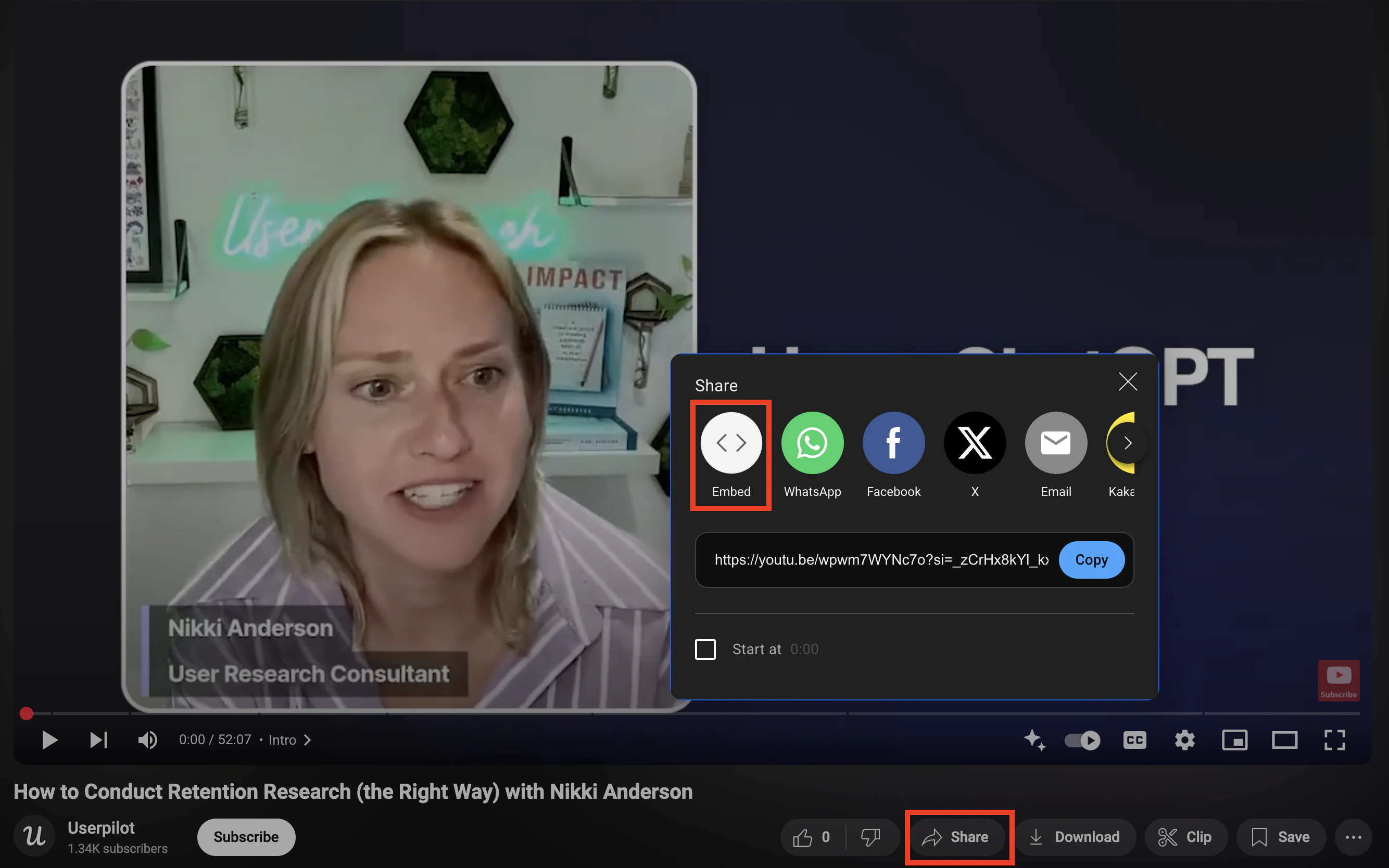
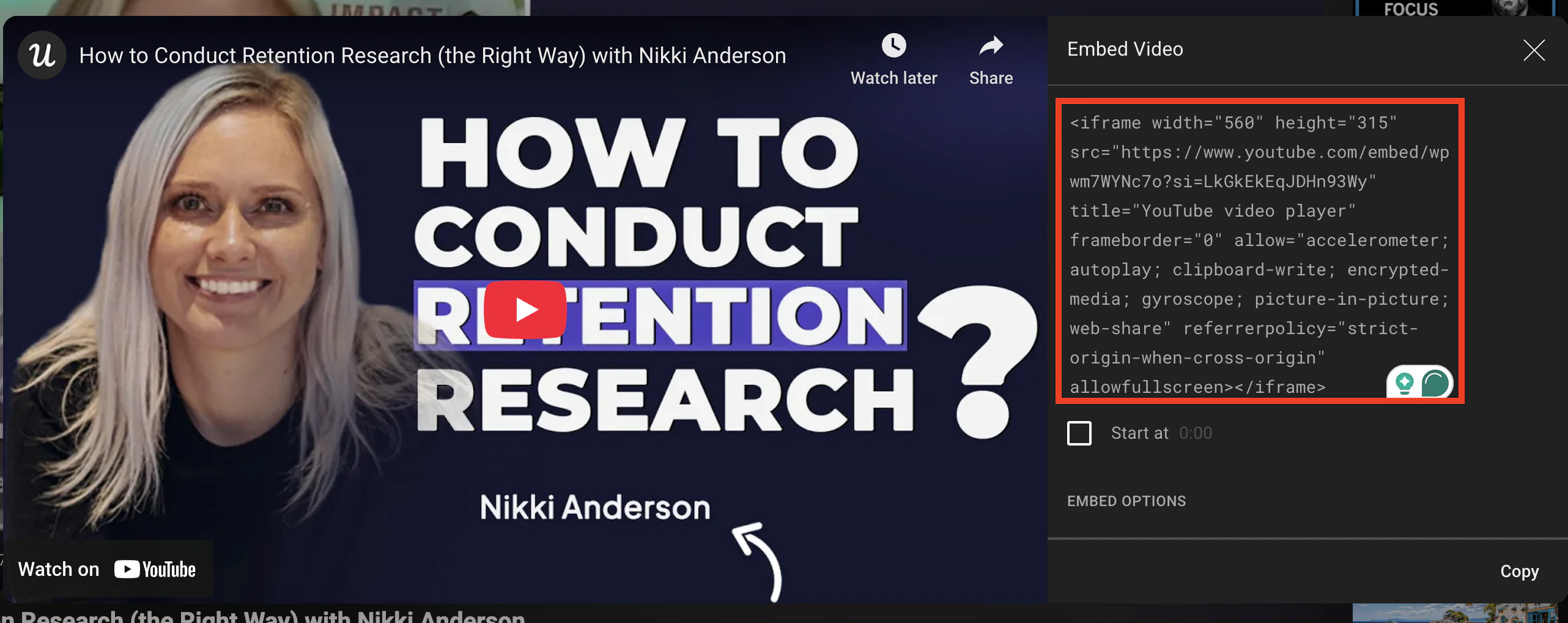
 This is an example of how to embed a YouTube video. Just navigate to the video, click **Share**, select **Embed**, and copy the code into the Resource Center video Script box.
 ## Targeting the video
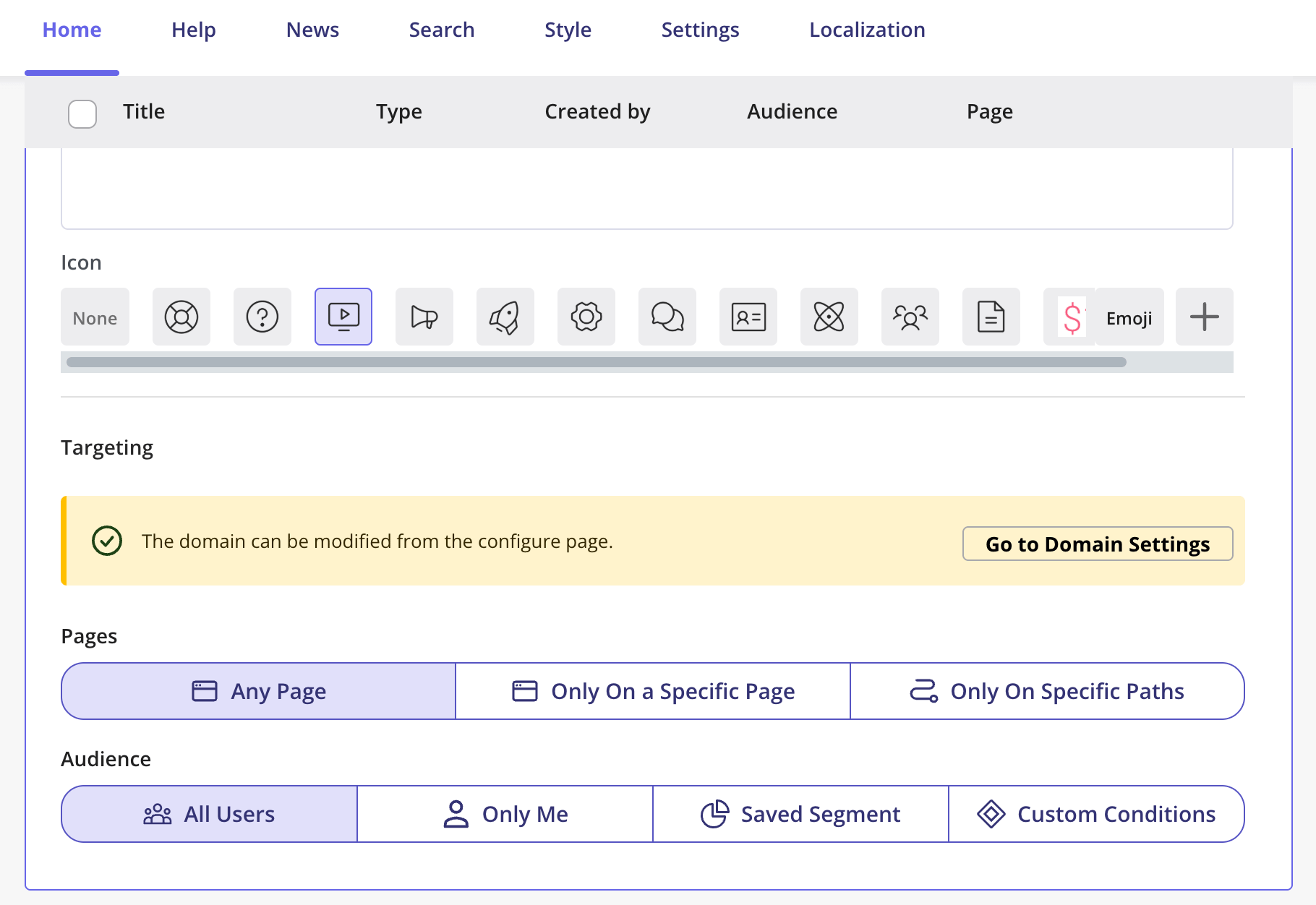
You can choose to view the video within the Resource Center on specific pages and for the desired Audience through Targeting. Once this is done, click on Create, and you'll be able to preview how the video looks within the Resource Center. Click Publish to view the updated Resource Center on your web app live.
## Targeting the video
You can choose to view the video within the Resource Center on specific pages and for the desired Audience through Targeting. Once this is done, click on Create, and you'll be able to preview how the video looks within the Resource Center. Click Publish to view the updated Resource Center on your web app live.
 ### FAQs
No, the video needs to be hosted on your own servers or a third party platform such as Youtube, Loom, etc and you can then embed it within the Resource Center.
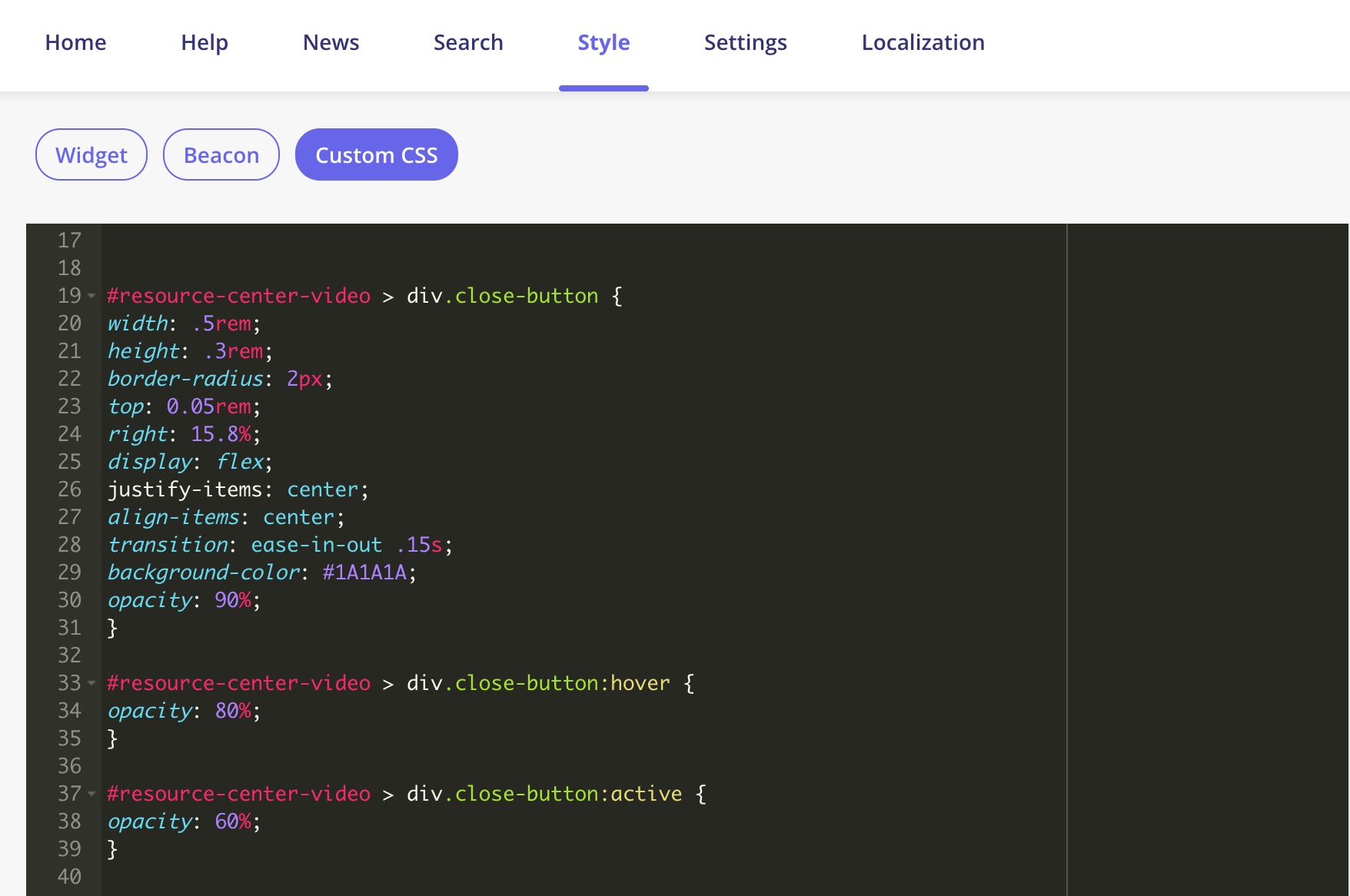
You can adjust the close button's placement using the below custom CSS:
```text theme={null}
#resource-center-video > div.close-button {
width: .5rem;
height: .3rem;
border-radius: 2px;
top: 0.05rem;
right: 15.8%;
display: flex;
justify-items: center;
align-items: center;
transition: ease-in-out .15s;
background-color: #1A1A1A;
opacity: 90%;
}
#resource-center-video > div.close-button:hover {
opacity: 80%;
}
#resource-center-video > div.close-button:active {
opacity: 60%;
}
```
### FAQs
No, the video needs to be hosted on your own servers or a third party platform such as Youtube, Loom, etc and you can then embed it within the Resource Center.
You can adjust the close button's placement using the below custom CSS:
```text theme={null}
#resource-center-video > div.close-button {
width: .5rem;
height: .3rem;
border-radius: 2px;
top: 0.05rem;
right: 15.8%;
display: flex;
justify-items: center;
align-items: center;
transition: ease-in-out .15s;
background-color: #1A1A1A;
opacity: 90%;
}
#resource-center-video > div.close-button:hover {
opacity: 80%;
}
#resource-center-video > div.close-button:active {
opacity: 60%;
}
```
 [For any questions or concerns please reach out to **support@userpilot.com**](mailto:support@userpilot.com)