> ## Documentation Index
> Fetch the complete documentation index at: https://docs.userpilot.com/llms.txt
> Use this file to discover all available pages before exploring further.
# Zendesk Integration
> Integrating Zendesk with Userpilot will allow you to add your Zendesk knowledge base to your Resource Center.
Integrating Zendesk with Userpilot will allow you to add your Zendesk knowledge base to your Resource Center.
Unlike our other integrations, Userpilot will not send data to Zendesk.
Zendesk integration is used on our Resource Center. This feature is only
available for Growth and Enterprise plans. If you wish to know more about
upgrading your plan please check our [pricing
page](https://userpilot.com/pricing).
### Integration requirements
* A Zendesk account and a Userpilot account.
* Zendesk integration can be enabled by going to the Resource Center and clicking on the button *Edit Resource Center*.
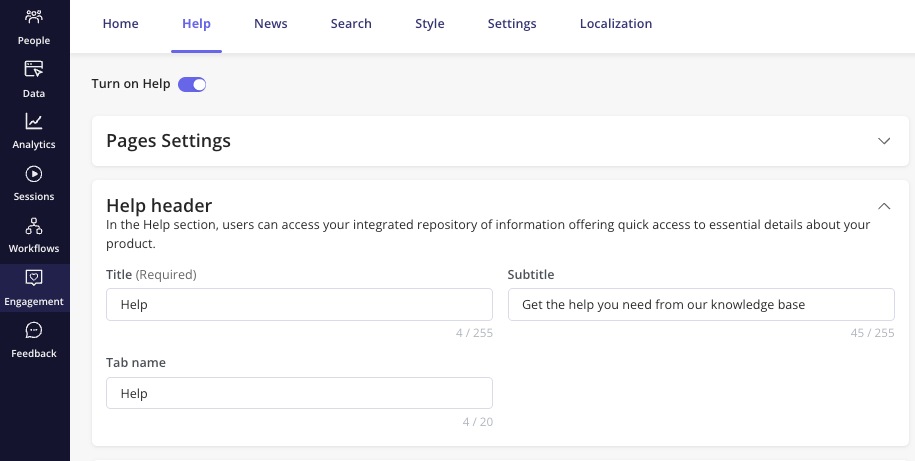
* Go to the Help tab and click on the *Turn on Help* to enable the Knowledge Base Integration, and then select Zendesk as a source.
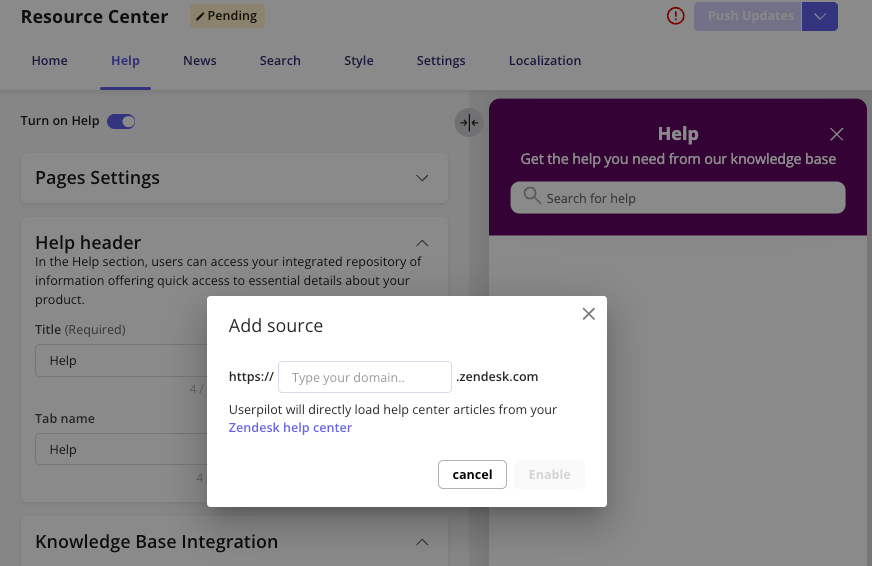
 * Add your Zendesk domain to connect your account.
 ### **Integrate your Zendesk chat in a Resource Center module**
You can trigger your Zendesk chat after your users click on a Resource Center module. This means that your users can easily have access to your app's support.
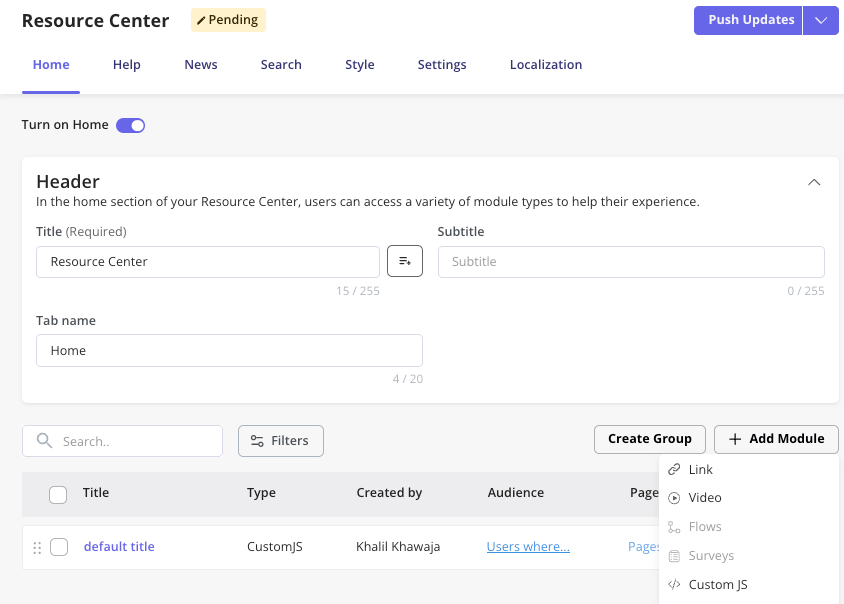
* Go to the Home tab in your Resource Center
* Click on the button + Add Module
* Click on Custom JS
### **Integrate your Zendesk chat in a Resource Center module**
You can trigger your Zendesk chat after your users click on a Resource Center module. This means that your users can easily have access to your app's support.
* Go to the Home tab in your Resource Center
* Click on the button + Add Module
* Click on Custom JS
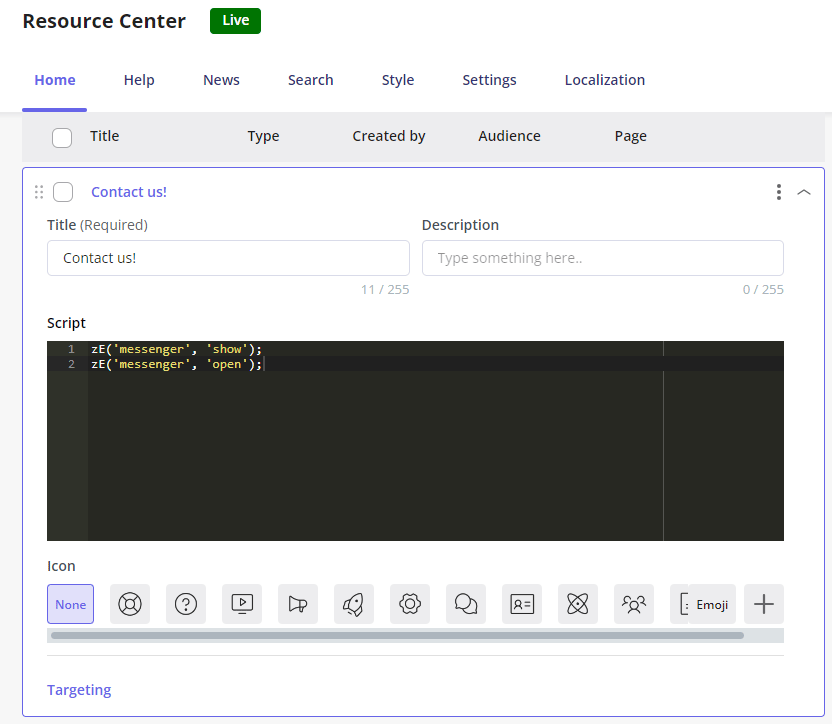
 * Add the [Zendesk chat widget JavaScript code](https://developer.zendesk.com/api-reference/widget-messaging/web/core) in the Script section, and add any title or description. Examples:
```javascript theme={null}
zE("webWidget", "show");
zE("webWidget", "open");
```
```javascript theme={null}
zE("messenger", "show");
zE("messenger", "open");
```
* Add the [Zendesk chat widget JavaScript code](https://developer.zendesk.com/api-reference/widget-messaging/web/core) in the Script section, and add any title or description. Examples:
```javascript theme={null}
zE("webWidget", "show");
zE("webWidget", "open");
```
```javascript theme={null}
zE("messenger", "show");
zE("messenger", "open");
```
 * Make sure to target the users you wish to show this chat to by editing the Targeting of this module.
You can add the JavaScript code from any third-party chat provider to
the Resource Center. Bear in mind that the third-party system will need to be
installed in your web app first to be able to trigger the chat through the
JavaScript code.
***
[For any questions or concerns please reach out to **support@userpilot.com**](mailto:support@userpilot.com)
* Make sure to target the users you wish to show this chat to by editing the Targeting of this module.
You can add the JavaScript code from any third-party chat provider to
the Resource Center. Bear in mind that the third-party system will need to be
installed in your web app first to be able to trigger the chat through the
JavaScript code.
***
[For any questions or concerns please reach out to **support@userpilot.com**](mailto:support@userpilot.com)