> ## Documentation Index
> Fetch the complete documentation index at: https://docs.userpilot.com/llms.txt
> Use this file to discover all available pages before exploring further.
# Slack Integration
> By integrating Userpilot with Slack, teams can act on user behavior, feedback, and product insights, all within their workspace.
## Overview
Userpilot’s Slack integration helps you and your team stay informed and aligned on key product updates, without leaving Slack.\
Receive system notifications, Digest notifications about your Userpilot content, share insights from Signals, and collaborate faster across teams by connecting your Slack workspace with Userpilot.
## Use cases
Here’s what you can do with the Slack integration:
#### 1. Stay informed
Get real-time notifications in Slack channels or directly in the app when:
* Users complete flows, checklists, or surveys.
* NPS responses or feedback are submitted.
* Users engage with specific in-app experiences or visit key pages.
#### 2. Collaborate effortlessly
Keep everyone aligned by:
* Receiving notifications when teammates share reports, dashboards, sessions, or publish new content.
* Allowing cross-functional teams (Product, Success, Support, and Marketing) to act on insights immediately.
#### 3. Monitor product health
* Get notified instantly if issues occur in your in-app content (e.g., broken flows or delivery errors).
* Troubleshoot and optimize faster with real-time visibility.
## How to integrate Userpilot with Slack
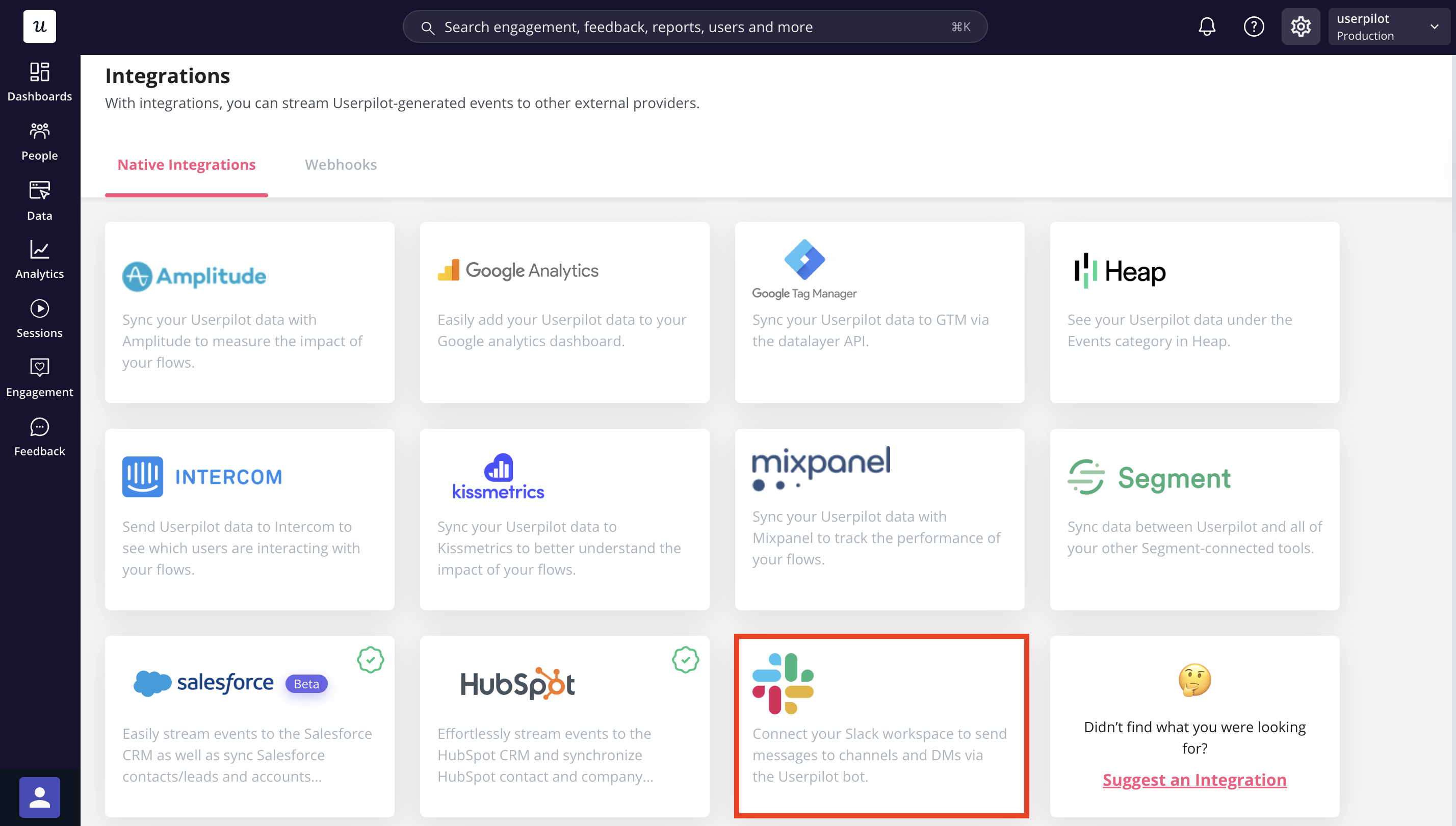
1. **Enable Slack integration**
* Go to [**Settings → Integrations → Slack**](https://run.userpilot.io/integrations/native-integration) in your Userpilot workspace.
* Click **Enable Slack integration**.
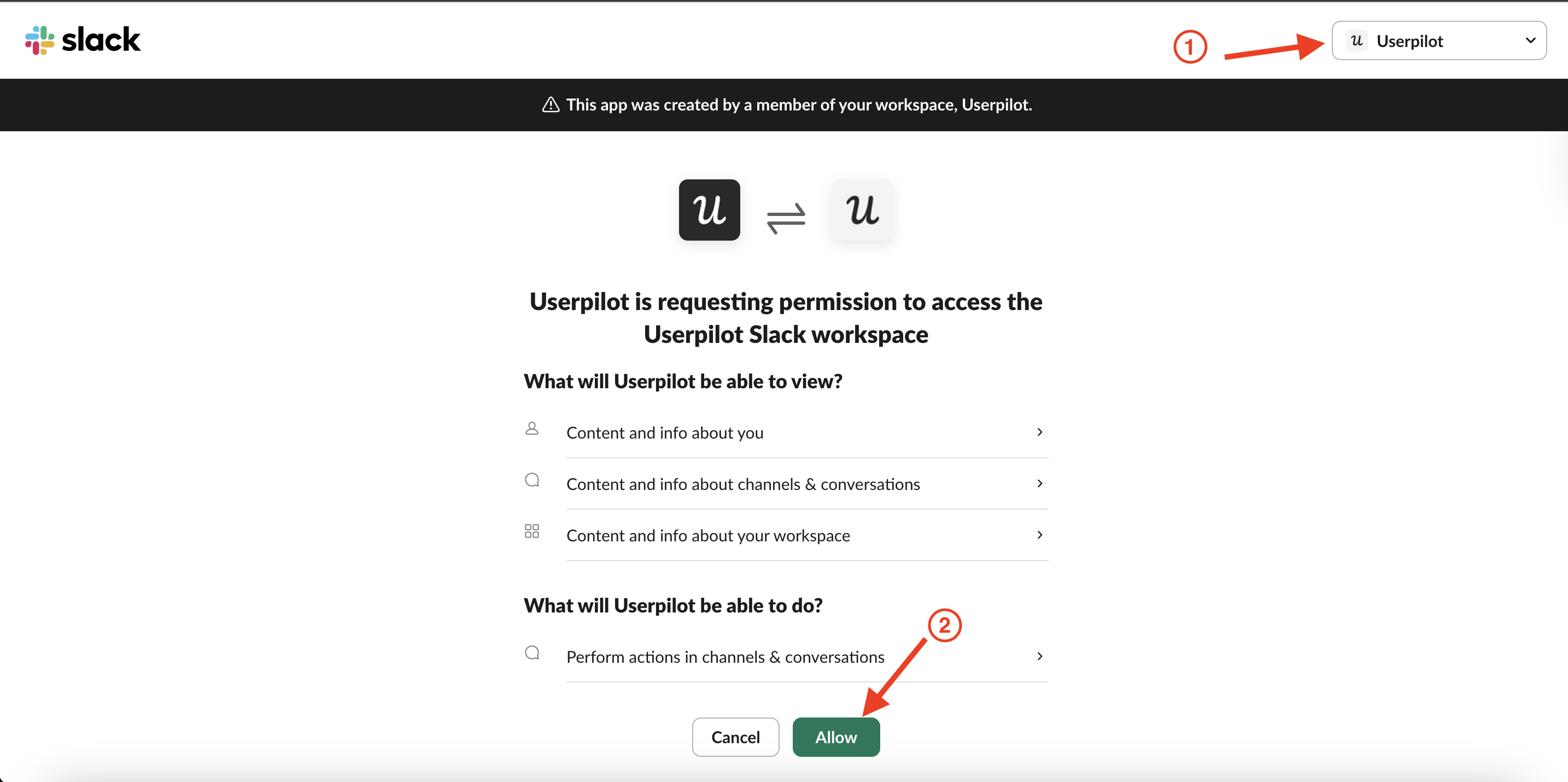
 2. **Authorize Userpilot in Slack**
* Once you **select your workspace** and click **Enable**, you’ll be redirected to Slack’s authorization page.
* Your Slack **workspace admin** must approve the installation of the **Userpilot app**.
* After approval, the connection between Slack and Userpilot will be established.
2. **Authorize Userpilot in Slack**
* Once you **select your workspace** and click **Enable**, you’ll be redirected to Slack’s authorization page.
* Your Slack **workspace admin** must approve the installation of the **Userpilot app**.
* After approval, the connection between Slack and Userpilot will be established.
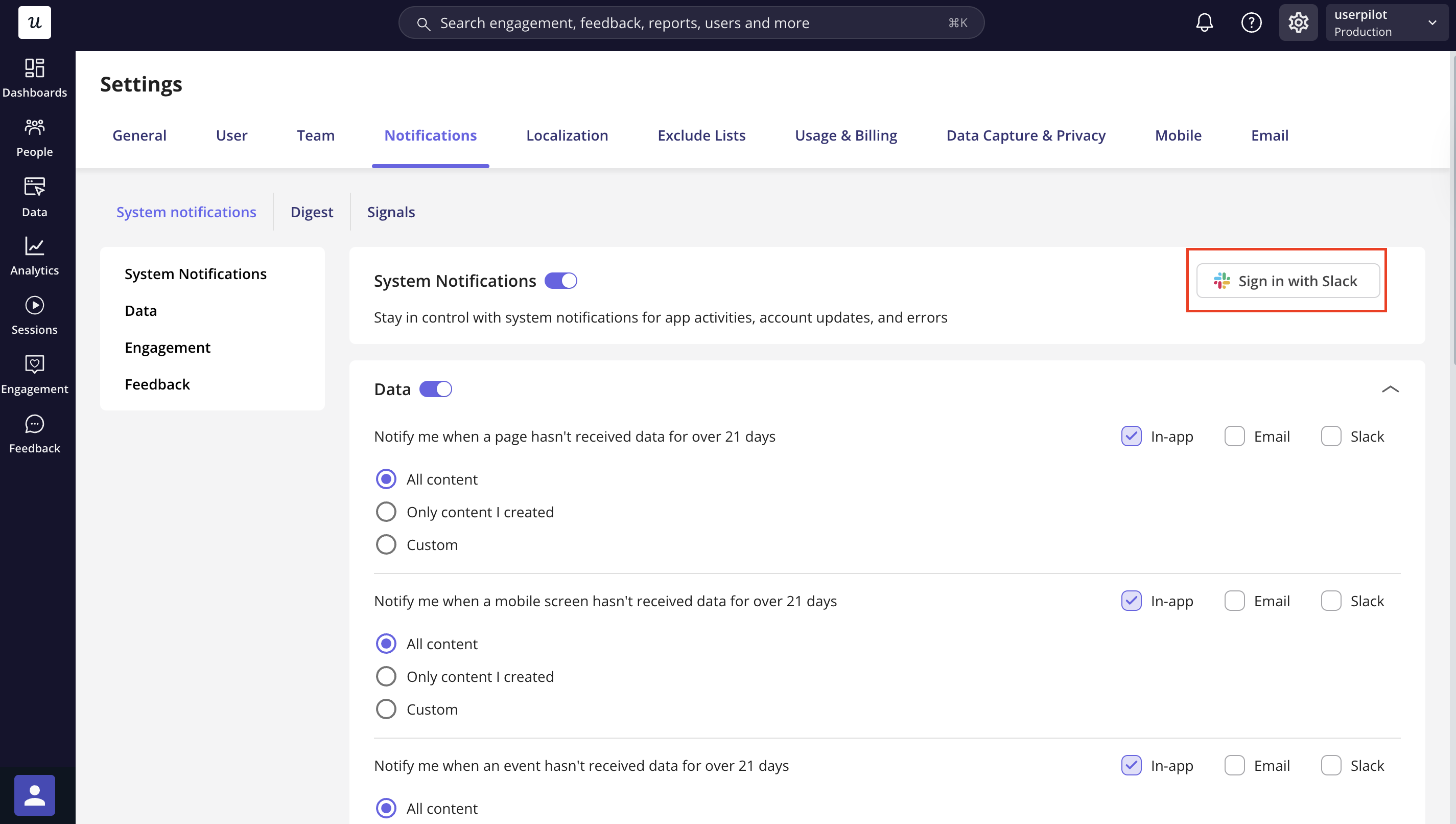
 3. **Start sending notifications**
* After connecting, link your **Slack account** within Userpilot.
* You can start receiving [**system notifications**](https://run.userpilot.io/settings/notifications) and [**Digest updates**](https://run.userpilot.io/settings/notifications/digest) in Slack.
3. **Start sending notifications**
* After connecting, link your **Slack account** within Userpilot.
* You can start receiving [**system notifications**](https://run.userpilot.io/settings/notifications) and [**Digest updates**](https://run.userpilot.io/settings/notifications/digest) in Slack.
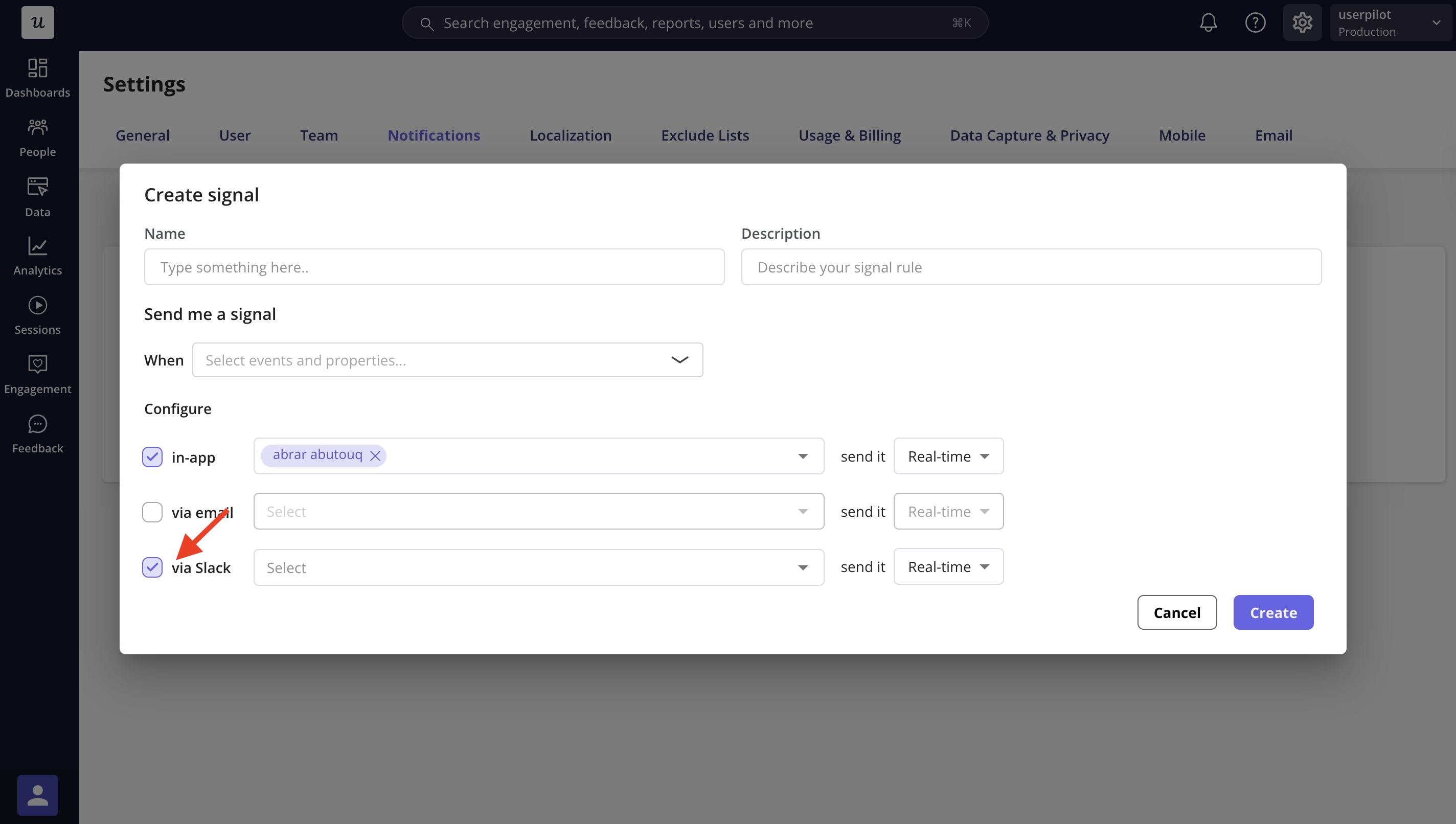
 4. **Configure **[**Signal**](https://run.userpilot.io/settings/notifications/signals)** notifications**
* **For public channels:** You can directly link them to your integration and start receiving notifications immediately.
* **For private channels**: Simply **add the Userpilot app** to the private channel in Slack so it can send updates there.
4. **Configure **[**Signal**](https://run.userpilot.io/settings/notifications/signals)** notifications**
* **For public channels:** You can directly link them to your integration and start receiving notifications immediately.
* **For private channels**: Simply **add the Userpilot app** to the private channel in Slack so it can send updates there.
 For any questions or concerns, please reach out to [support@userpilot.com](support@userpilot.com)