> ## Documentation Index
> Fetch the complete documentation index at: https://docs.userpilot.com/llms.txt
> Use this file to discover all available pages before exploring further.
# Inbox
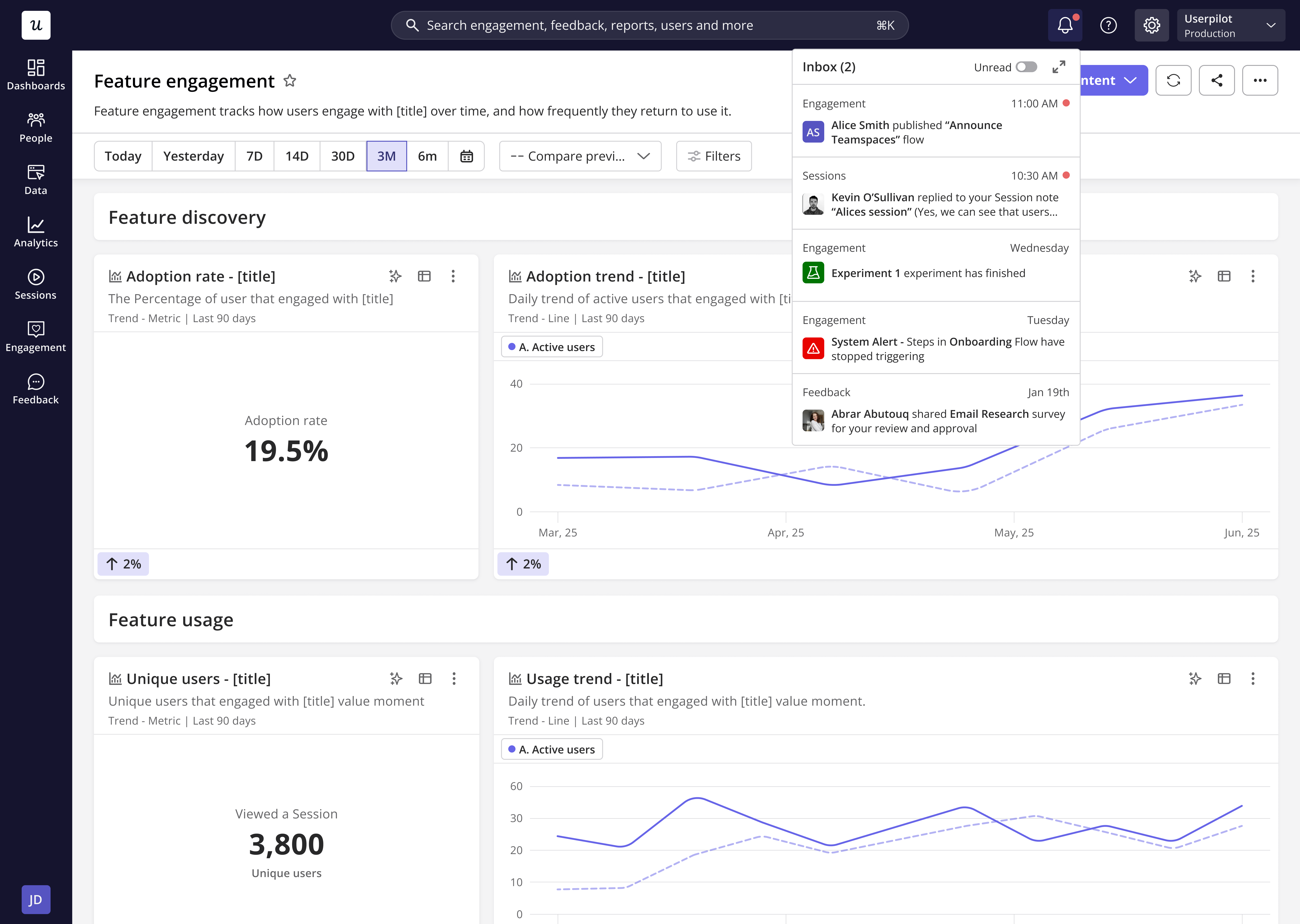
> The Inbox is your central hub for all in-app notifications in Userpilot, helping you stay informed about what's happening across your account in one organized place.
## Ovreview
The **Inbox** consolidates all types of notifications, [**System notifications**](https://docs.userpilot.com/configure/notifications/system-notifications), [**Signals**](https://docs.userpilot.com/configure/notifications/signals), and **System alerts (Content and Data)** into one unified space. It’s designed to help you:
* Quickly stay on top of key product and team activities.
* Monitor analytics events, engagement flows, and system issues in one place.
* Take action directly, such as **marking notifications as read**, **creating new signals**, or **viewing alert details**.
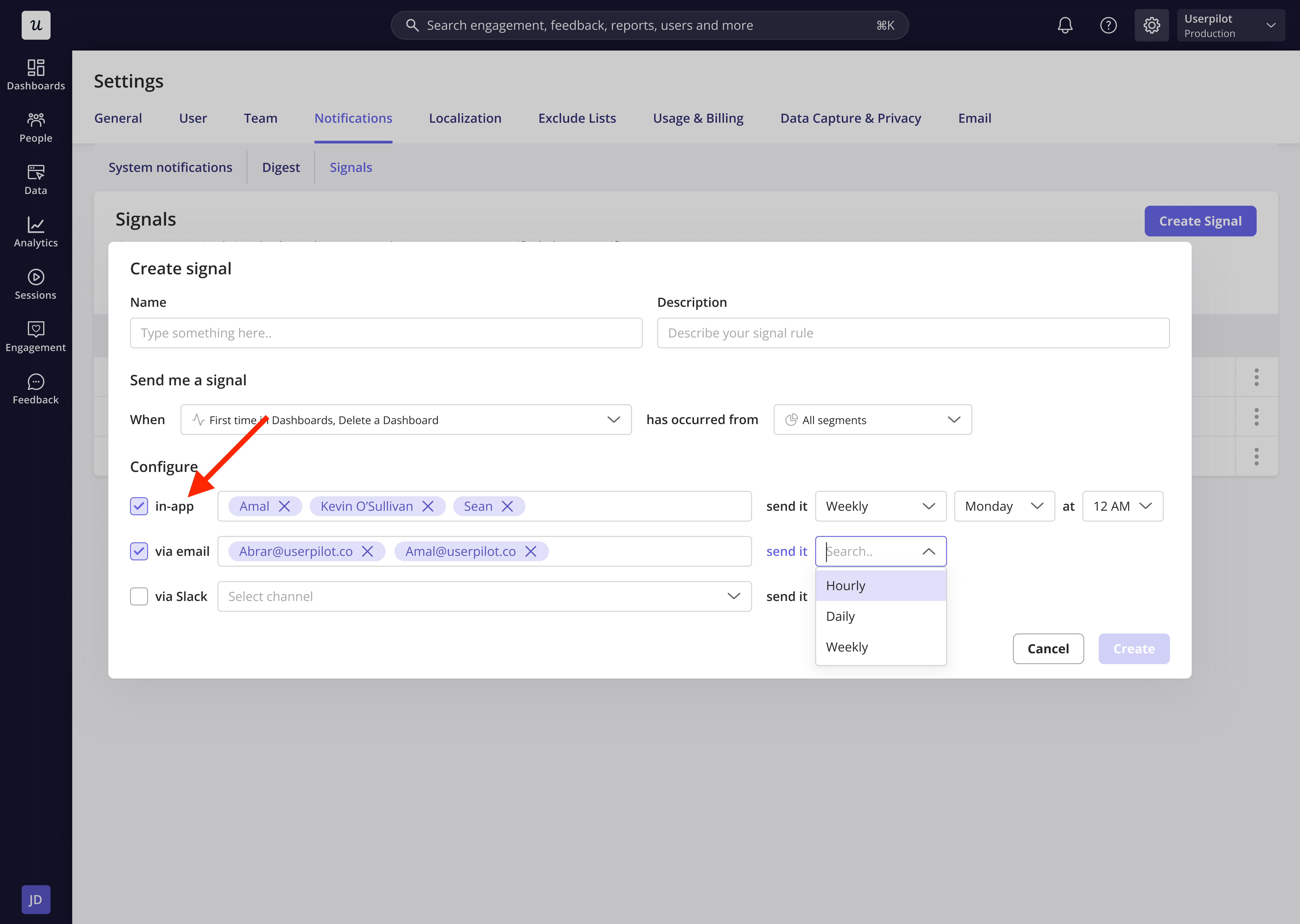
Everything you set up in your **Notifications tab (in-app)** will automatically appear here, ensuring you never miss an important update.
 ## What you will find in the inbox
The Inbox gathers updates from three key sources:
* **System Notifications** - automatic notifications for received feedback and content publish/unpublish actions.
* **Signals** - behavior-based insights and notifications generated from your user data.
* **Alerts** - issues or errors related to flows, events, pages, or mobile screens (e.g., “element not found” or “no data received”).
## **Content alert**
### **Content alert table breakdown**
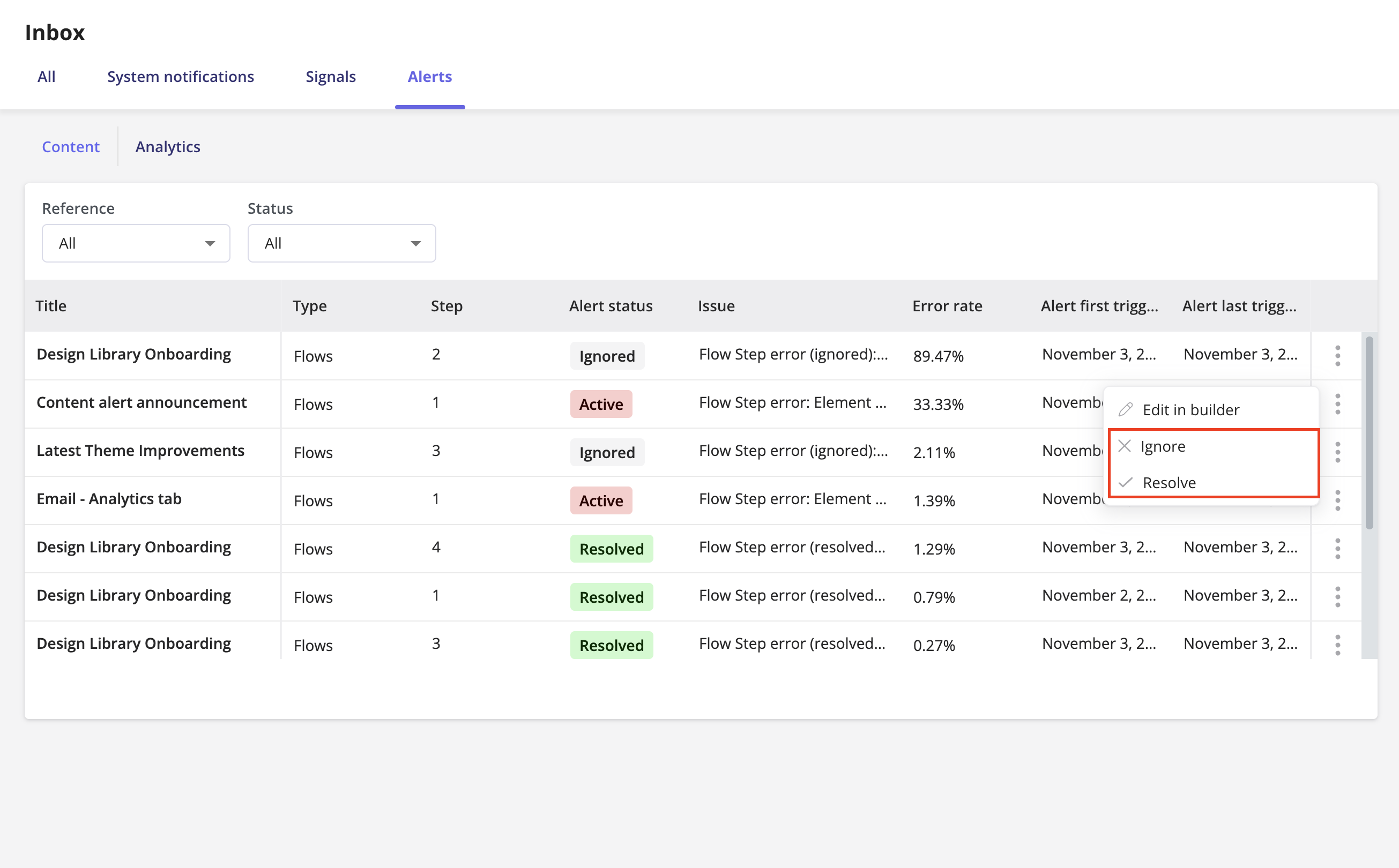
**Title:** Displays the title of the affected content, such as the flow name.
**Type:** Shows the content type. For now, we show the flow errors only
**Step:** Indicates the specific step where the issue occurred.
**Alert status:** Represents the current state of the issue.
* **Active:** The issue is ongoing.
* **Ignored:** The issue has been manually marked as ignored (often a false positive).
* **Resolved:** The issue has been manually marked as resolved.
**Issue:** Describes the reason or nature of the problem (for example, element not found or overlapped).
**Error Rate:** Shows the percentage of users affected by the issue compared to those expected to see the content or step.\
Formula: *(Number of users affected by the error) ÷ (Number of users expected to view the content or step)*
**Alert first triggered:** Displays the timestamp of when the issue was first detected.
**Alert last triggered:** Shows the timestamp of the most recent occurrence of the issue.
**Action menu:** Includes quick management options:
* **Edit in builder:** Opens the Chrome Extension to view the affected content.
* **Ignore:** Marks the alert as ignored and stops future notifications.
* **Archive:** Hides ignored or resolved alerts from the table for cleaner tracking.
Userpilot currently displays alerts when a tooltip or driven action in a specific flow encounters an issue. Below is a quick reference explaining what each error means and how to fix it:
| **Error type** | **What it means** | **Why it happens** | **How to fix it** |
| :-------------- | :-------------------------------------------------------------------------- | :------------------------------------------------------------------------------------------------------------------------------------------------------------------------------ | :------------------------------------------------------------------------------------------------------------------------------------------------------------------------------------------- |
| **Not Found** | The target element can’t be located on the page. | • The element selector (CSS/XPath) has changed.
## What you will find in the inbox
The Inbox gathers updates from three key sources:
* **System Notifications** - automatic notifications for received feedback and content publish/unpublish actions.
* **Signals** - behavior-based insights and notifications generated from your user data.
* **Alerts** - issues or errors related to flows, events, pages, or mobile screens (e.g., “element not found” or “no data received”).
## **Content alert**
### **Content alert table breakdown**
**Title:** Displays the title of the affected content, such as the flow name.
**Type:** Shows the content type. For now, we show the flow errors only
**Step:** Indicates the specific step where the issue occurred.
**Alert status:** Represents the current state of the issue.
* **Active:** The issue is ongoing.
* **Ignored:** The issue has been manually marked as ignored (often a false positive).
* **Resolved:** The issue has been manually marked as resolved.
**Issue:** Describes the reason or nature of the problem (for example, element not found or overlapped).
**Error Rate:** Shows the percentage of users affected by the issue compared to those expected to see the content or step.\
Formula: *(Number of users affected by the error) ÷ (Number of users expected to view the content or step)*
**Alert first triggered:** Displays the timestamp of when the issue was first detected.
**Alert last triggered:** Shows the timestamp of the most recent occurrence of the issue.
**Action menu:** Includes quick management options:
* **Edit in builder:** Opens the Chrome Extension to view the affected content.
* **Ignore:** Marks the alert as ignored and stops future notifications.
* **Archive:** Hides ignored or resolved alerts from the table for cleaner tracking.
Userpilot currently displays alerts when a tooltip or driven action in a specific flow encounters an issue. Below is a quick reference explaining what each error means and how to fix it:
| **Error type** | **What it means** | **Why it happens** | **How to fix it** |
| :-------------- | :-------------------------------------------------------------------------- | :------------------------------------------------------------------------------------------------------------------------------------------------------------------------------ | :------------------------------------------------------------------------------------------------------------------------------------------------------------------------------------------- |
| **Not Found** | The target element can’t be located on the page. | • The element selector (CSS/XPath) has changed.
• The page or component hasn’t fully loaded.
• The element appears only under certain user states or feature flags. | • Reselect the element using the Chrome extension.
• Enable **“Wait for element”** in the step’s advanced settings.
• Trigger the step only after the element becomes available. |
| **Not Visible** | The element exists but is hidden or not visible to the user. | • It’s inside a collapsed tab, accordion, or modal.
• CSS sets it as `display: none` or `visibility: hidden`.
• The UI state hides the element at that moment. | • Adjust the flow trigger so it runs **after** the element becomes visible.
• Target a visible parent element.
• Check if layout animations or transitions hide it temporarily. |
| **Overlapped** | The element is covered by another layer, making it unclickable or obscured. | • Sticky headers, modals, or pop-ups overlap it.
• CSS `z-index` hierarchy hides the target underneath other elements. | • Change tooltip placement (top, bottom, left, right).
• Use **“Highlight Element”** carefully if overlays interfere.
• Ask devs to verify the z-index or layering. |
| **Not in View** | The element exists but is outside the visible viewport area. | • The element is below the fold or in a scrollable container.
• The flow triggers before the user scrolls to that section. | • Enable **“Auto-scroll to element”** in settings.
• Add a delay before showing the step.
• Target a more prominent or visible element earlier in the journey. |
Click **Resolve** once the issue is fixed and the flow republished, or **Ignore** if the alert is a false positive, such as when elements load after user interaction or delay to stop further notifications.
 **Notes**
* If the issue reoccurs after you have marked it as **Resolved**, the alert will automatically change back to **Active**, and you will receive a new notification.
* Userpilot waits **10 seconds by default** before triggering an alert, giving the page enough time to load all elements and reducing the chance of false alerts.
## Expanding the inbox view
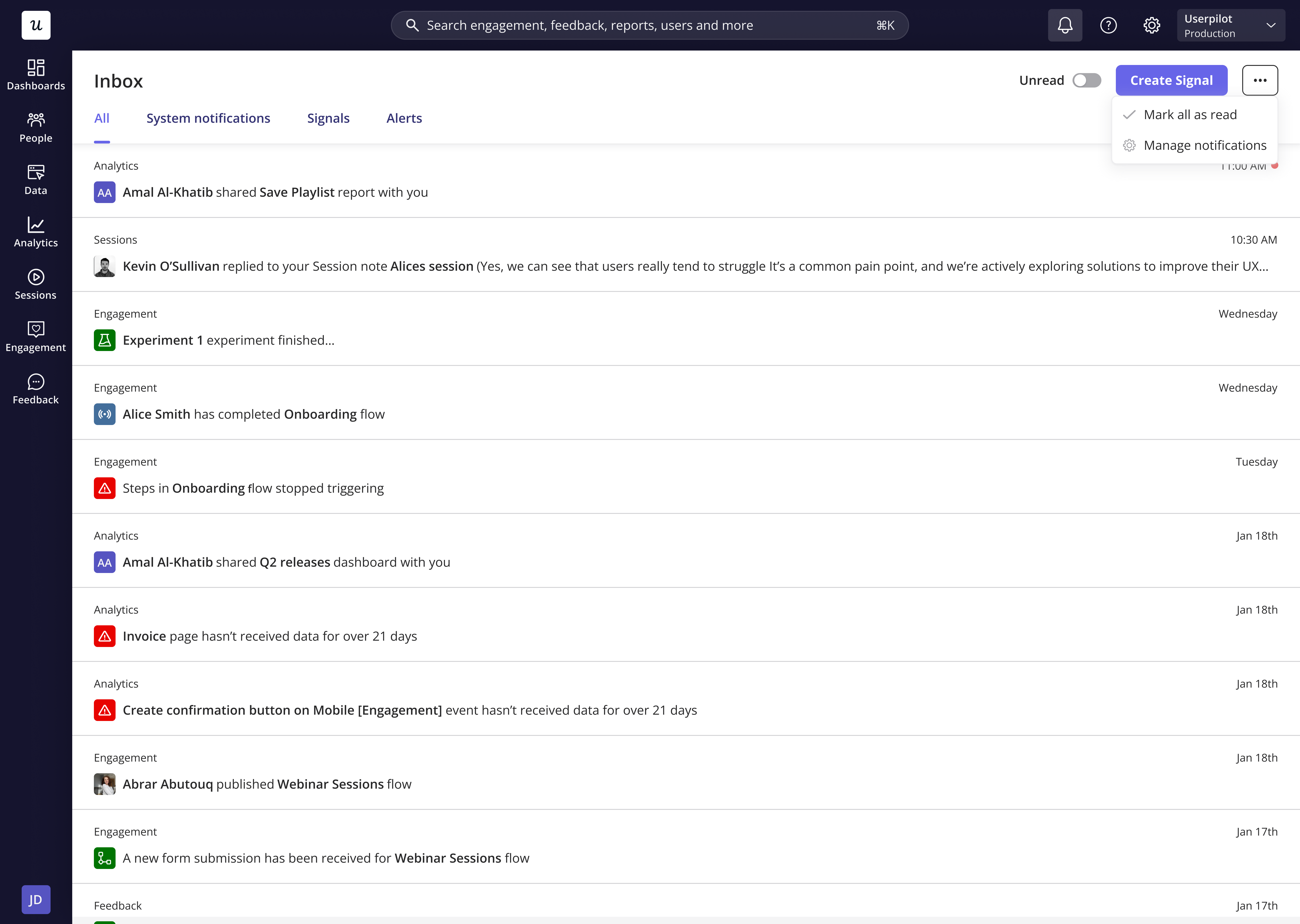
You can expand your Inbox for a full-page view, which makes it easier to browse and read through multiple notifications with better readability. From here, you can:
* Filter between **All**, **System Notifications**, **Signals**, and **Alerts.**
* Switch between the **Content** and **Analytics** tabs under Alerts.
* View details such as alert status, error rate, and trigger dates.
* Create a **Signal** directly from your Inbox.
## Managing notifications
The Inbox gives you flexible control over your notifications:
* **Mark as Read (Single)** → Click the checkmark icon beside any notification to mark it as read.
* **Mark All as Read (Bulk)** → Use the dropdown menu to mark all notifications as read at once.
* **Unread Toggle** → Use the toggle switch at the top right to show only unread notifications.
These options help you quickly manage your updates and keep your workspace tidy.
**Notes**
* If the issue reoccurs after you have marked it as **Resolved**, the alert will automatically change back to **Active**, and you will receive a new notification.
* Userpilot waits **10 seconds by default** before triggering an alert, giving the page enough time to load all elements and reducing the chance of false alerts.
## Expanding the inbox view
You can expand your Inbox for a full-page view, which makes it easier to browse and read through multiple notifications with better readability. From here, you can:
* Filter between **All**, **System Notifications**, **Signals**, and **Alerts.**
* Switch between the **Content** and **Analytics** tabs under Alerts.
* View details such as alert status, error rate, and trigger dates.
* Create a **Signal** directly from your Inbox.
## Managing notifications
The Inbox gives you flexible control over your notifications:
* **Mark as Read (Single)** → Click the checkmark icon beside any notification to mark it as read.
* **Mark All as Read (Bulk)** → Use the dropdown menu to mark all notifications as read at once.
* **Unread Toggle** → Use the toggle switch at the top right to show only unread notifications.
These options help you quickly manage your updates and keep your workspace tidy.
 ## How the inbox connects with notification settings
Anything you configure in the [**Notifications tab**](https://run.userpilot.io/settings/notifications) (in-app) will also appear in your Inbox.\
That means if you’ve set up specific event alerts, signal notifications, or engagement triggers, they’ll automatically show here, ensuring you never miss an important update.
## How the inbox connects with notification settings
Anything you configure in the [**Notifications tab**](https://run.userpilot.io/settings/notifications) (in-app) will also appear in your Inbox.\
That means if you’ve set up specific event alerts, signal notifications, or engagement triggers, they’ll automatically show here, ensuring you never miss an important update.