> ## Documentation Index
> Fetch the complete documentation index at: https://docs.userpilot.com/llms.txt
> Use this file to discover all available pages before exploring further.
# Topics
> Group your agent's conversations by what people are actually trying to do, so you can see usage patterns at a glance and drill into any one of them.
## Overview
Topics group your agent's conversations by subject or intent. Userpilot's AI automatically identifies topics from your conversations, and you can also create your own for use cases you already know you want to track — the two work together, with your own topics always taking priority.
## Use Cases
* **See what people are actually asking the agent for**, without reading every conversation individually.
* **Track a use case you already care about** by creating your own topic, rather than waiting for the AI to surface it.
* **Compare satisfaction and frustration by subject** — spot which topics the agent handles well and which need work.
* **Feed conversation topics into your roadmap or QA process**, and drill into the transcripts behind any topic that needs a closer look.
## Getting Started
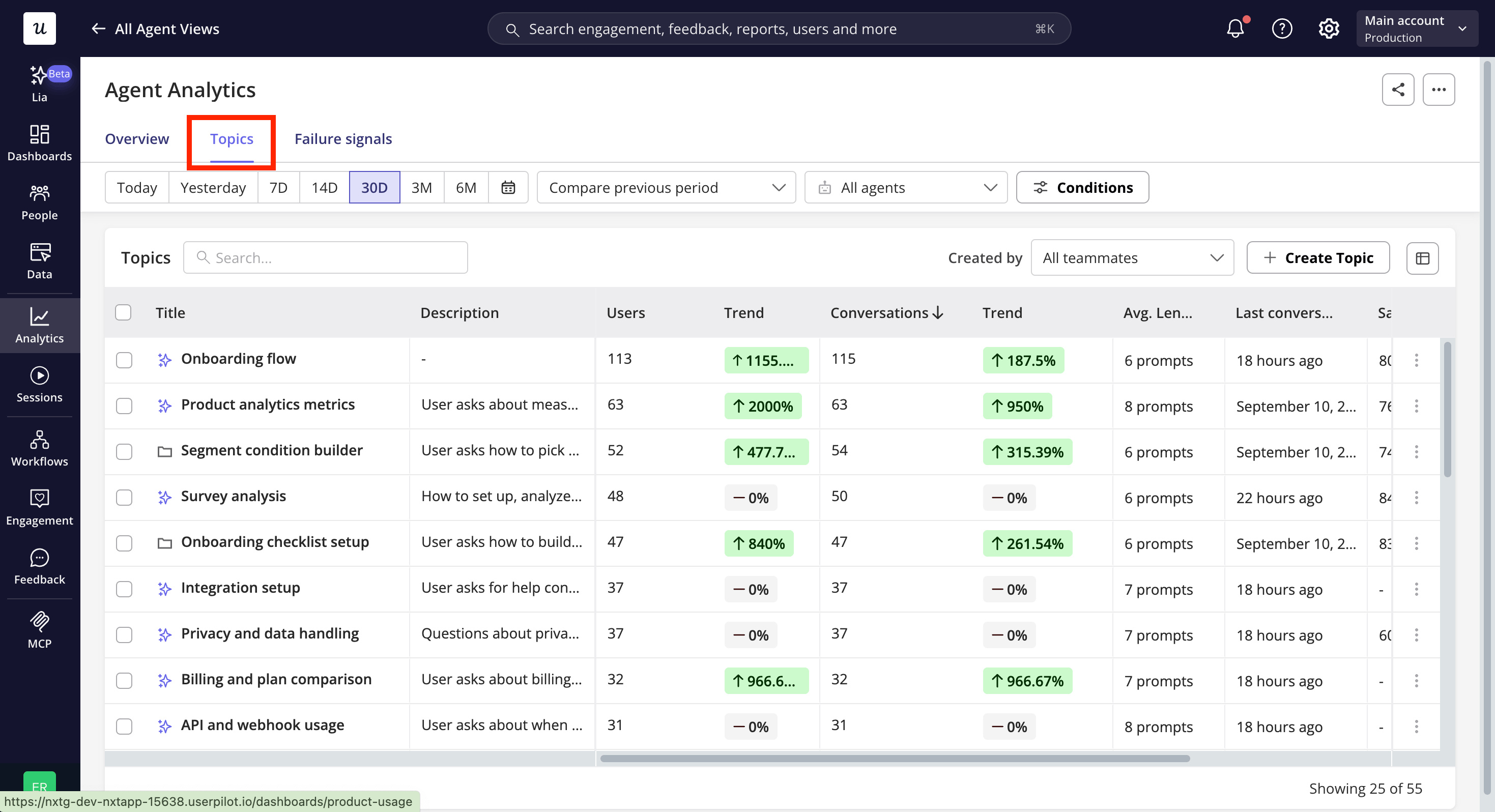
To get started, simply navigate to the [Topics](https://run.userpilot.io/agent-analytics/overview/topics) tab within Agent Analytics, you'll see every topic identified across your agent's conversations, with usage and satisfaction stats you can sort and filter to understand what people are talking to the agent about.
 ## How topics are assigned
A conversation is matched to a topic based on the topic's title and description — Userpilot's AI compares the conversation against every topic and assigns the best match, or creates a new topic if needed. A few things to know about how this works:
* **Matching runs asynchronously.** After you create or edit a topic, it can take a little while for conversations to be (re-)classified — it isn't instant.
* **A conversation belongs to exactly one topic at a time.** If a conversation could reasonably fit more than one topic, priority rules decide which one wins:
1. A topic you created or edited always takes priority over an AI-identified topic.
2. If two of your own topics overlap, the one you created or edited more recently wins.
## The Topics table
| Column | What it shows |
| :------------------------ | :-------------------------------------------------------------------------------------------------------------- |
| Title | The topic name. |
| Description | The topic description. |
| Users (& trend) | Unique users whose conversations were assigned to this topic. |
| Conversations (& trend) | Number of conversations assigned to this topic. |
| Avg. length | Average number of prompts per conversation in this topic. |
| Avg. duration | Average conversation duration for this topic. |
| Last conversation | When this topic was last seen. |
| Satisfaction rate | Positive ratings ÷ total ratings, for conversations in this topic. Shows **–** if the topic has no ratings yet. |
| Frustrating conversations | The number and share of this topic's conversations that had a frustration signal. |
Use **Search** to find a topic by title or description, or filter by **Created by** — a specific teammate, all teammates, or **AI Identified**. You can also customize which columns are shown.
## Creating a topic
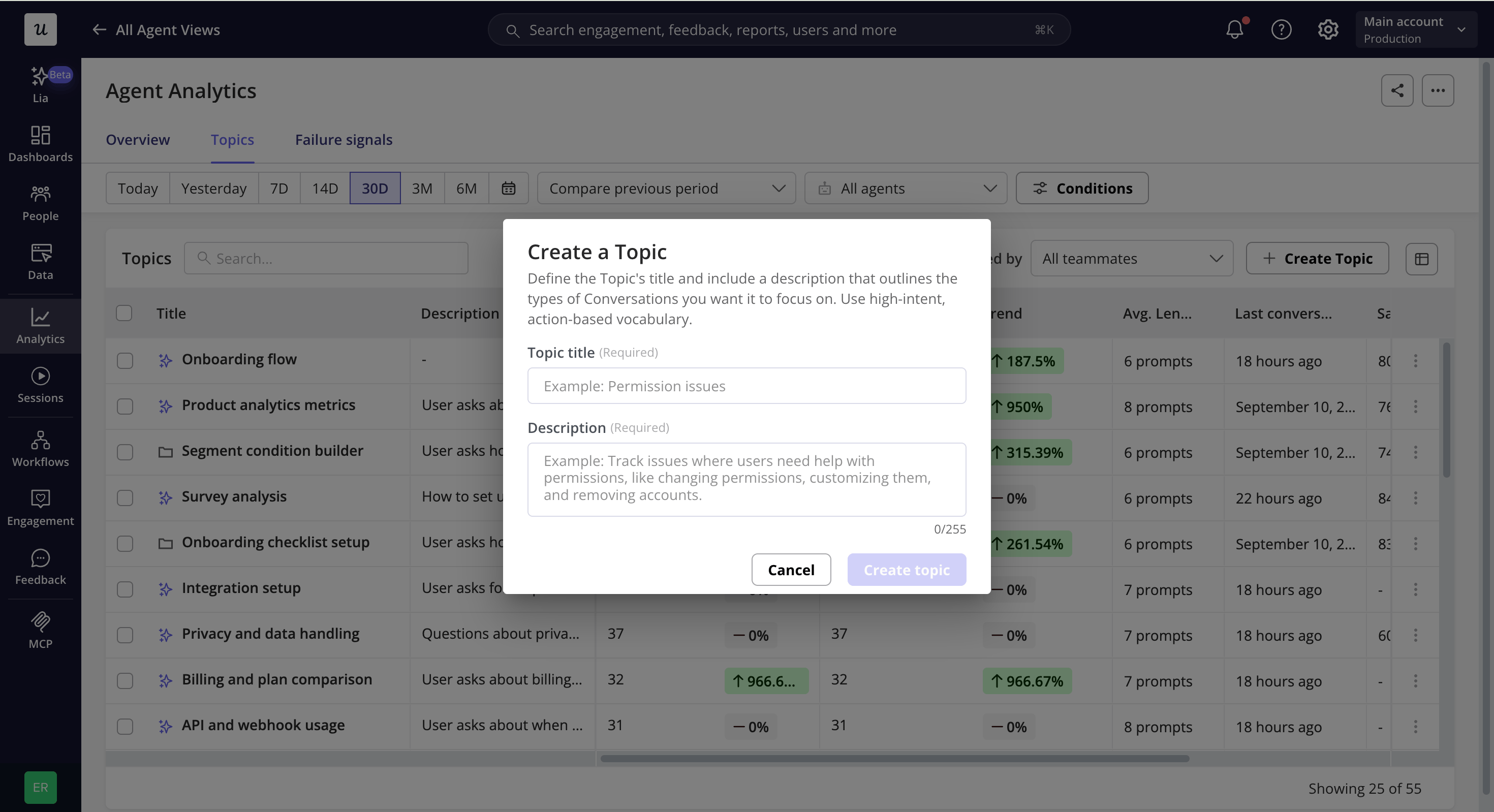
1. Click **Create topic**.
2. Enter a **title** and **description** — both are required.
3. Save. New conversations that match will be grouped under it going forward.
## How topics are assigned
A conversation is matched to a topic based on the topic's title and description — Userpilot's AI compares the conversation against every topic and assigns the best match, or creates a new topic if needed. A few things to know about how this works:
* **Matching runs asynchronously.** After you create or edit a topic, it can take a little while for conversations to be (re-)classified — it isn't instant.
* **A conversation belongs to exactly one topic at a time.** If a conversation could reasonably fit more than one topic, priority rules decide which one wins:
1. A topic you created or edited always takes priority over an AI-identified topic.
2. If two of your own topics overlap, the one you created or edited more recently wins.
## The Topics table
| Column | What it shows |
| :------------------------ | :-------------------------------------------------------------------------------------------------------------- |
| Title | The topic name. |
| Description | The topic description. |
| Users (& trend) | Unique users whose conversations were assigned to this topic. |
| Conversations (& trend) | Number of conversations assigned to this topic. |
| Avg. length | Average number of prompts per conversation in this topic. |
| Avg. duration | Average conversation duration for this topic. |
| Last conversation | When this topic was last seen. |
| Satisfaction rate | Positive ratings ÷ total ratings, for conversations in this topic. Shows **–** if the topic has no ratings yet. |
| Frustrating conversations | The number and share of this topic's conversations that had a frustration signal. |
Use **Search** to find a topic by title or description, or filter by **Created by** — a specific teammate, all teammates, or **AI Identified**. You can also customize which columns are shown.
## Creating a topic
1. Click **Create topic**.
2. Enter a **title** and **description** — both are required.
3. Save. New conversations that match will be grouped under it going forward.
 ## Editing, pinning, and hiding
From a topic's **more actions** menu:
* **Edit topic** – change the title or description. Note that editing a topic switches it from AI-identified to manually created, since you've now defined it yourself.
* **Pin / Unpin** – pinned topics always show at the top of the table, sorted among themselves by whatever sort order is applied, and they stay visible even if they have zero data for the selected period. This is a good way to keep an eye on a topic you care about even in a quiet week.
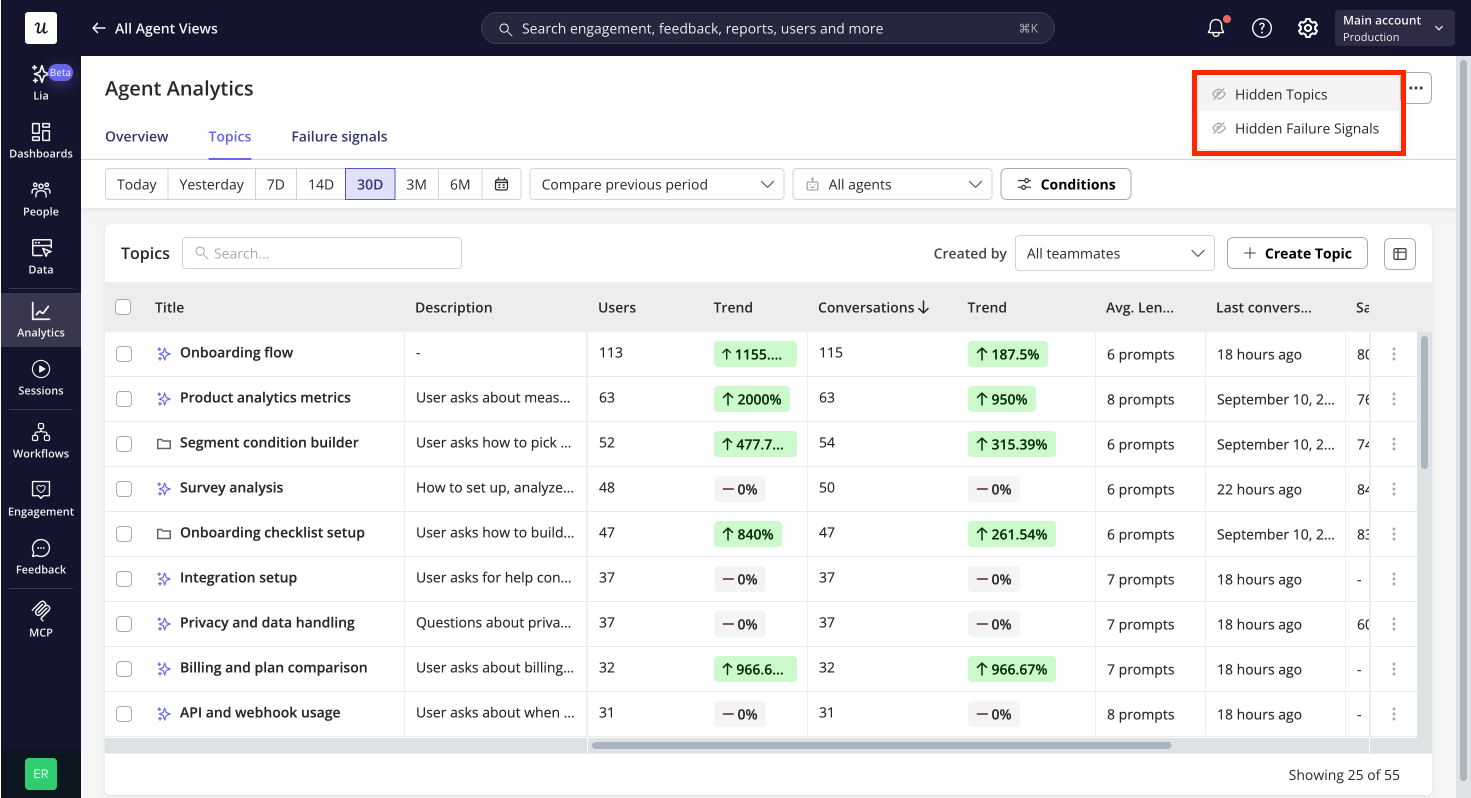
* **Hide** – removes the topic, and every conversation grouped under it, from all views and analytics — not just from the Topics tab. You'll see a confirmation before this happens. You can bring a topic back at any time from **Hidden topics** in the headers more actions menu.
## Editing, pinning, and hiding
From a topic's **more actions** menu:
* **Edit topic** – change the title or description. Note that editing a topic switches it from AI-identified to manually created, since you've now defined it yourself.
* **Pin / Unpin** – pinned topics always show at the top of the table, sorted among themselves by whatever sort order is applied, and they stay visible even if they have zero data for the selected period. This is a good way to keep an eye on a topic you care about even in a quiet week.
* **Hide** – removes the topic, and every conversation grouped under it, from all views and analytics — not just from the Topics tab. You'll see a confirmation before this happens. You can bring a topic back at any time from **Hidden topics** in the headers more actions menu.
 ## Viewing conversations within a topic
Click into any topic to open a slideout with every conversation assigned to it, sorted by date (most recent first). You can:
* Search across all columns.
* Expand the slideout to a full-screen view.
* Switch to **View replays**, if session replays are available for these conversations.
Click into any conversation row to open the full Conversation transcript view.
## FAQs
No. Hiding removes the topic from your views and analytics, but you can restore it at any time via **Hidden topics** in the Overview's more actions menu.
Yes, but only one will "win" any conversation that matches both. The most recently created or edited topic takes priority.
## Viewing conversations within a topic
Click into any topic to open a slideout with every conversation assigned to it, sorted by date (most recent first). You can:
* Search across all columns.
* Expand the slideout to a full-screen view.
* Switch to **View replays**, if session replays are available for these conversations.
Click into any conversation row to open the full Conversation transcript view.
## FAQs
No. Hiding removes the topic from your views and analytics, but you can restore it at any time via **Hidden topics** in the Overview's more actions menu.
Yes, but only one will "win" any conversation that matches both. The most recently created or edited topic takes priority.