> ## Documentation Index
> Fetch the complete documentation index at: https://docs.userpilot.com/llms.txt
> Use this file to discover all available pages before exploring further.
# Get started with survey
> Get started with Userpilot surveys to collect in-app feedback at the right moment, analyze responses, and turn user insights into action.
## Survey Overview
Userpilot surveys allow you to collect valuable feedback at scale and at the right moment. Whether you aim to improve the user experience, measure satisfaction, gather feedback on new features, or segment your users, this tool provides a dynamic and flexible approach to collecting insights.
The Survey feature is included with **Growth** and **Enterprise** plans.
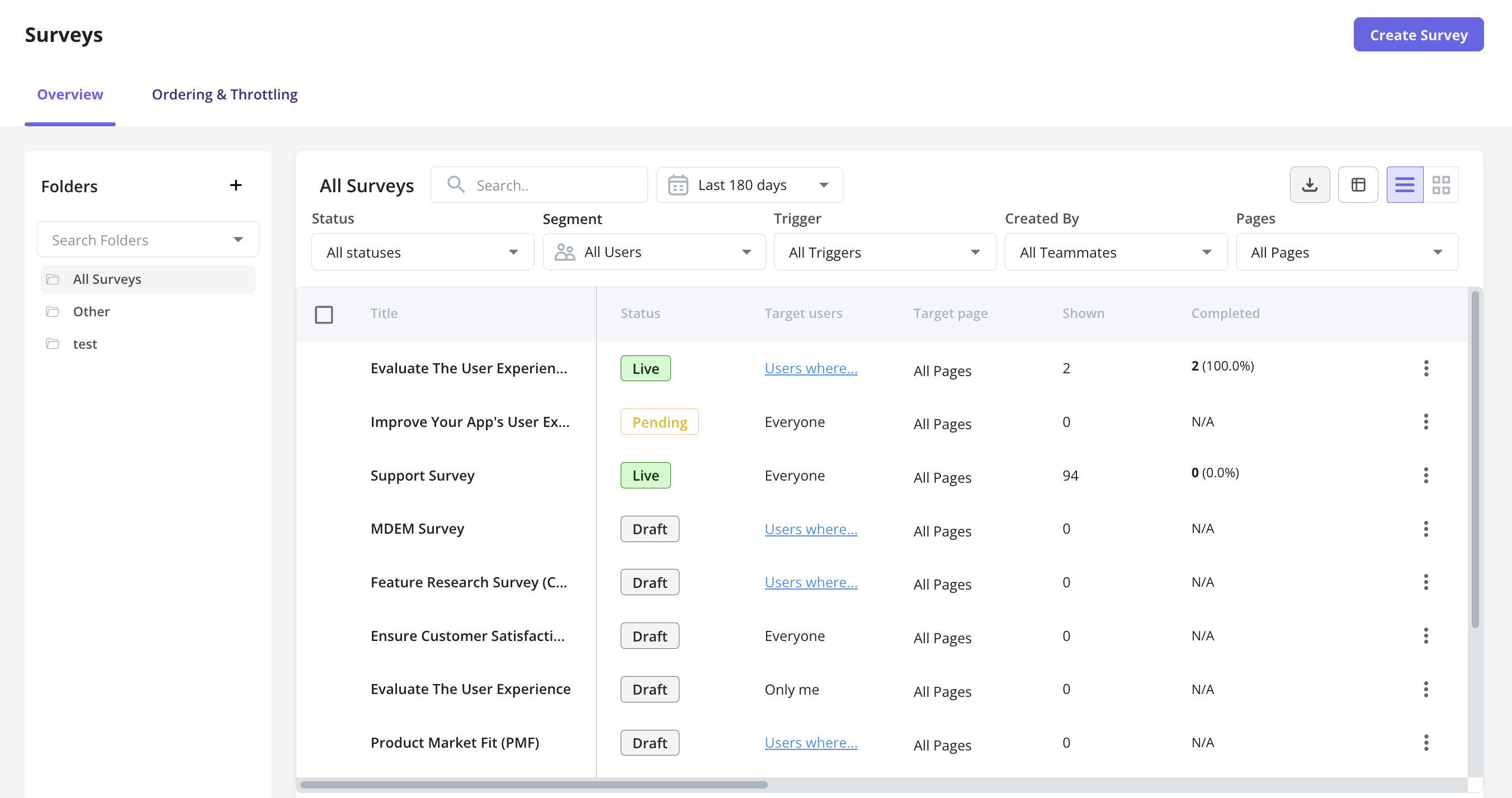
The **Survey Overview** serves as your central hub for monitoring and analyzing survey performance. Once you access this dashboard, you'll find:
**What Can You Do in the Overview Tab?**
1. **View & Manage Surveys** Easily access and view all surveys in your workspace, with key details like title, trigger type, and status (Active, Draft, Archived).
2. **Organize & Filter Surveys** Filter by status, trigger type, target segment, or creator to quickly find relevant surveys.
3. **Customize Your Data** Reorder columns, show/hide data, and sort by different attributes to focus on key metrics.
4. **Export Surveys** Download a report in CSV file to analyze and share survey data.
 ## Creating a Survey
### Ordering
To ensure a seamless user experience, you can order surveys.
You can arrange the order of your Web App and Mobile App surveys separately by clicking on the tabs above the ordering and throttling table.
## Creating a Survey
### Ordering
To ensure a seamless user experience, you can order surveys.
You can arrange the order of your Web App and Mobile App surveys separately by clicking on the tabs above the ordering and throttling table.
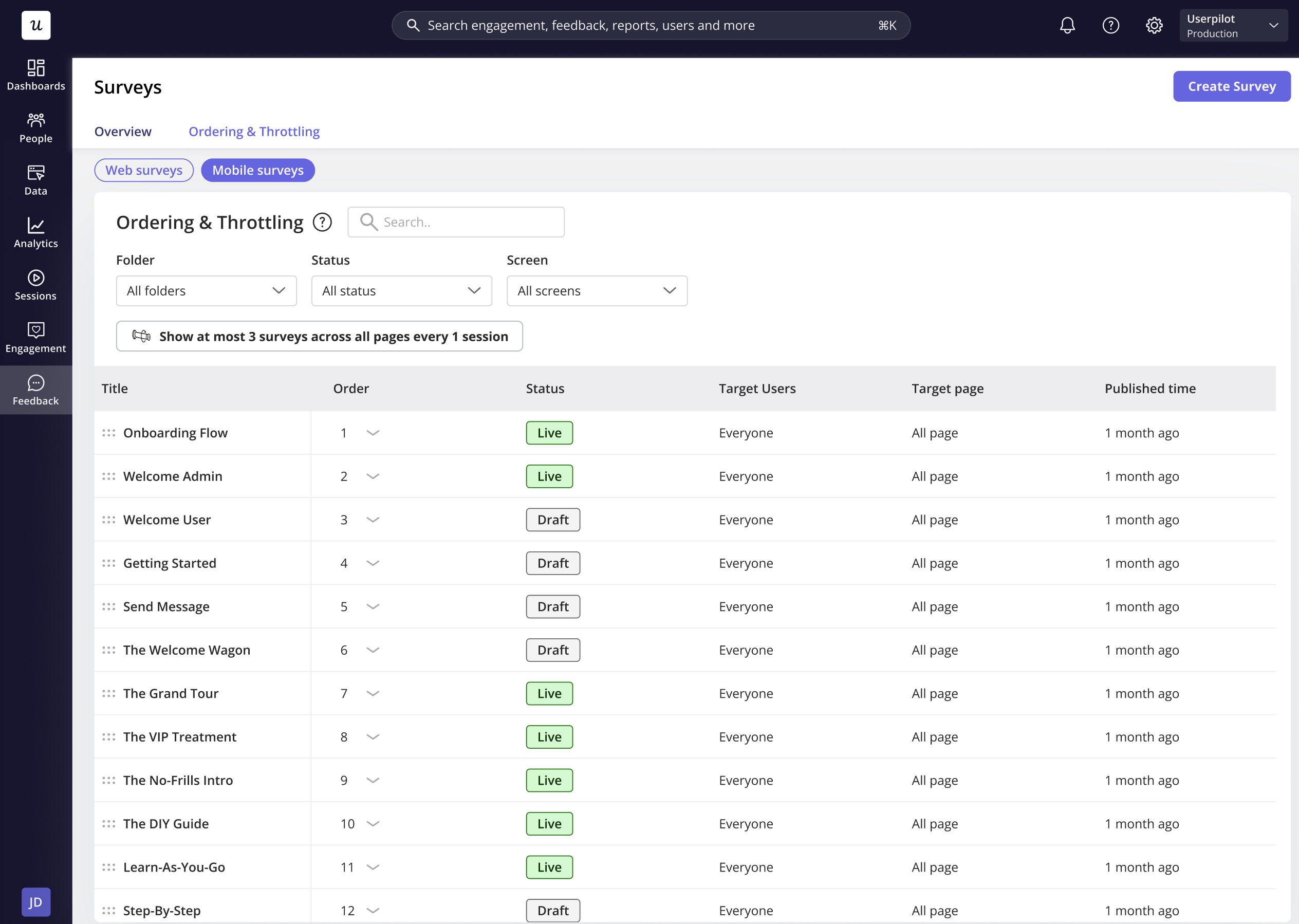 * **Change the survey order**: Rearrange surveys to set the priority order by drag-and-drop experience, or change the order number from the list.
* **Priority by Creation Date**: New surveys are placed at the bottom of the list by default.
### **Throttling**
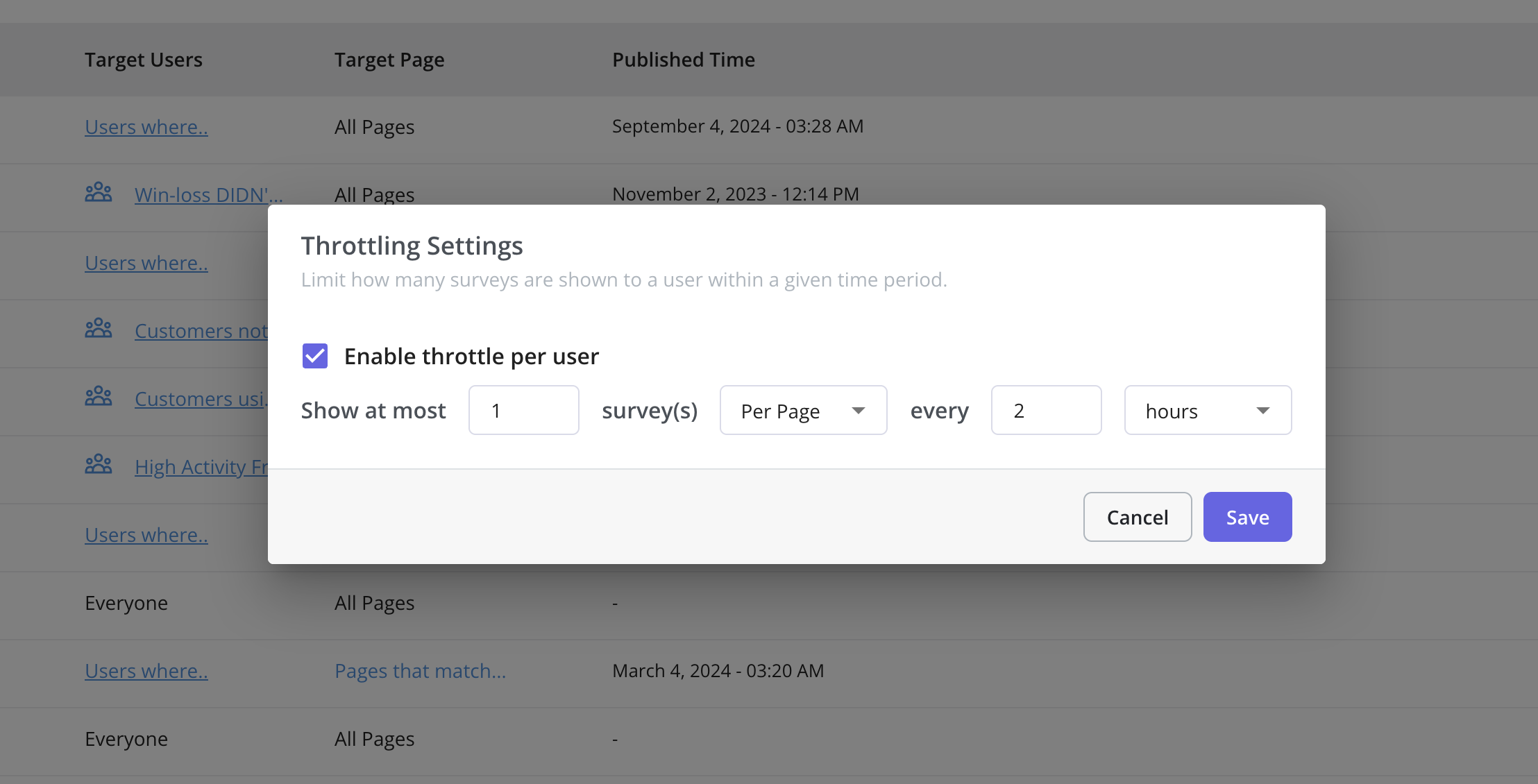
Content throttling is only available for **Growth** and **Enterprise** plans. If you're on a lower plan, you won't be able to access this feature.
\*\*Content Throttling \*\* is a feature that lets you control how many surveys are shown to users based on your configuration. By setting specific limits or intervals, you can ensure users aren’t overwhelmed with too many interactions at once, creating a more thoughtful and user-friendly experience.
* **Change the survey order**: Rearrange surveys to set the priority order by drag-and-drop experience, or change the order number from the list.
* **Priority by Creation Date**: New surveys are placed at the bottom of the list by default.
### **Throttling**
Content throttling is only available for **Growth** and **Enterprise** plans. If you're on a lower plan, you won't be able to access this feature.
\*\*Content Throttling \*\* is a feature that lets you control how many surveys are shown to users based on your configuration. By setting specific limits or intervals, you can ensure users aren’t overwhelmed with too many interactions at once, creating a more thoughtful and user-friendly experience.
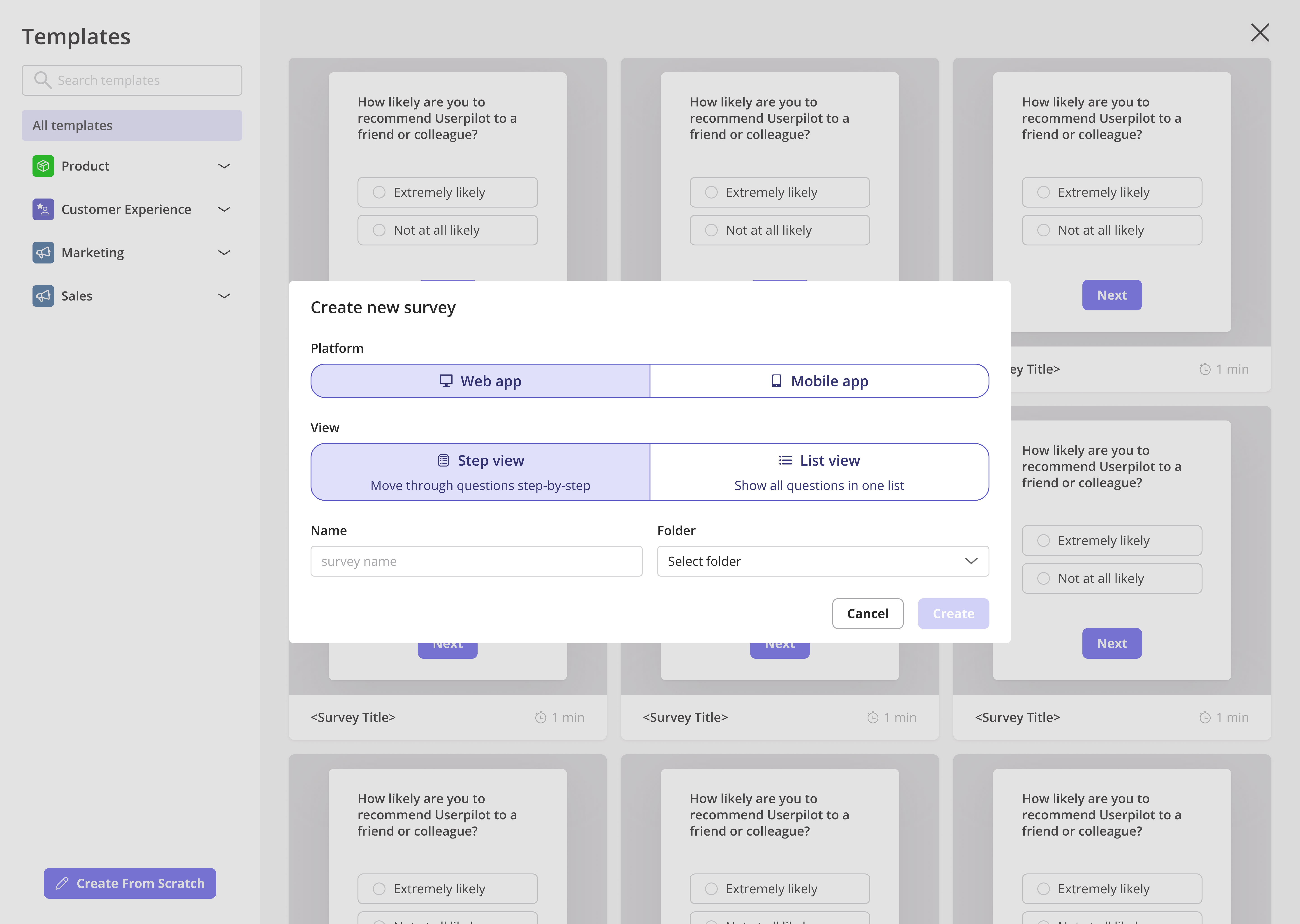
 To create a new survey, follow these steps:
1. \*\*Navigate to the Survey Page. \*\*From the navbar, click **User Feedback > Survey** and then **Create Survey.**
2. Choose a **template** or **create one from scratch**. Templates include:
1. **Product**: Gather product feedback, evaluate fit.
2. **Customer Experience**: Measure CSAT, CES.
3. **Marketing**: Collect insights from new users, track attribution.
4. **Sales**: Qualify leads, understand customer choices.
3. \*\*Select the platform, and then \*\*pick either **Web app** or **Mobile app** based on where you want to gather user feedback.
If you want feedback from both your web app and mobile app users, you’ll just need to set up two separate surveys, one for each platform.
To create a new survey, follow these steps:
1. \*\*Navigate to the Survey Page. \*\*From the navbar, click **User Feedback > Survey** and then **Create Survey.**
2. Choose a **template** or **create one from scratch**. Templates include:
1. **Product**: Gather product feedback, evaluate fit.
2. **Customer Experience**: Measure CSAT, CES.
3. **Marketing**: Collect insights from new users, track attribution.
4. **Sales**: Qualify leads, understand customer choices.
3. \*\*Select the platform, and then \*\*pick either **Web app** or **Mobile app** based on where you want to gather user feedback.
If you want feedback from both your web app and mobile app users, you’ll just need to set up two separate surveys, one for each platform.
 ### **Survey Questions**
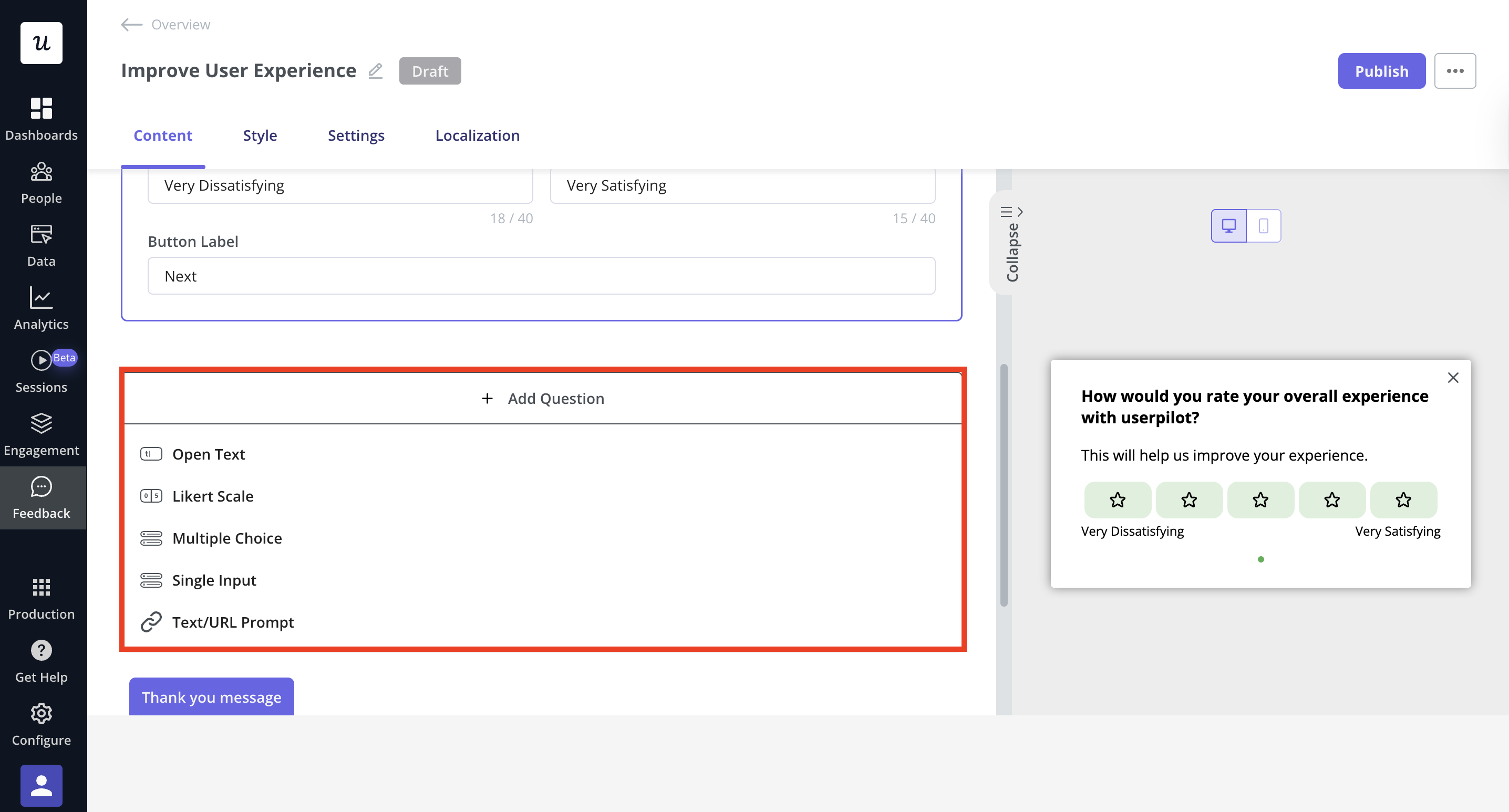
Userpilot offers multiple question types to fit your survey needs. \
To add questions, click **+ Add Question** and choose from types to tailor the survey based on responses.
1. Open-ended questions: Open text and single input - best for gathering detailed insights.
2. Close-ended questions: Likert scale, multiple choice - best for quick, structured feedback.
3. Text/URL prompt: Use for directing users to content or capturing simple inputs.
### **Survey Questions**
Userpilot offers multiple question types to fit your survey needs. \
To add questions, click **+ Add Question** and choose from types to tailor the survey based on responses.
1. Open-ended questions: Open text and single input - best for gathering detailed insights.
2. Close-ended questions: Likert scale, multiple choice - best for quick, structured feedback.
3. Text/URL prompt: Use for directing users to content or capturing simple inputs.
 ### **Survey logic**
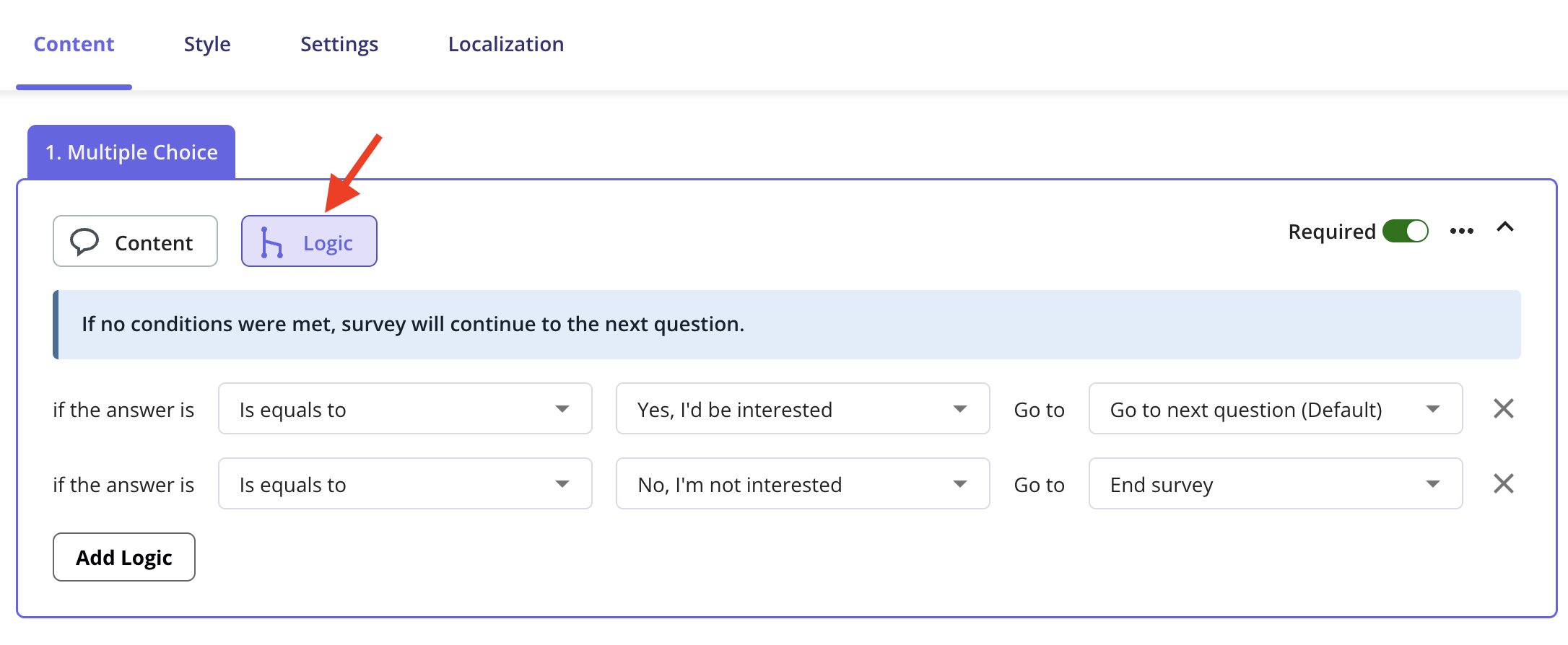
For every survey question, you will see a **Logic** option. Once you open it, you can customize the question flow based on the user’s response.\
Survey logic lets you show or skip questions depending on how users answer, keeping the experience simple and helping you collect more accurate, meaningful feedback.
### **Survey logic**
For every survey question, you will see a **Logic** option. Once you open it, you can customize the question flow based on the user’s response.\
Survey logic lets you show or skip questions depending on how users answer, keeping the experience simple and helping you collect more accurate, meaningful feedback.
 ### Thank you message
After you finish creating your survey questions, you can enable the Thank You message to acknowledge your users and thank them for taking the time to respond.
### Thank you message
After you finish creating your survey questions, you can enable the Thank You message to acknowledge your users and thank them for taking the time to respond.
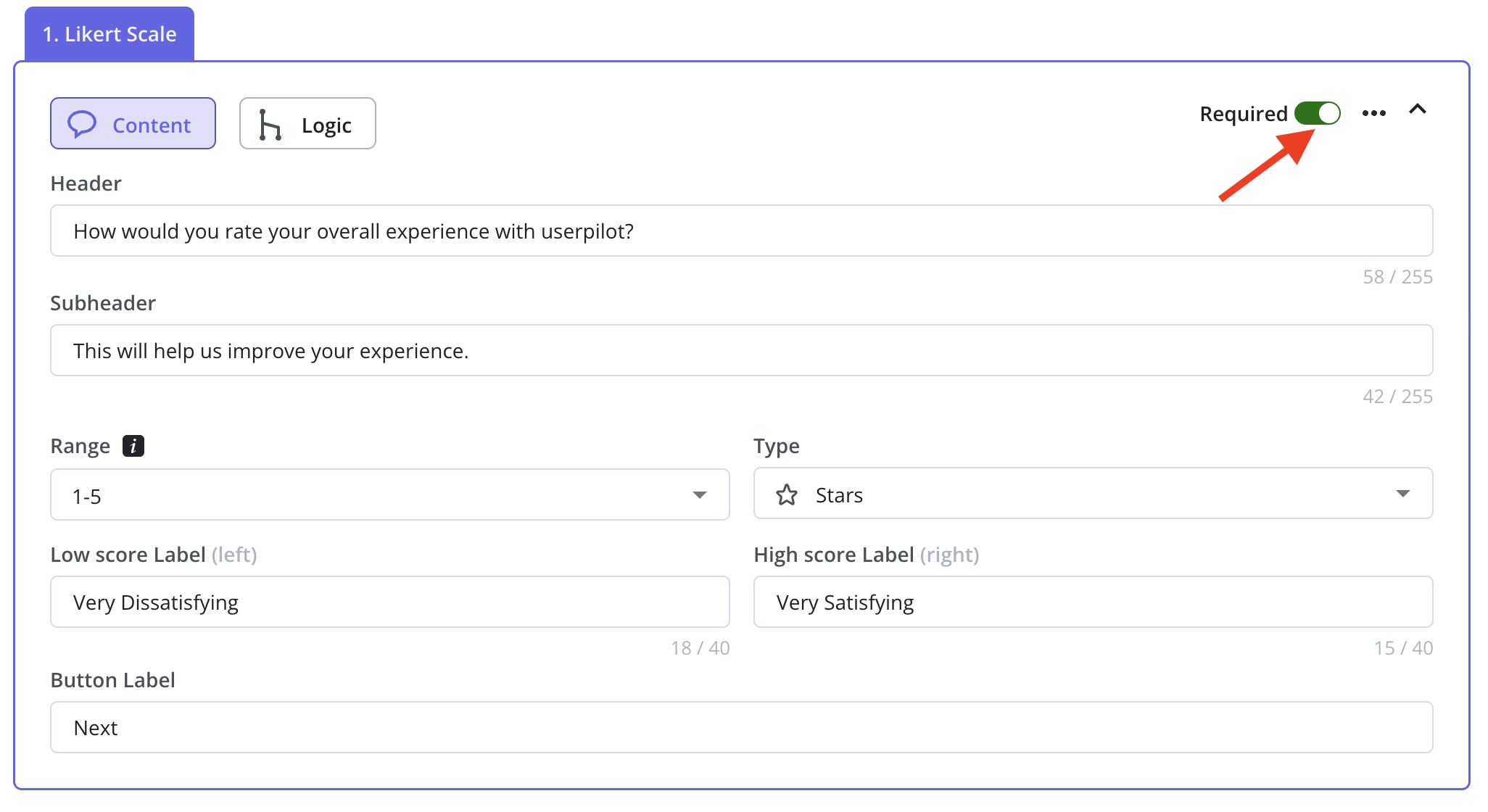
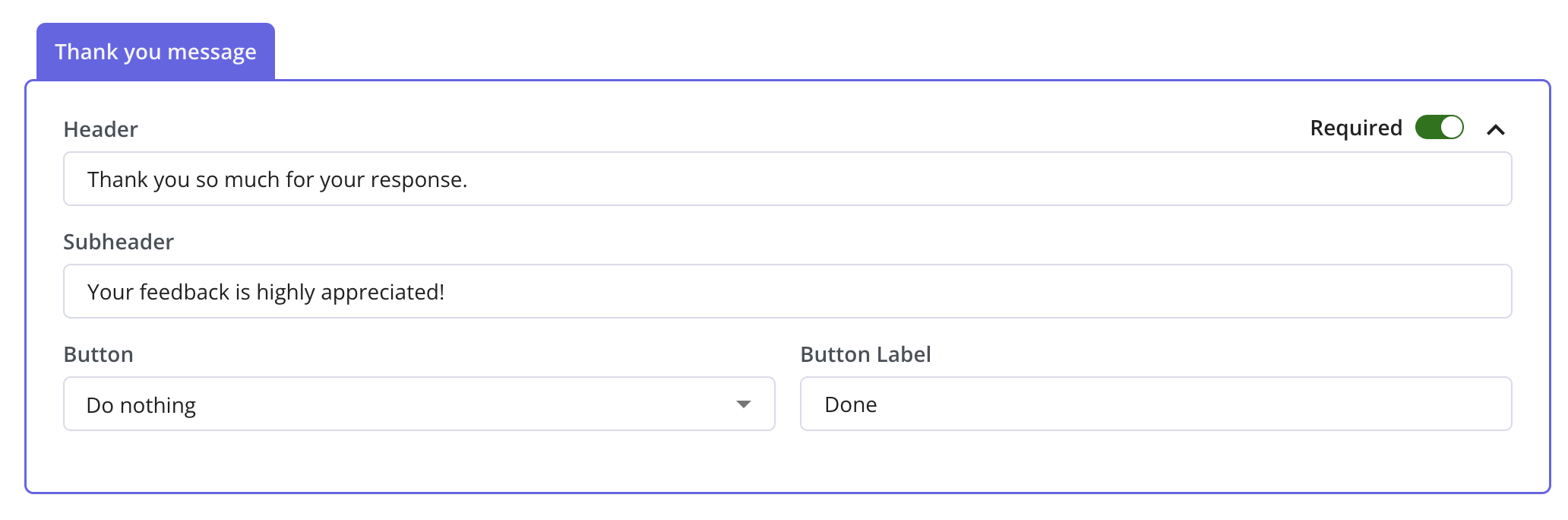 You can make a question required by switching on the “Required” toggle.
 ## Styling Your Survey
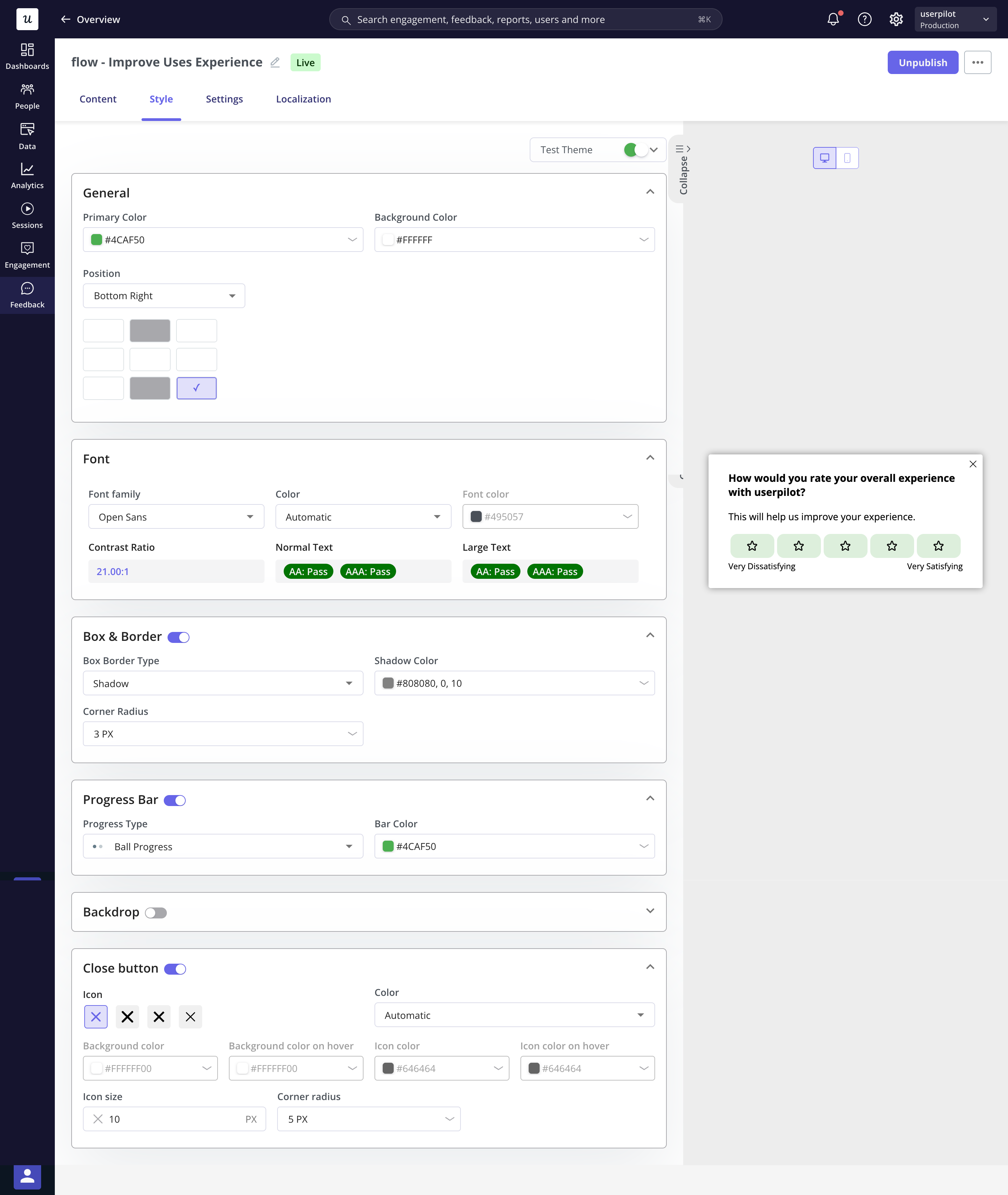
Now it's time to make your survey look aligned with your brand.
* **General Settings**: Adjust widget position and set primary/background colors.
* **Font**: Customize font family and text color.
* **Box & Border**: Select a border style (solid or shadow) and adjust width, intensity, and corner radius.
* **Progress Bar**: Choose bar or ball style and set progress color.
If you use survey logic, the progress bar won’t appear because we can’t reliably detect how many questions the user will see.
* **Backdrop**: Change the color and opacity of the backdrop.
* **Close Button**: Choose the close icon’s shape, color, size, and corner radius.
## Styling Your Survey
Now it's time to make your survey look aligned with your brand.
* **General Settings**: Adjust widget position and set primary/background colors.
* **Font**: Customize font family and text color.
* **Box & Border**: Select a border style (solid or shadow) and adjust width, intensity, and corner radius.
* **Progress Bar**: Choose bar or ball style and set progress color.
If you use survey logic, the progress bar won’t appear because we can’t reliably detect how many questions the user will see.
* **Backdrop**: Change the color and opacity of the backdrop.
* **Close Button**: Choose the close icon’s shape, color, size, and corner radius.
 ## Survey Settings
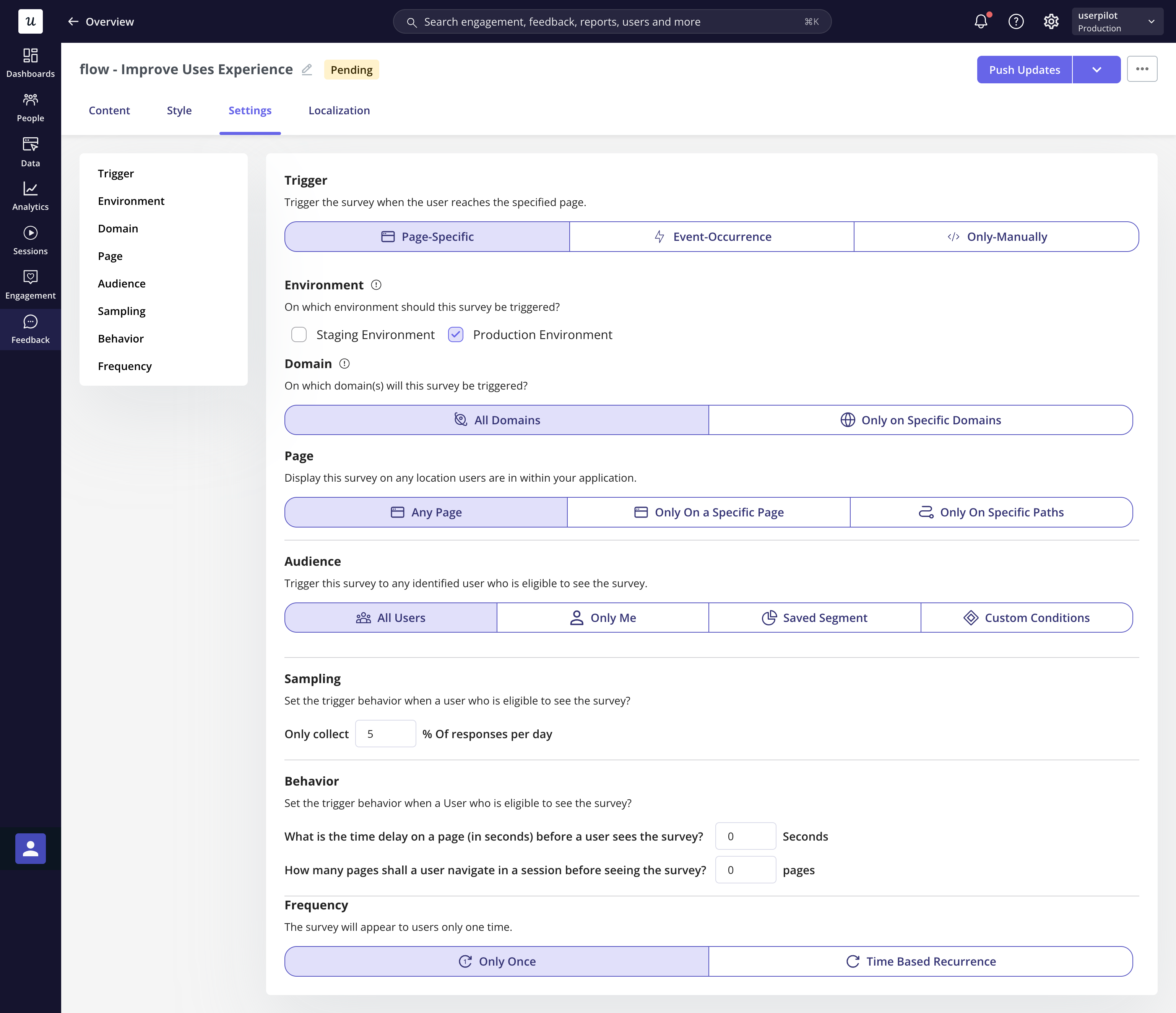
Once your survey is ready, the next step is setting when and where it will appear.
## Survey Settings
Once your survey is ready, the next step is setting when and where it will appear.
 ### **Triggering Methods**
Surveys can be triggered in the following ways:
1. **Page-Specific** Show the survey on a specific page.
2. **Event Occurrence** Trigger the survey based on user actions (available on Growth and Enterprise plans).
3. **Manually** Trigger via Userpilot content or via an element on your webapp. **Shareable Permalink:** Use a unique link for internal testing.
### **Triggering Methods**
Surveys can be triggered in the following ways:
1. **Page-Specific** Show the survey on a specific page.
2. **Event Occurrence** Trigger the survey based on user actions (available on Growth and Enterprise plans).
3. **Manually** Trigger via Userpilot content or via an element on your webapp. **Shareable Permalink:** Use a unique link for internal testing.
 ### Targeting Options
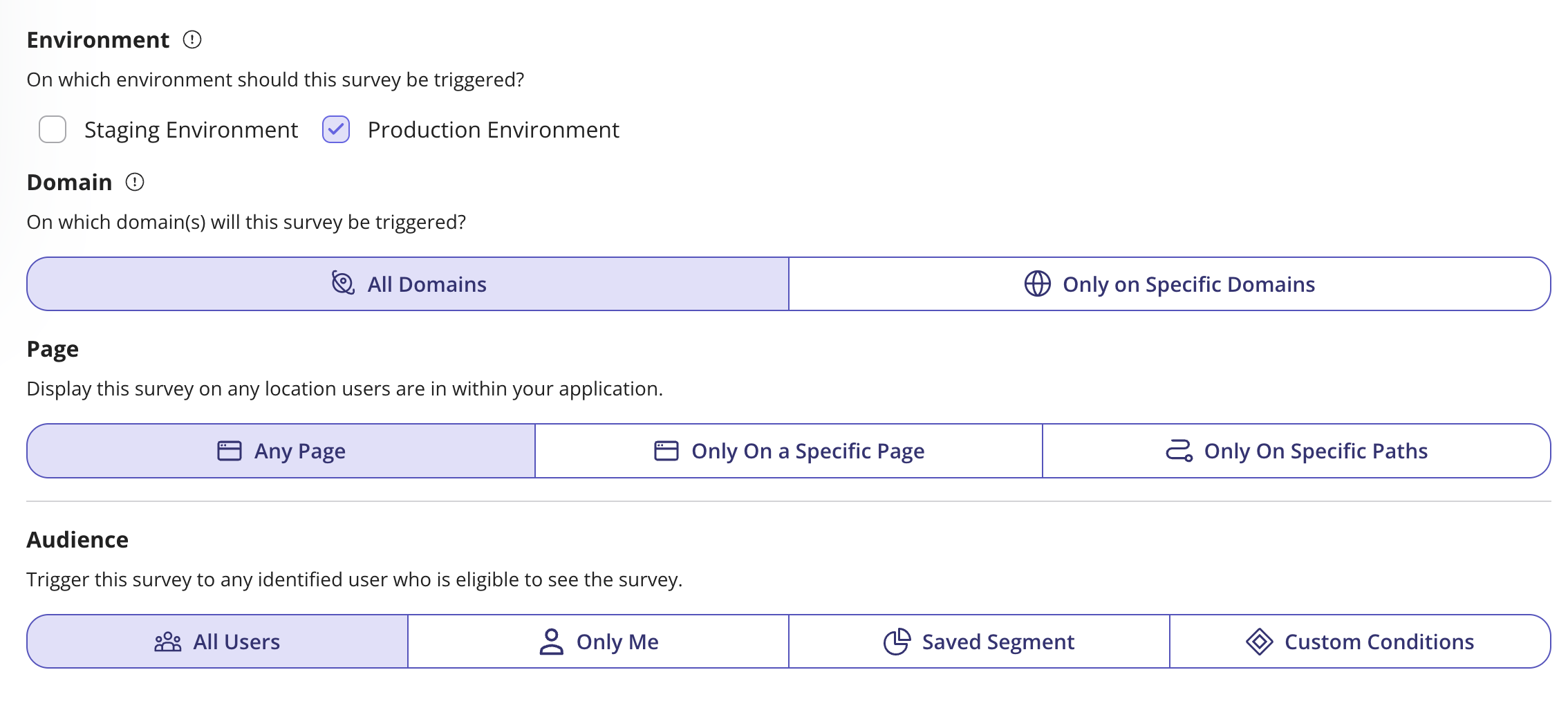
Target surveys based on user or company data, as well as product usage:
1. **Environment:**
* Choose the environment where you want the survey to appear. Select Staging to test it internally, or Production when you're ready to publish it live for all users.
The Staging environment is available only for Growth and Enterprise plans. If you're on a Starter plan, you will need to [upgrade](https://userpilot.com/pricing/) to select it.
2. **Domains**:
* Choose to display the survey on all domains or specific ones.
3. **Pages**:
* Show the survey on any page or specify a specific URL path.
* Use regex to match dynamic URLs (e.g., `/*/dashboard/*`).
4. **Audience**:
* **All Users**: Default option, visible to every identified user.
* **Only me**: This is a great option if you want to test the survey. Just keep in mind that it will appear for anyone who has the Userpilot Chrome extension installed
* **Saved Segment**: Target a specific group of users based on saved criteria.
* **Custom Conditions**: Define eligibility using user and company data, app events, and more.
### Targeting Options
Target surveys based on user or company data, as well as product usage:
1. **Environment:**
* Choose the environment where you want the survey to appear. Select Staging to test it internally, or Production when you're ready to publish it live for all users.
The Staging environment is available only for Growth and Enterprise plans. If you're on a Starter plan, you will need to [upgrade](https://userpilot.com/pricing/) to select it.
2. **Domains**:
* Choose to display the survey on all domains or specific ones.
3. **Pages**:
* Show the survey on any page or specify a specific URL path.
* Use regex to match dynamic URLs (e.g., `/*/dashboard/*`).
4. **Audience**:
* **All Users**: Default option, visible to every identified user.
* **Only me**: This is a great option if you want to test the survey. Just keep in mind that it will appear for anyone who has the Userpilot Chrome extension installed
* **Saved Segment**: Target a specific group of users based on saved criteria.
* **Custom Conditions**: Define eligibility using user and company data, app events, and more.
 ### Frequency & Behavior Settings
3. **Sampling Rate**: Define what percentage of eligible users will see the survey.
* Set to **100%** for all eligible users.
* Set a lower percentage (e.g., **20%**) for a sample of users.
4. **User Behavior**: Trigger the survey based on user actions, such as time spent on the page or number of page visits.
5. **Frequency**: Set how often the survey appears for a user:
* **Once Only**: The survey will be shown once.
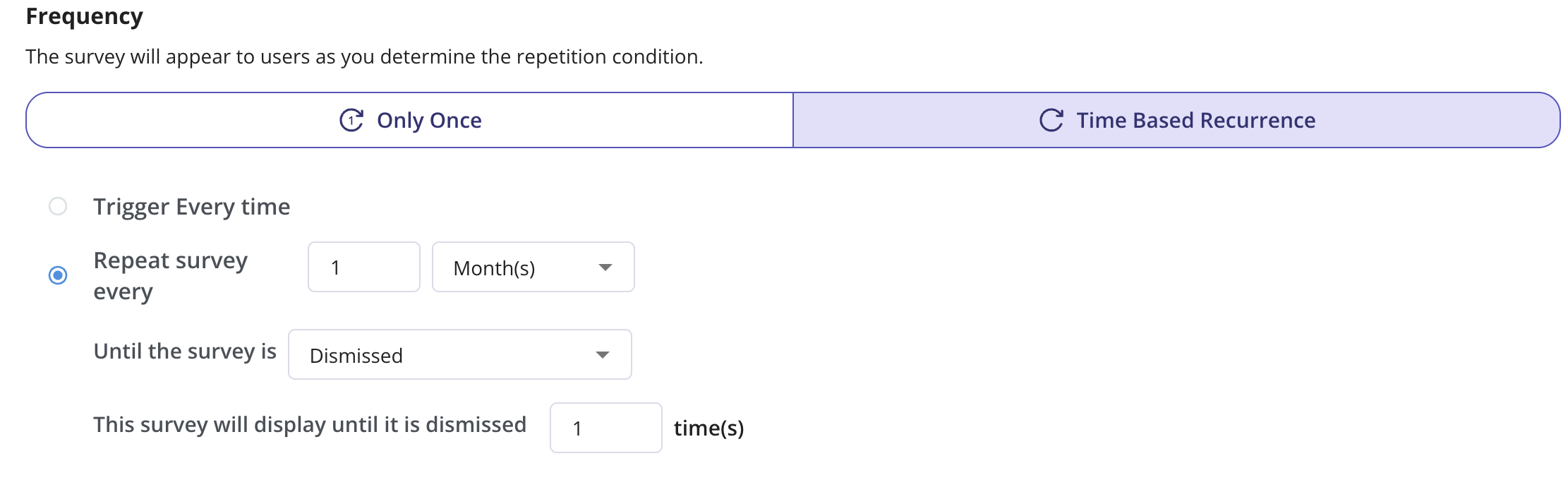
**Time Based Recurrence**: Choose whether to show the survey every time the user becomes eligible, or show it again after a set period (e.g., 2 months) until it’s unpublished, completed, or dismissed.\
You can also limit how many times a user can dismiss the survey before it stops appearing.
### Frequency & Behavior Settings
3. **Sampling Rate**: Define what percentage of eligible users will see the survey.
* Set to **100%** for all eligible users.
* Set a lower percentage (e.g., **20%**) for a sample of users.
4. **User Behavior**: Trigger the survey based on user actions, such as time spent on the page or number of page visits.
5. **Frequency**: Set how often the survey appears for a user:
* **Once Only**: The survey will be shown once.
**Time Based Recurrence**: Choose whether to show the survey every time the user becomes eligible, or show it again after a set period (e.g., 2 months) until it’s unpublished, completed, or dismissed.\
You can also limit how many times a user can dismiss the survey before it stops appearing.
 \
Publishing and Scheduling Your Survey
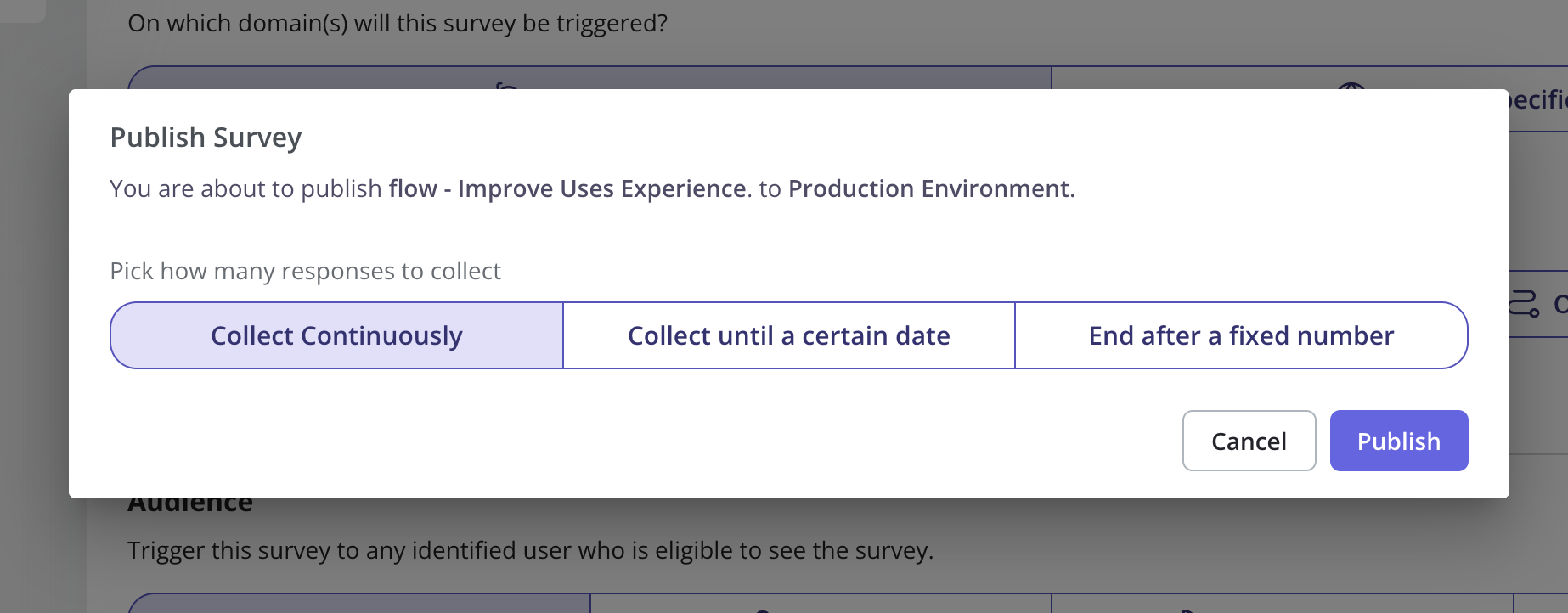
Once your survey is finalized, you can either publish it immediately or schedule it for a later date.
**1. Publishing Your Survey**
Click the "**Publish**" button to make your survey live instantly.
Once published, the survey will start appearing to users who meet the targeting conditions.
If any changes are made after publishing, you'll need to "Push Updates" for them to take effect.
\
Publishing and Scheduling Your Survey
Once your survey is finalized, you can either publish it immediately or schedule it for a later date.
**1. Publishing Your Survey**
Click the "**Publish**" button to make your survey live instantly.
Once published, the survey will start appearing to users who meet the targeting conditions.
If any changes are made after publishing, you'll need to "Push Updates" for them to take effect.
 \
**2. Scheduling Your Survey**
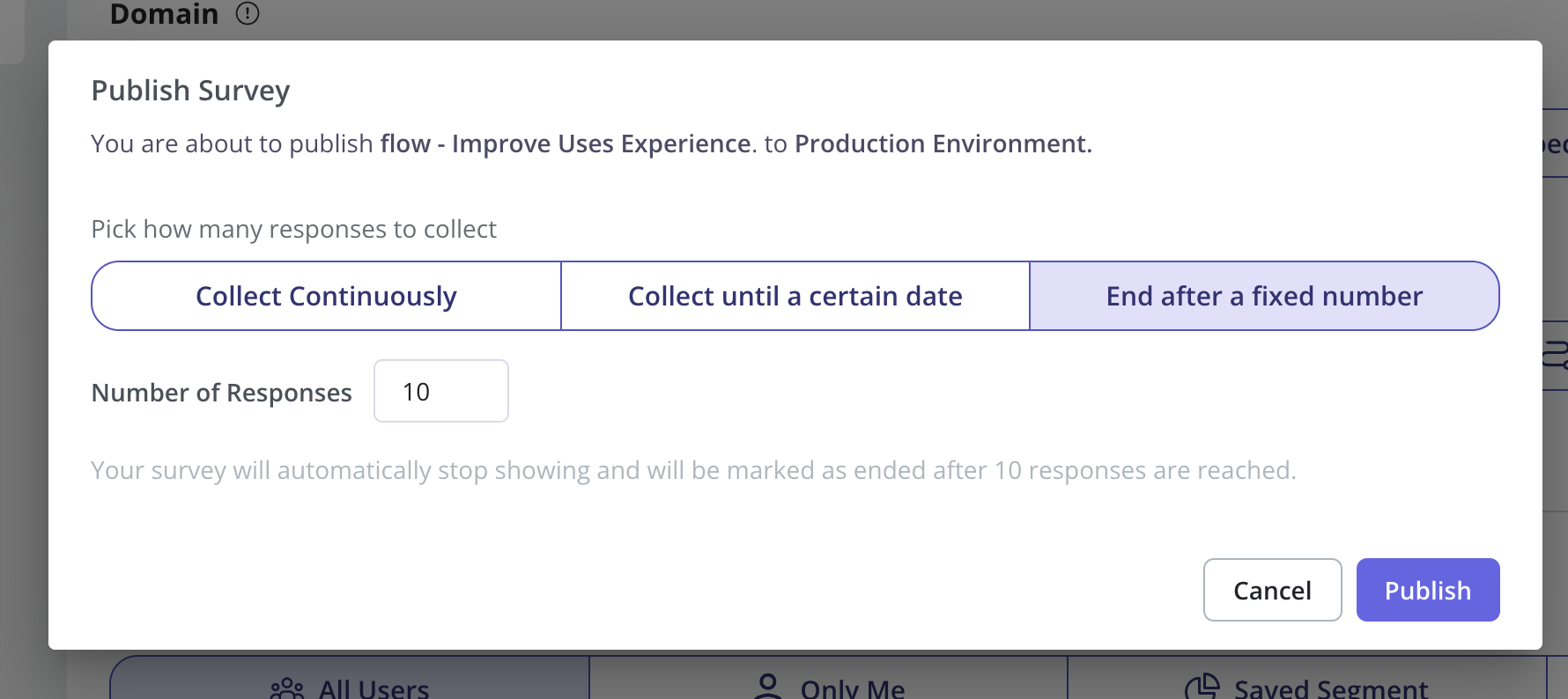
You can control how long your survey stays active using one of the following options:
* **End Date:** Set a specific date when the survey will automatically stop showing.
* **Fixed Number of Responses:** The survey will stop displaying once it reaches the set number of responses.
\
**2. Scheduling Your Survey**
You can control how long your survey stays active using one of the following options:
* **End Date:** Set a specific date when the survey will automatically stop showing.
* **Fixed Number of Responses:** The survey will stop displaying once it reaches the set number of responses.
 **3. Unpublishing a Survey**
* You can manually **unpublish** a survey at any time if you no longer want it to be shown.
* If an end date or response limit is reached, the survey will automatically stop appearing.
**Mobile app survey settings**
The mobile survey uses the same settings as the web app, with some differences:
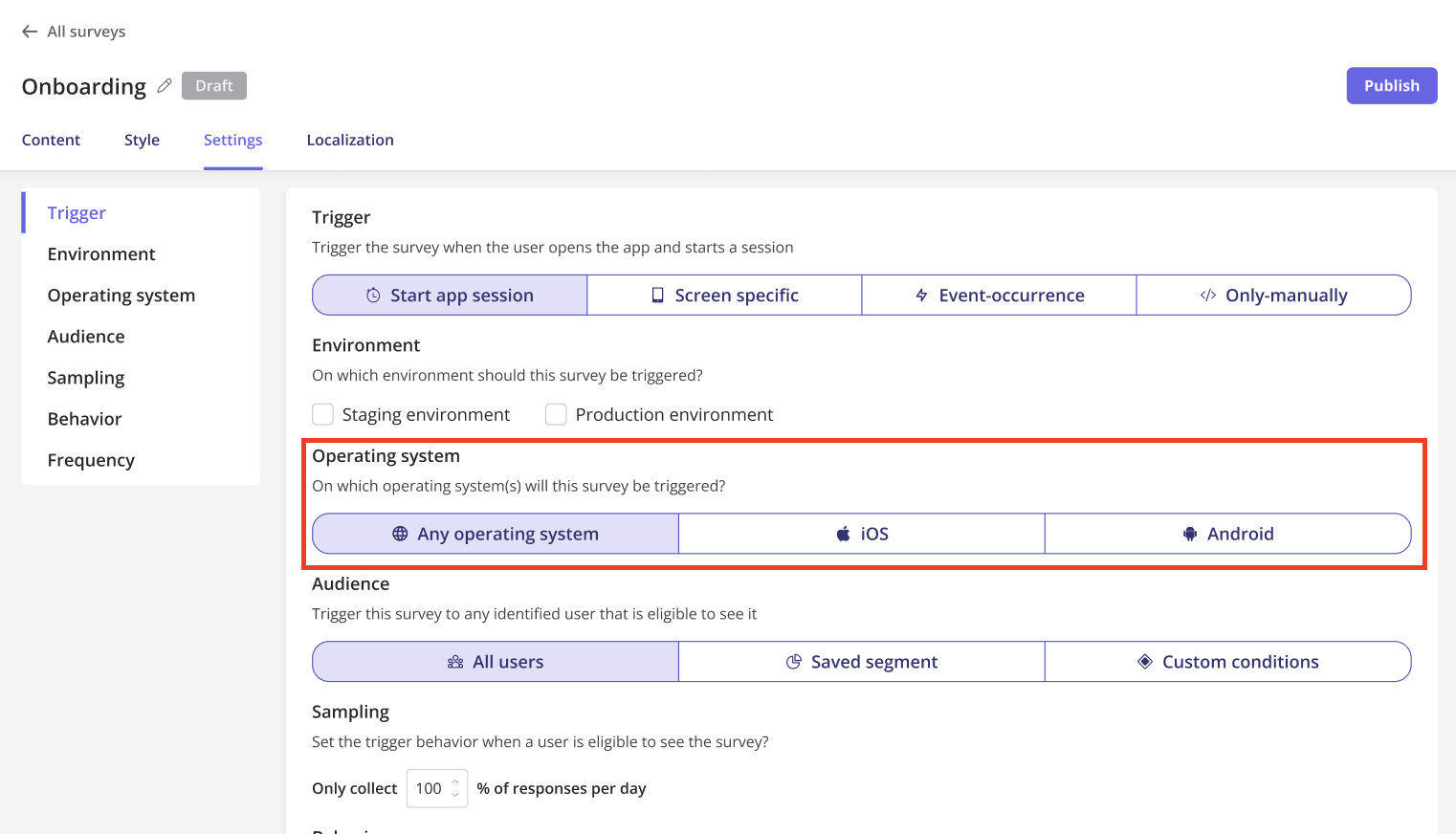
* In the Trigger section, you’ll find a new option: **Start app session**. Selecting this will make the survey appear right when users start a new session on your mobile app.
**3. Unpublishing a Survey**
* You can manually **unpublish** a survey at any time if you no longer want it to be shown.
* If an end date or response limit is reached, the survey will automatically stop appearing.
**Mobile app survey settings**
The mobile survey uses the same settings as the web app, with some differences:
* In the Trigger section, you’ll find a new option: **Start app session**. Selecting this will make the survey appear right when users start a new session on your mobile app.
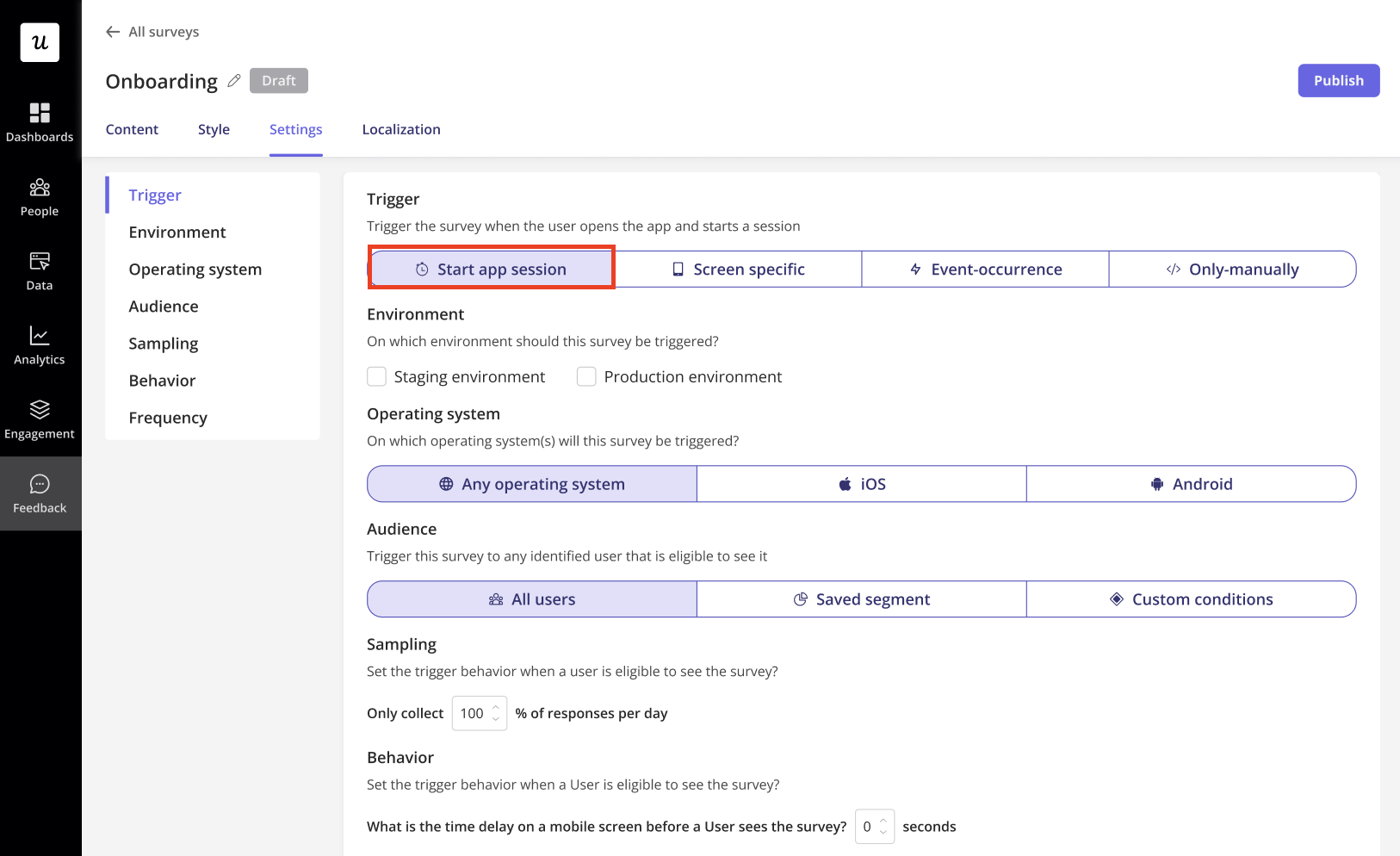 * You can select the operating system (iOS, Android, or both) where you want your survey to appear.
 ### **Localization:**
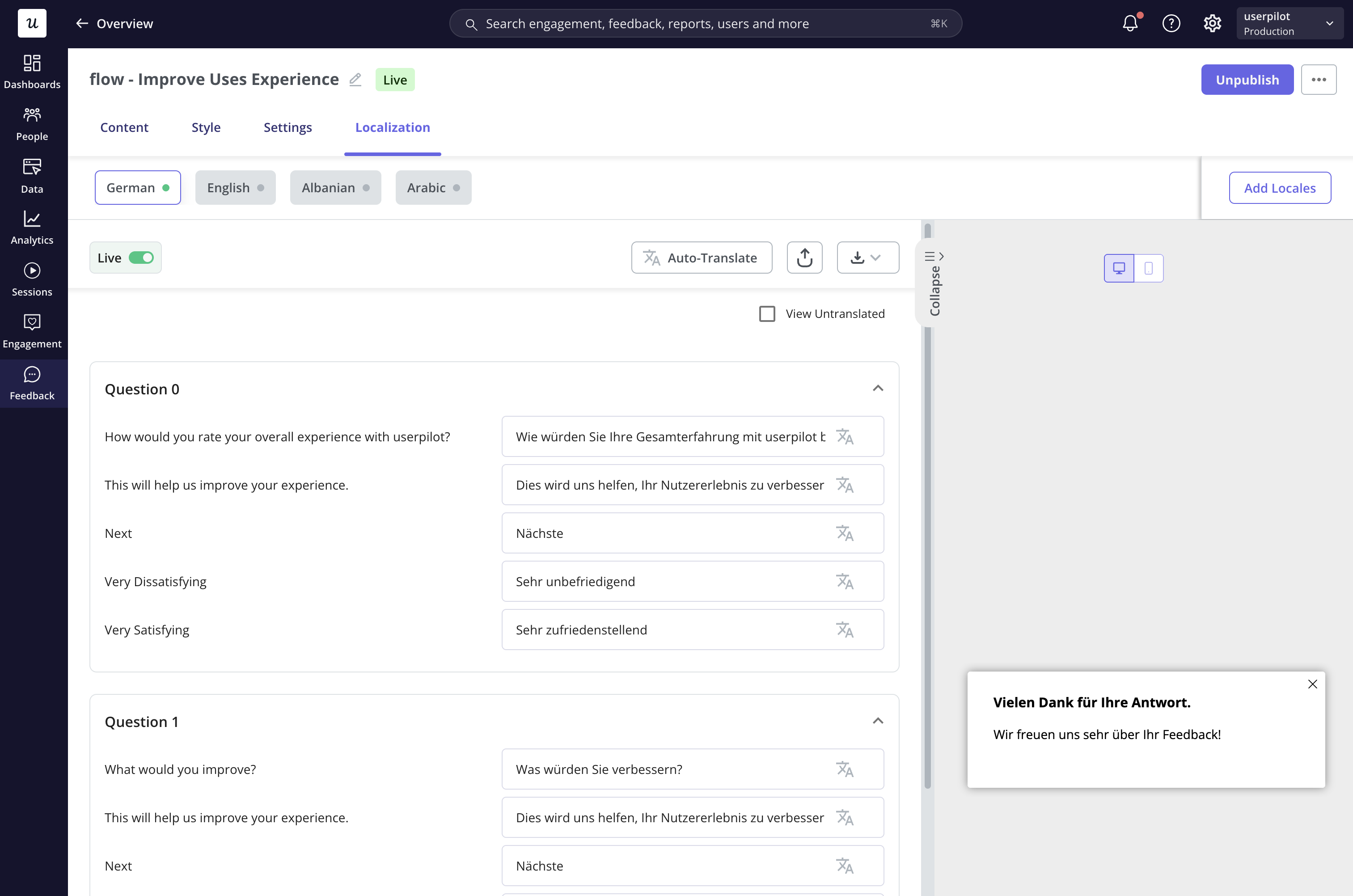
Userpilot allows you to **translate survey content** into multiple languages, ensuring a seamless experience for a global audience. You can configure localization settings under **Account Settings >** [**Localization Tab**](https://run.userpilot.io/settings/localization).
### **Localization:**
Userpilot allows you to **translate survey content** into multiple languages, ensuring a seamless experience for a global audience. You can configure localization settings under **Account Settings >** [**Localization Tab**](https://run.userpilot.io/settings/localization).
 **Setting the Localization Parameter**
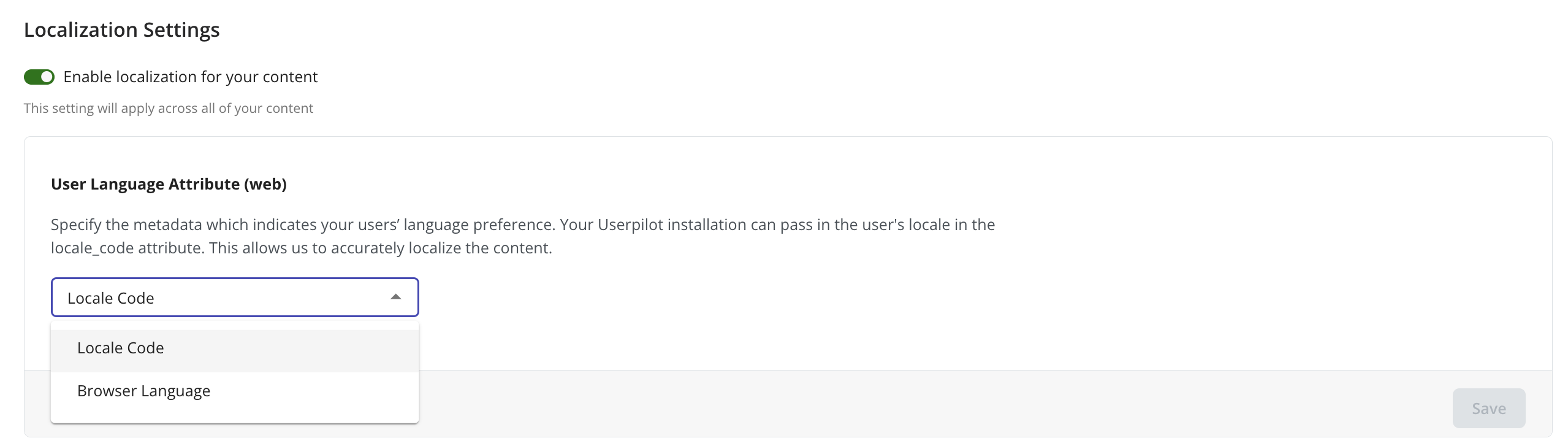
Userpilot determines the language based on:
* **Custom User Property ()** – Must follow **ISO 639-1 codes** (e.g., `en`, `fr`).
* **Default Browser Language** – If no property is set, Userpilot detects the user's browser language.
**Setting the Localization Parameter**
Userpilot determines the language based on:
* **Custom User Property ()** – Must follow **ISO 639-1 codes** (e.g., `en`, `fr`).
* **Default Browser Language** – If no property is set, Userpilot detects the user's browser language.
 #### **Localization Methods**
* **Automated** – Instantly translate surveys using AI-powered translation, with the option to edit manually.
* **Manual** – Export survey content as a **CSV/XLIFF file**, translate it externally, and re-import it.
#### **How to Apply Localization**
1. Finalize your survey content in the base language.
2. Add target languages in the **Localization tab**.
3. Choose **Auto-Translate** or **Export for manual translation**.
4. Enable the **"Live" toggle** to activate translations.
5. **Preview & Publish** the changes.
Switching between Automated and Manual translation will reset any previous translations
## FAQs
* A **green dot** means the translated survey is **live and fully active** for end users.
* A **yellow dot** means the translation is **saved but not yet live**, requiring publishing to take effect.
The **sampling rate** determines what percentage of eligible users see the survey.
* **Low sampling rate (e.g., 10%)** → Only a small fraction of users receive the survey, reducing responses but avoiding survey fatigue.
* **High sampling rate (e.g., 100%)** → Every eligible user sees the survey, maximizing responses but increasing exposure.
No, translations **do not auto-update** when the original survey content changes. You must manually retranslate or update each language version.
If a user's language **isn't translated**, they will see the **default base language** of the survey.
[**For any questions or concerns please reach out to support@userpilot.com**](mailto:support@userpilot.com)
#### **Localization Methods**
* **Automated** – Instantly translate surveys using AI-powered translation, with the option to edit manually.
* **Manual** – Export survey content as a **CSV/XLIFF file**, translate it externally, and re-import it.
#### **How to Apply Localization**
1. Finalize your survey content in the base language.
2. Add target languages in the **Localization tab**.
3. Choose **Auto-Translate** or **Export for manual translation**.
4. Enable the **"Live" toggle** to activate translations.
5. **Preview & Publish** the changes.
Switching between Automated and Manual translation will reset any previous translations
## FAQs
* A **green dot** means the translated survey is **live and fully active** for end users.
* A **yellow dot** means the translation is **saved but not yet live**, requiring publishing to take effect.
The **sampling rate** determines what percentage of eligible users see the survey.
* **Low sampling rate (e.g., 10%)** → Only a small fraction of users receive the survey, reducing responses but avoiding survey fatigue.
* **High sampling rate (e.g., 100%)** → Every eligible user sees the survey, maximizing responses but increasing exposure.
No, translations **do not auto-update** when the original survey content changes. You must manually retranslate or update each language version.
If a user's language **isn't translated**, they will see the **default base language** of the survey.
[**For any questions or concerns please reach out to support@userpilot.com**](mailto:support@userpilot.com)