> ## Documentation Index
> Fetch the complete documentation index at: https://docs.userpilot.com/llms.txt
> Use this file to discover all available pages before exploring further.
# Segments
> Segments allow you to group users and companies based on shared characteristics or behaviors. Throughout Userpilot, these segments enable you to refine user insights and deliver personalised in-app experiences.
 ## Get started
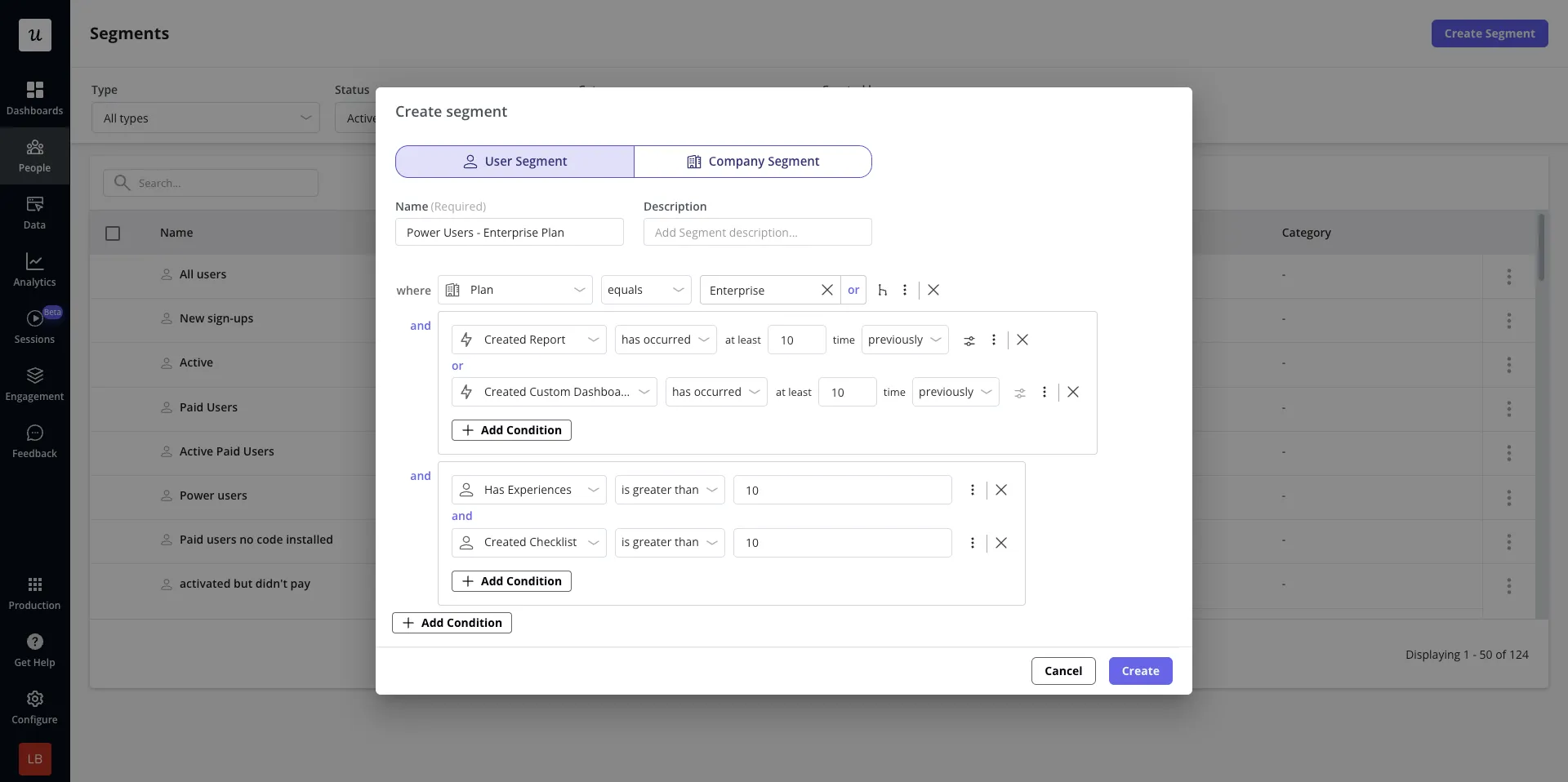
To begin creating User or Company segments, apply conditions from the [User Overview](https://run.userpilot.io/users) or [Company Overview](https://run.userpilot.io/companies) page and click "Save Segment". You can then access and manage your segments from the ‘Segment’ global filter directly on the User / Company Overview page, or navigate to [Segments.](https://run.userpilot.io/segments)
## Get started
To begin creating User or Company segments, apply conditions from the [User Overview](https://run.userpilot.io/users) or [Company Overview](https://run.userpilot.io/companies) page and click "Save Segment". You can then access and manage your segments from the ‘Segment’ global filter directly on the User / Company Overview page, or navigate to [Segments.](https://run.userpilot.io/segments)
 ## Conditions
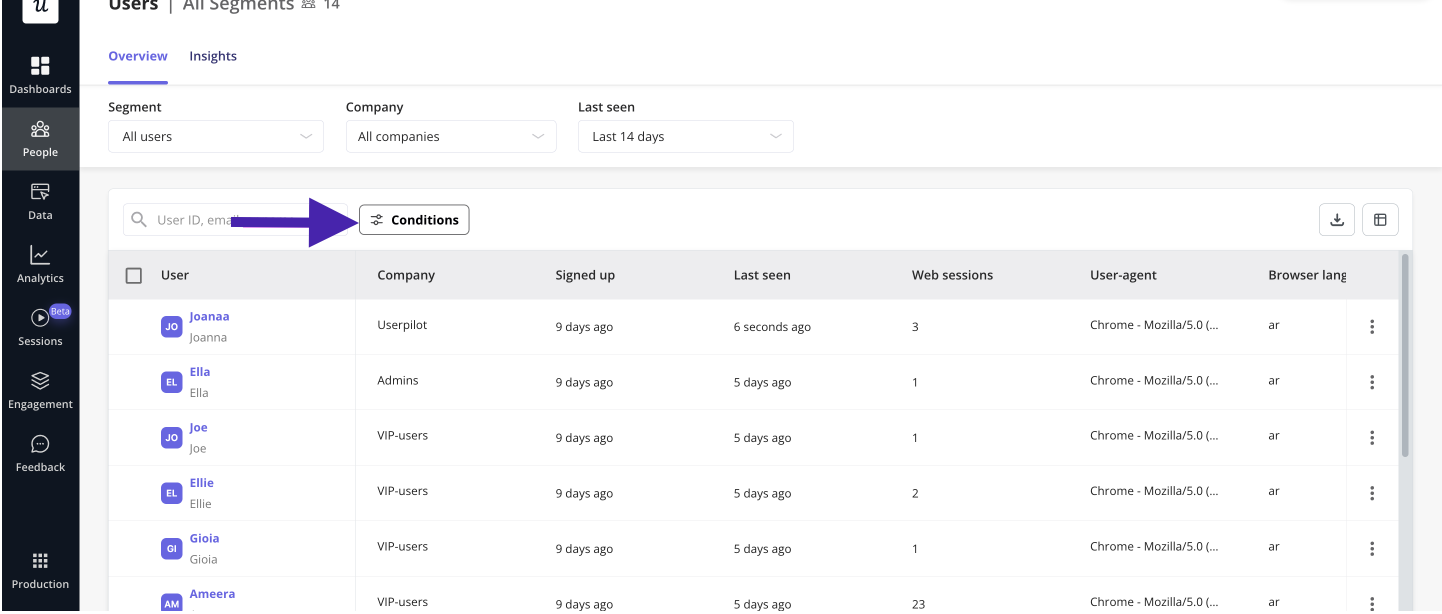
Conditions help you narrow down user data based on different criteria. Userpilot offers several types of filtering options:
## Conditions
Conditions help you narrow down user data based on different criteria. Userpilot offers several types of filtering options:
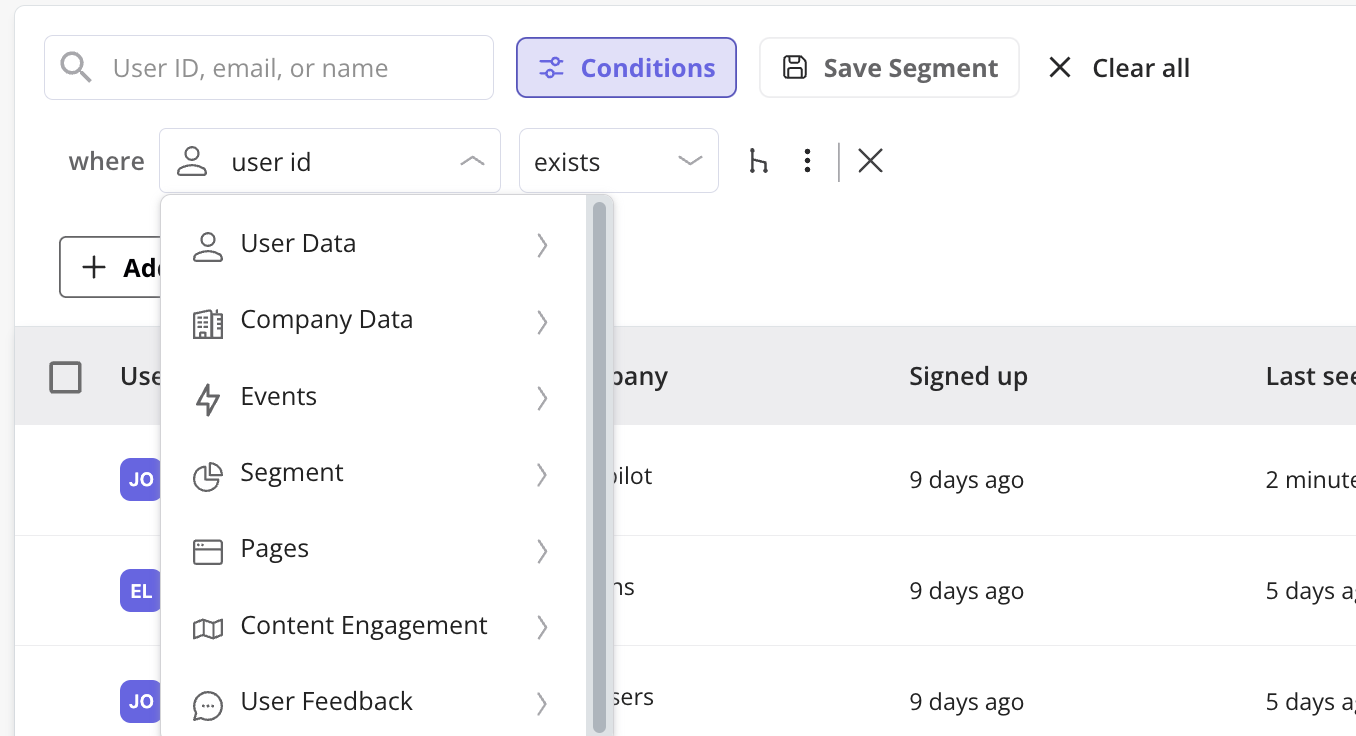 **1. User Data:** Filter users based on auto properties (properties created automatically by Userpilot) or custom user properties. You can see the full list of auto and custom user properties within [Data Management → User Properties.](https://run.userpilot.io/data-management/user-properties)
**2. Company Data:** Filter users or companies based on auto or custom properties. You can see the full list of auto and custom company properties within [Data Management → Company Properties](https://run.userpilot.io/data-management/company-properties).
**3. Events:** Filter users based on their interactions and behaviors. Use labelled, tracked, or custom events to specify the user interaction and refine further by specifying:
* the number of times an event was triggered (e.g. users who performed an event three times in the past week)
* custom event property data (i.e. filter tracked events by the custom property data attached to them - for more info on this, see [**Tracked Events Function**](https://docs.userpilot.com/data-events/tracked-events/tracked-events#tracked-events-function))
**4. Segments:** Filter by users who match conditions in previously saved segments
**5. Pages:** Filter users based on whether or not they have viewed specific tagged pages
**6. Content Engagement:** Identify users based on their interactions with specific Userpilot content, including:
* **Checklists** – Users who have started, completed, or dismissed a checklist
* **Emails** – Users who have received, seen or engaged with an email
* **Embeds** – Users who have seen a banner or a card
* **Flows** – Users who have seen, completed, dismissed or engaged with a flow
* **NPS Surveys** – Users who responded to or ignored an NPS surveys
* **Spotlights** – Users who have seen a spotlight
* **Surveys** – Users who submitted responses to or ignored in-app surveys
* **Workflows** – Users who have been enrolled or completed a workflow
**7. User Feedback:** Filter by users who have provided feedback through:
* **Flow form responses**
* **NPS responses**
* **Surveys**
***
## Understanding Logical Operators (AND vs. OR)
### AND Operator
When you apply multiple conditions using the **AND** operator, **all** conditions must be met for a user/company to be included in the results
**1. User Data:** Filter users based on auto properties (properties created automatically by Userpilot) or custom user properties. You can see the full list of auto and custom user properties within [Data Management → User Properties.](https://run.userpilot.io/data-management/user-properties)
**2. Company Data:** Filter users or companies based on auto or custom properties. You can see the full list of auto and custom company properties within [Data Management → Company Properties](https://run.userpilot.io/data-management/company-properties).
**3. Events:** Filter users based on their interactions and behaviors. Use labelled, tracked, or custom events to specify the user interaction and refine further by specifying:
* the number of times an event was triggered (e.g. users who performed an event three times in the past week)
* custom event property data (i.e. filter tracked events by the custom property data attached to them - for more info on this, see [**Tracked Events Function**](https://docs.userpilot.com/data-events/tracked-events/tracked-events#tracked-events-function))
**4. Segments:** Filter by users who match conditions in previously saved segments
**5. Pages:** Filter users based on whether or not they have viewed specific tagged pages
**6. Content Engagement:** Identify users based on their interactions with specific Userpilot content, including:
* **Checklists** – Users who have started, completed, or dismissed a checklist
* **Emails** – Users who have received, seen or engaged with an email
* **Embeds** – Users who have seen a banner or a card
* **Flows** – Users who have seen, completed, dismissed or engaged with a flow
* **NPS Surveys** – Users who responded to or ignored an NPS surveys
* **Spotlights** – Users who have seen a spotlight
* **Surveys** – Users who submitted responses to or ignored in-app surveys
* **Workflows** – Users who have been enrolled or completed a workflow
**7. User Feedback:** Filter by users who have provided feedback through:
* **Flow form responses**
* **NPS responses**
* **Surveys**
***
## Understanding Logical Operators (AND vs. OR)
### AND Operator
When you apply multiple conditions using the **AND** operator, **all** conditions must be met for a user/company to be included in the results
 ### OR Operator
The **OR** operator surfaces users/companies who match **at least one** of the applied conditions.
### OR Operator
The **OR** operator surfaces users/companies who match **at least one** of the applied conditions.
 **Example:**
* If filtering users who **signed up in the last 7 days AND have a premium plan**, only users matching both conditions will appear.
* If filtering users who **signed up in the last 7 days OR have a premium plan**, users meeting *either condition* will be displayed.
## Logic Groups: Combining Multiple Conditions
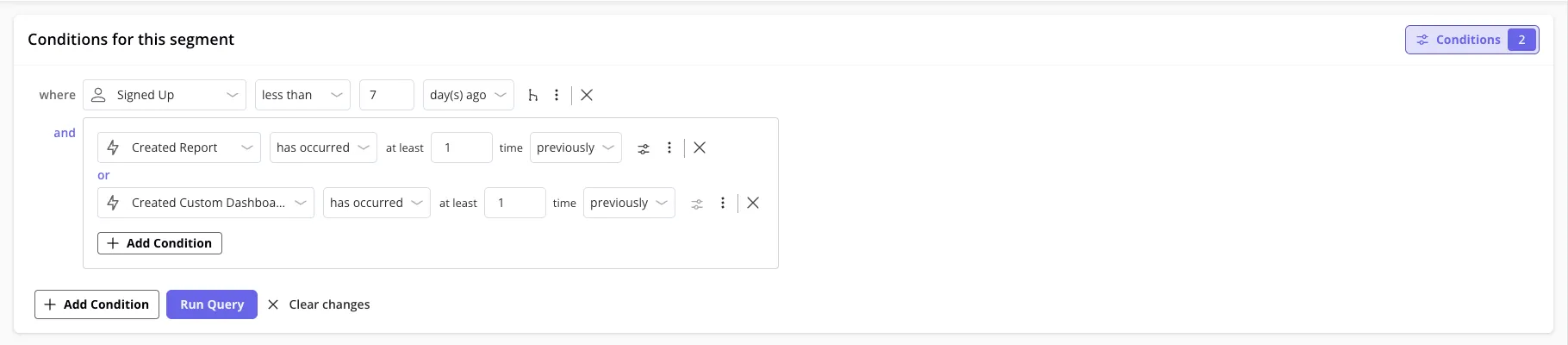
Logic Groups allow you to group conditions with the same logical operator for more advanced filtering.
**Example:** If you want to filter users who **signed up recently AND have created a report OR a dashboard**, you can create a logic group:
* Condition 1: Signed up in the last 7 days
* Condition 2: (Created report OR created dashboard)
This way, we can target all new users who interacted with one of my core features.
**Example:**
* If filtering users who **signed up in the last 7 days AND have a premium plan**, only users matching both conditions will appear.
* If filtering users who **signed up in the last 7 days OR have a premium plan**, users meeting *either condition* will be displayed.
## Logic Groups: Combining Multiple Conditions
Logic Groups allow you to group conditions with the same logical operator for more advanced filtering.
**Example:** If you want to filter users who **signed up recently AND have created a report OR a dashboard**, you can create a logic group:
* Condition 1: Signed up in the last 7 days
* Condition 2: (Created report OR created dashboard)
This way, we can target all new users who interacted with one of my core features.
 ## Adding Multiple Values Using "OR"
Userpilot allows you to add up to 5,000 inputs within a single condition using the “Add Multiple Values” feature. This feature enables users to copy and paste a list of values (e.g., user emails, IDs) separated by a line break, making it easier to filter large datasets efficiently.
## Adding Multiple Values Using "OR"
Userpilot allows you to add up to 5,000 inputs within a single condition using the “Add Multiple Values” feature. This feature enables users to copy and paste a list of values (e.g., user emails, IDs) separated by a line break, making it easier to filter large datasets efficiently.

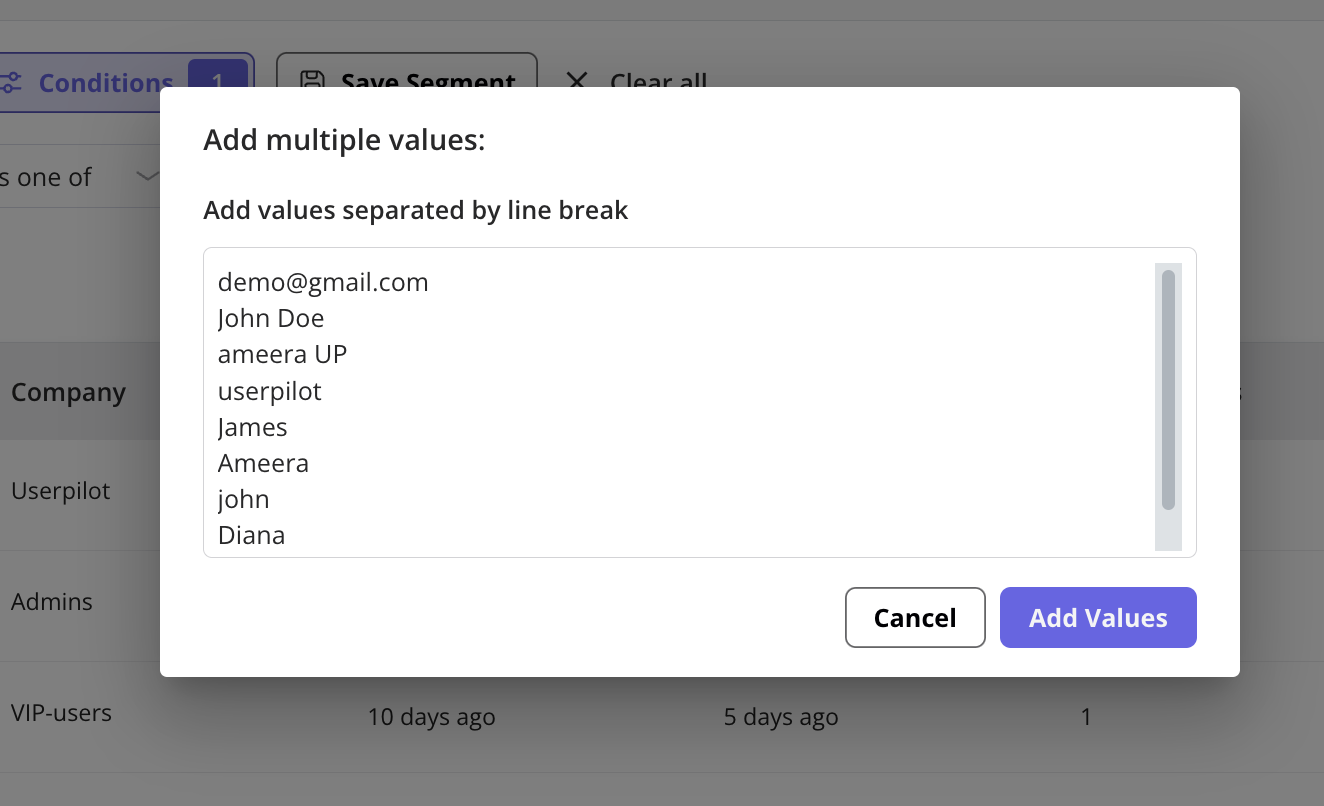 If you need to add more than 5,000 inputs, you can simply create an additional condition to accommodate the extra values.
***
## Understanding Negative Operators
Negative operators (`doesn't equal`, `isn't one of`, `doesn't match`, `doesn't contain`, `doesn't exist`, and their boolean equivalents) include records that are *missing the property entirely*, not only those whose value fails the comparison. Positive operators (`exists`, `equals`, `is one of`, `matches`, `contains`) are strict and only return records that actually have a value.
This behavior is consistent across user and company properties, across string, date, and numeric data types, and applies both to segments on the Segments page and to segments used in triggering.
### Quick reference
| Operator type | Has matching value | Property missing | No company (company prop) |
| ------------------------------------------------------------------------------ | ------------------ | ---------------- | ------------------------- |
| Positive (`exists`, `equals`, `is one of`, `contains`) | Included | Excluded | Excluded |
| Negative (`doesn't exist`, `doesn't equal`, `isn't one of`, `doesn't contain`) | Included | Included | Included |
### Example
Filtering users **whose plan is not "Premium"** with `plan doesn't equal "Premium"` returns users on other plans **and** users where `plan` was never set.
### Excluding records that don't have the property
For strictly negative conditions — only records that have the property set, with a value other than the one you're excluding — combine `exists` with the negative condition:
* `plan exists` **AND** `plan doesn't equal "Premium"` → users who have a plan, and that plan isn't "Premium".
* For company properties, add `company exists` to exclude users who aren't assigned to a company.
***
## FAQs
When viewing a user profile in the Users Dashboard, you can check their associated segments to see which groups they belong to.
Deleting a segment **removes the saved conditions**, but user data remains intact.
Filters update in real-time, so any new users meeting the conditions will appear automatically.
Filters are **temporary** queries used to analyze user data on the spot, while segments are **saved groups** that can be reused and applied to different features.
While Userpilot doesn’t support direct data imports, you can efficiently add a list of users by using the **"Add Multiple Values"** feature. Simply copy your list and paste it into the condition field, separating values with a comma or a line break.
By design, negative operators (`doesn't equal`, `isn't one of`, `doesn't contain`, `doesn't exist`) include records whose property is missing entirely. If you only want users who have the property set but with a different value, combine `exists` AND `doesn't equal X` in the same segment.
When you filter on a company property using a negative operator, users who aren't assigned to a company are included — they cannot satisfy a positive comparison, so they fall into the negative result set. To exclude them, add a `company exists` condition to your segment.
It applies to both. Segmentation in the Userpilot dashboard and segment evaluation when triggering experiences follow the same rules, including for string, date, and numeric properties.
For any questions or concerns please reach out to [support@userpilot.com](mailto:support@userpilot.com)
If you need to add more than 5,000 inputs, you can simply create an additional condition to accommodate the extra values.
***
## Understanding Negative Operators
Negative operators (`doesn't equal`, `isn't one of`, `doesn't match`, `doesn't contain`, `doesn't exist`, and their boolean equivalents) include records that are *missing the property entirely*, not only those whose value fails the comparison. Positive operators (`exists`, `equals`, `is one of`, `matches`, `contains`) are strict and only return records that actually have a value.
This behavior is consistent across user and company properties, across string, date, and numeric data types, and applies both to segments on the Segments page and to segments used in triggering.
### Quick reference
| Operator type | Has matching value | Property missing | No company (company prop) |
| ------------------------------------------------------------------------------ | ------------------ | ---------------- | ------------------------- |
| Positive (`exists`, `equals`, `is one of`, `contains`) | Included | Excluded | Excluded |
| Negative (`doesn't exist`, `doesn't equal`, `isn't one of`, `doesn't contain`) | Included | Included | Included |
### Example
Filtering users **whose plan is not "Premium"** with `plan doesn't equal "Premium"` returns users on other plans **and** users where `plan` was never set.
### Excluding records that don't have the property
For strictly negative conditions — only records that have the property set, with a value other than the one you're excluding — combine `exists` with the negative condition:
* `plan exists` **AND** `plan doesn't equal "Premium"` → users who have a plan, and that plan isn't "Premium".
* For company properties, add `company exists` to exclude users who aren't assigned to a company.
***
## FAQs
When viewing a user profile in the Users Dashboard, you can check their associated segments to see which groups they belong to.
Deleting a segment **removes the saved conditions**, but user data remains intact.
Filters update in real-time, so any new users meeting the conditions will appear automatically.
Filters are **temporary** queries used to analyze user data on the spot, while segments are **saved groups** that can be reused and applied to different features.
While Userpilot doesn’t support direct data imports, you can efficiently add a list of users by using the **"Add Multiple Values"** feature. Simply copy your list and paste it into the condition field, separating values with a comma or a line break.
By design, negative operators (`doesn't equal`, `isn't one of`, `doesn't contain`, `doesn't exist`) include records whose property is missing entirely. If you only want users who have the property set but with a different value, combine `exists` AND `doesn't equal X` in the same segment.
When you filter on a company property using a negative operator, users who aren't assigned to a company are included — they cannot satisfy a positive comparison, so they fall into the negative result set. To exclude them, add a `company exists` condition to your segment.
It applies to both. Segmentation in the Userpilot dashboard and segment evaluation when triggering experiences follow the same rules, including for string, date, and numeric properties.
For any questions or concerns please reach out to [support@userpilot.com](mailto:support@userpilot.com)