

Overview
Your Staging environment will allow you to test Userpilot content in separately from your Production environment. This will help you ensure that your content works perfectly without affecting your live environment.This feature is available in the Growth and Enterprise plan.
Use Cases
- Isolated testing. Validate content end-to-end without affecting your production environments.
- Safe experimentation. Make changes and test new ideas without worrying about impacting real users.
- Environment-specific data. Staging and production each have their own analytics, audience conditions, and segmentation data, so staging activity never mixes into production reports.
- Same views, different data. The dashboards and analytics views stay identical across environments; the data feeding them is what changes, so you always know which environment a number came from.
Production token vs Staging token
To keep your Production environment separate from your Staging environment, you will only need to install each token on the corresponding environment. Here’s how easy it is: simply use your Production Token for live content, and prefix your Staging Token with “STG-” when testing in the staging environment. Below are the steps that you can follow:-
To find your tokens, navigate to this link or click the gear icon in the top right of the page and select Environment.
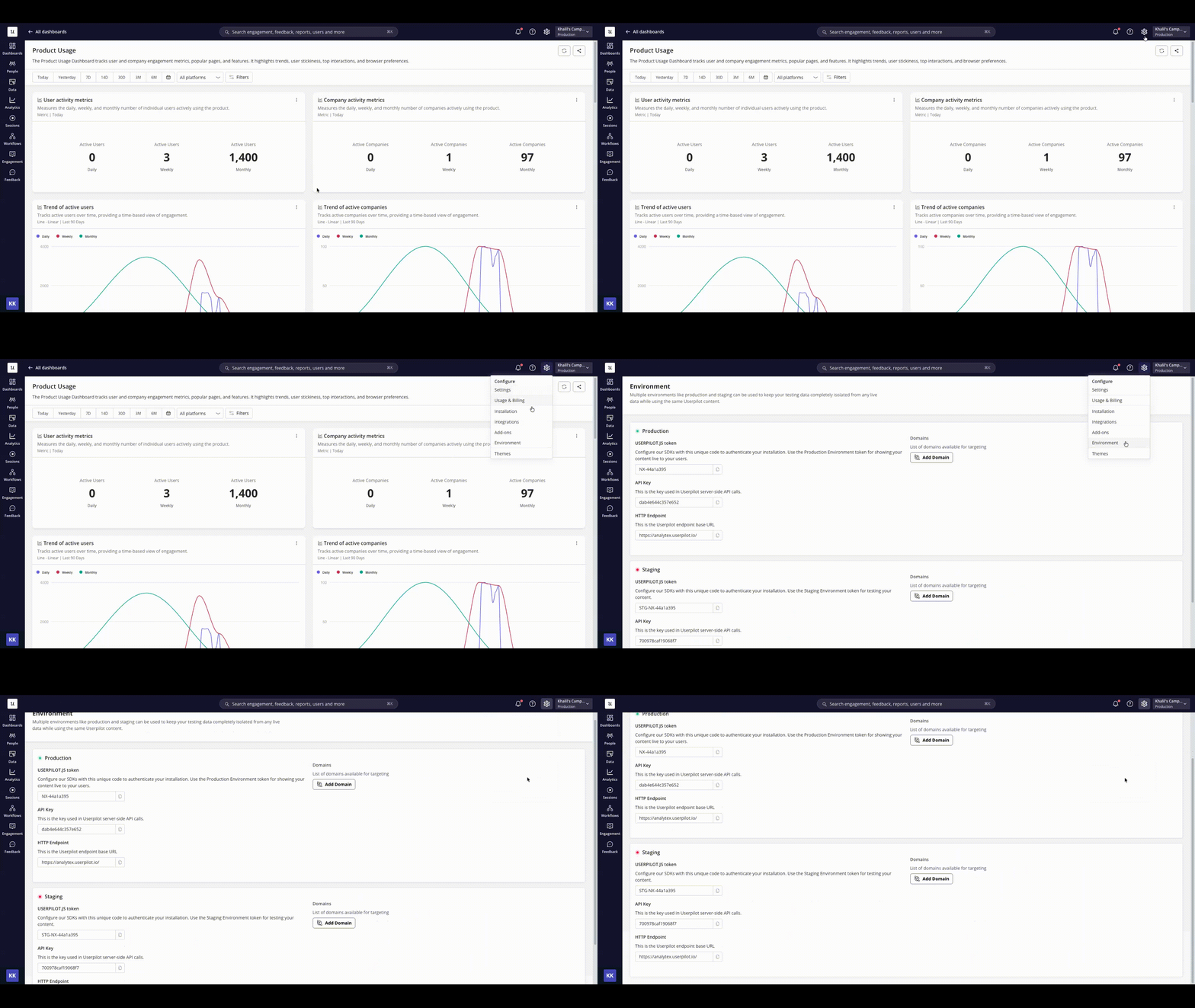
- If Userpilot is already installed on your testing environment, replace the production token in that installation with the staging token.
- If you are installing Userpilot for the first time, use the production token in the installation snippet for your production environment, and the staging token for your testing environment.
Installing Staging Token in Segment
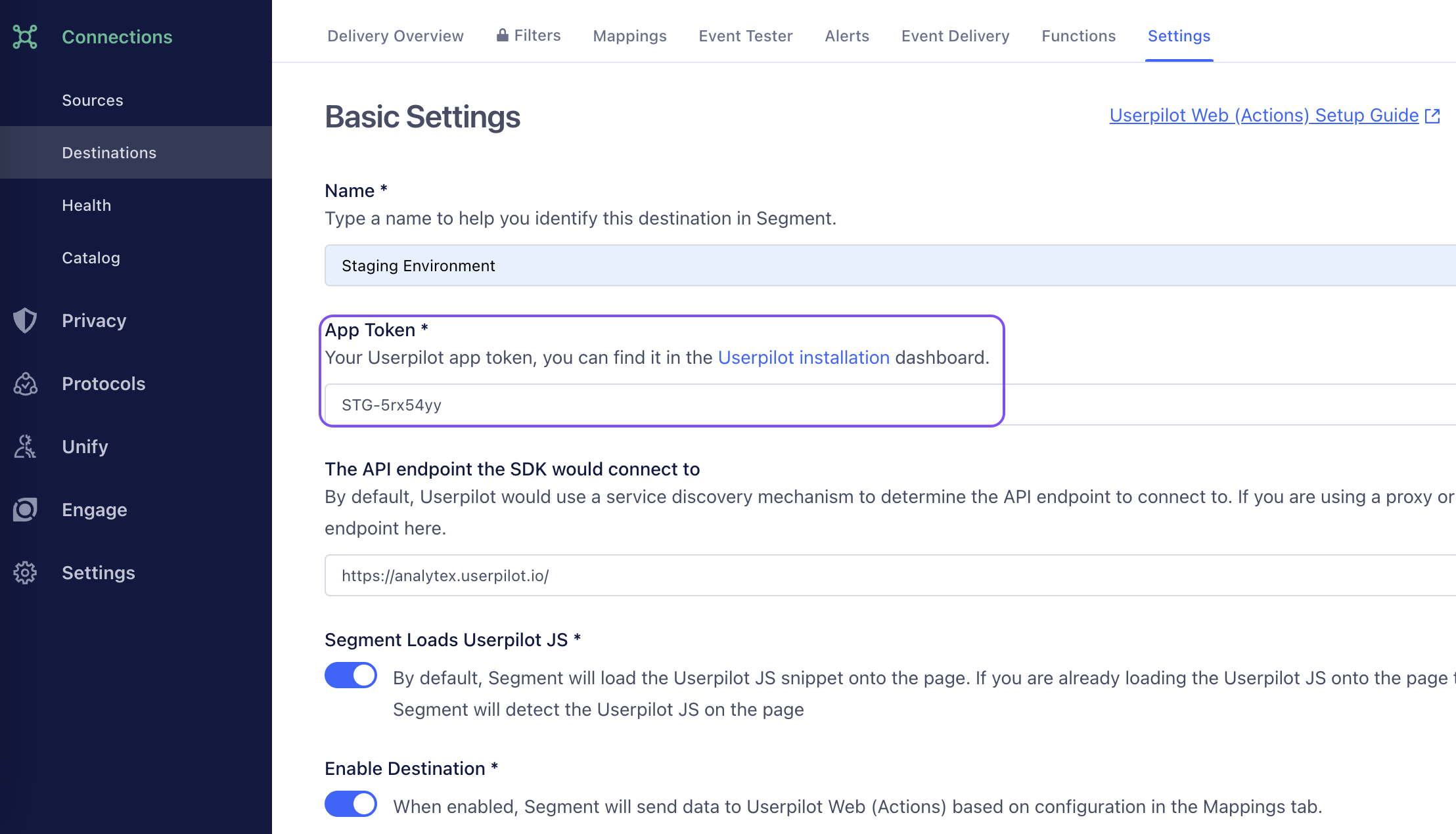
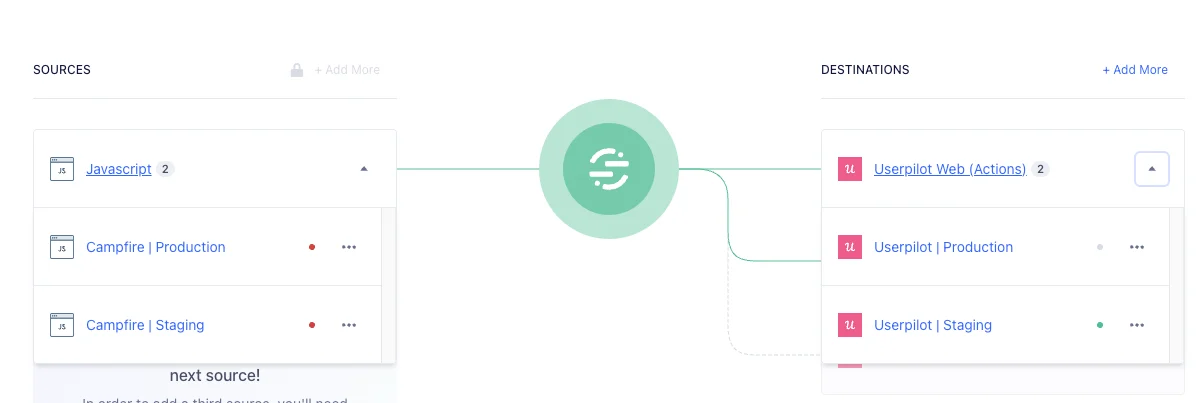
If you installed Userpilot via Segment and want to install the staging token in your testing environment, you’ll set up a separate JavaScript source and Userpilot destination for staging, alongside your existing production setup. The result is two Userpilot destinations: one for production and one for staging.- Create a new JavaScript source in Segment and install it on your staging environment.
- Add a new Userpilot destination and connect it to the staging source.
-
In that destination, paste your staging token and enable it.
-
Save your changes. You’ll then see both Userpilot destinations live, one tied to your production source and one to your staging source.
FAQ
Does the new Staging token affect the Userpilot installation?
Does the new Staging token affect the Userpilot installation?
Not at all! Your Userpilot installation will not be affected. The only difference now is that if you wish to install the Staging version of Userpilot on your staging environment, you will need to use the Staging token.
How do I view the data from each environment in Userpilot?
How do I view the data from each environment in Userpilot?
Click your app name in the top right of the page to open the Application submenu, then choose either Staging or Production.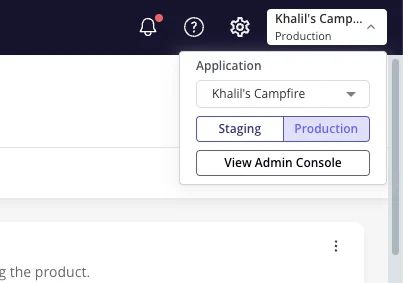
How do I trigger content for a specific environment?
How do I trigger content for a specific environment?
You can create content like flows, spotlights, and checklists, then test them in your staging environment before publishing to production.To trigger content on a specific environment, go to its settings and select Staging Environment under the Environment section.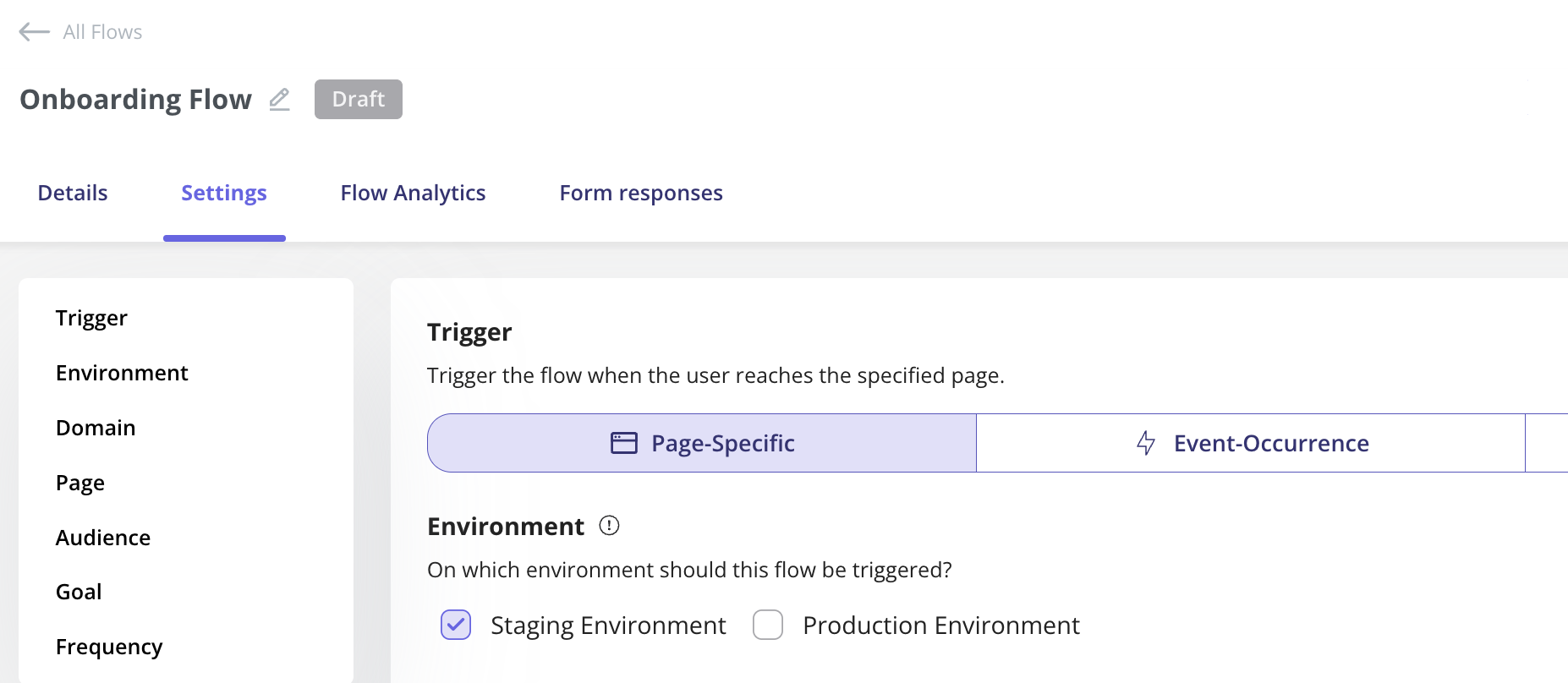
The Installation page still shows the old environment after I swapped tokens. Why?
The Installation page still shows the old environment after I swapped tokens. Why?
The Installation page reflects the token actually detected on your live domain. If it still shows the old environment after a token swap, the new token likely hasn’t been deployed yet, or an old version is cached. Verify the token in your live code; if the mismatch persists, contact support@userpilot.com.