Overview
Mobile screen auto-capture simplifies how screens are tracked in your app by removing the need for manual setup. After calling the auto-capture function from your code, Userpilot automatically detects and captures screens through the SDK without requiring you to define them one by one. You can configure your screen rules and select the operating system (iOS or Android) where tracking should apply, and Userpilot will handle collecting screen-level analytics seamlessly in the background. Mobile screen auto-capture removes the need to manually call screen tracking APIs, such as:- Android: Activity/Fragment lifecycle tracking
- iOS: UIViewController lifecycle (method swizzling)
When should you use auto-capture?
Auto-capture is useful when:- You want to reduce engineering dependency
- Your app has frequent screen changes
- You want automatic coverage of all screens
- You prefer reviewing screens later instead of defining them upfront
How it works
- SDK listens to native lifecycle events
- Screen transitions are detected automatically
- Screen metadata is generated per platform rules
- Data is sent to Userpilot backend
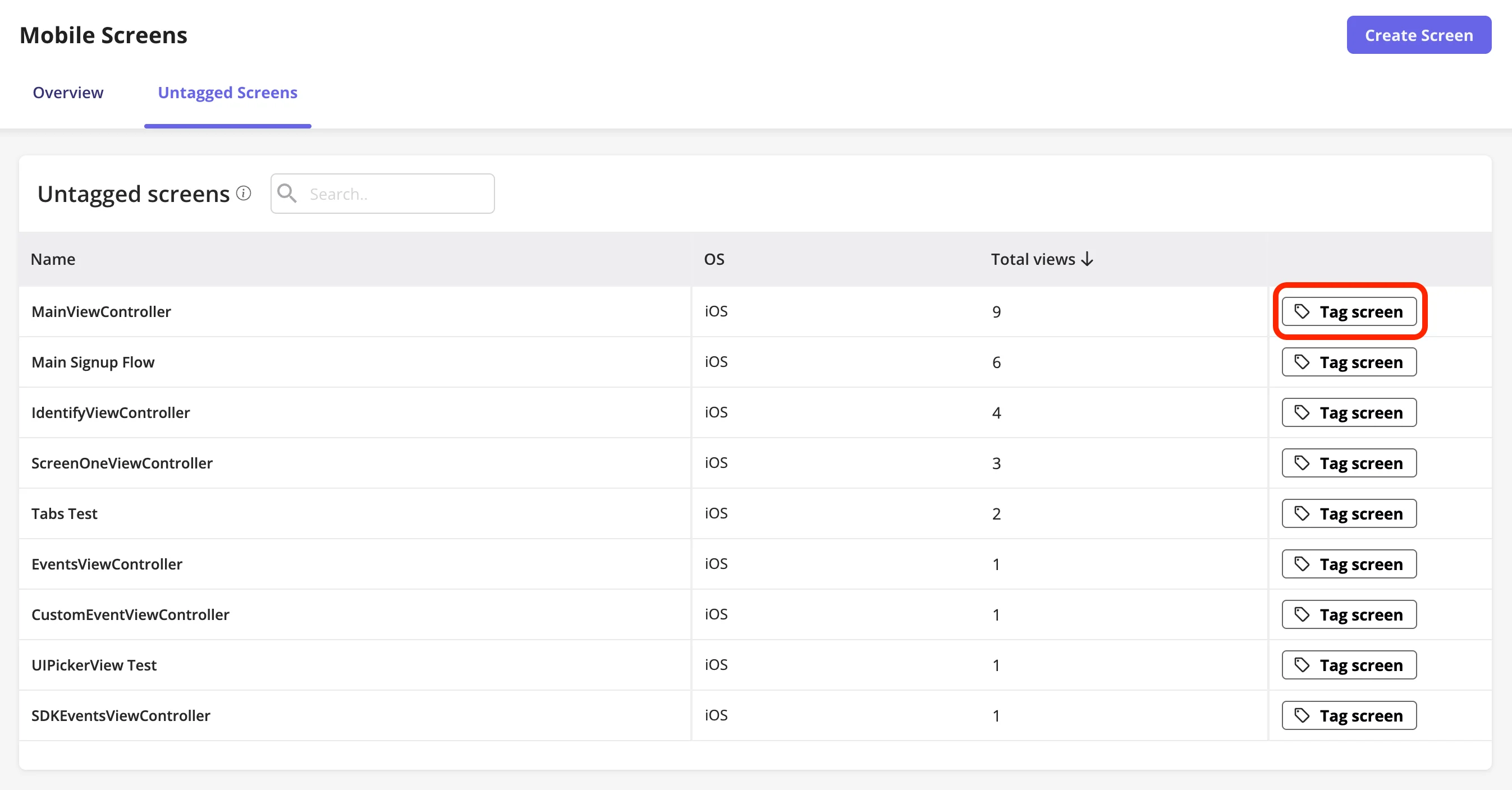
- Screens appear in Untagged Screens
- Tag your mobile screens so you can target and display engagement and feedback content to users based on those screens, as well as use them in reports and segments
Mobile Screen Tracking: Auto-Capture vs Manual Setup
If auto-capture is off
You can still use the existing functionuserpilot.screen("screen name") to manually tag your mobile screens, just select the OS you want. These screens will appear under Mobile Screens → Untagged Screens, where you can review and tag any new screens as needed.
If auto-capture is on
Your developer needs to enable Auto-Capture in the SDK. Once enabled, the SDK will automatically collect screen data and ignore any manually tracked screen events.Android
screen_name: pulled fromandroid:labelin the manifest, or the class name as a fallbackpathname: the full class pathparentClassName: the parent activity (Fragments only)
iOS
screen_name: theUIViewControllerclass name
⚠️ Important
If you’re currently tracking mobile screens manually and want to switch to auto-capture, here’s what you need to know: After enabling auto-capture:- Go to Tagged Screens under the Overview tab
- Review your existing manually tracked screens
- Compare the naming between your old manual screen names (in Overview) and the new auto-captured screens in Untagged Screens
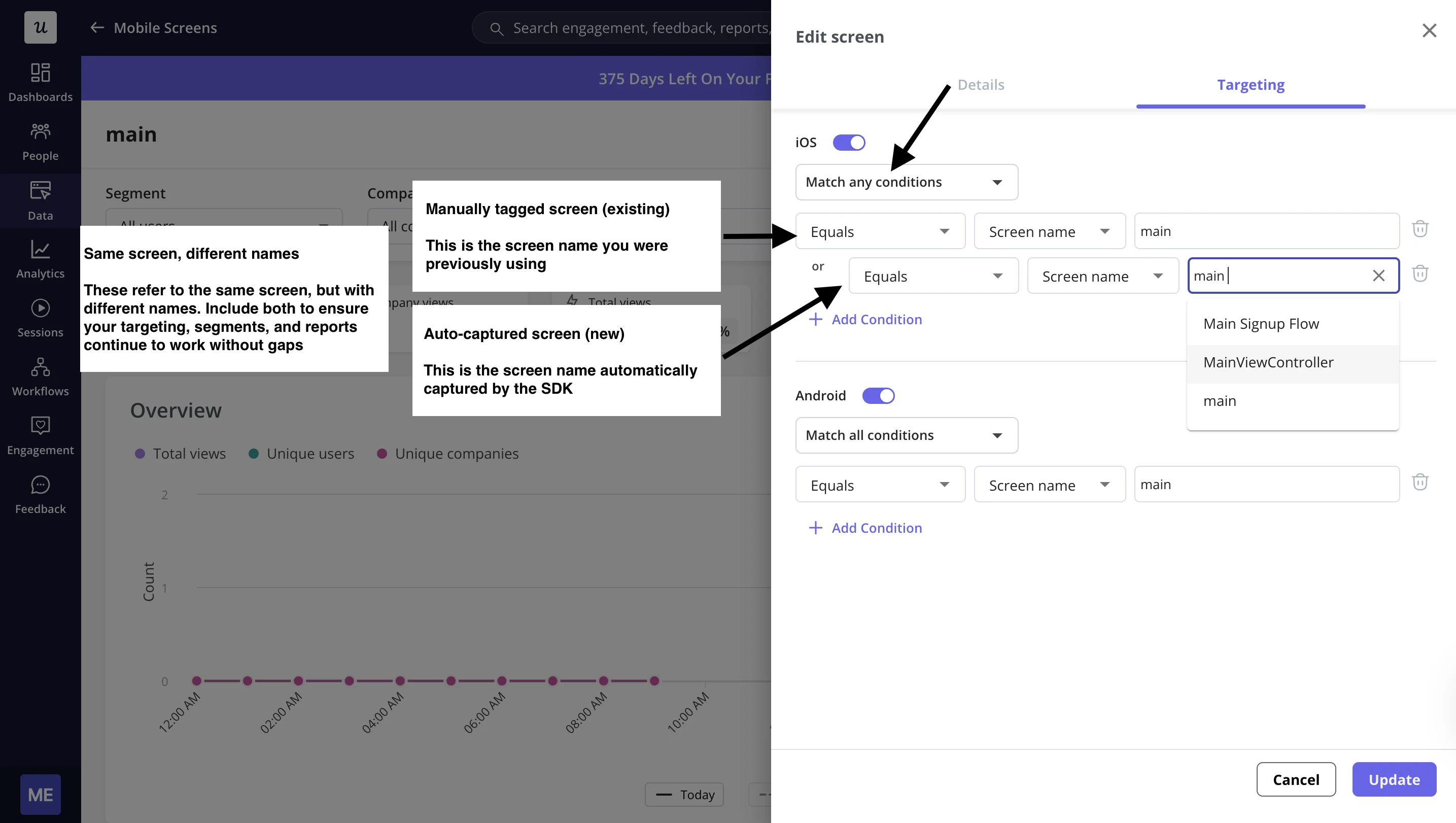
Handling name differences (Important) Auto-captured screen names may not match your old ones. Android
iOS
What you should do
Create a new screen using the auto-captured name, then update your tagging rules:
- Include both names
- Use “Match any conditions”