

Overview
With Userpilot’s knowledge base integration, you can provide users with contextual help directly within your application, allowing them to find your knowledge base articles and solutions without leaving your product. When users search for specific terms, Userpilot will display relevant search results based on keyword matches from your connected knowledge base. Selecting a module will then redirect users to the respective KB page, making it easier to access helpful information promptly.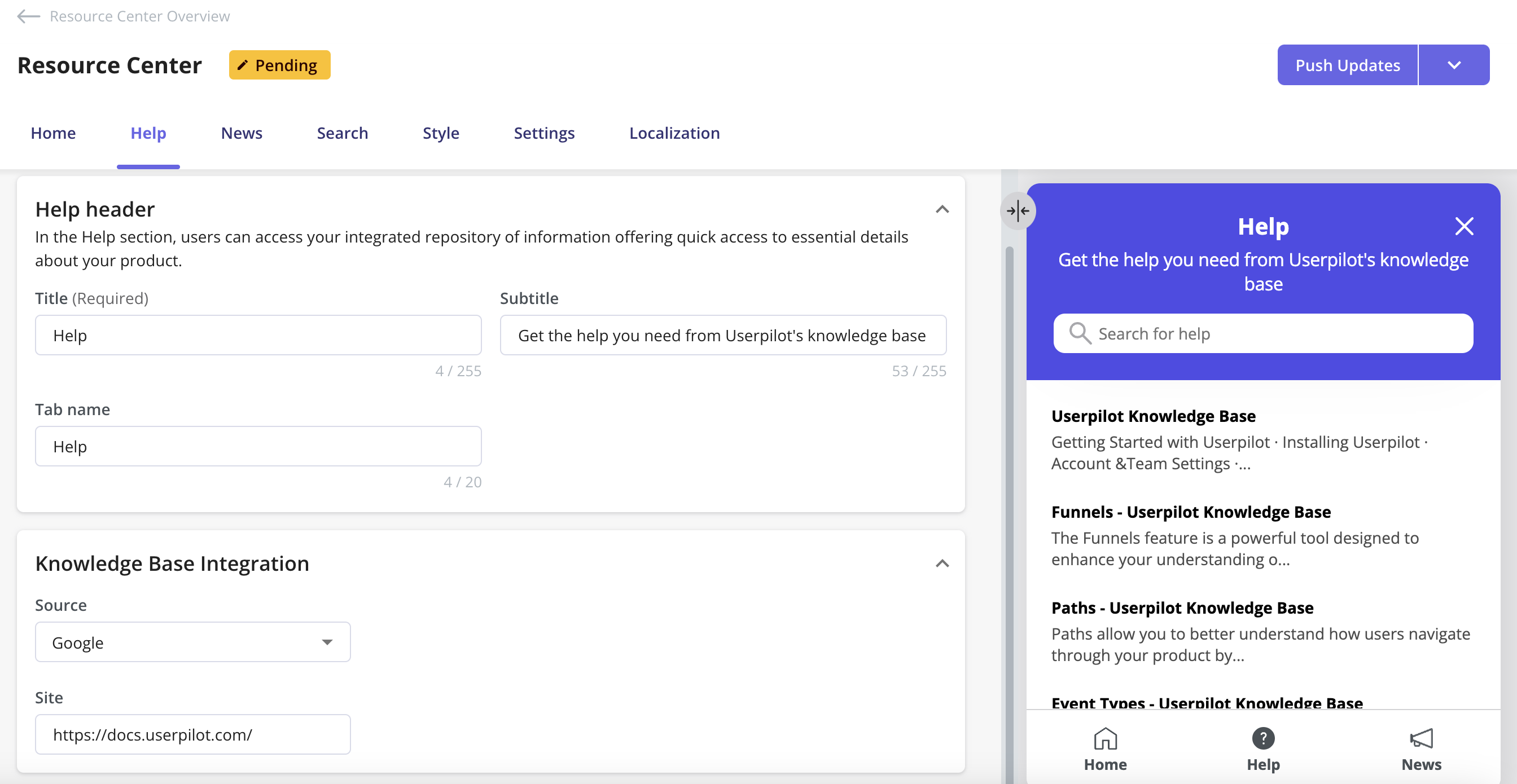
Common Use Cases
- Automated Integration of Knowledge Base Articles: Integrating a large number of articles from your knowledge base into Userpilot reduces the manual effort of adding each link individually in the Resource Center modules.
- Encouraging Self-Service: Providing users with easily accessible links to support articles enables them to find answers on their own, reducing the number of support tickets and allowing your team to focus on more complex inquiries.
- Proactive User Education: Allowing users to search for specific terms and topics they need further help with promotes proactive learning.
Supported Integrations
Userpilot’s knowledge base integration supports various platforms, including:- HubSpot: Link to articles from your HubSpot knowledge base.
- Zendesk: Display articles stored in Zendesk.
- Salesforce: Provide access to Salesforce knowledge base content.
- Freshdesk: Integrate articles from Freshdesk.
- Document360: Access and display knowledge base articles stored in Document360.
- Intercom: Integrate articles from your Intercom help center.
- Zoho Desk: Connect your Zoho Desk and display your knowledge base articles.
- Other Domains Indexed by Google: Userpilot can search for articles on any domain indexed by Google, allowing keyword-based access to additional knowledge bases.
- SharePoint: Connect your SharePoint site and display knowledge base articles and documentation.
- Freshservice: Integrate solution articles and knowledge base content from Freshservice.
If your knowledge base includes categories and sub-categories (such as Zendesk or Salesforce), Userpilot will retrieve all of them as folders.When using the Zendesk knowledge base, once the configuration between Userpilot and Zendesk is complete, the next step is to map the articles you want to retrieve in your Resource Center, provided that the articles are public.
Setting up the Integration
To integrate your knowledge base with Userpilot:- Go to the Help section in the Resource Center.
- Account Connection:
- For HubSpot, Zendesk, Salesforce, Freshdesk, Document360, Zoho Desk, and Intercom knowledge bases, you need to connect your account to set up the integration.
- For Google-indexed domains, you can simply paste the URL of your knowledge base domain (e.g., https://docs.userpilot.com) into Userpilot, and the integration will work as expected.
- Enable Search Functionality to allow users to enter keywords and find relevant articles.
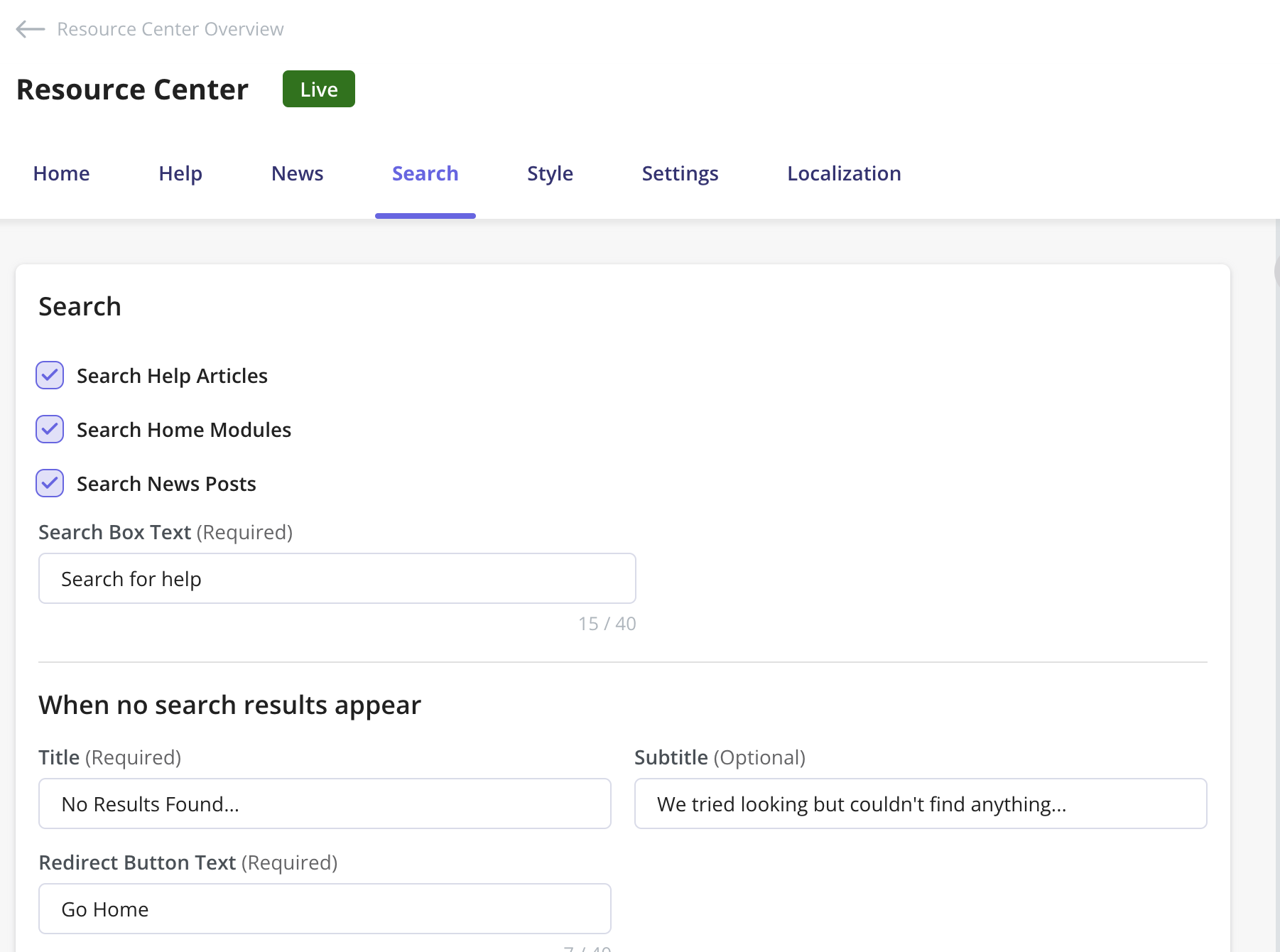
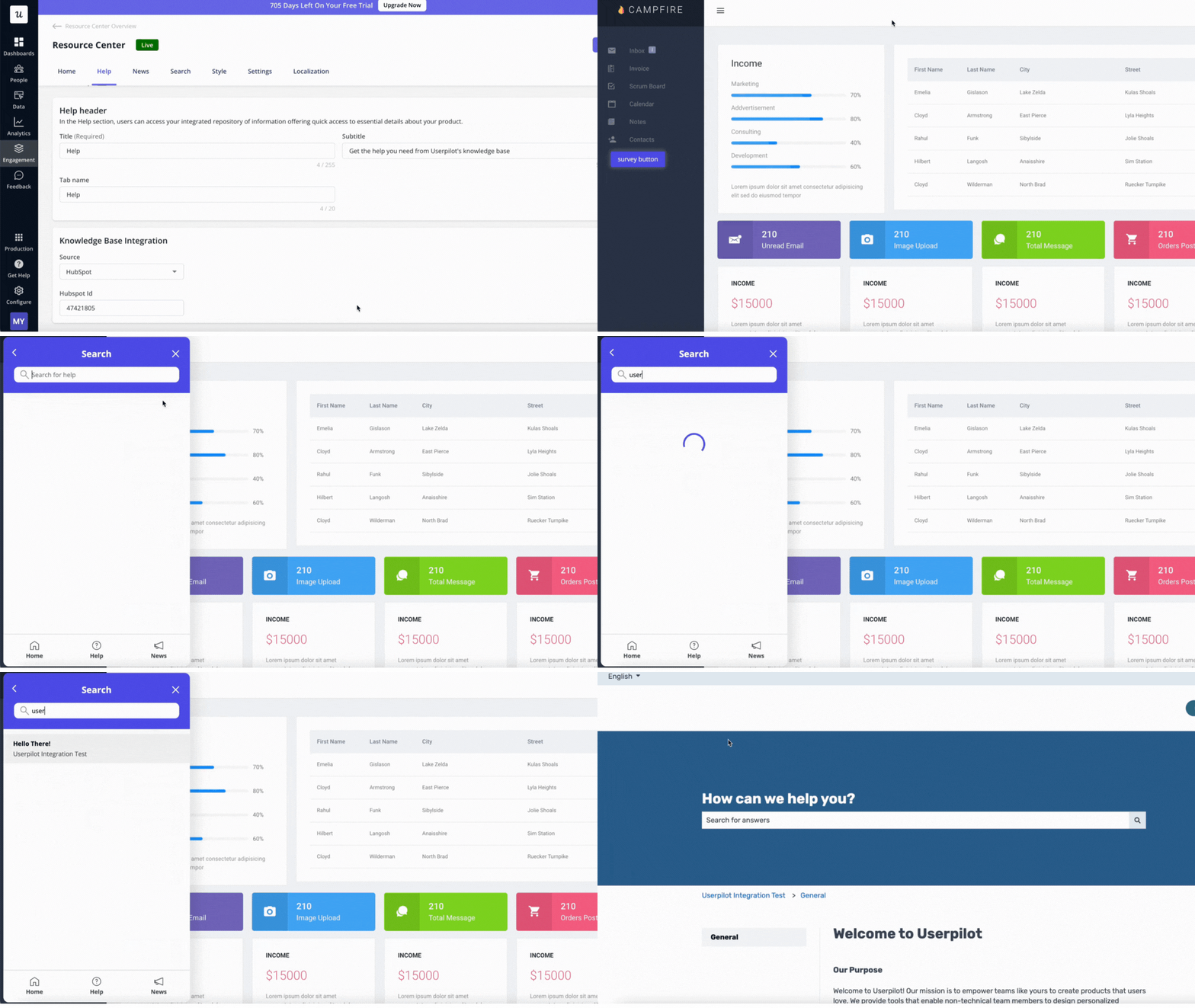
Finally, test the integration by performing sample searches and checking the search results to confirm they redirect users as intended.
To retrieve your articles without issues from Document360 into the Userpilot Resource Center, ensure that the X-Frame Options toggle under the Security settings is turned off.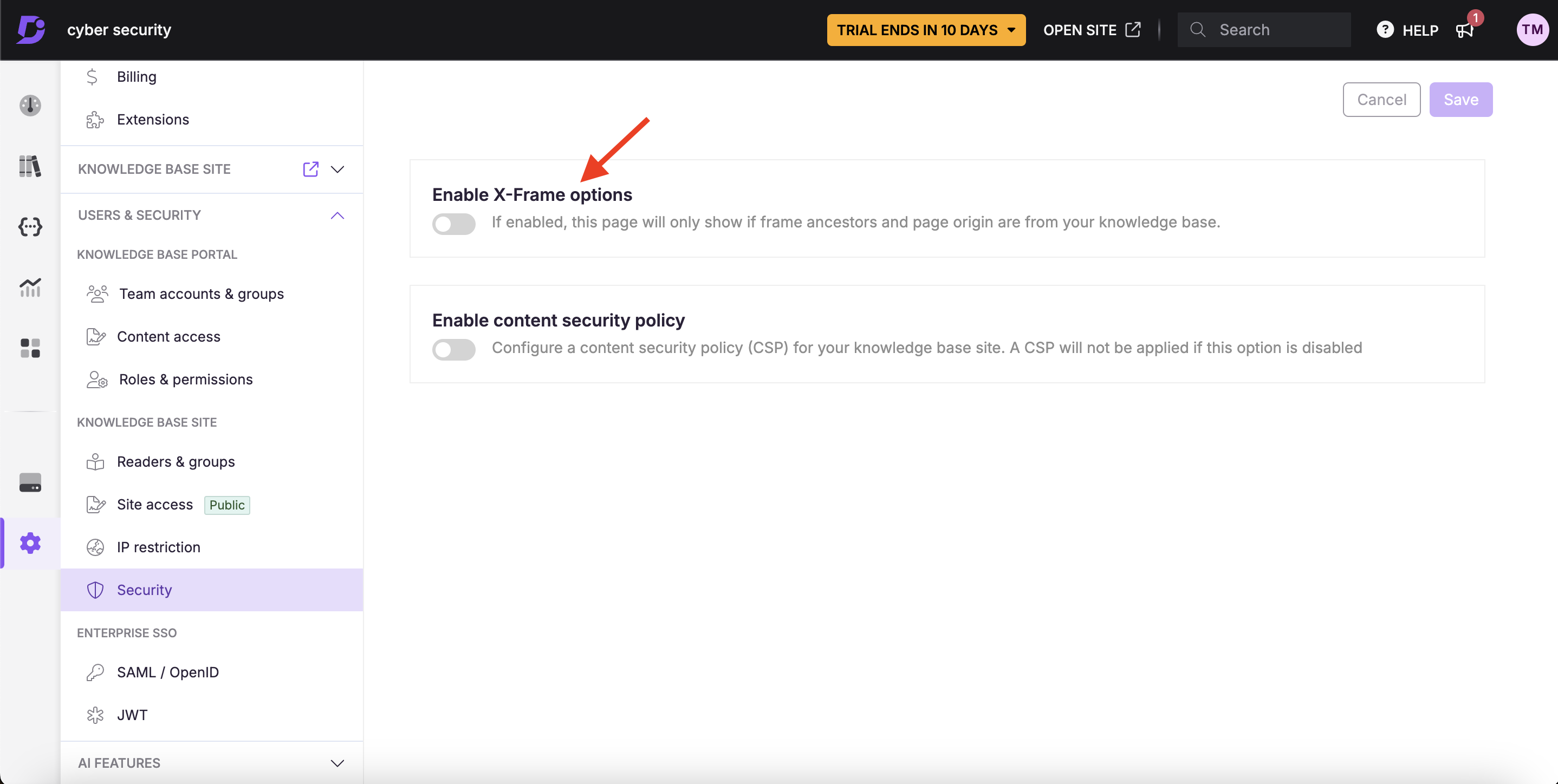
- Title field: should be Title
- Body field: should be either Body or Article body
- Description field: should be Summary
Due to technical limitations, Userpilot will only support the article formats listed above. If users have created articles in a different format, we recommend updating them to match the supported formats. Otherwise, Userpilot will not be able to display those articles in theZoho knowledge base currently does not support selecting categories and sub-categories for retrieving specific articles. A mapping solution is planned.
You can currently only specify a domain to retrieve documents from; adding a specific page or URL is not yet supported.
The search feature supports returning results from a password-secured knowledge base.
The search feature supports returning results from a password-secured knowledge base.