

Documentation Index
Fetch the complete documentation index at: https://docs.userpilot.com/llms.txt
Use this file to discover all available pages before exploring further.
Use Cases
- Control what user data is collected – Decide which interactions, inputs, and sessions are captured to balance insights with privacy requirements.
- Protect sensitive information – Mask or exclude specific elements, text inputs, URLs, or pages to prevent PII from being recorded.
- Enable secure session replays – Observe real user behavior while ensuring sensitive fields and actions are hidden or excluded.
- Optimize session replay usage – Make the most of your sessions allowance by recording only users or segments that are relevant to your analysis.
- Support compliance and governance – Configure capture rules that align with GDPR, CCPA, or internal data-handling policies.
Key Controls & Options
Before getting started, navigate to the ‘Data Capture & Privacy’ tab within your settings.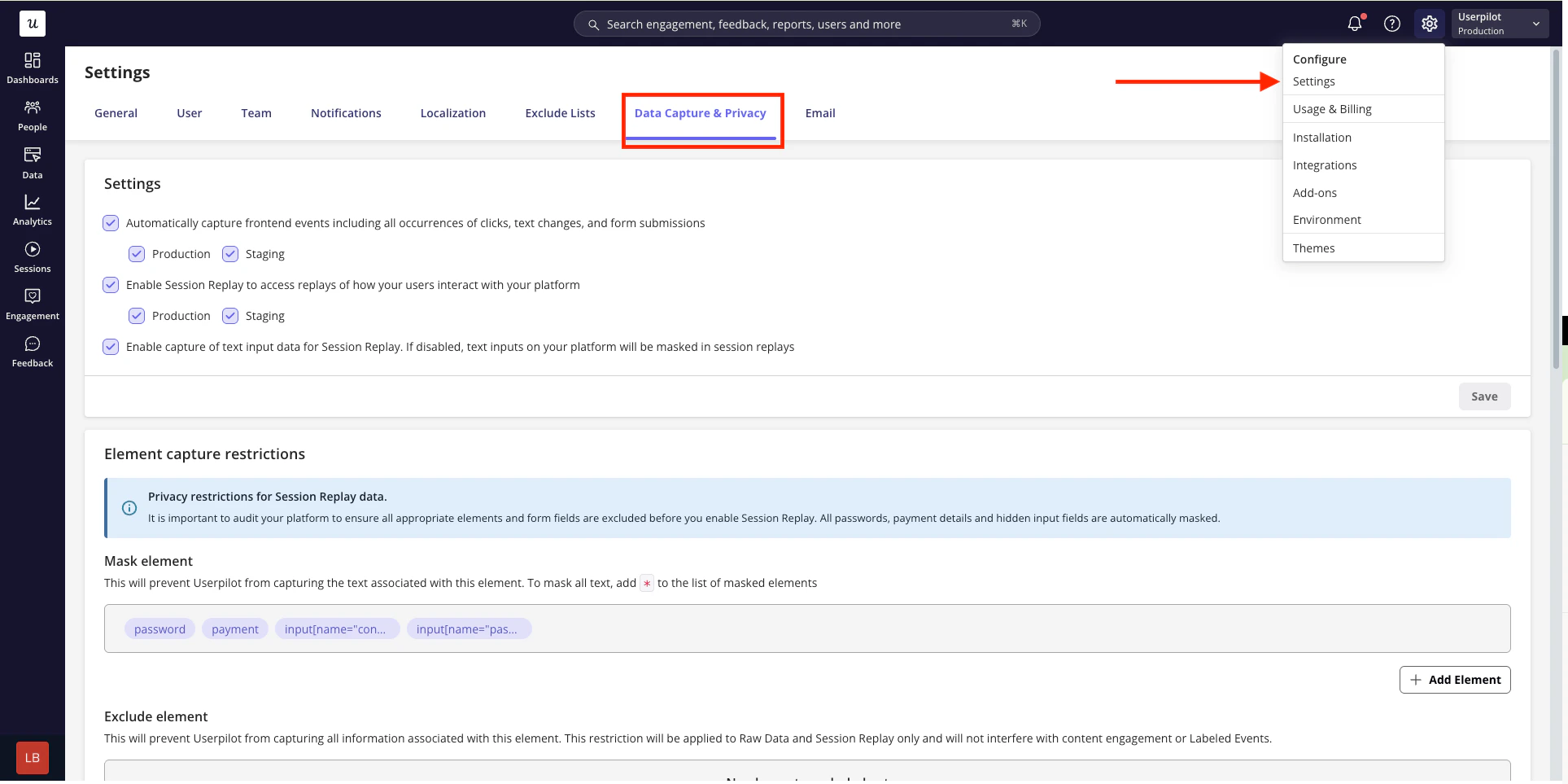
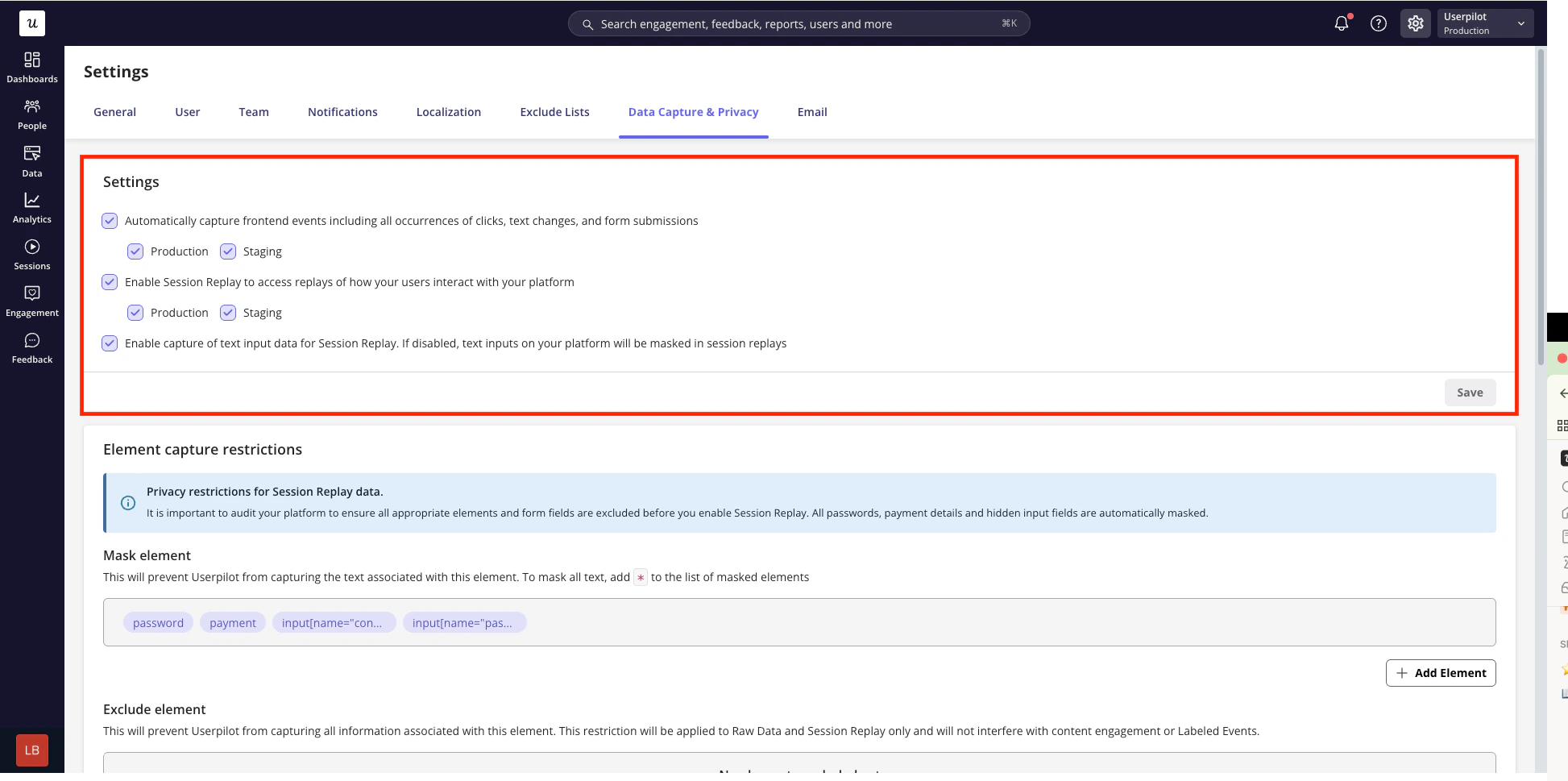
1. Core data capture settings
- Automatically capture frontend events — Enable Userpilot’s autocapture feature (raw events) to record frontend interactions automatically: clicks, text input changes, and form submissions. When enabled, Userpilot will start collecting this data once the SDK is active in your app.
- Session playback toggle — Enable or disable Session Replay entirely. If turned off, Userpilot won’t store or display replayable session data
- Capture text input — Enable text capture if you want typed interactions to show up in replays; if disabled, all text inputs are masked.
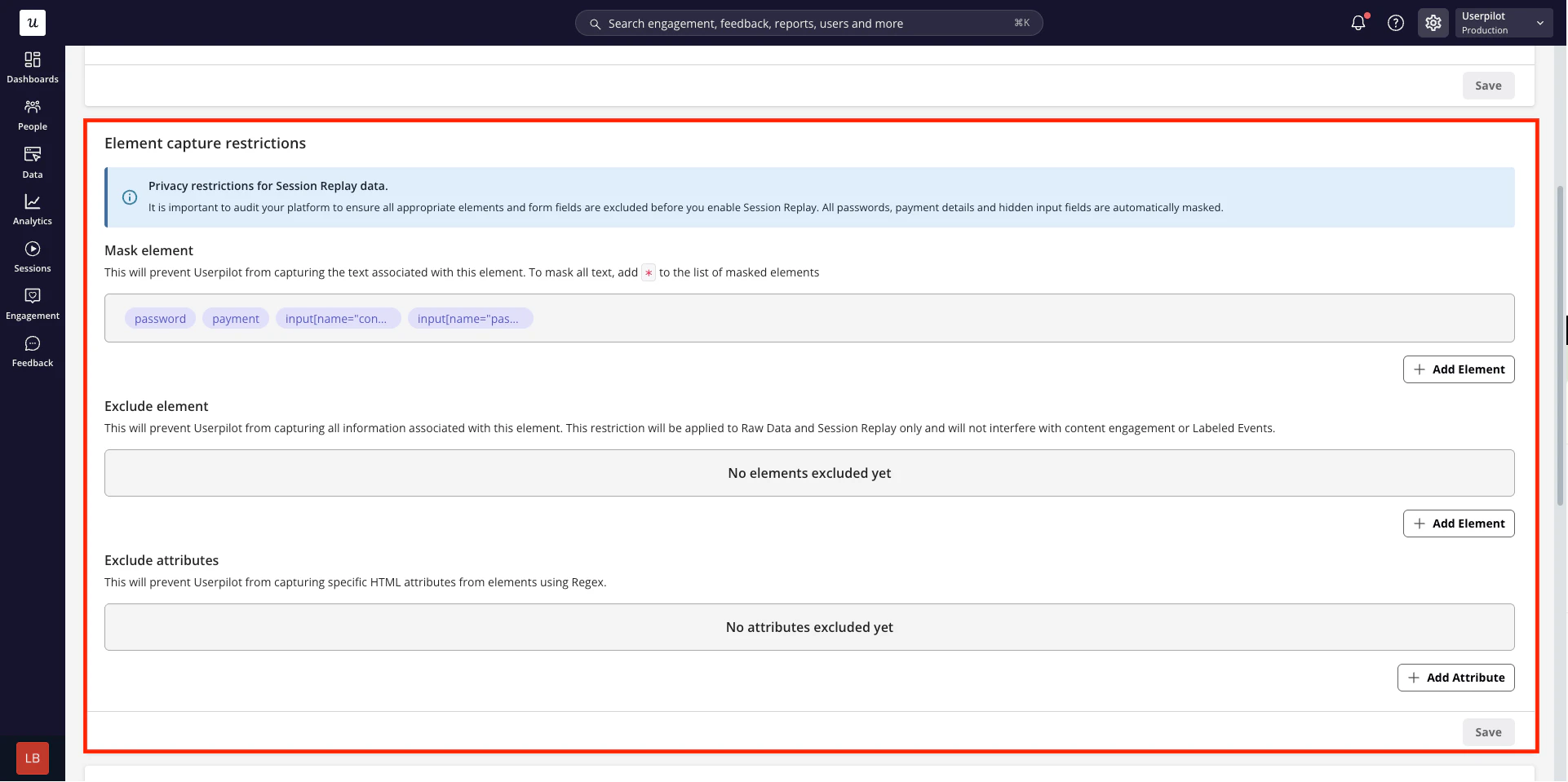
2. Element capture restrictions
Use element-level rules to control how specific UI elements are captured in auto-captured events and session replays.- Mask elements — Hide the text content of selected elements in session replays. Masked elements remain visible in replays, but their content is replaced so sensitive information isn’t exposed.
- Exclude elements — Fully exclude selected elements from data capture. Interactions, text, and metadata related to these elements won’t be recorded in raw events or session replays.
- Exclude attributes — You can also exclude specific attributes (for example,
value,placeholder, or custom data attributes) to prevent sensitive or unnecessary information from being captured.
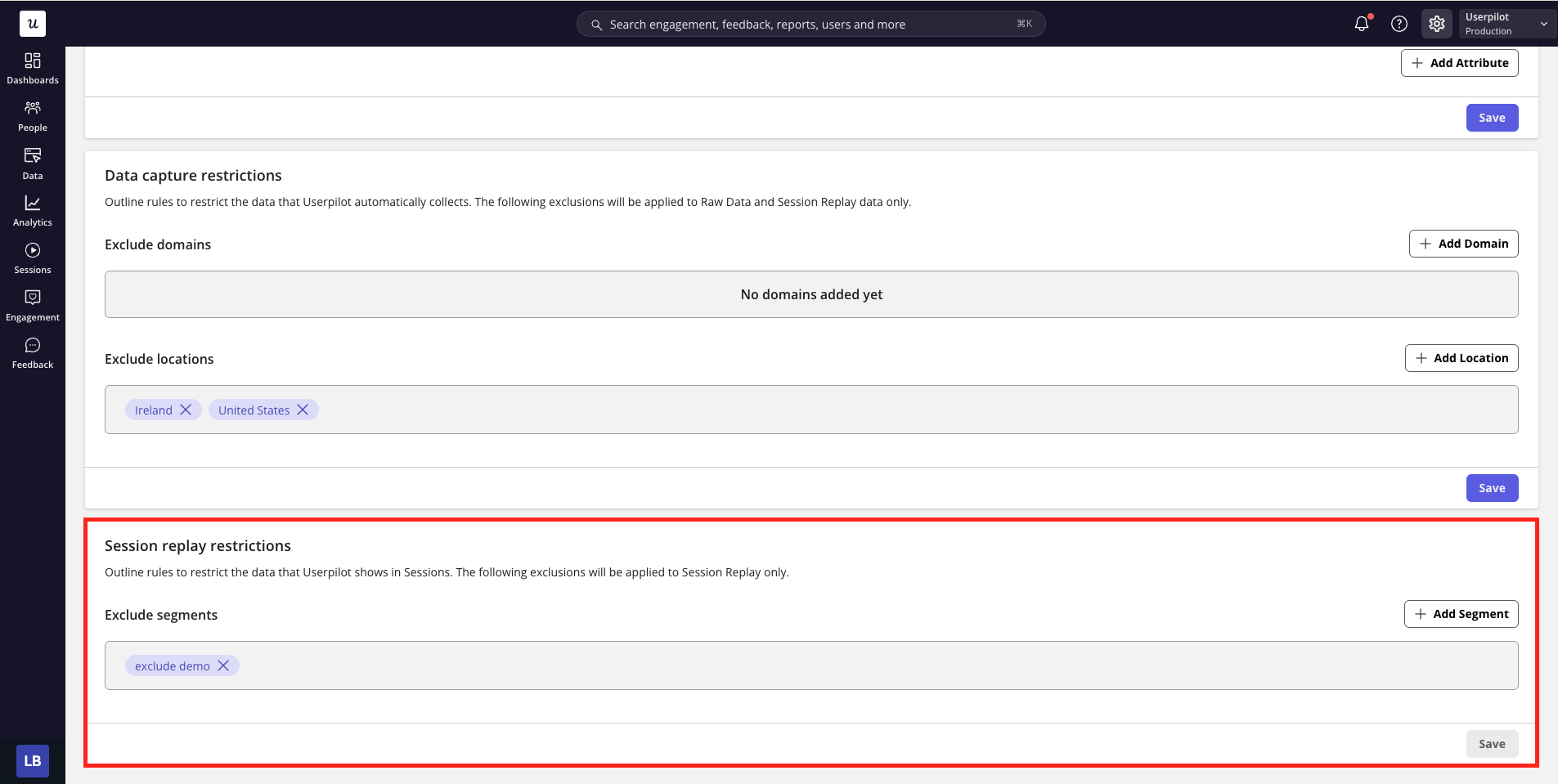
3. Data capture restrictions
Data capture restrictions allow you to limit where auto-captured events and session data are collected.- Restrict by domain — Exclude specific domains or subdomains from being recorded. This is useful for omitting sensitive areas such as authentication flows, billing pages, or internal tools.
- Restrict by user location — Control data capture based on a user’s physical location (for example, country or region). This helps you align data collection with regional privacy requirements or internal policies.
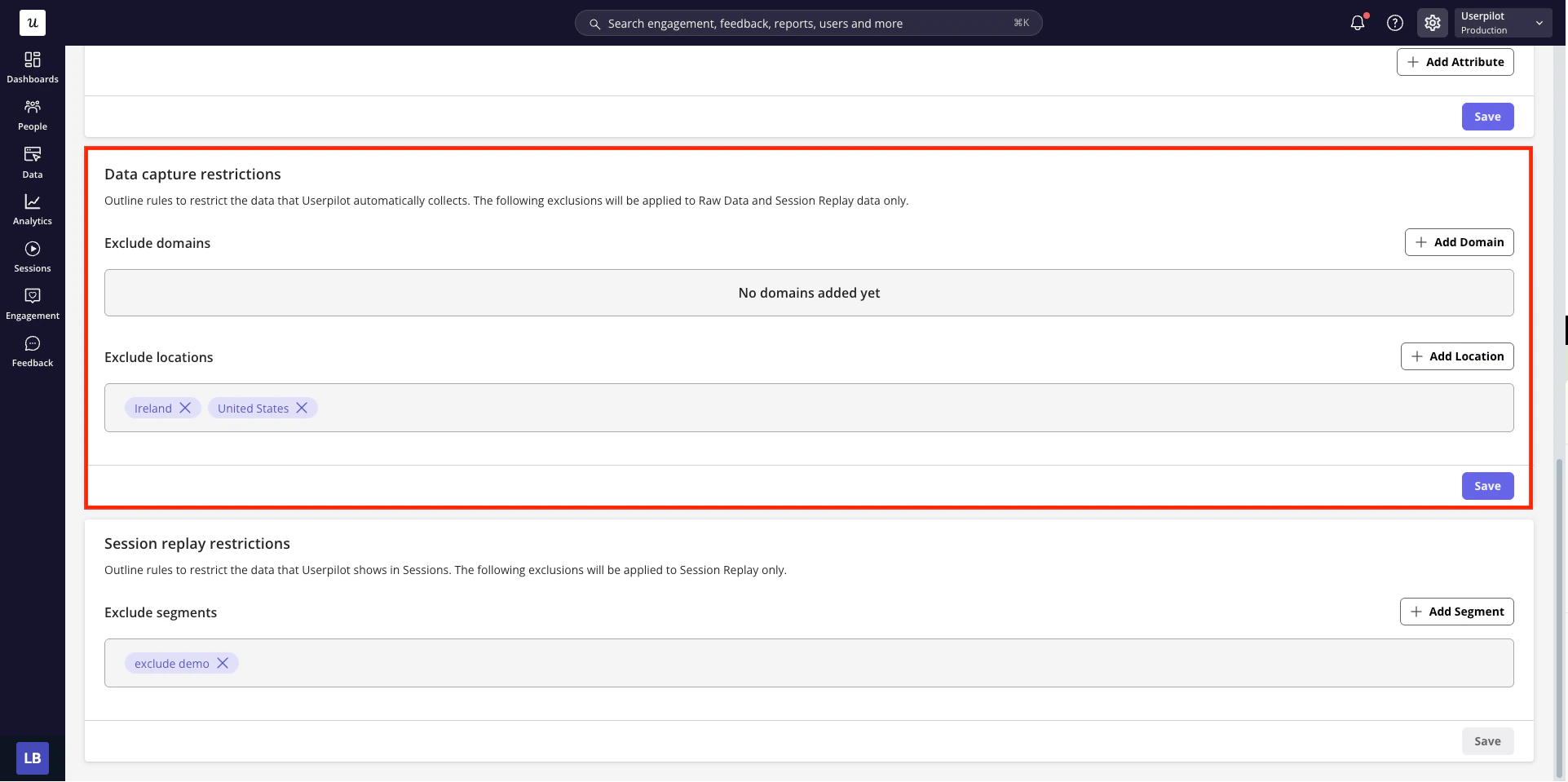
4. Session replay restrictions
Session replay restrictions let you control whose sessions are recorded and stored.- Segment-based recording — Limit session replays to specific user or company segments (for example, paid users, users on a certain plan, or users in a specific region).
See also
- Data Retention — control how long Userpilot stores your analytics events and session replays.