

Overview
If you manage more than one application in Userpilot, you can copy content from one app into your others instead of recreating it manually in each one. This works for surveys, checklists, flows, themes, and design library groups, and you can copy into a single app, several apps, or all of them at once. The content itself comes across intact, while app-specific settings reset so you can tailor them for each destination.Use cases
- Multi-region or multi-brand setups: if you run separate apps for different regions, brands, or divisions, build a flow, checklist, or survey once and copy it everywhere instead of rebuilding it per app.
- Consistent branding across apps: copy a theme or design library group so every app shares the same look and feel.
- Launching a new app: instantly seed a newly added application with your proven content rather than starting from an empty workspace.
- Reducing manual error: maintain one source of truth and copy it out, instead of risking typos or missed updates when recreating content by hand.
Get Started
Copy a single item to other apps
- On any content item, click the ⋮ menu and select Duplicate.
- In the duplicate window, turn on Duplicate to other applications.
- Choose your destination(s) in the app picker — pick individual apps, or select All applications.
- (Optional) Enter a custom name for the copied content.
- Confirm. You’ll get per-app success/failure feedback.
Copy several items at once (Surveys, Checklists, Flows)
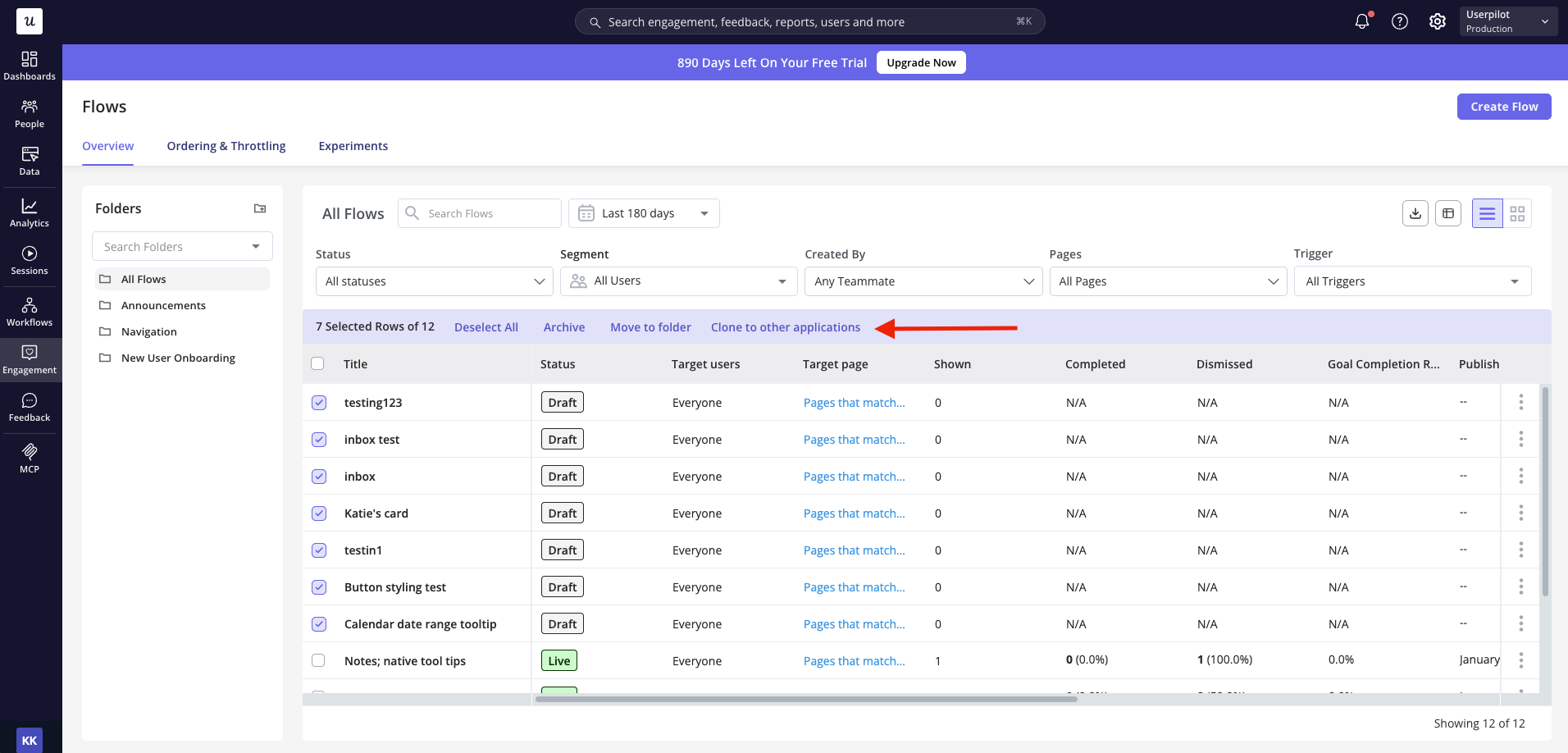
- Select one or more items from the list.
- Click Clone to other applications.
- Pick your destination app(s) and confirm.
What you can clone
Permissions
The cross-app option appears only if you have access to more than one application—it’s available to users who manage multiple apps via the Admin Console. If you have access to a single app, you’ll see the standard same-app duplicate options only.What doesn’t get transferred over?
To keep each app correctly scoped, the following settings do not get transferred over when cloning content across multiple applications;- Trigger
- Targeting (pages/domains)
- Audience
- Goals (flows only)
- Checklists that trigger a flow: the triggered flow is cloned (or reused) in the destination app automatically.
- Themes & design library groups: if a matching one already exists in the destination, it’s reused rather than duplicated — so you won’t get (copy) clutter. Design library cloning covers Colors, Shadows, Spacing, Typography, and Assets.
- Plan limits: each app has its own plan limit. Once an app reaches its limit, content won’t duplicate into it. Nothing is partially copied.