

Overview
The Userpilot MCP server connects AI assistants to your Userpilot account. Once connected, you can ask questions in plain language, such as “How did my signup funnel perform last month?”, and the assistant reads the answer directly from your Userpilot data. You can also ask it to create things for you, such as segments, reports, dashboards, and survey drafts. MCP (Model Context Protocol) is an open standard that AI tools use to talk to other products. Userpilot hosts the server for you: you connect from the AI tool you already use and sign in with your regular Userpilot login. There is nothing to install or configure inside Userpilot.Use Cases
- Ask analytics questions: “What’s the completion rate of my onboarding funnel this quarter?” or “Show retention for users who used the export feature.”
- Explore users and companies: “Which companies were most active this week?” or “Summarize this user’s recent activity.”
- Build as you think: “Create a segment of users who completed onboarding but never opened reports” or “Build a dashboard for my activation metrics.”
- Draft surveys: “Draft a short survey asking users why they canceled.” You review and publish it in Userpilot.
- Look things up while you work: “What audience does the ‘New user tour’ flow target?” or “List the events we track on the checkout page.”
What you need
- A Userpilot account. The MCP server is available on all plans, and your plan’s feature limits apply the same way they do in the app.
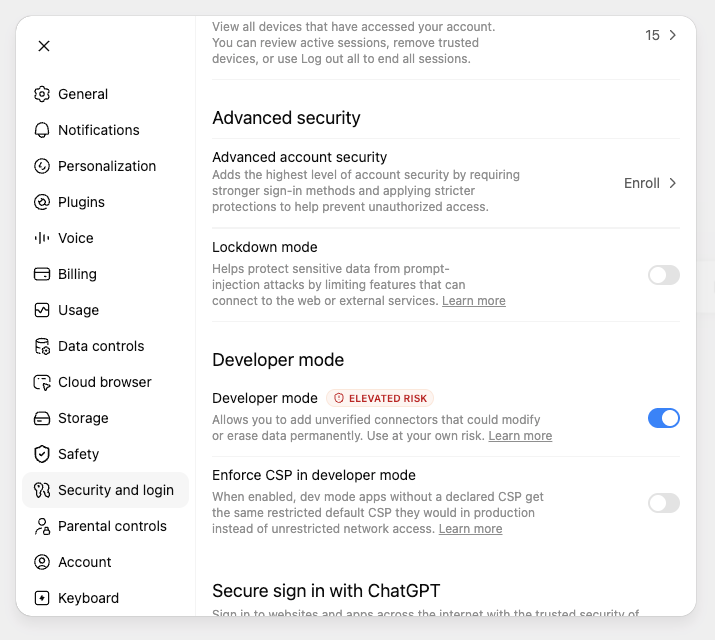
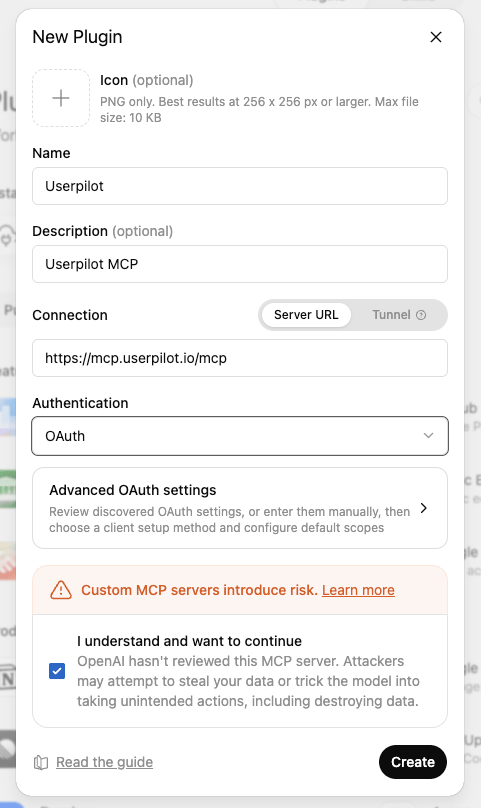
- An AI tool that connects to MCP servers. Claude lists Userpilot in its connectors directory. ChatGPT, Cursor, Microsoft 365 Copilot, and other tools connect with the server address.
Connect your AI tool
- Claude
- Claude Code
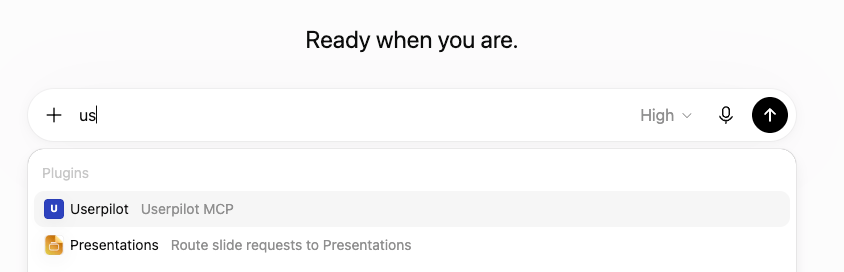
- ChatGPT
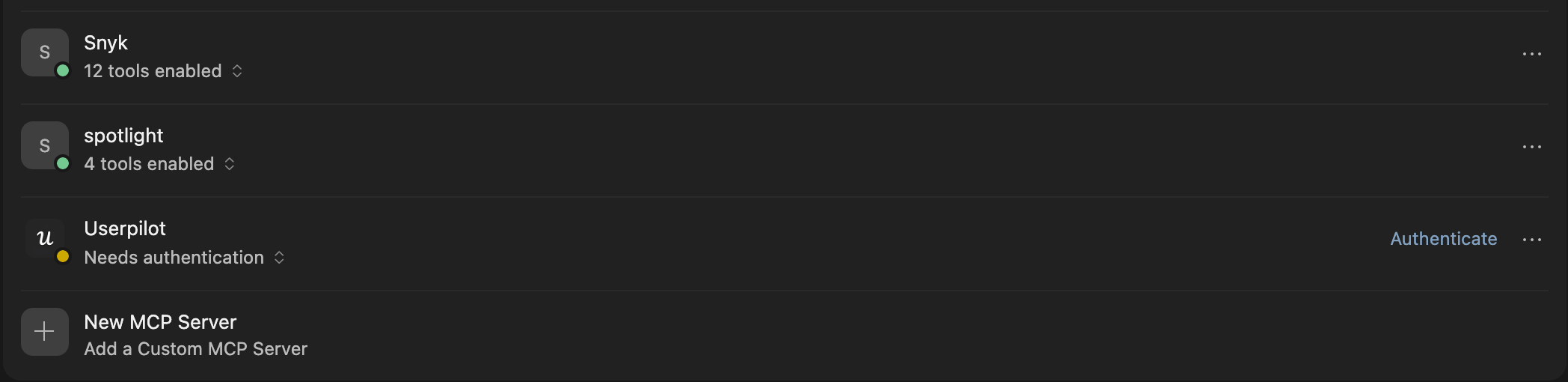
- Cursor
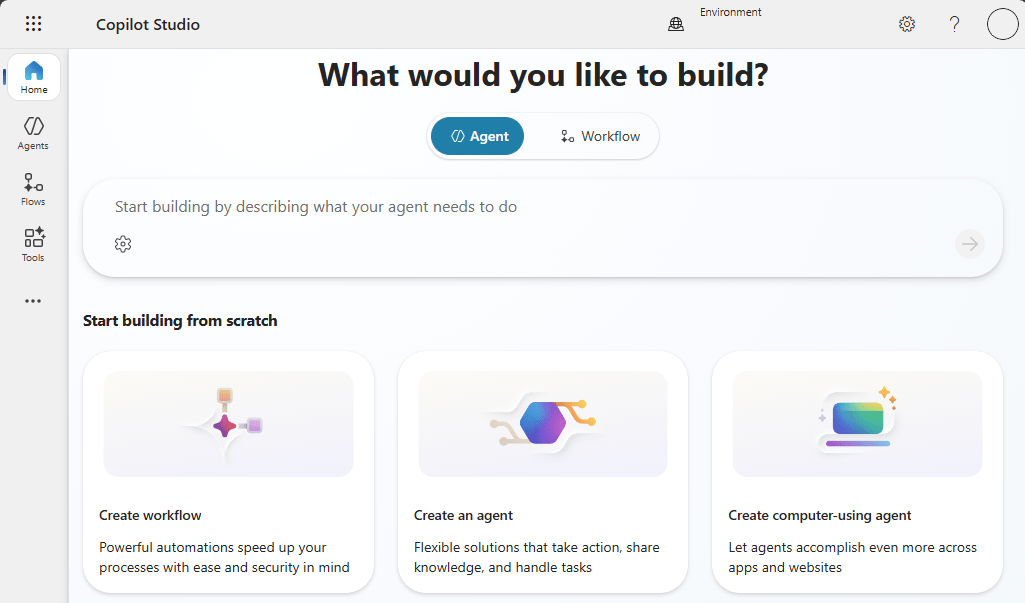
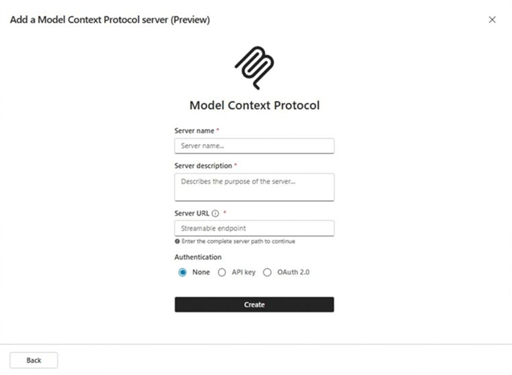
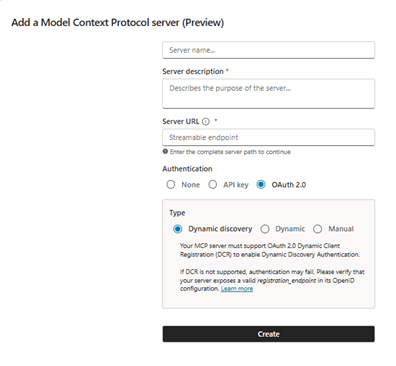
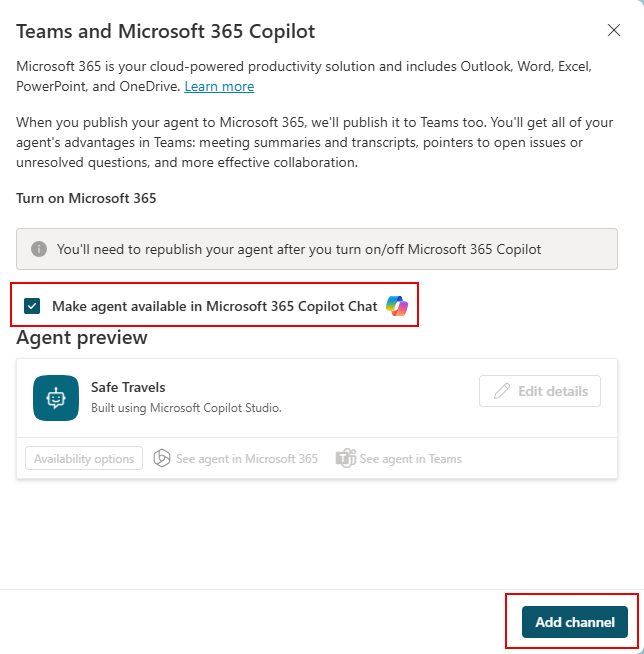
- Microsoft 365 Copilot
- Other AI tools
Userpilot is listed in the Claude connectors directory. You connect it once in Claude on the web or in the Claude desktop app, and it then works in the Claude mobile apps and in Claude Code too.
1
Find Userpilot in the directory
Go to Customize → Connectors and select Discover. In the desktop app, select Customize in the sidebar, then Connectors. Search for “Userpilot”, then select Userpilot.
2
Connect Userpilot
Select Connect to Claude.On Team and Enterprise plans, an organization Owner adds Userpilot once with Connect for your team. Members then connect with their own Userpilot login. If Userpilot isn’t added for your organization yet, you see Request or a note to ask an Owner instead.
3
Sign in and choose permissions
Claude opens the Userpilot sign-in. Log in as you always do (SSO included), tick the access you want to grant, and approve.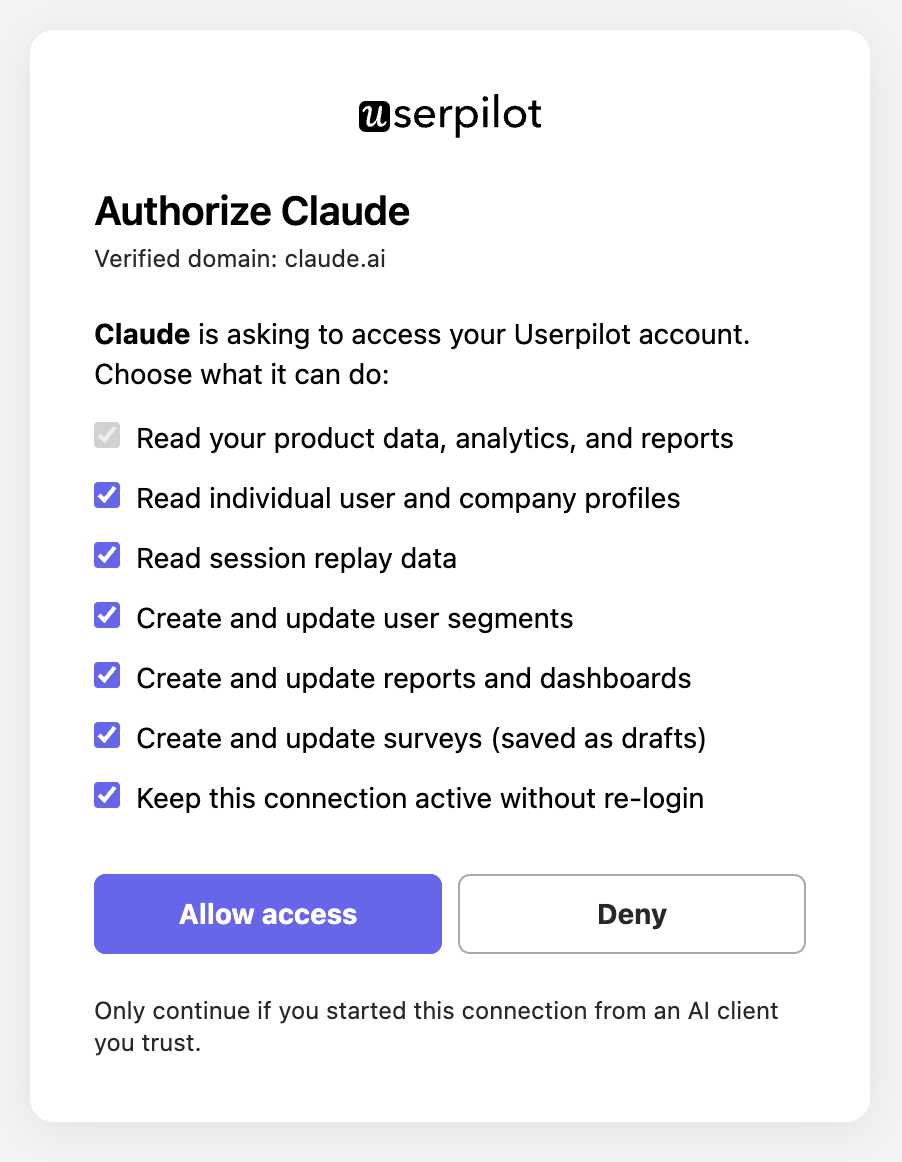
Userpilot shows as Connected in your connectors.
4
Turn it on in a chat
In a chat, select + in the message box, then Connectors, and switch on Userpilot. Claude may ask for your approval before it uses a Userpilot tool. Select Allow once or Always allow.
Claude can now use Userpilot in that chat.

Choose what the assistant can access
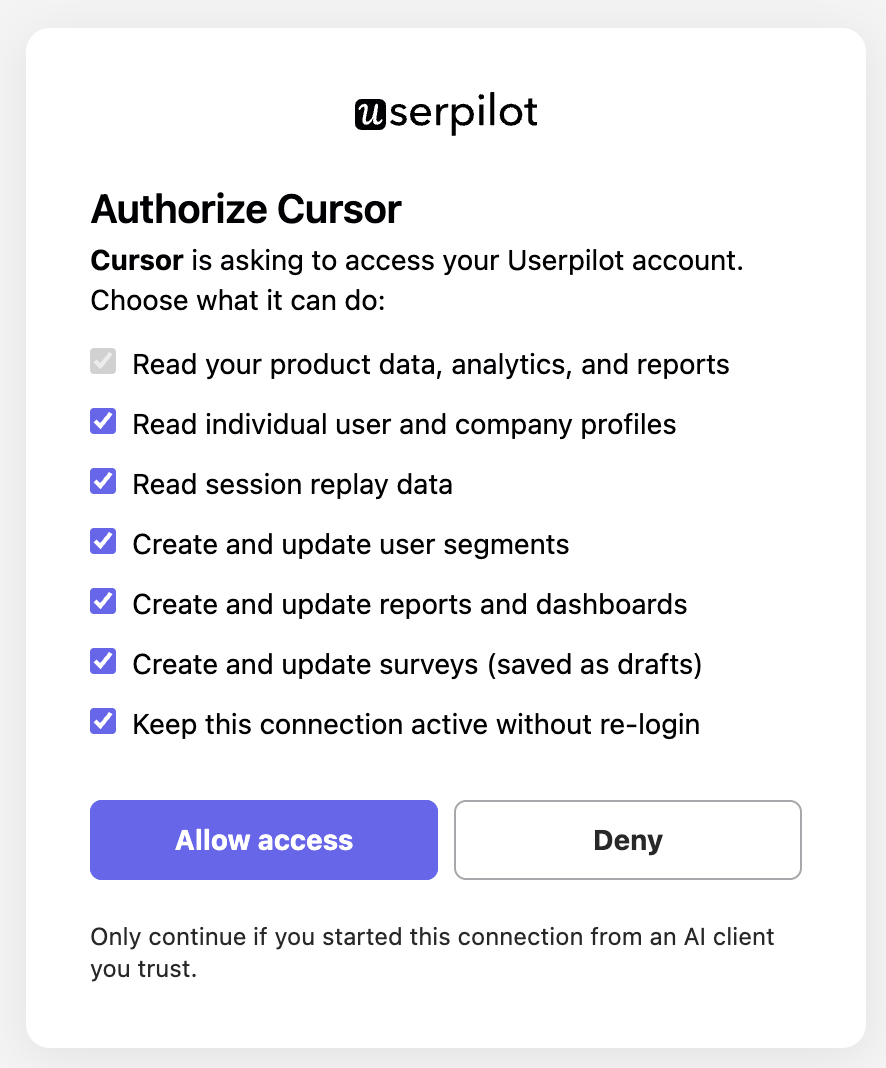
When you connect, Userpilot shows a permission screen. You decide what the assistant can see and change:
A few things to know:
- You can change your mind later. To grant a permission you skipped, connect again from your AI tool: the permission screen appears and remembers what you approved before.
- Write permissions need the read permission. The screen enforces this automatically.
- Changes are real. Segments, reports, and dashboards the assistant creates or updates take effect immediately, just as if you made the change in the app.
What the assistant can and can’t do
With the permissions you grant, the assistant can:- Run and read analytics: funnels, trends, retention, paths, saved reports, and dashboards.
- Look up your product setup: flows, surveys, events, pages, features, segments, and more.
- Read user and company lists and profiles.
- Create and update segments, reports, dashboards, and survey drafts.
- Go beyond the basics: when a question needs it, the assistant can search hundreds of additional read-only operations.
- Build or publish in-app content such as flows and banners (content building stays in the Userpilot builder).
- Delete anything.
- Access team management, billing, account settings, or other administration areas.
- Do anything your own Userpilot role doesn’t allow.
Working with multiple apps
If your account has more than one app, the assistant can list the ones you have access to and ask which one to use. It remembers your choice for the connection, and you can tell it to switch at any time.Security and privacy
- Your login, your permissions. The connection runs under your own Userpilot user. The assistant can only see and change what your role allows, in the apps you have access to.
- You control the scope. The permission screen decides what is reachable; everything outside it is refused by Userpilot’s servers, not by the assistant’s judgment.
- No destructive access. Delete operations and administration areas are not available through the connection at all.
- Built-in limits. Rate limits automatically contain runaway or abusive usage.
- Disconnect anytime. Remove the connector in your AI tool to stop new access. Without the “keep active” permission, access also expires on its own shortly after each sign-in.
Data the assistant reads through this connection is processed by your AI provider (for example, Anthropic for Claude) under that provider’s terms. Review your organization’s AI policies before connecting tools to customer data.
FAQs
Which AI tools work with the Userpilot MCP server?
Which AI tools work with the Userpilot MCP server?
Any tool that supports remote MCP servers with OAuth sign-in. Claude, Claude Code, ChatGPT, Cursor, and Microsoft 365 Copilot are documented step by step above. For other tools, use the server address and follow the tool’s own instructions for adding an MCP server.
The assistant says it wasn't granted a permission. What do I do?
The assistant says it wasn't granted a permission. What do I do?
You skipped that permission when connecting. Connect again from your AI tool. The permission screen appears with your earlier choices remembered; tick the missing one.
The assistant says a workspace is no longer accessible.
The assistant says a workspace is no longer accessible.
Your access to that app changed. Ask the assistant to list your workspaces and pick one you can access.
Can the assistant change my data without me knowing?
Can the assistant change my data without me knowing?
Only within the write permissions you granted, and never beyond them: segments, reports, dashboards, and survey drafts. It cannot delete anything, publish content, or touch account settings. If you grant no write permissions, the connection is read-only.
Who on my team can connect?
Who on my team can connect?
Anyone with a Userpilot login. On Claude Team and Enterprise plans, an organization Owner adds Userpilot from the directory once. Each member then connects and signs in as themselves, and their connection mirrors their own role and app access.
The assistant doesn't see new or updated Userpilot tools.
The assistant doesn't see new or updated Userpilot tools.
Your AI tool keeps its own copy of the tool list. In Claude, open the Userpilot connector’s settings and use Refresh tools; disconnecting and reconnecting alone does not refresh the list.
How do I revoke a connection completely?
How do I revoke a connection completely?
Remove the connector in your AI tool. If you need a connection revoked on the Userpilot side (for example, for a teammate who left), contact support.