

Overview
Agent Analytics extends Userpilot’s analytics to your AI agents. Instead of digging through raw chat logs or a separate LLM dashboard, it gives you one place to answer questions like: How many people are talking to the agent? What are they trying to do? Where is it failing them? And is using the agent connected to people sticking around?Use Cases
- Prove agent ROI — connect agent usage to activation, adoption, and retention instead of treating the agent as a black box.
- Spot where the agent is failing users — surface fallback responses, failed actions, escalations, and frustrated users without reading every transcript.
- Understand what people actually use the agent for — see the topics and entry points driving conversations, and feed that into your roadmap.
- Investigate a specific issue — jump from a topic, a failure signal, or a user’s profile straight into the full conversation transcript.
- Report and segment on agent usage — bring agent conversation data into Report Builder, Segments, Sessions, and Engagement alongside the rest of your product data.
Getting Started
To get started, simply navigate to the Agent Anlytics tab under Agents in the main Analytics navigation, alongside Saved Agent Views.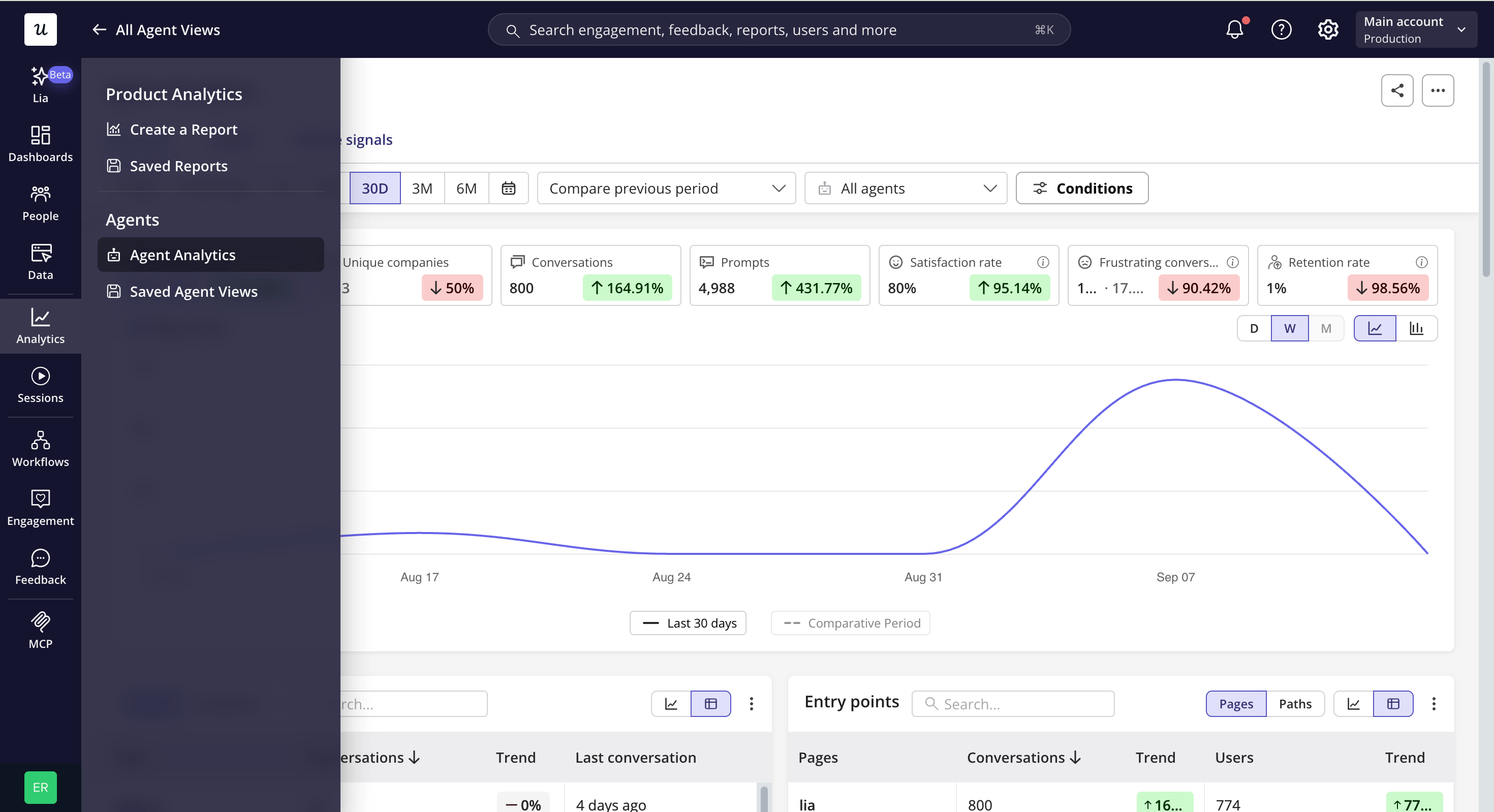
Filters and controls
To narrow down the data that surfaces within the dashboard, specify conditions that you’re particularly interested in.- Time range – select a preset range or a custom date range.
- Comparative period – compare the selected range to the previous period, or to a custom period of your choosing.
- Agent – filter to one agent or several. Defaults to All agents.
- Conditions – use the same user and company filters you rely on elsewhere in Userpilot, or conversation filters based on the metadata captured on the
Conversation startedevent — topic, trigger, feedback, and more.
Key stats
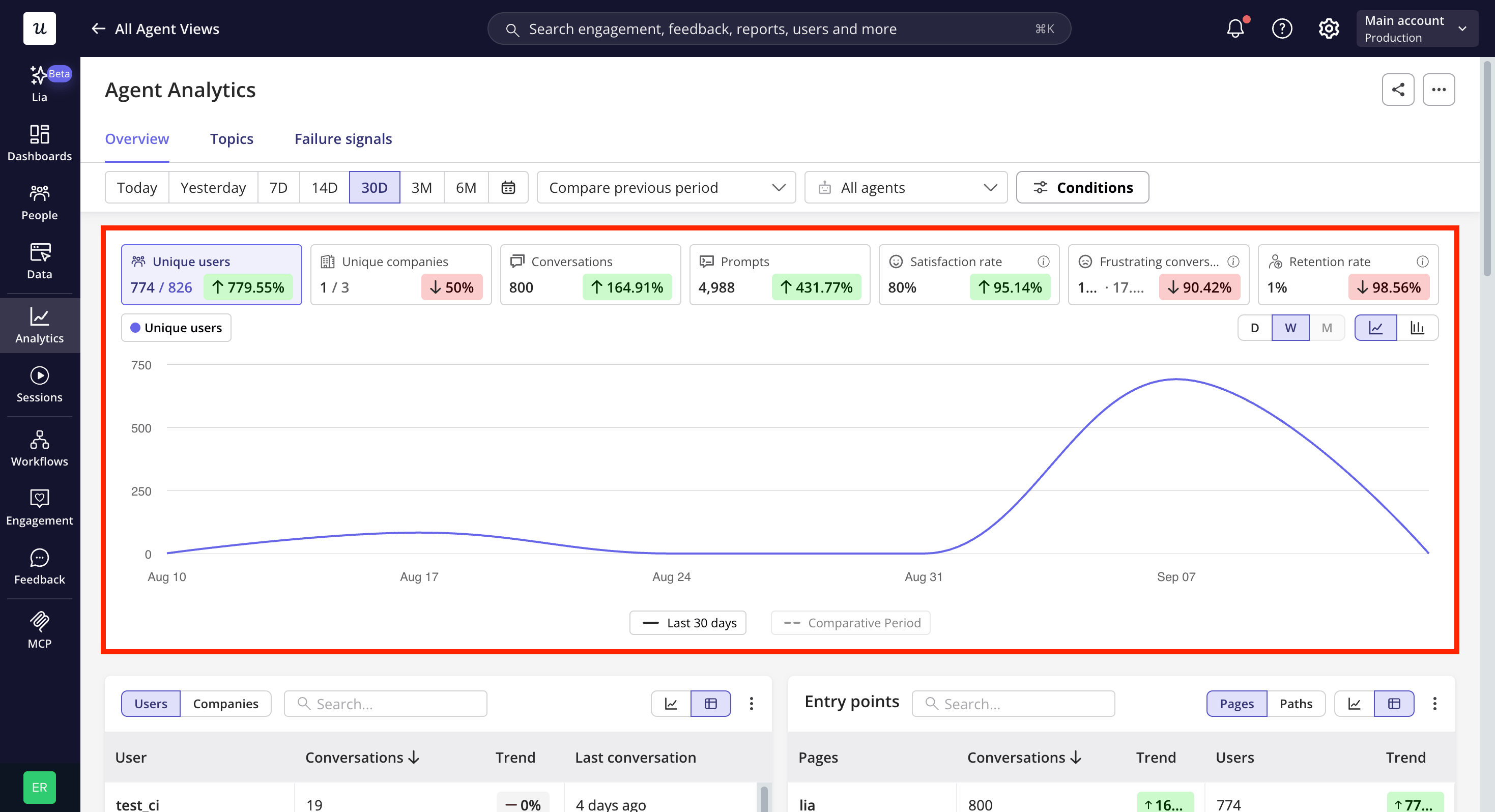
Reports
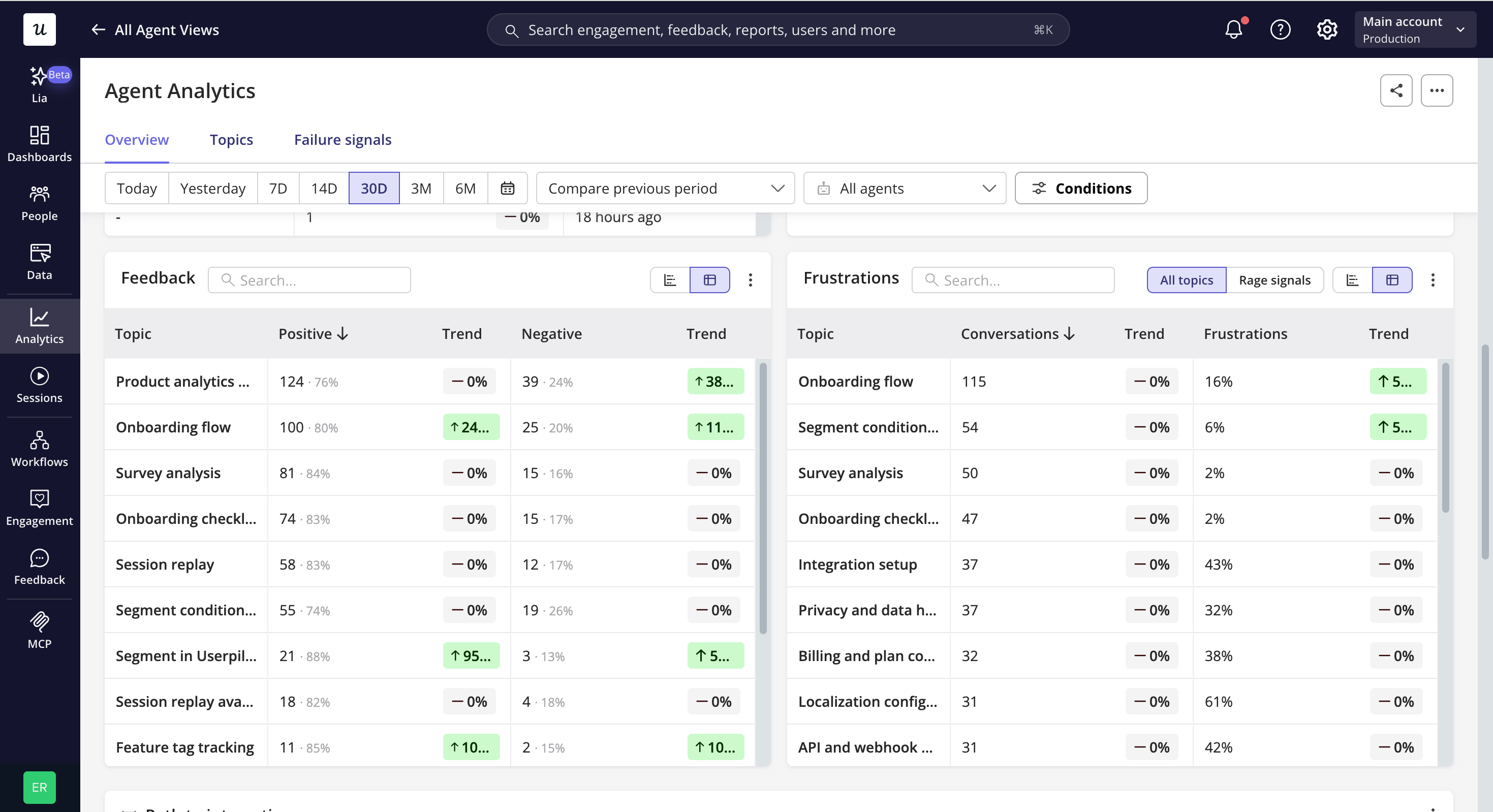
- Users / Companies Identify exactly who’s getting the most value from the agent, whether you care about individual power users or which accounts are relying on it most.
- Entry points Understand what’s actually driving people to the agent — which pages or URLs are prompting the conversation — so you know where it’s earning its place in the experience.
- Feedback See how satisfied people are, broken down by topic, so you can tell which use cases the agent is nailing and which need work. This builds as your agent collects feedback.
-
Frustrations
Understand what’s frustrating your users and why, broken down by topic and by the specific behaviour pattern driving it. Patterns the AI detects include:
- Path of interaction See what leads people to the agent and what they do right after, so you can tell whether it’s solving problems in the flow of work or pulling people out of one.
- Conversation length Gauge how much effort conversations take, by prompt count and duration — a useful signal for spotting overly long or complicated interactions.
- Agent impact on retention Understand whether talking to the agent is connected to people coming back, by comparing retention for users who did and didn’t interact with it.
Saving and sharing a view
Save a view when you want to come back to a specific cut of the data — a particular agent, time range, or set of conditions — without rebuilding it each time. Saved views can be organized into folders and favorited for quick access. Share a view when you want teammates, or people outside your account, to see the same analysis.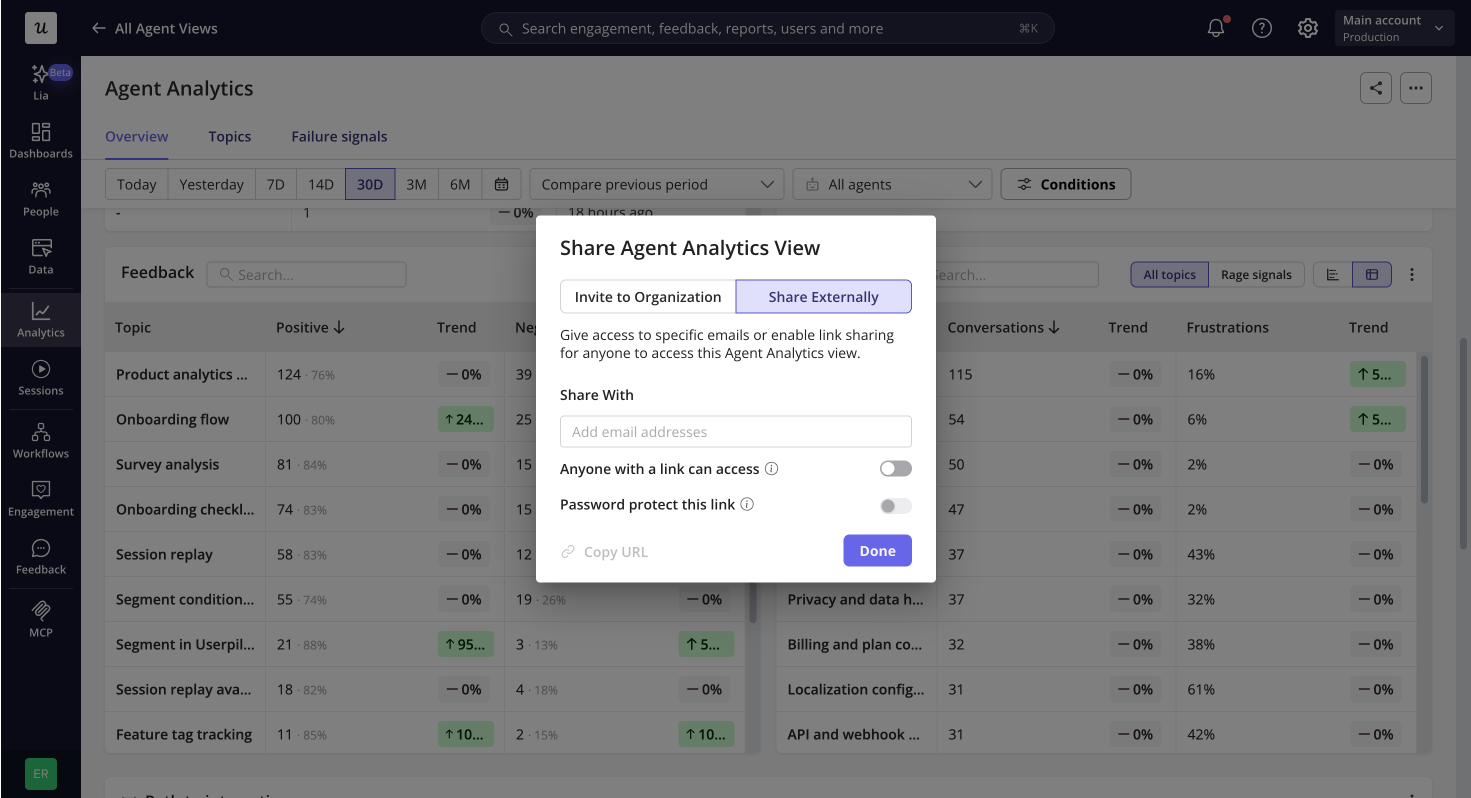
Who can access Agent Analytics
Everyone with access to Userpilot can see the general Agent Analytics screens — Overview, Topics, and Failure Signals — regardless of role. Access to individual conversations (viewing, sharing, deleting) and to managing connected agents is controlled separately, under Settings > Roles > Analytics > Agent Analytics.Using Agent Analytics data elsewhere in Userpilot
Every agent interaction is tracked as aConversation started event, the same way any other event is in Userpilot — which means it’s available outside of Agent Analytics too:
- Segments and Conditions, to build audiences based on agent usage.
- Report Builder, to build custom reports.
- Sessions, as a key event filter.
- Engagement (flows, banners, etc.), in trigger settings and audience conditions.