

Overview
Two-Factor Authentication (2FA) adds an extra layer of security to your Userpilot account by requiring users to verify their identity using a passcode generated from an authentication app (such as Google Authenticator, 1Password, or Authy).This ensures that even if a password is compromised, your workspace remains protected.
Use cases
- You want to enhance workspace security across all teammates
- You are working with sensitive product data or customer information
- You are required to meet internal compliance or security guidelines
- You use SSO and want an additional verification layer
- You want to ensure only verified users access your Userpilot setup
Enable 2FA
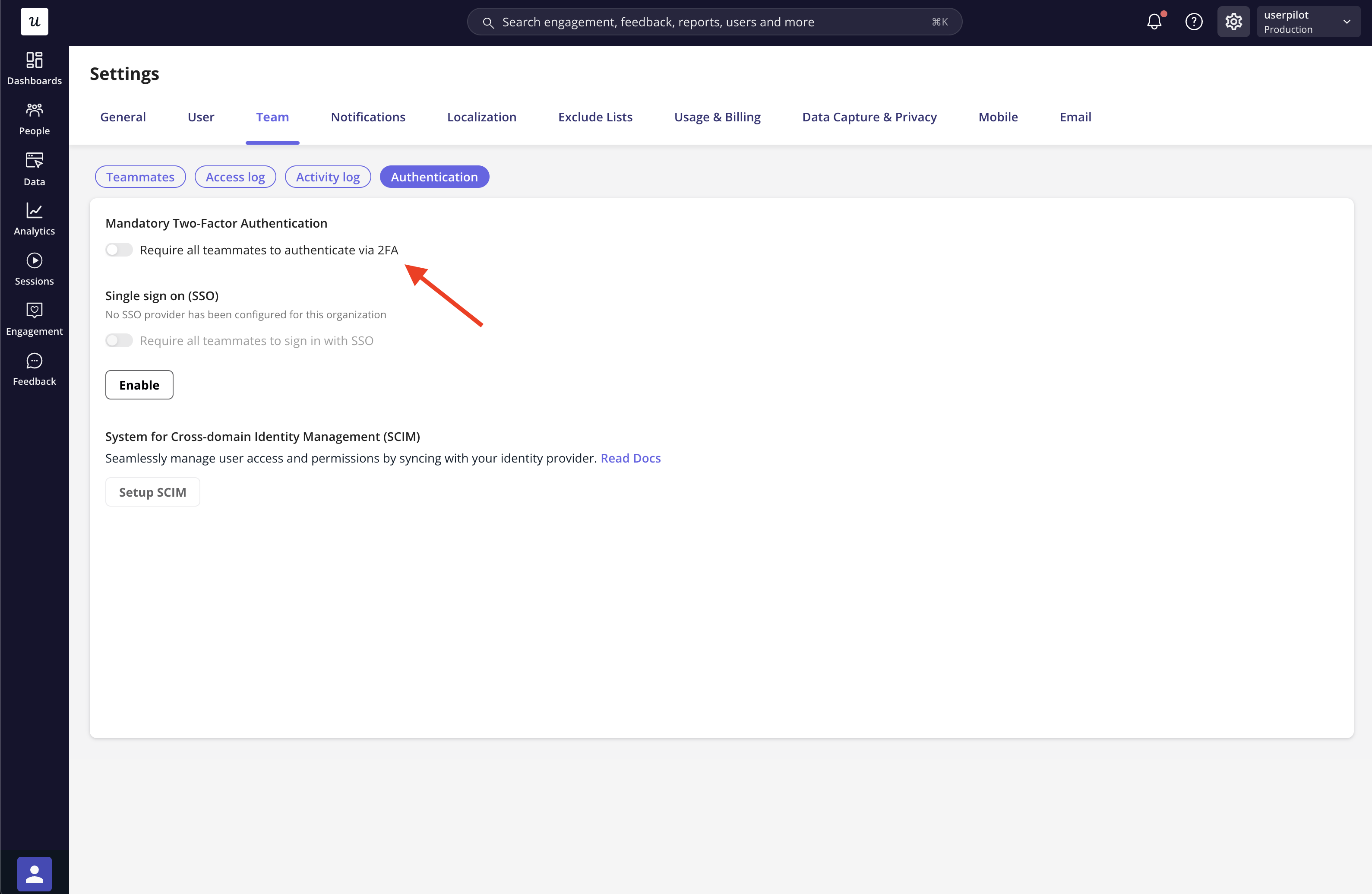
- You can enable 2FA settings from Settings → Team → Authentication → Mandatory Two-Factor Authentication
-
Toggle “Require all teammates to authenticate via 2FA” on
By default, 2FA is not required, and teammates can log in normally. Admins can choose to enforce it for the entire team
-
Once enabled:
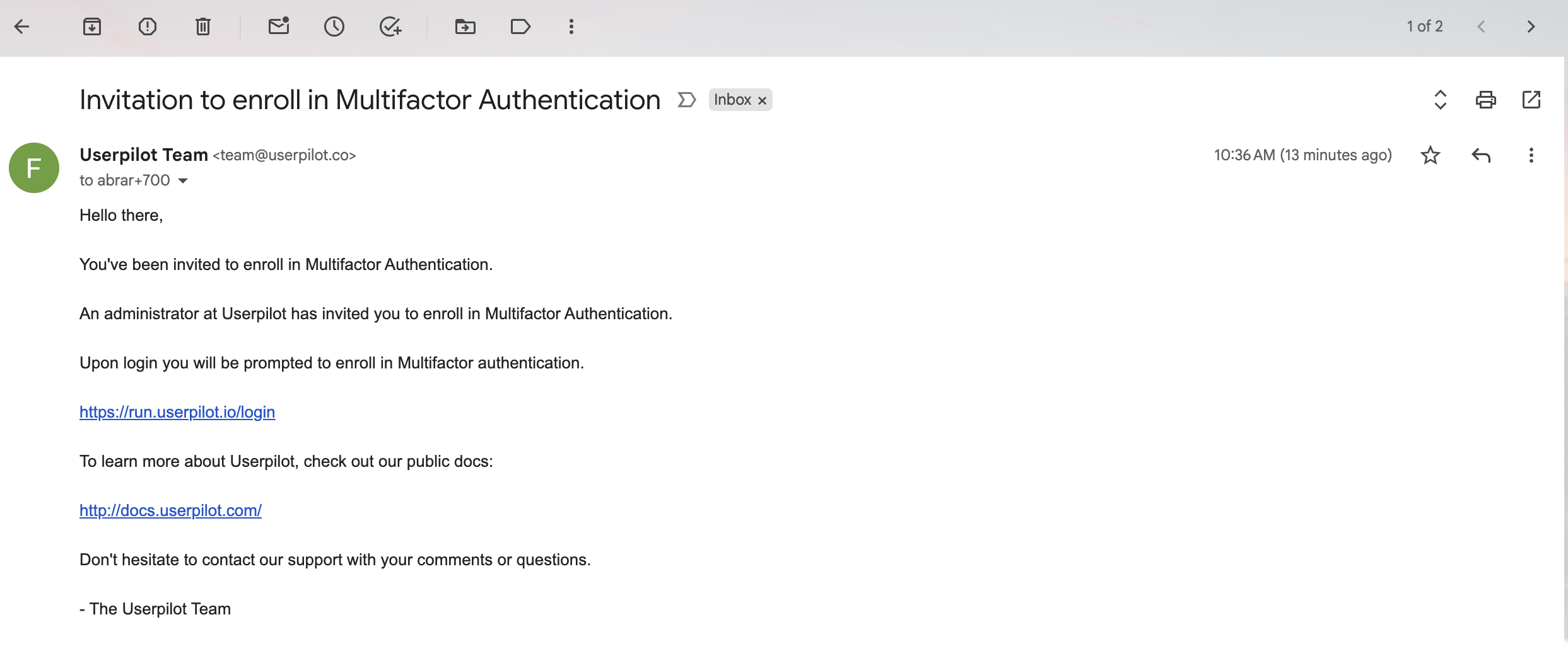
- All existing teammates will receive an invitation to enroll in 2FA
- New teammates will be required to set up 2FA immediately after creating their password
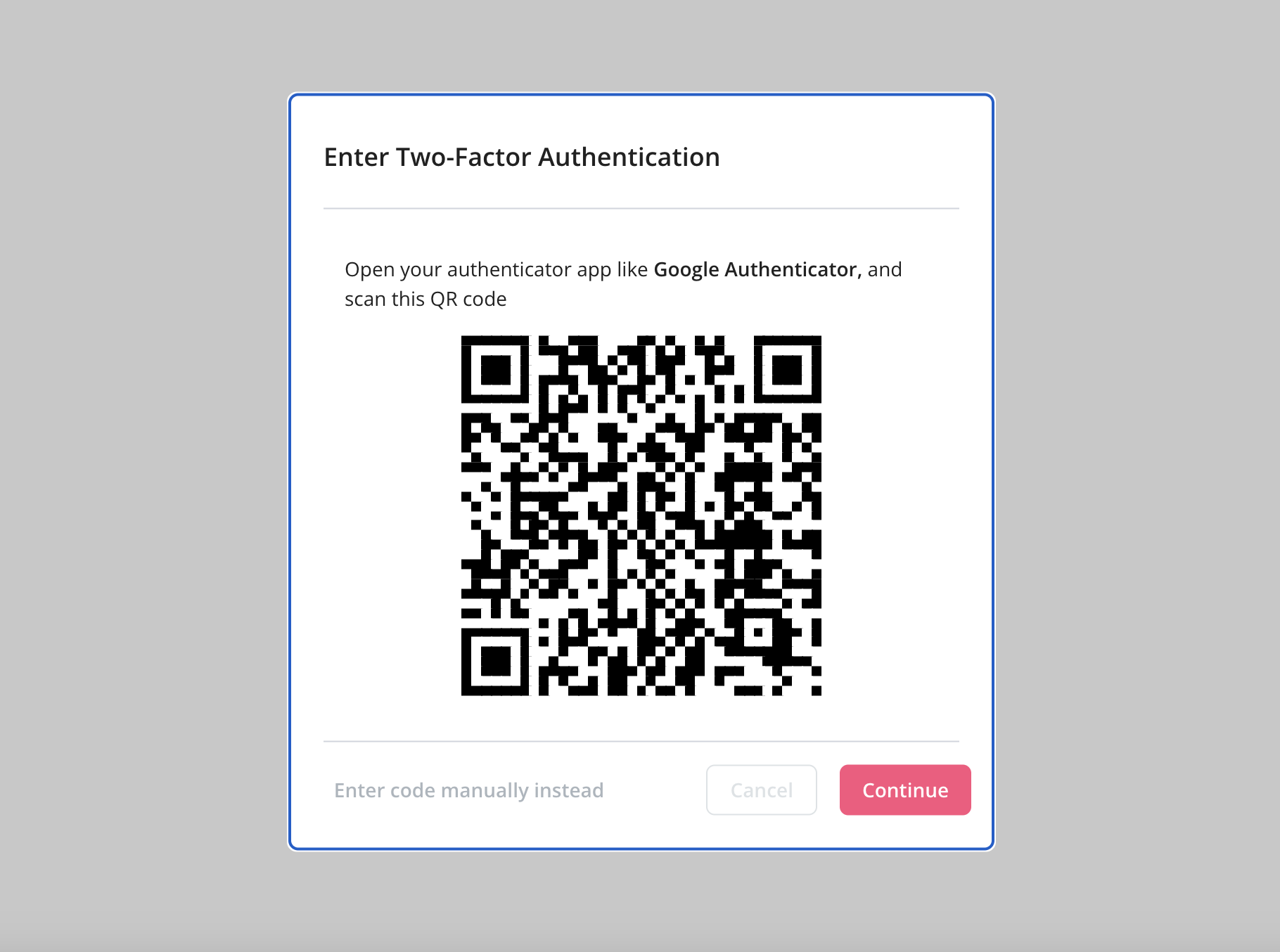
- Users can’t access the workspace until they complete their 2FA setup
- A 2FA icon appears next to their name in the Teammates table
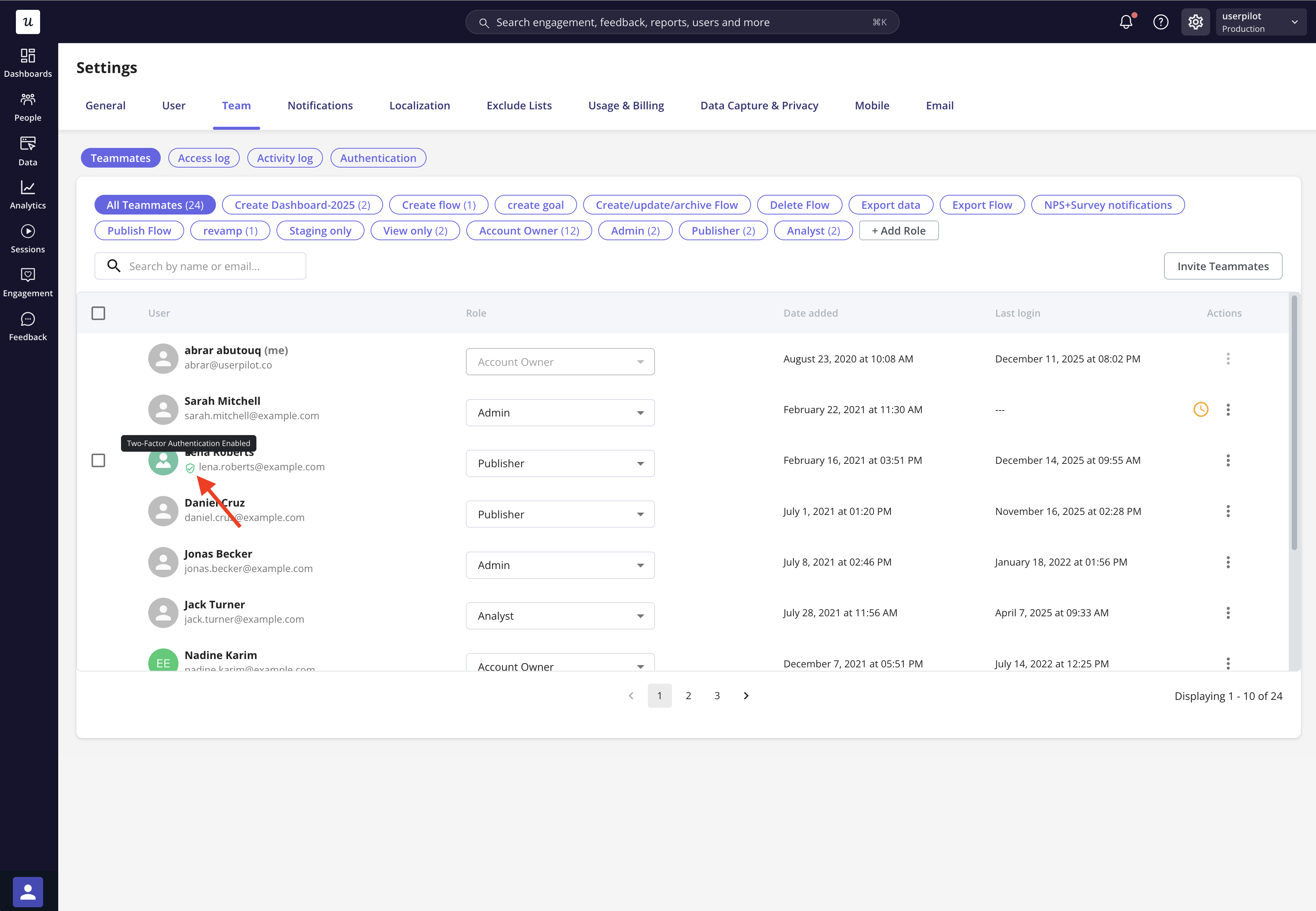
Admins can disable 2FA for a teammate if the user is locked out of their account. For example, after losing access to their authentication device.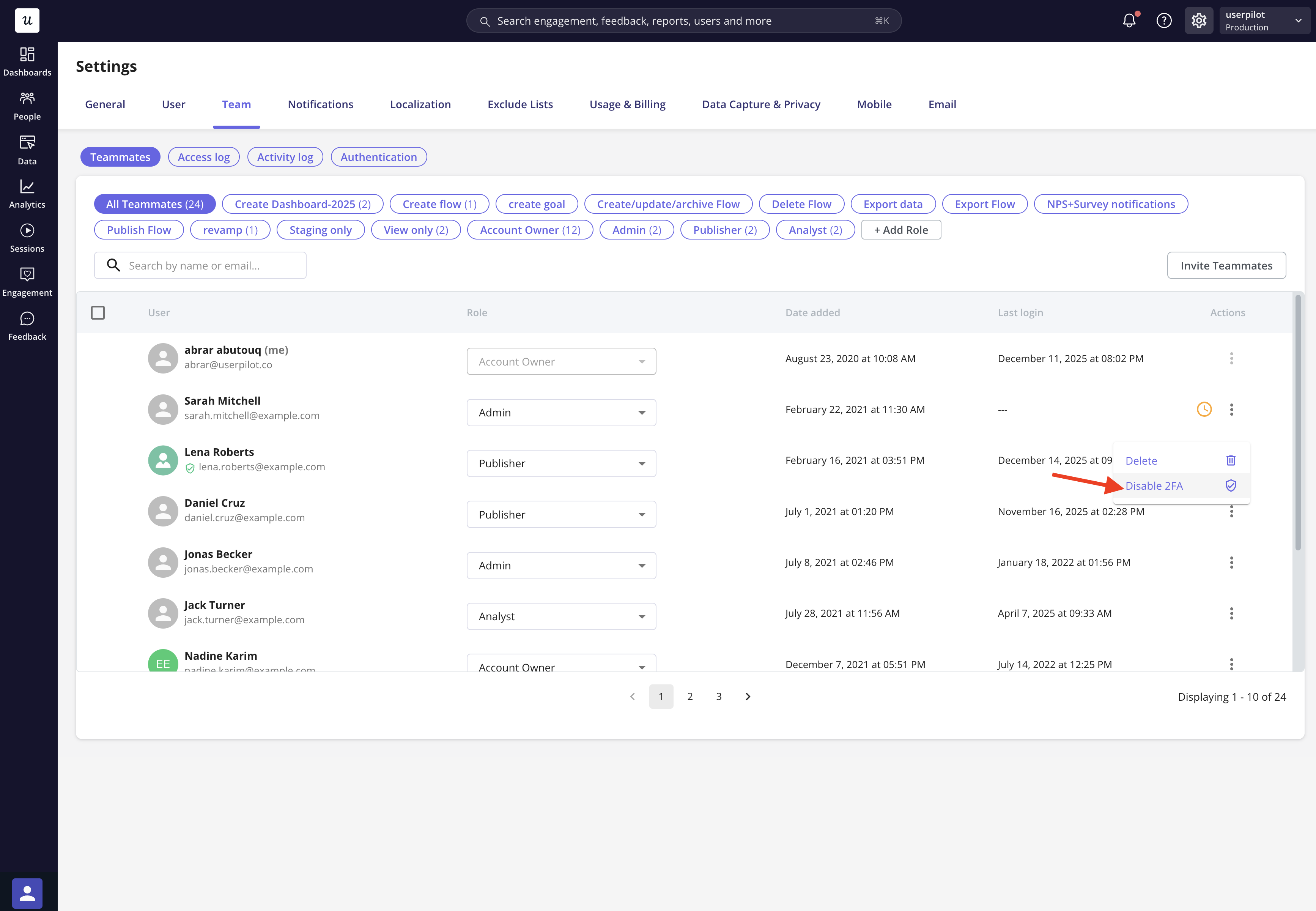
Note:
Team members can enable Two-Factor Authentication from Settings → User by scanning a QR code and activating 2FA on their account.However, if an admin has enforced mandatory 2FA for the entire workspace, users will not be able to disable it themselves. Only admins have permission to disable 2FA for a teammate.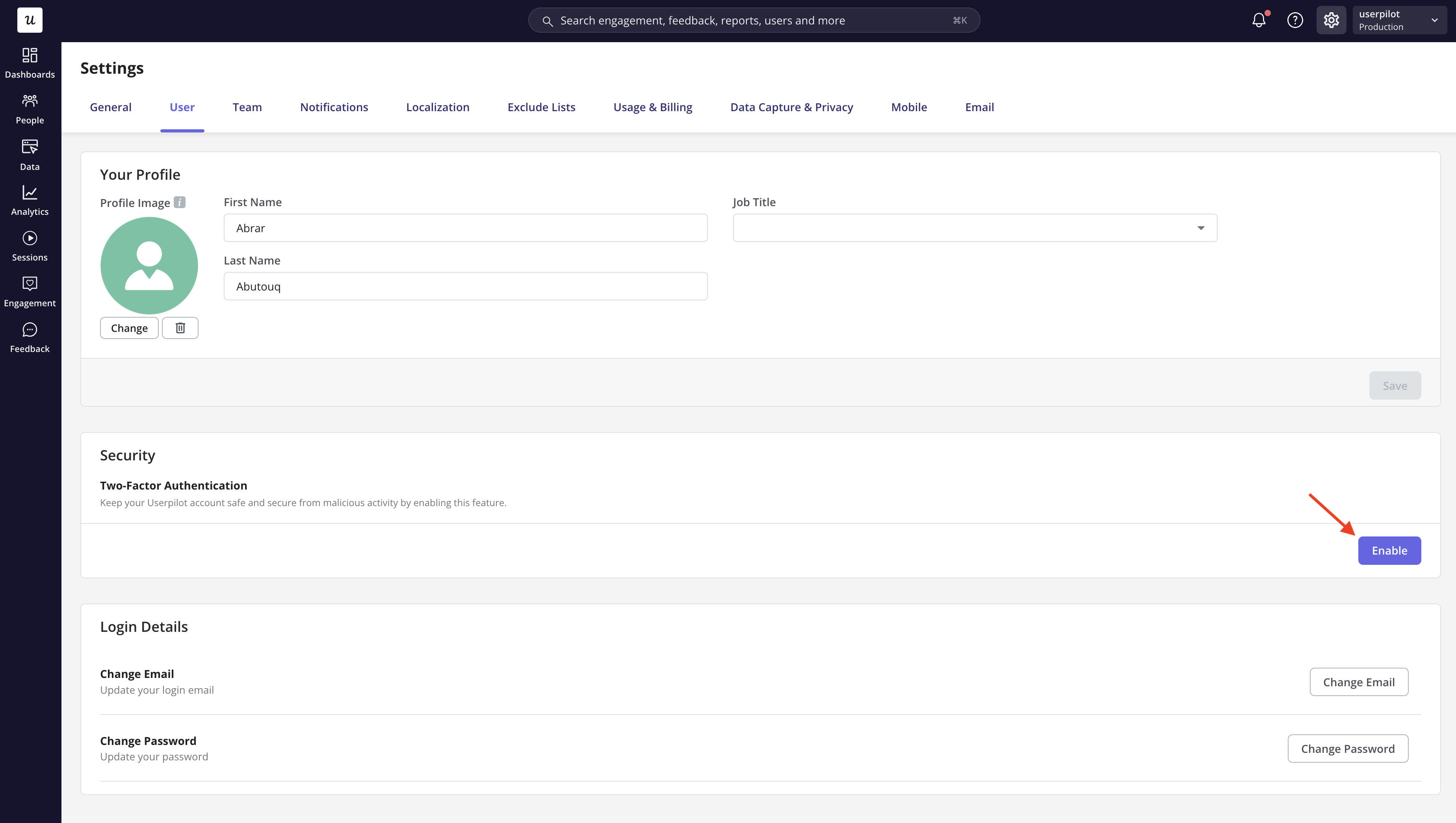
Team members can enable Two-Factor Authentication from Settings → User by scanning a QR code and activating 2FA on their account.However, if an admin has enforced mandatory 2FA for the entire workspace, users will not be able to disable it themselves. Only admins have permission to disable 2FA for a teammate.