Overview
Targeting Embeds gives you full control over where and when your content is shown. With flexible targeting options, you can display Cards and Banners based on environments, domains, pages, user segments, and more. This helps ensure your content feels relevant and timely, without overwhelming users.Use Cases
- Environment Testing: Display Embeds only in Staging to safely test before going live
- Domain-Specific Targeting: Show Embeds on specific subdomains for campaigns or promotions
- Page-Level Targeting: Trigger Embeds on selected pages, like your homepage or product areas
- Audience Segmentation: Target specific user groups, such as new users or those who completed certain actions
- Frequency Control: Control how often an Embed appears to avoid repetition and fatigue
Settings breakdown
Environment targeting
Choose between Staging or Production environments to control where your Embed appears. This is useful for testing changes before showing them to live users.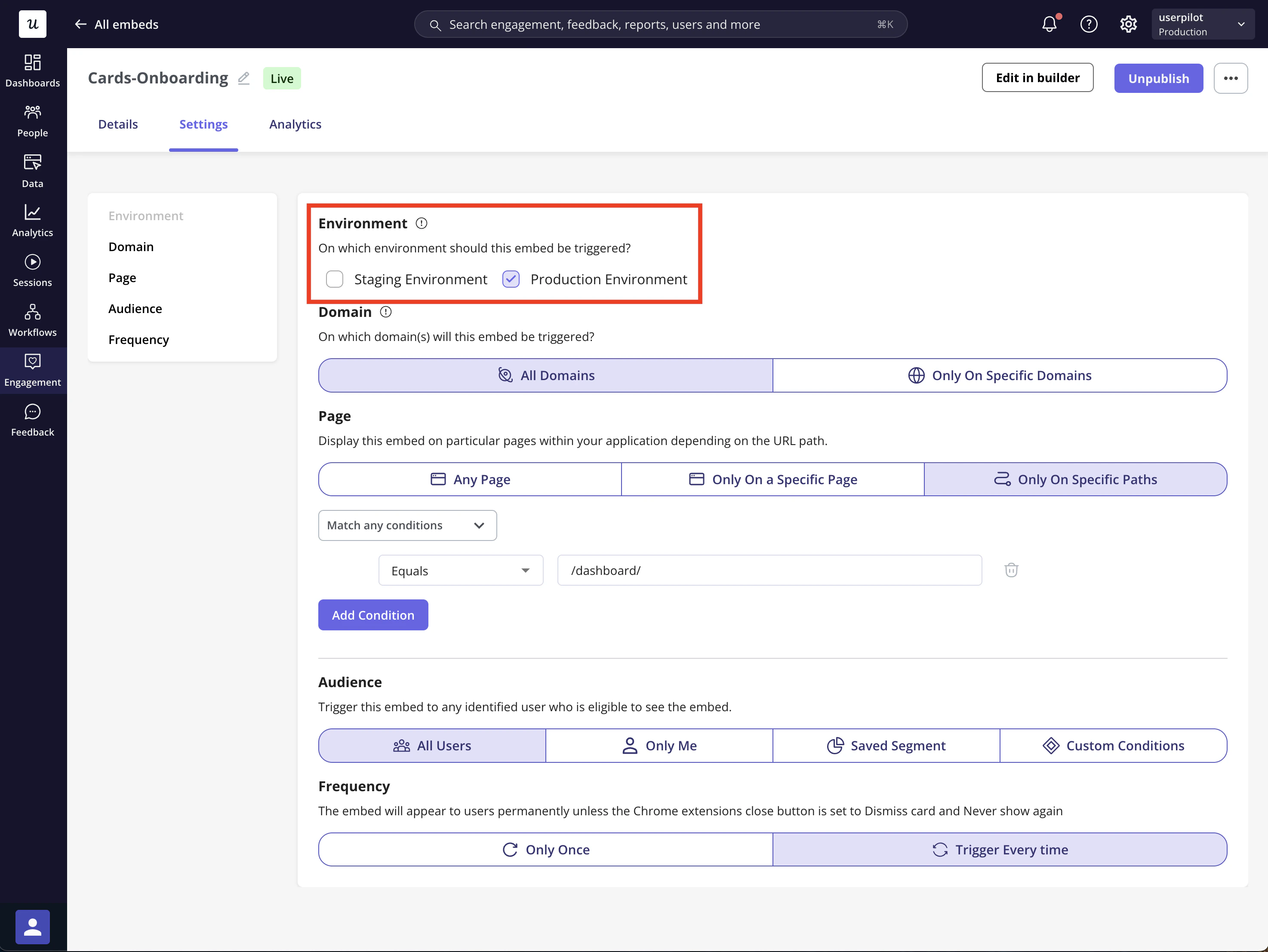
Domain Targeting
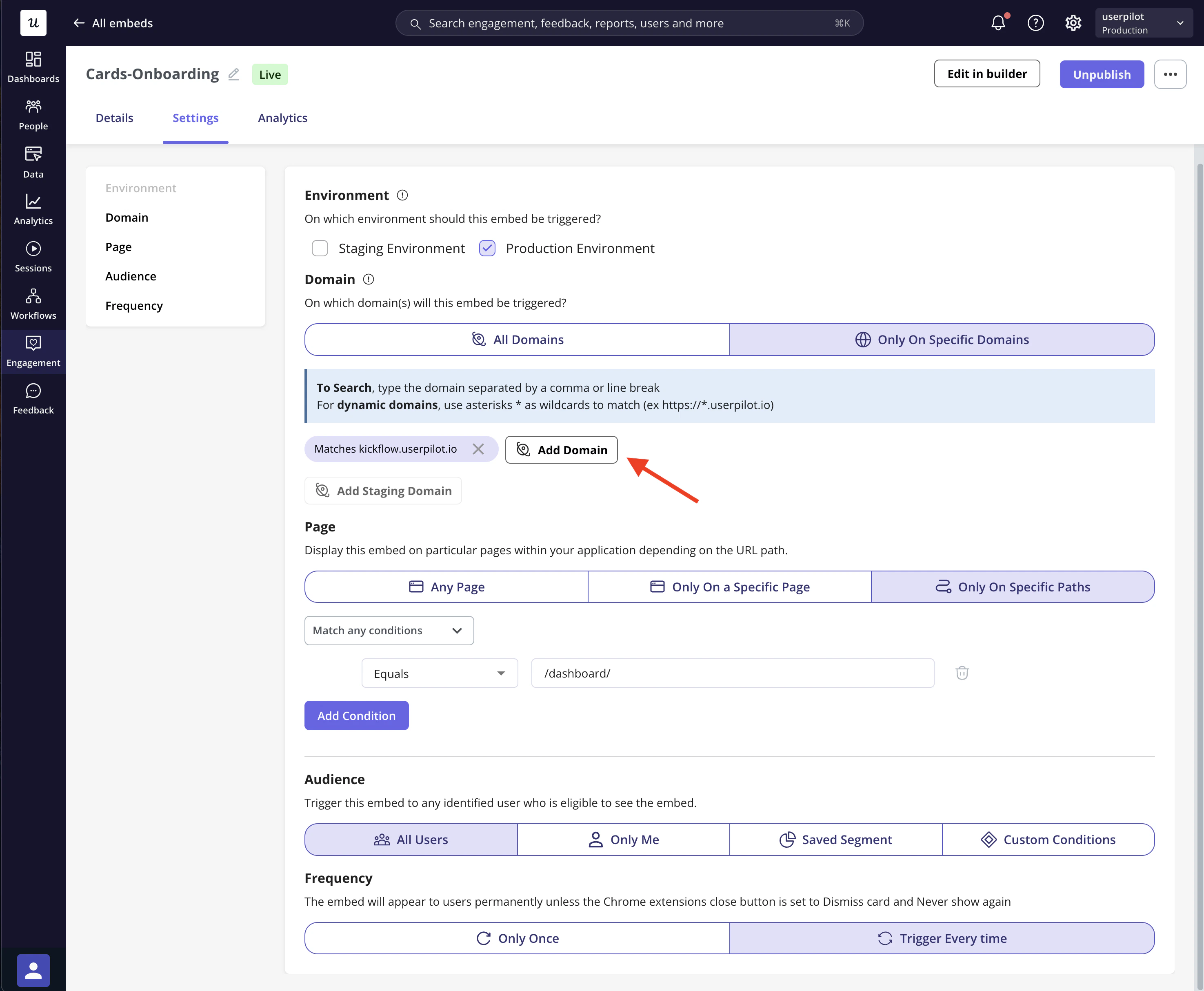
Control where your Embed (Card or Banner) appears based on the domain or subdomain.- All domains (default): The Embed appears across all domains where Userpilot is installed.
- Specific domain: Show the Embed only on selected domains or subdomains, useful for testing or targeting specific markets.
Page Targeting
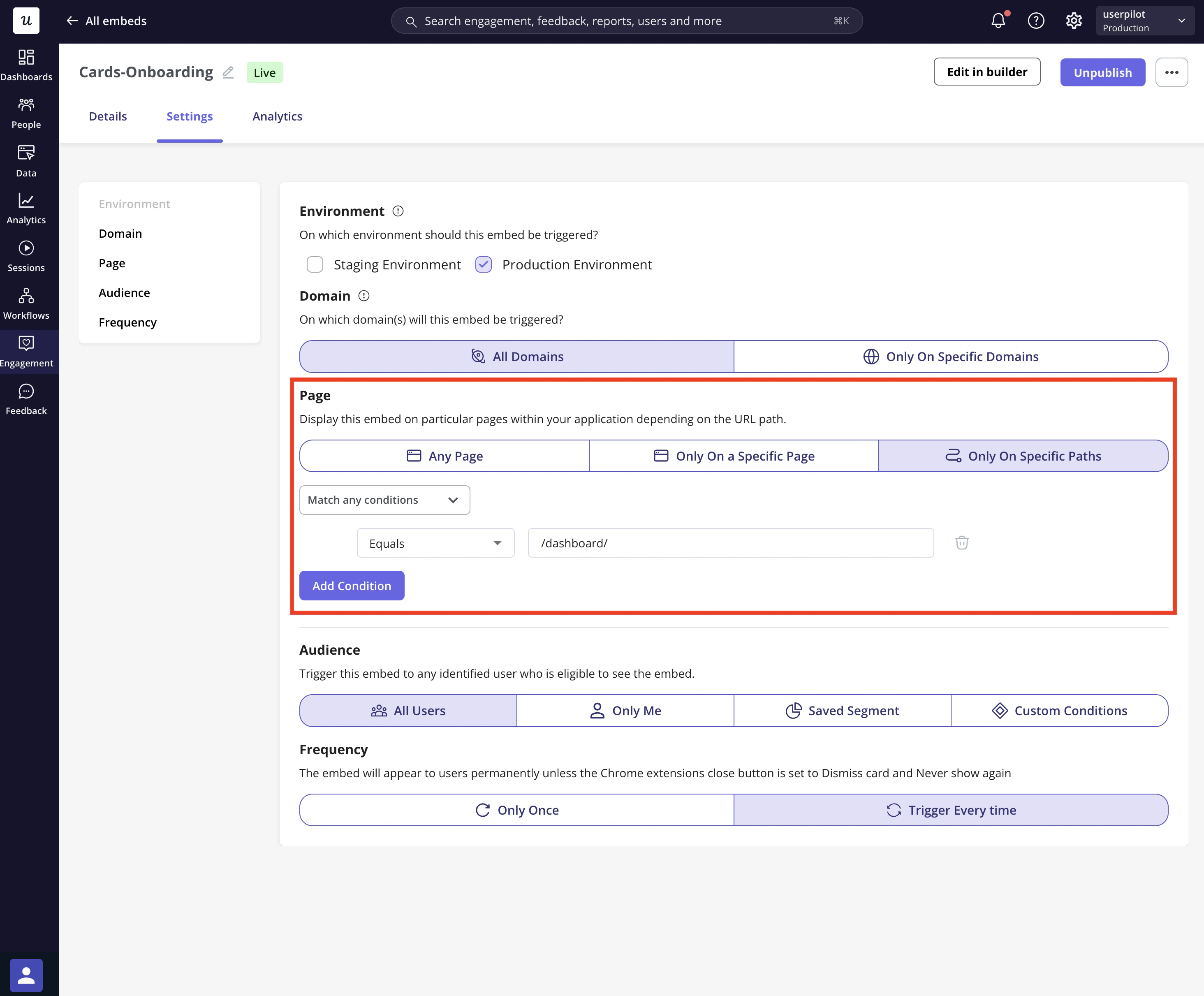
Control the appearance of your Embed on different pages within your application:- Any page (default): The Embed shows across all pages with the Userpilot snippet.
- Only on a Specific Page: Target a pre-defined page.
- Only on Specific Paths: Show the Embed only on specific URLs or paths. You can specify multiple URL conditions for precise targeting.
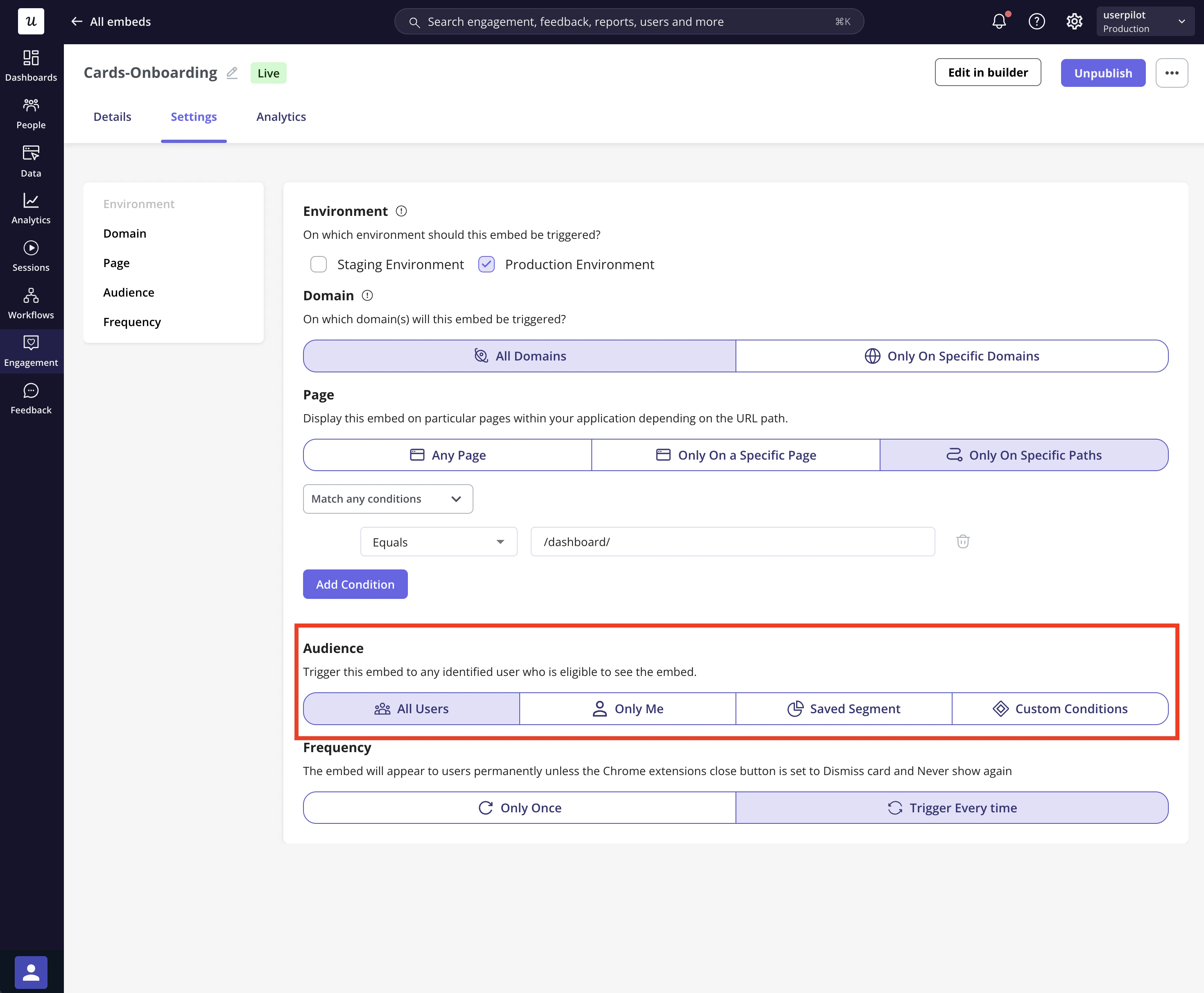
Audience Targeting
You can define the audience who will see the Embed, narrowing it down based on specific criteria:- All Users (default): Show the Embed to everyone who visits the targeted page(s).
- Only Me: Display the Embed only for you and teammates who have the Userpilot Chrome extension installed.
- Specific Segment: Target a pre-defined user segment.
- Users that match specific conditions: Use filters such as User Properties, Segments, Form Responses, or Tracked Events to reach specific user groups.
Frequency
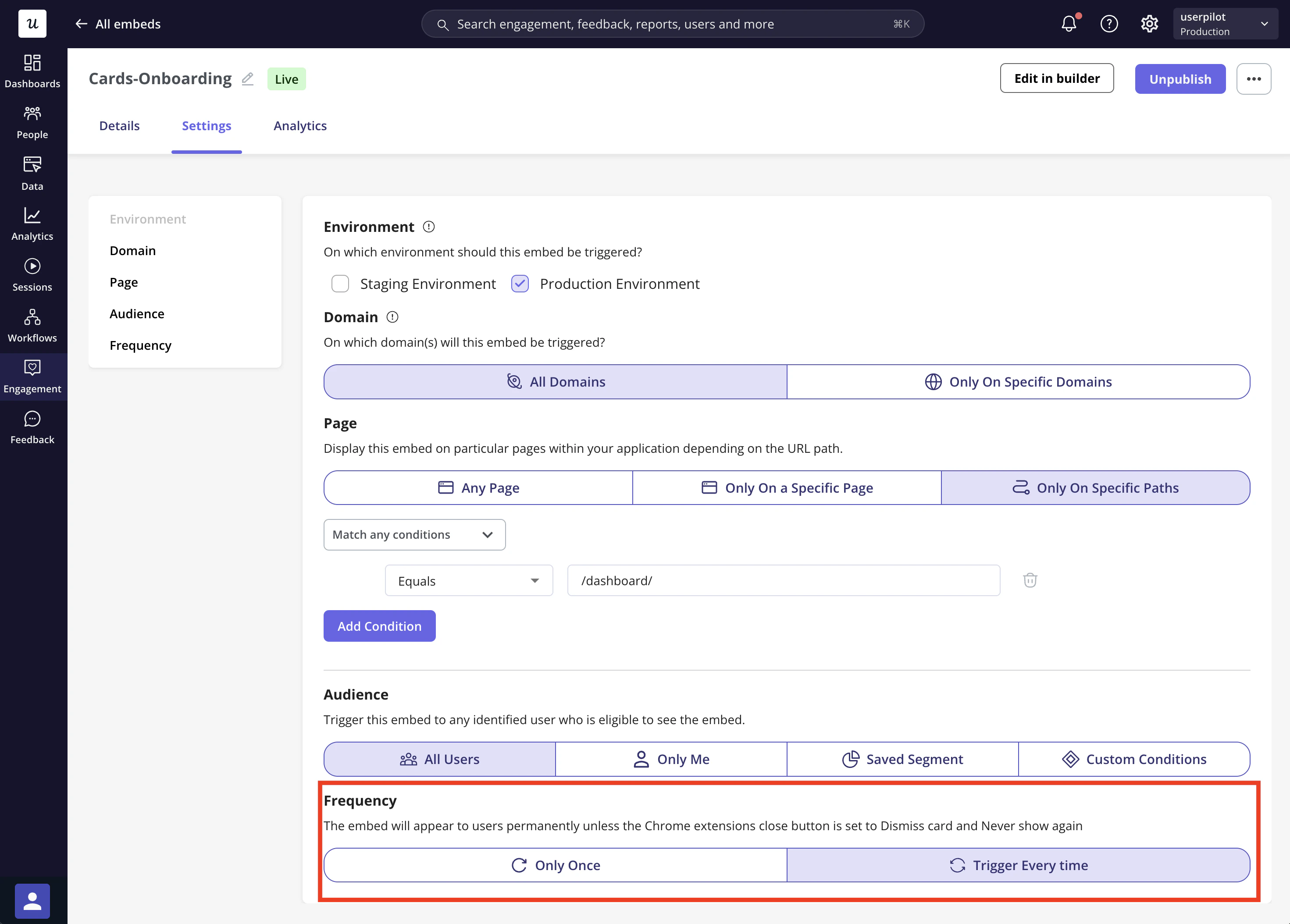
Control how often your Embed is shown:- Once: The Embed will appear only once and be dismissed after user interaction.
- Every time: The Embed will trigger every time the user visits the targeted page.