

Overview
With mobile event auto-capture, the Userpilot SDK listens for supported native interactions and records them automatically as raw events. These raw events can then be labeled in Userpilot to turn them into named, trackable events, ready to use in analytics, reports, segments, and mobile experiences. This differs from manual event tracking, where developers write a tracking call for each individual event. Auto-capture removes that overhead for common interactions, while labeling gives your team control over which raw events matter and what they should be called. Auto-capture is enabled at the SDK level using two flags:Use cases
- Understand how users interact with key mobile screens: see which elements users tap, change, or engage with, without pre-defining every event
- Build reports based on common mobile interactions: use auto-captured events as the basis for funnel, trend, or engagement reports
- Create segments based on mobile behavior: group users by the interactions they’ve completed, such as tapping a specific button or reaching a particular screen
- Reduce the need for manual event instrumentation: cover a broad set of interactions automatically, so engineering effort can focus on more complex or custom tracking needs
- Identify drop-offs or friction points in mobile journeys: spot where users stop interacting or abandon a flow by reviewing which events fire and which don’t
How mobile event auto-capture works
After installing and configuring the Userpilot mobile SDK, auto-capture begins collecting raw interaction data in the background. Here’s the general flow:- Install or update the Userpilot mobile SDK and enable auto-capture using the SDK flags above
- Userpilot starts collecting raw events - supported interactions across your app are captured automatically
- Raw events appear in Userpilot - navigate to Data → Explore raw events to review what has been captured
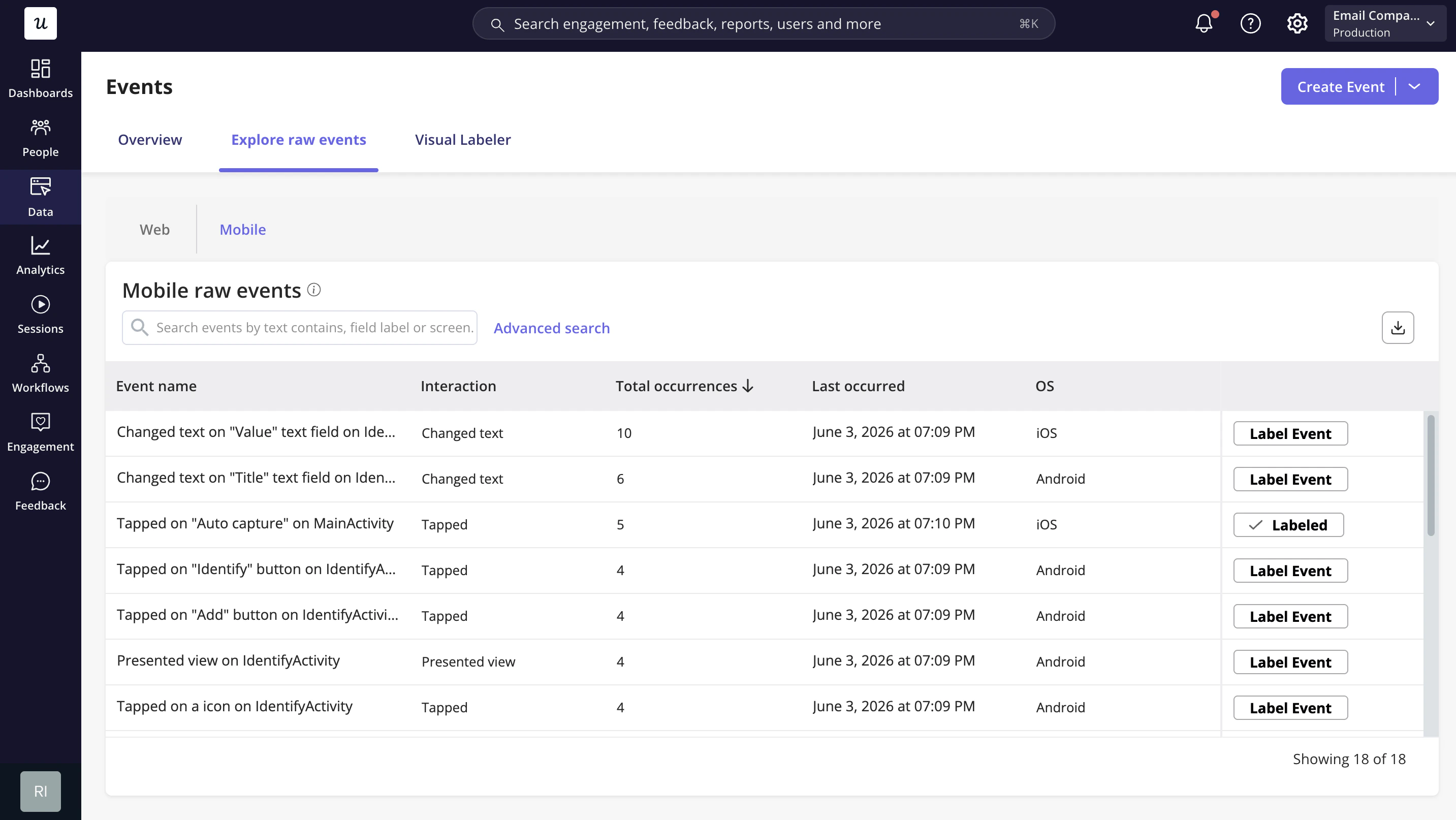
- Label raw events
screen_name equals "Cart").
Event properties: the element’s fingerprint. These identify the specific element and determine whether an interaction matches this event. The available properties differ between iOS and Android, but the strongest identifiers are available on both:
- Hierarchy - the element’s structural position on screen; reliable on its own
- Target class - the element’s native UI class or type
- Element ID - Accessibility identifier (iOS) or Full resource ID (Android); the most precise match when present
- Accessibility label - the element’s accessibility text
You don’t need to enable all properties. Hierarchy, Target class, and the platform’s ID, when available, are usually enough to identify the element. Additional properties are available under Advanced filters and should only be added when you need to disambiguate further, such as for list rows or two controls that differ only by label. Enabling too many properties makes the event too strict and can cause valid interactions to be missed. At least one property is required.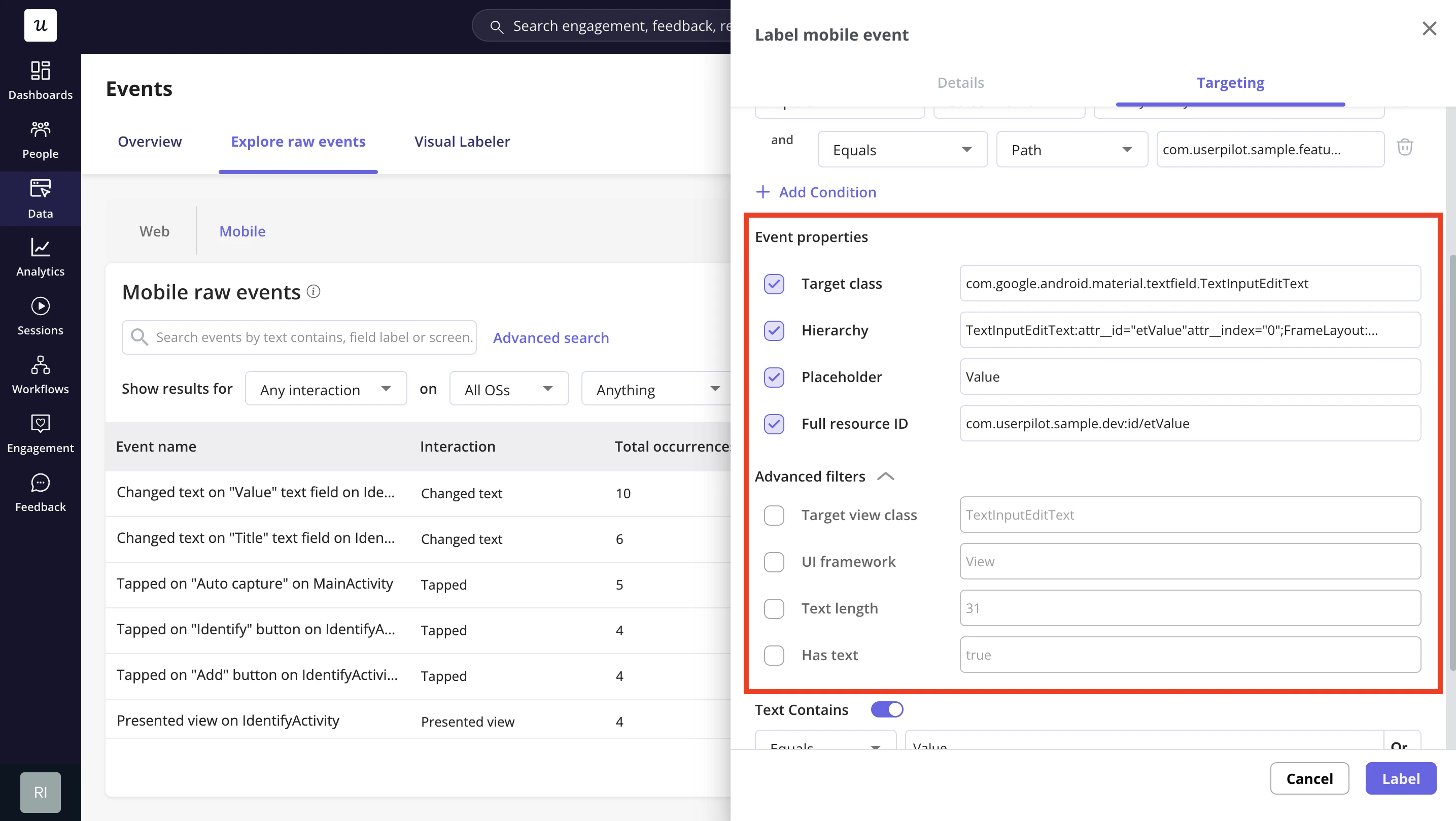
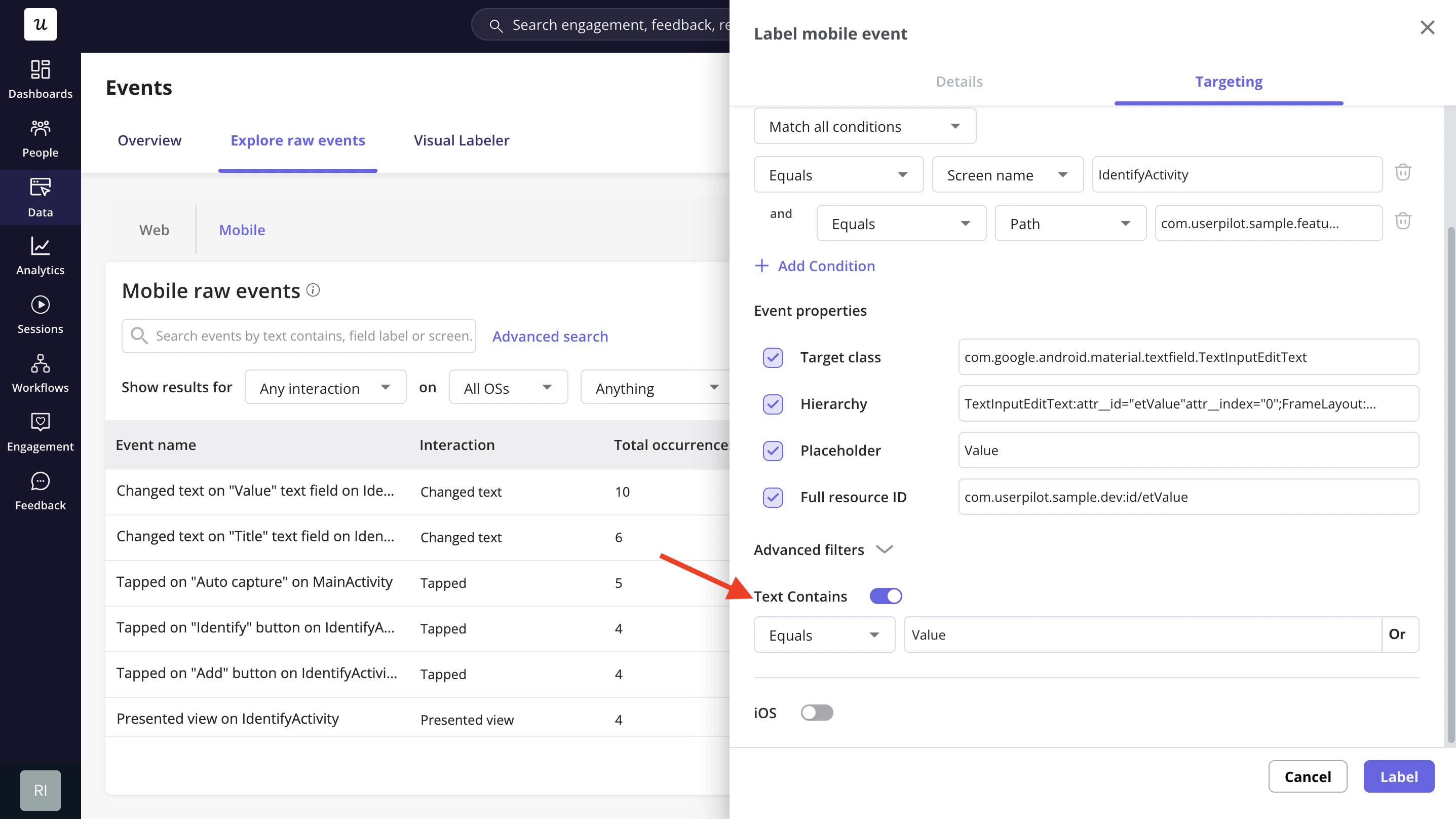
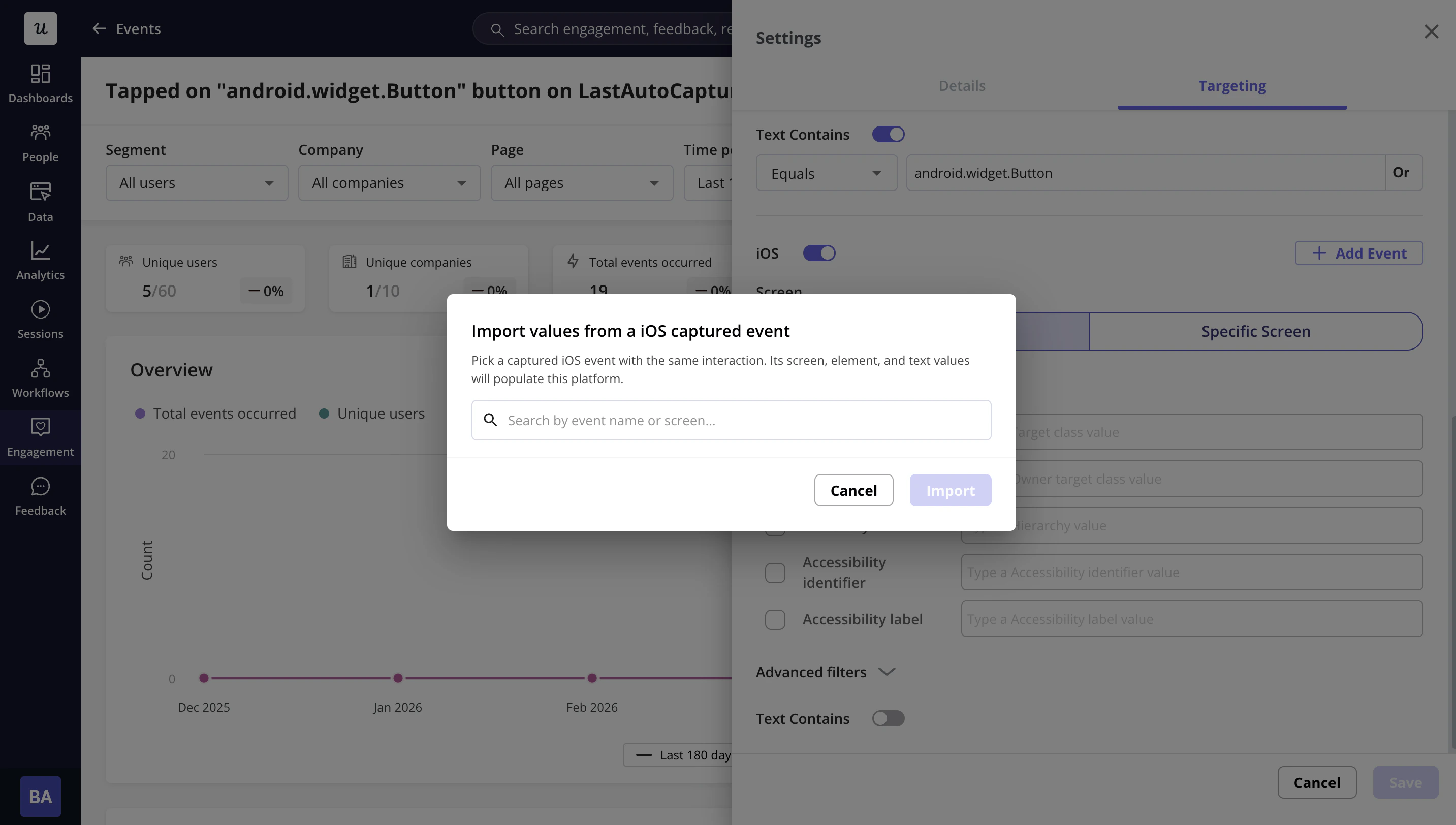
Importing from raw events
You can label the event for Android, iOS, or both by enabling each OS toggle. To make this easier, Userpilot offers an option to view captured events from the other OS that match the selected attribute from the original event. You can then select the matching event and import its values to track the same interaction across Android and iOS as one labeled event.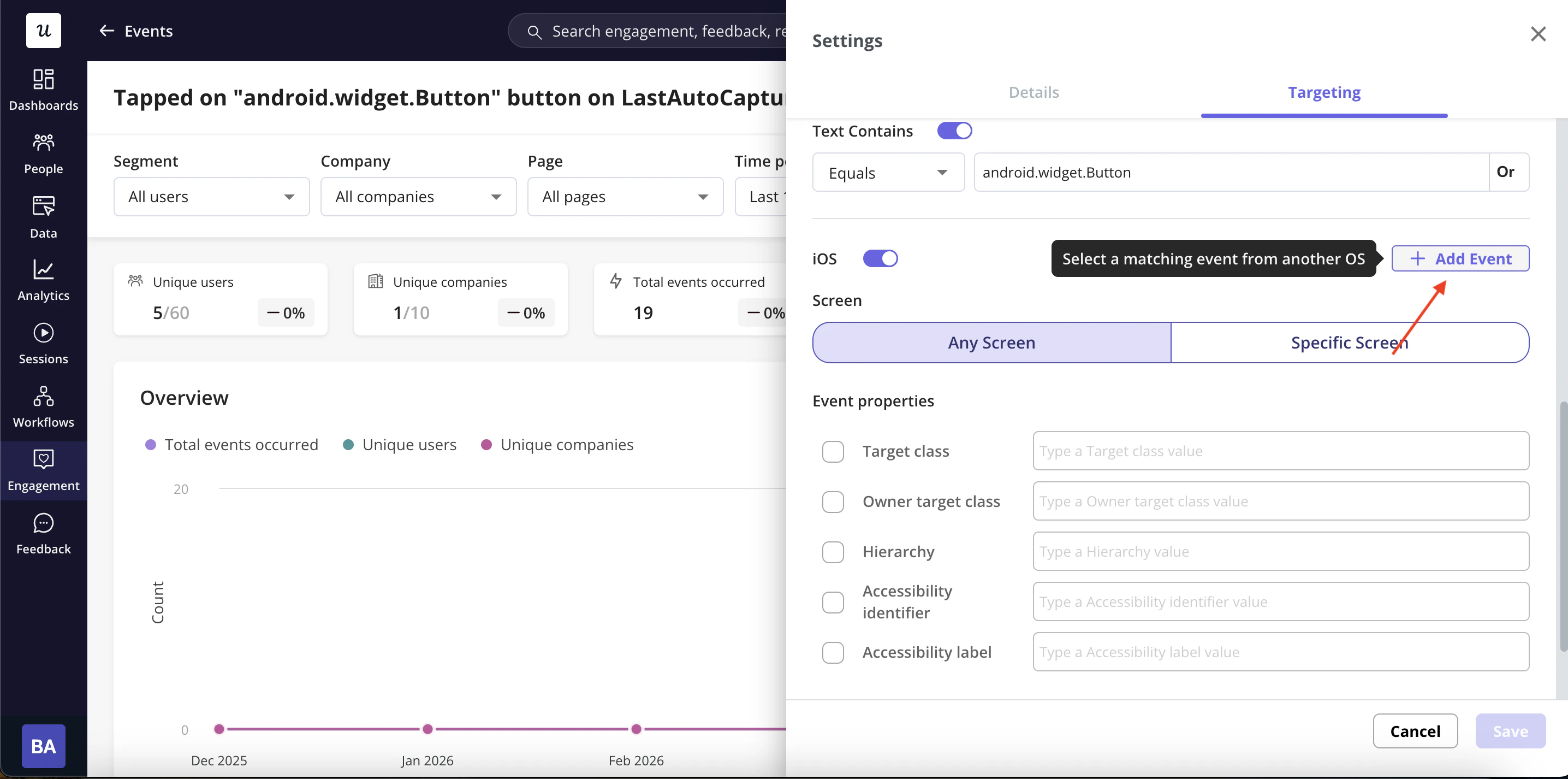
Supported interaction types
The following interaction types are captured automatically when auto-capture is enabled: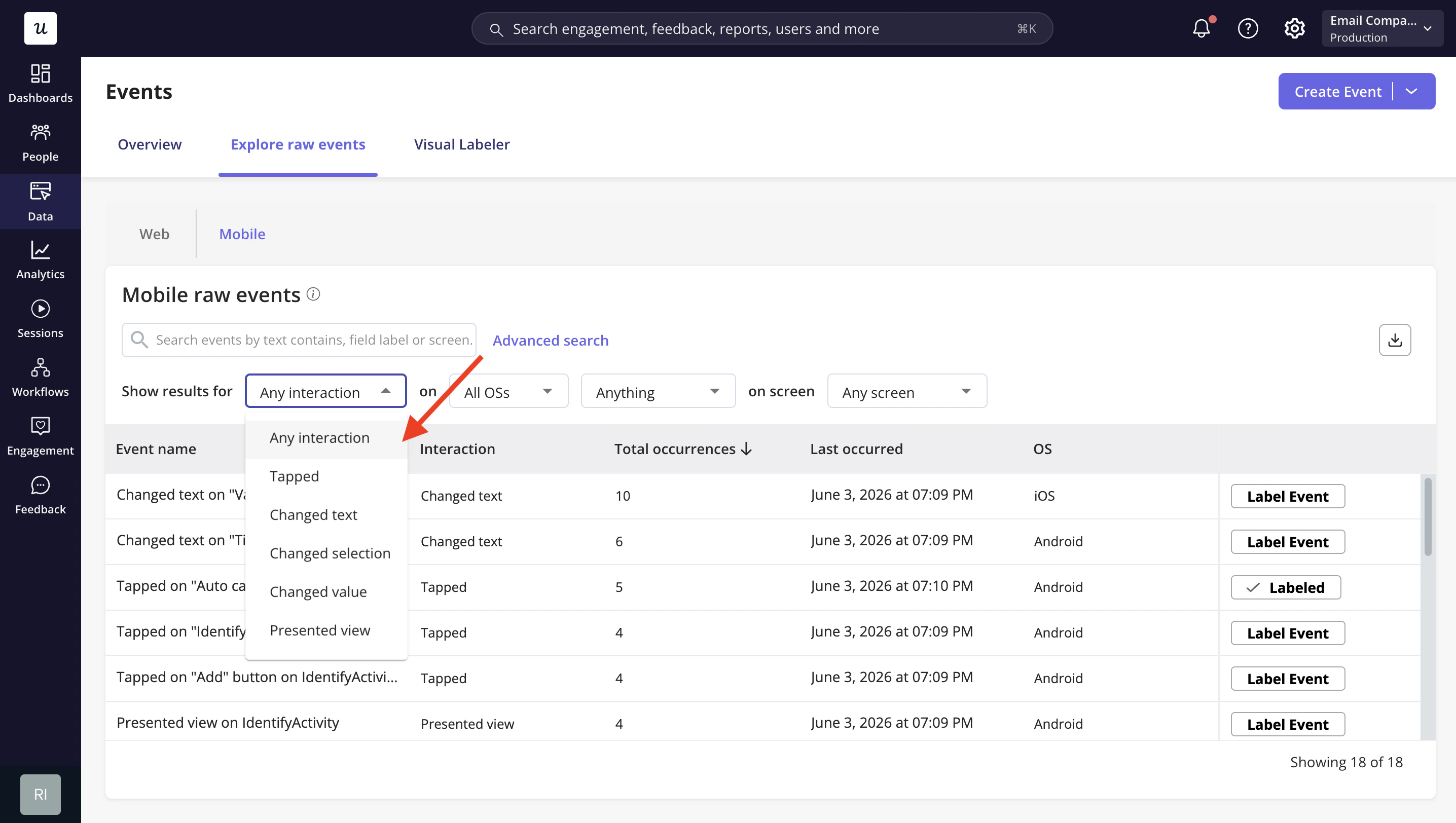
Viewing and using auto-captured events
- Once events are labeled, they are available across Userpilot for analysis and targeting. You can use labeled mobile events in:
- Reports - build funnels, trends, or engagement reports based on specific mobile interactions
- Segments - group users by whether they have or haven’t completed a particular interaction
- Mobile experiences - trigger in-app experiences when a user performs a specific action, such as tapping a button or reaching a particular screen
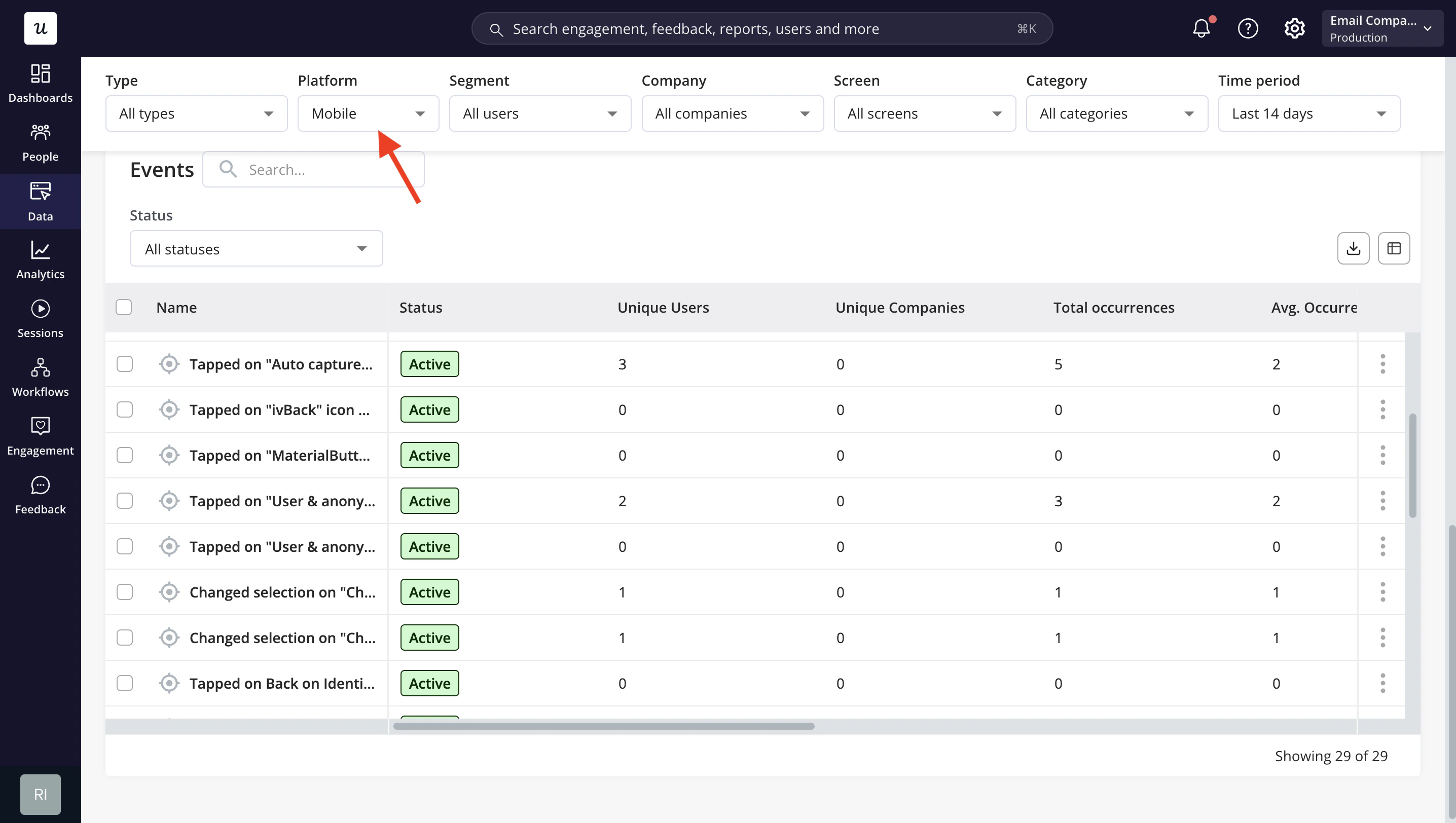
The availability of auto-captured events in reports, segments, and experiences may depend on the mobile SDK version and platform support. Check with your engineering team to confirm your current setup.
Developer setup guides
Developer setup guides
Use the technical setup guides below to enable Mobile Event Auto-Capture in your app: