

You need the Create and update Product Health Score permission to edit the setup. Account Owners, Admins, and Publishers have it by default.
Before you start
- Define your weekend days if you plan to measure stickiness with DAU/WAU. Excluding days when users aren’t expected to use your product prevents weekends from lowering their stickiness scores. Go to Settings → General → Product details → Weekends and select any combination of Friday, Saturday, and Sunday. Saturday and Sunday are selected by default. This setting only affects the Stickiness metric in Product Health Score.
- Create the segments you want to score differently, if any. Use user segments for a user-level score and company segments for a company-level score.
- Decide which events represent core feature usage for the Feature engagement metric. You can use tracked, labeled, and custom events.
Set up the score
1
Open the setup
Go to Data → Product Health Score. The first time you open it, the Product health score setup screen appears. Later, click Edit Setup on the dashboard to reopen it.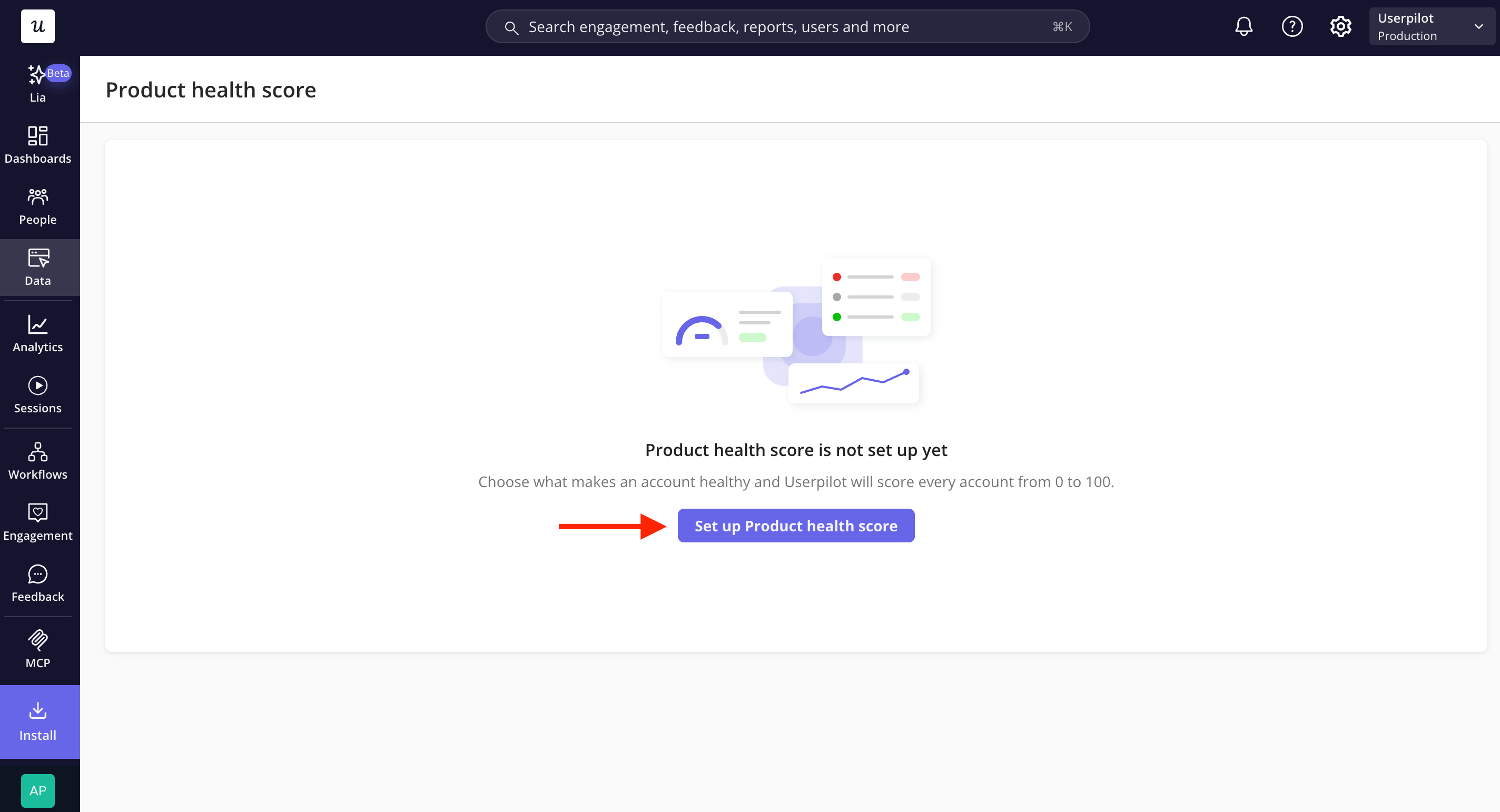
You can set up your Product Health Score manually or let Lia configure and calculate it for you. Lia will ask which events to use for Feature Engagement and which segment to include, then complete the configuration.
2
Choose the calculation level
Under Calculation level, select Company level or User level. This applies to every segment and every calculation.At company level, only users who belong to a company are included. Users without a company are excluded.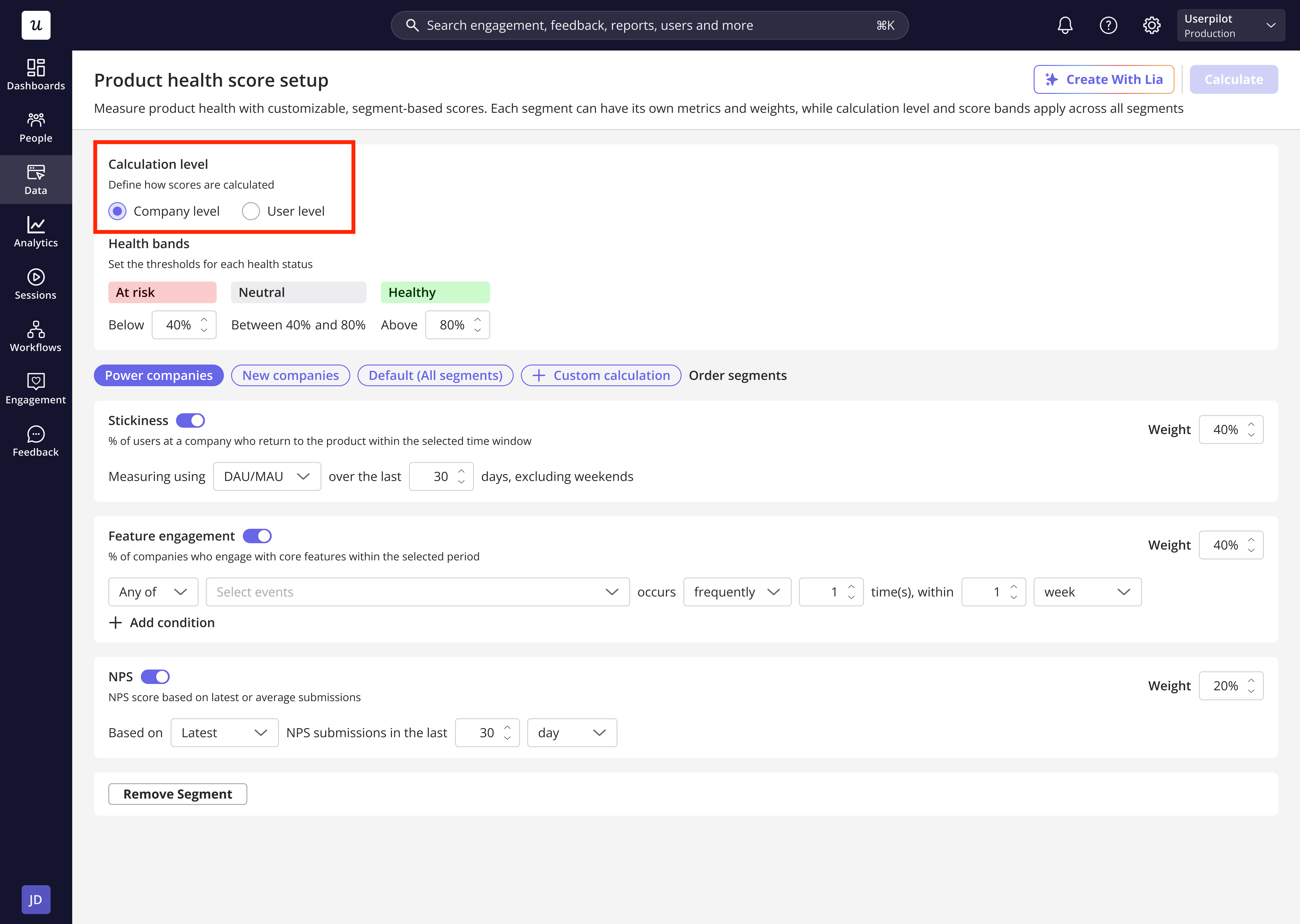
3
Set the health bands
Under Health bands, set the upper bound for At risk and the lower bound for Healthy. The Neutral band fills the range in between.The defaults are below 40% for At risk and above 80% for Healthy. For example, if you set At risk to 30 and Healthy to 70, scores below 30 are At risk, scores between 30 and 70 are Neutral, and scores above 70 are Healthy.The At risk threshold must be lower than the Healthy threshold. If it isn’t, you’ll see an error and can’t calculate the score.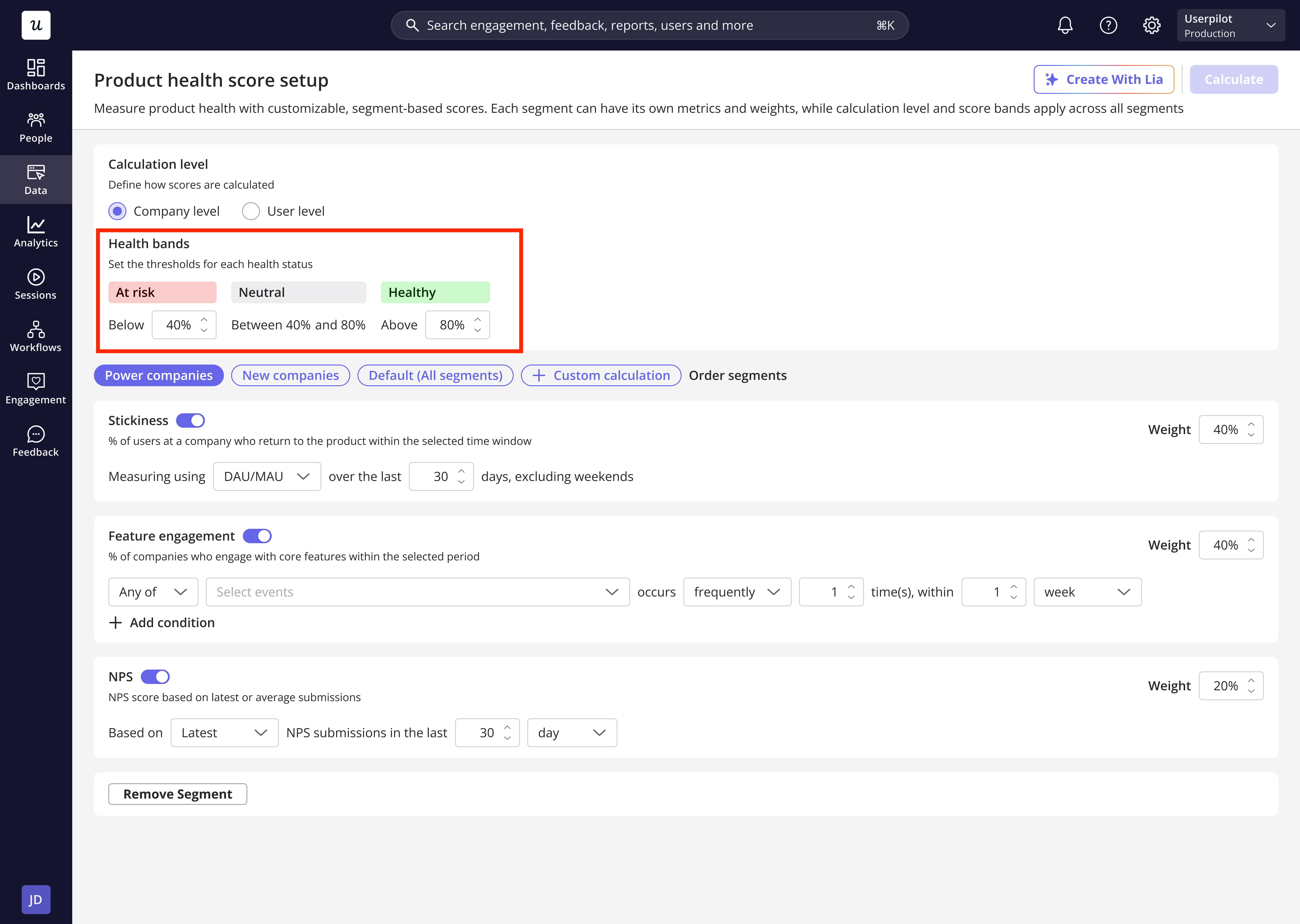
4
Configure the metrics for the default segment
The Default (All segments) configuration applies to every user or company that doesn’t match another segment. All three metrics are on by default with recommended weights. Turn a metric off with the toggle next to its name. At least one metric must stay on.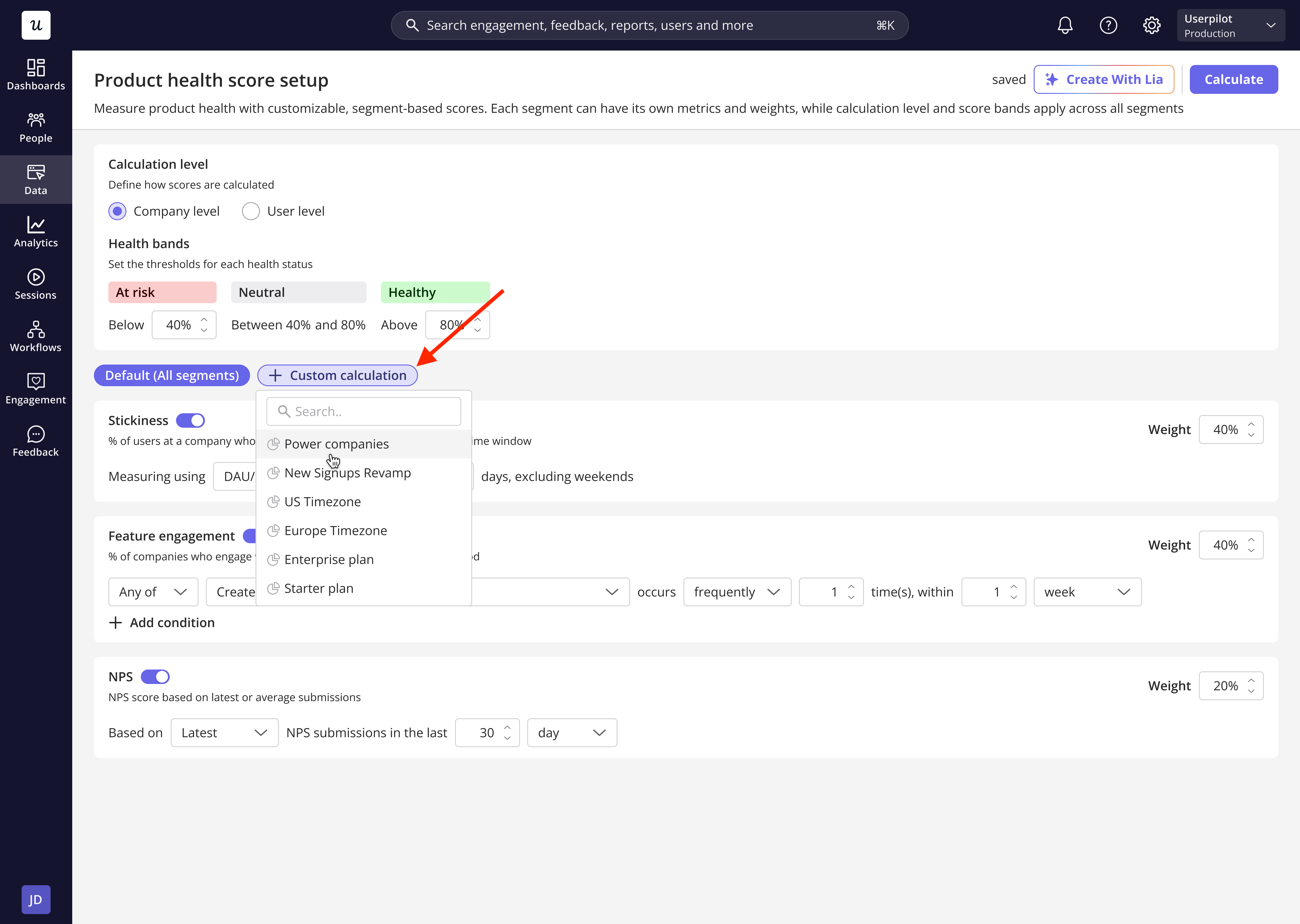
5
Set the weights
Enter a Weight for each enabled metric. The weights of the enabled metrics must add up to 100%.
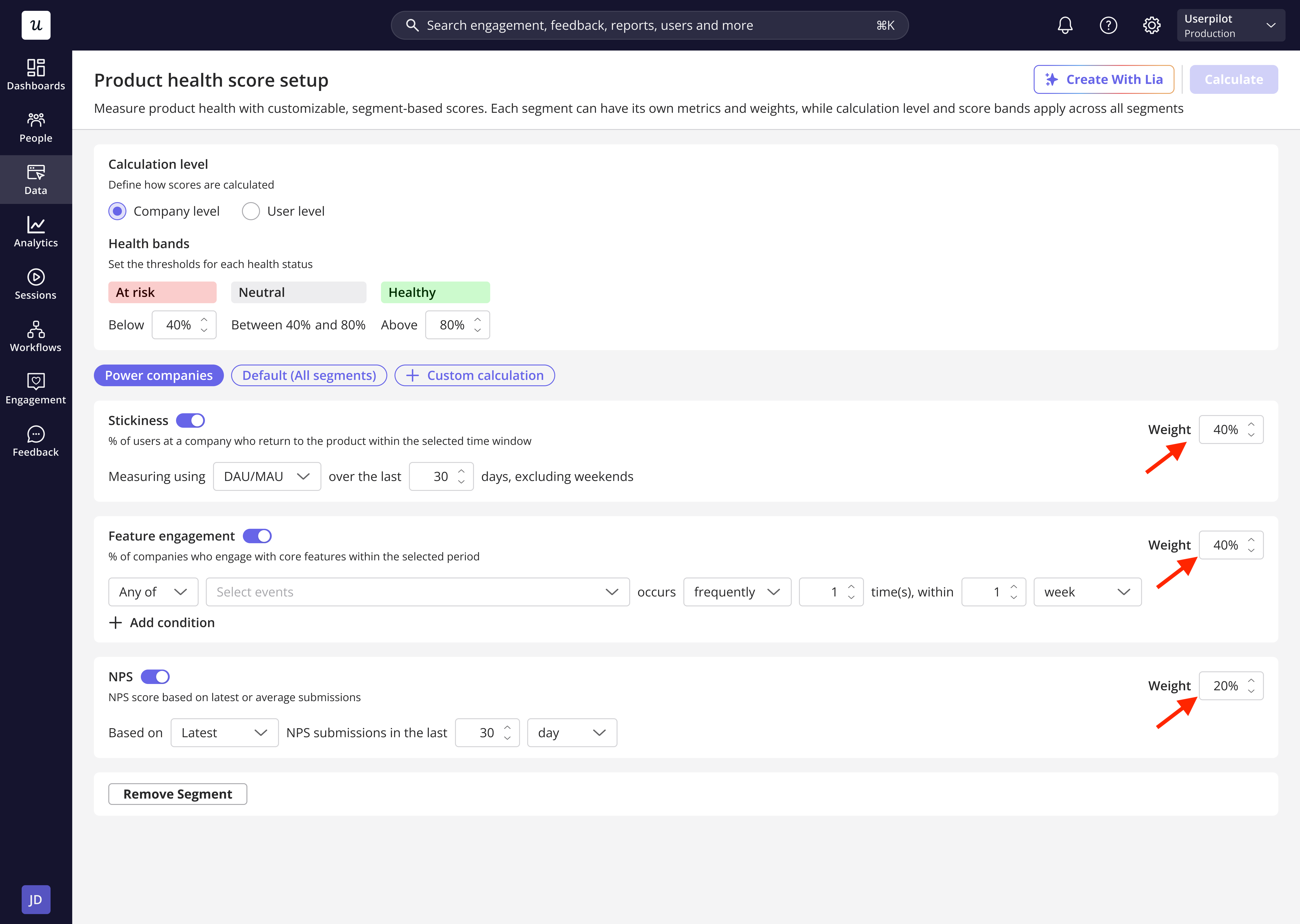
| Metric | Company level default | User level default |
|---|---|---|
| Stickiness | 40% | 50% |
| Feature engagement | 40% | 40% |
| NPS | 20% | 10% |
6
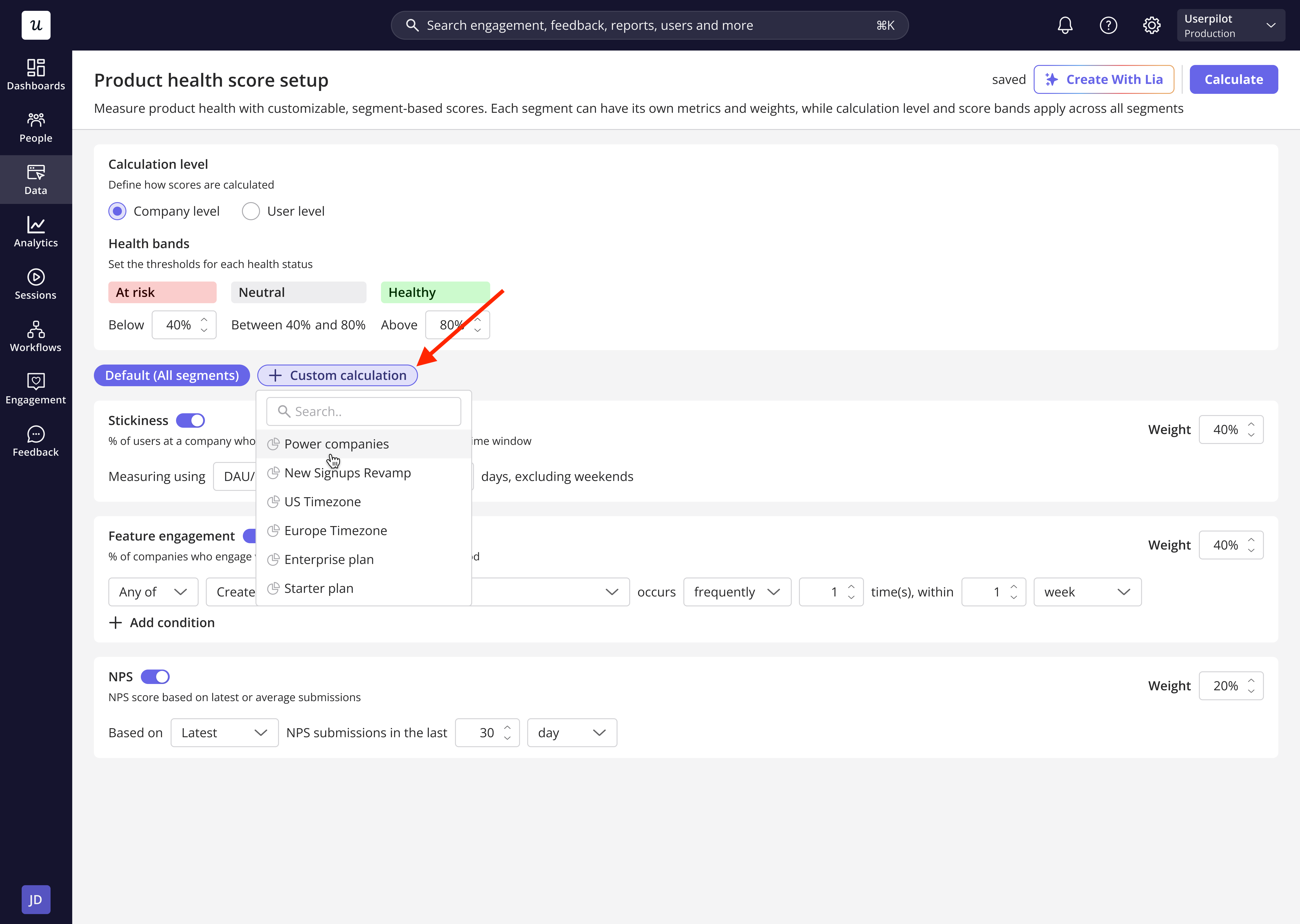
Add segment-specific configurations (optional)
Click Custom calculation and select a segment. Configure its metrics and weights the same way as the default. See Score segments differently.
7
Calculate
Your changes save automatically while you work. When you’re ready, click Calculate. Userpilot starts calculating scores, and the results appear on the Product Health Score dashboard.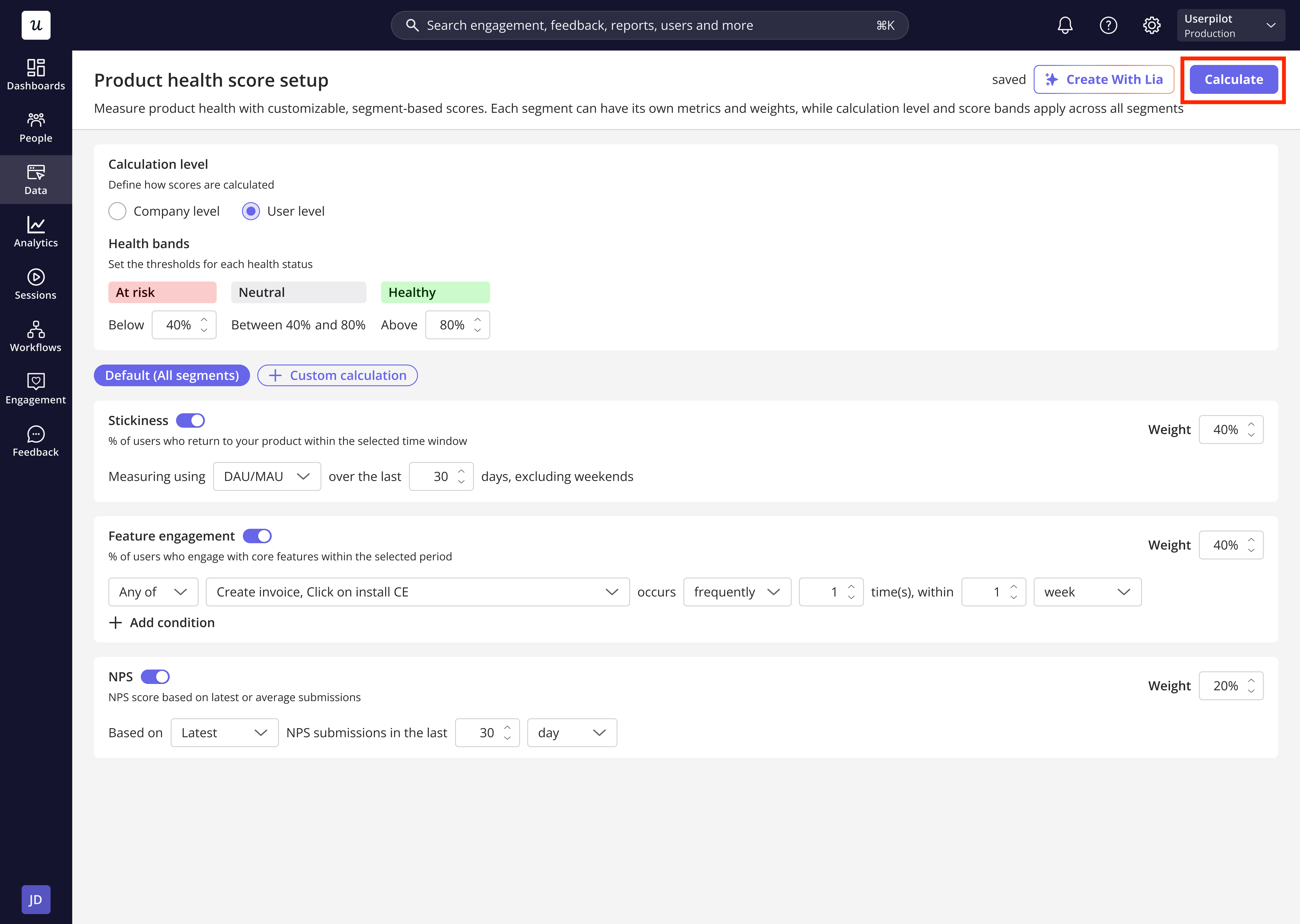
Configure each metric
Stickiness
Stickiness measures the share of users who return to your product within the selected time window.- Under Measuring using, select the ratio: DAU/WAU or WAU/MAU.
- Under over the last, enter the time window in days. The default is DAU/WAU over the last 30 days.
- If you selected DAU/WAU, the weekend days defined in Settings are excluded automatically. Saturday and Sunday are selected by default. To review or update these days, click the Weekends link.
A user counts as active on a day when they trigger any of these events:
identify_user, page_view, track, track_feature, track_labeled, interaction, or screen. Only web and mobile sessions count. Data sent through the HTTP API doesn’t count as an active day.Feature engagement
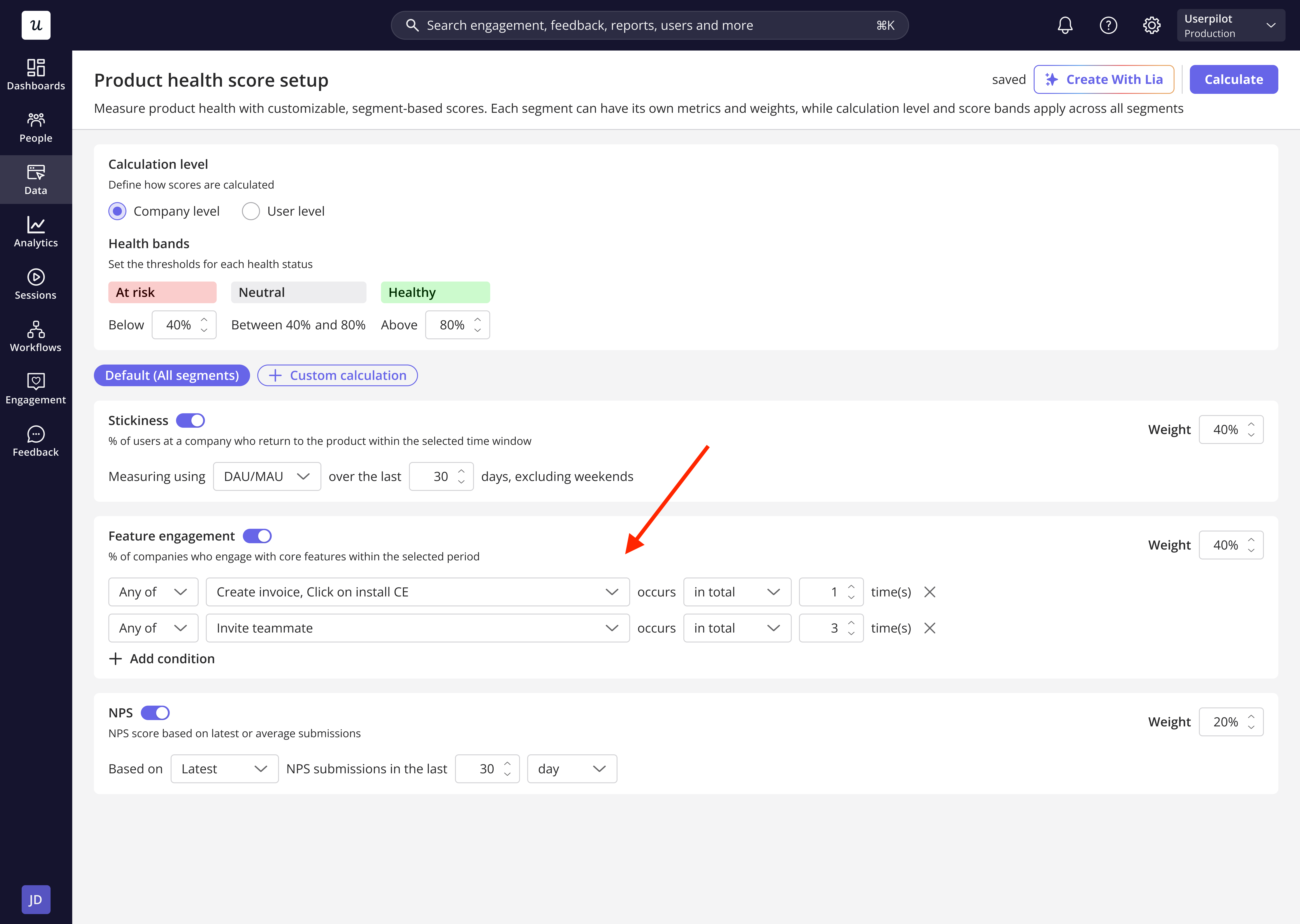
Feature engagement measures whether users or companies use the features you consider core to your product. There’s no default for this metric: you must select at least one event.- Choose Any of or All of
- Under Select events, choose one or more events. Tracked, labeled, and custom events are supported
- Set how often the events must occur and the time window, for example 2 time(s), within 1 week
- Click Add condition to add more conditions. Each condition can have its own events, frequency, and time window, in weeks or months
- Create invoice occurs at least 2 times within 1 week
- Send email occurs at least 1 time within 1 month
- Create workflow occurs at least 2 times within 1 month
NPS
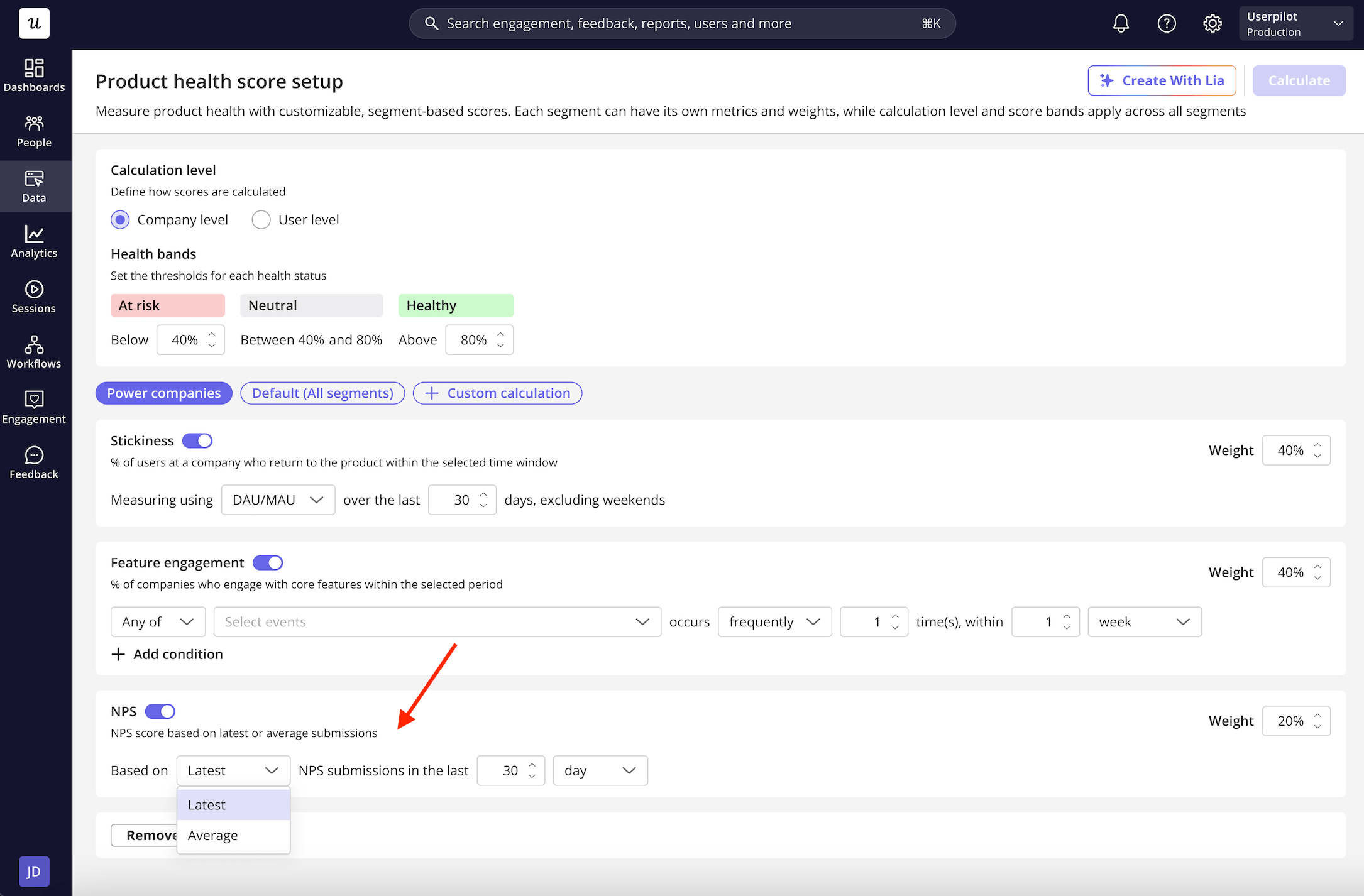
NPS uses your users’ NPS submissions to reflect sentiment.- Under Based on, choose which submissions to use. The default is the latest submission per user
- Under NPS submissions in the last, set the time window. The default is 30 days
If there are no NPS responses in the selected period, or users dismissed the NPS survey, NPS is excluded from the score and its weight is redistributed across the other enabled metrics.
Score segments differently
Segment-specific configurations let you measure health in a way that fits each customer group. For example, you might score New companies mostly on feature engagement and Enterprise companies on stickiness and NPS.- You can add up to 5 segments in addition to Default (All segments), for a total of 6. When you reach the limit, Custom calculation is disabled
- Each segment has its own metrics, weights, and metric settings. The calculation level and health bands are shared
- The segment list matches your calculation level: user segments for a user-level score, company segments for a company-level score
Set the segment priority
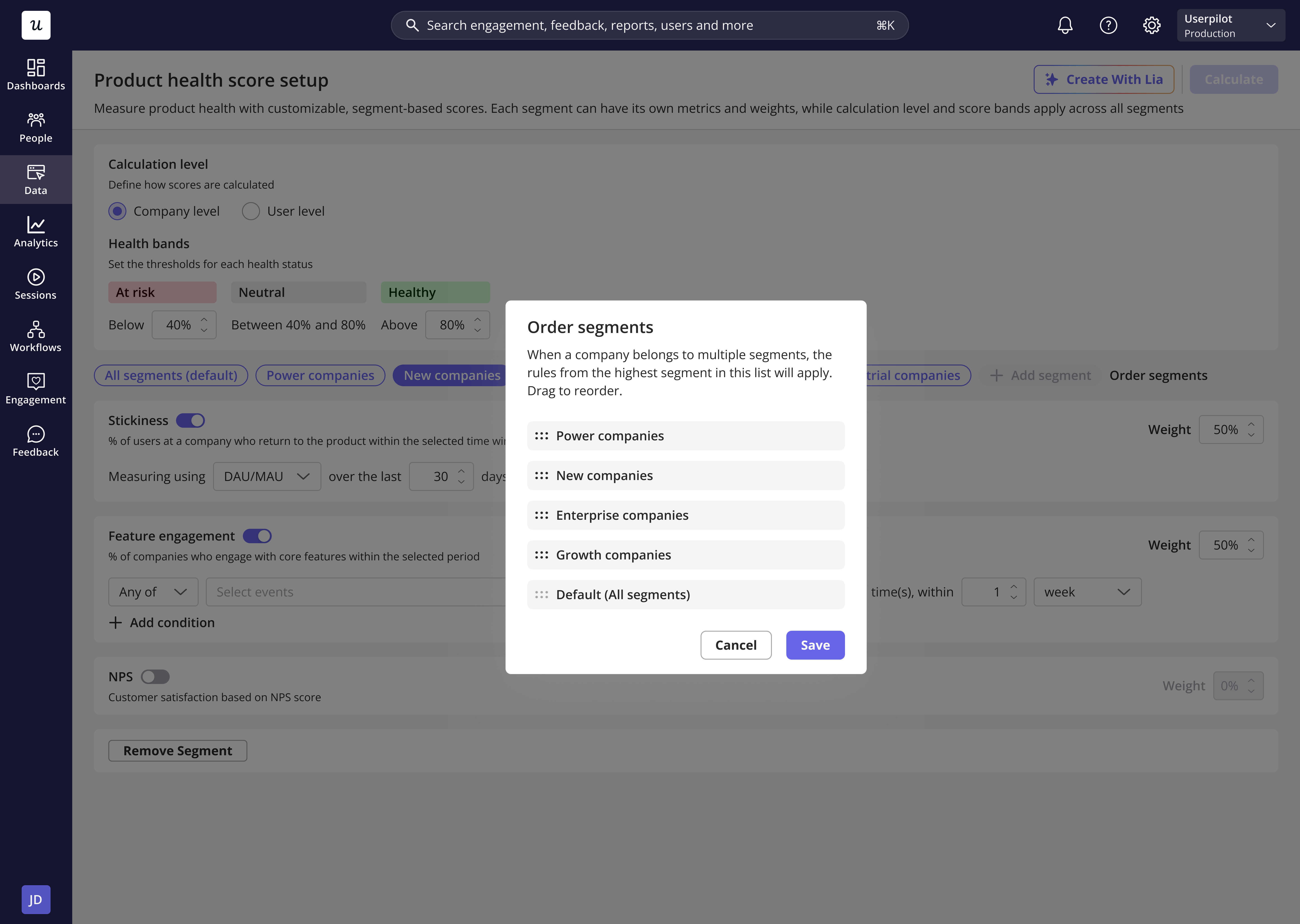
A user or company can belong to more than one segment, but it’s scored by only one configuration.- Click Order segments
- Drag the segments into the order you want. Segments are evaluated from top to bottom
Remove a segment
Open the segment and click Remove Segment, then confirm. The segment’s rules are permanently removed. Users or companies that matched it are re-evaluated and scored by the next matching segment, or by the default configuration.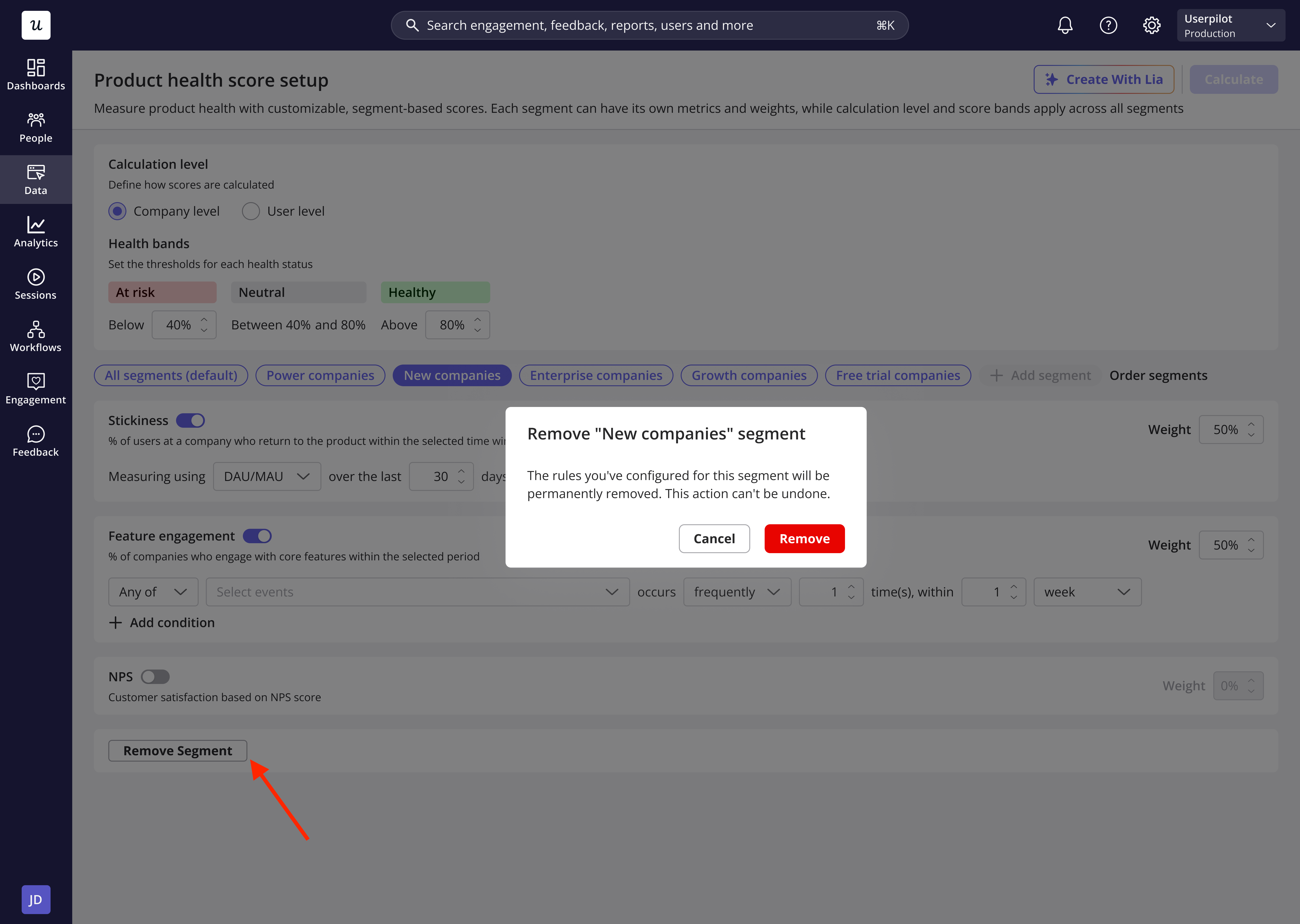
Edit or pause the score
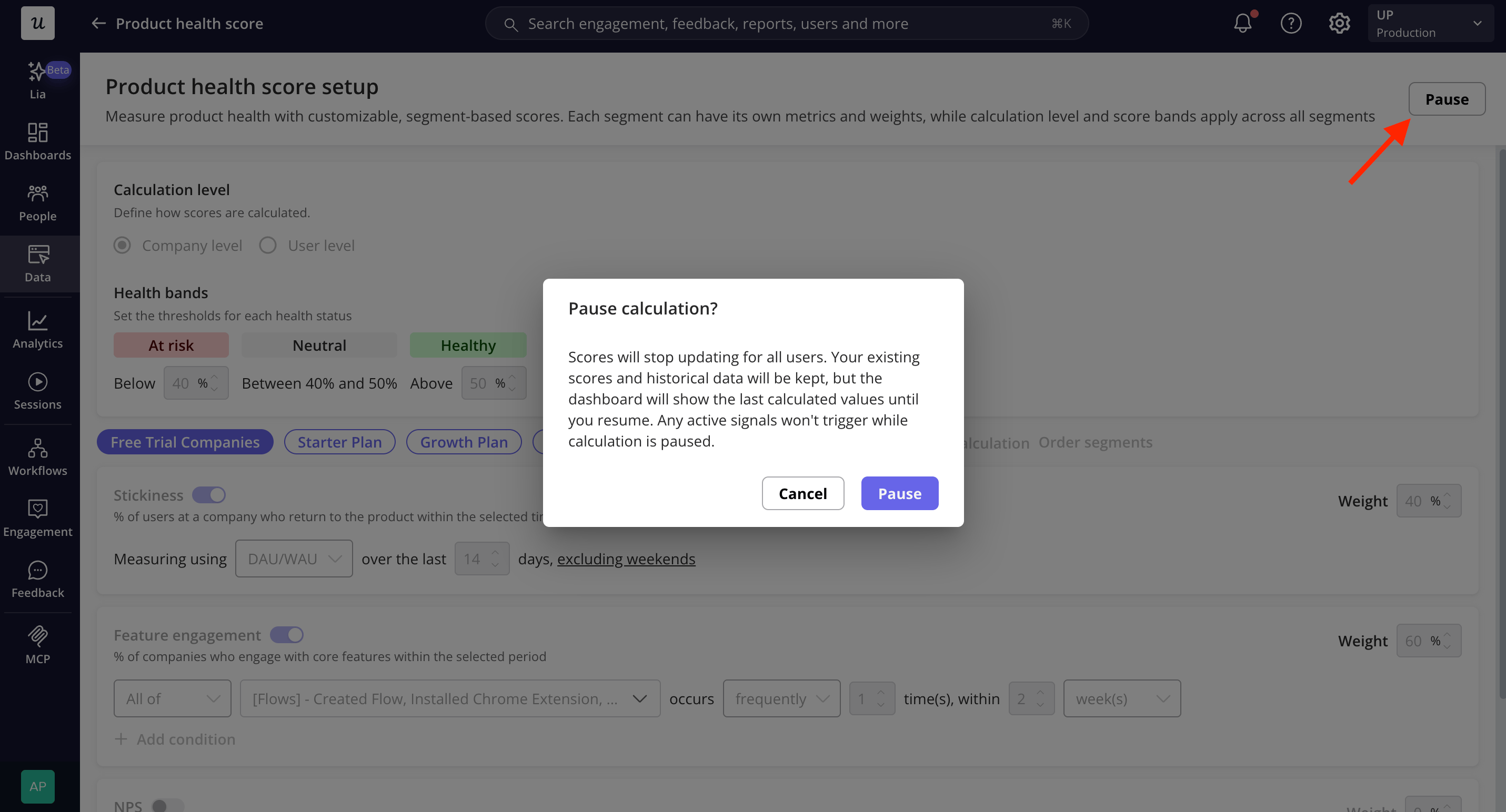
To change the setup after the score is live, click Edit Setup on the dashboard. Click Pause to stop recalculating scores while you test or adjust the setup. Before pausing, Userpilot asks you to confirm. While the calculation is paused:- Scores stop updating for all users and companies
- Existing scores and historical data are kept, and the dashboard shows the last calculated values
- Segments, flows, reports, and integrations keep using the last calculated score.
- Signals don’t trigger
Validation messages
You can’t calculate the score until these issues are fixed. Hover over the disabled button to see the reason.Best practices
- Start with the recommended weights, then adjust once you’ve compared scores with accounts you know well
- Choose feature engagement events that reflect real value, such as creating an invoice or publishing a workflow, not page views
- Keep segment configurations few and meaningful. Most teams need a default plus two or three segments
- Put your most specific segments at the top of the priority order
- Define weekend days before you calculate if your users mostly work on weekdays
- Pause the calculation before making large changes so signals don’t fire on intermediate results