

User and company profiles
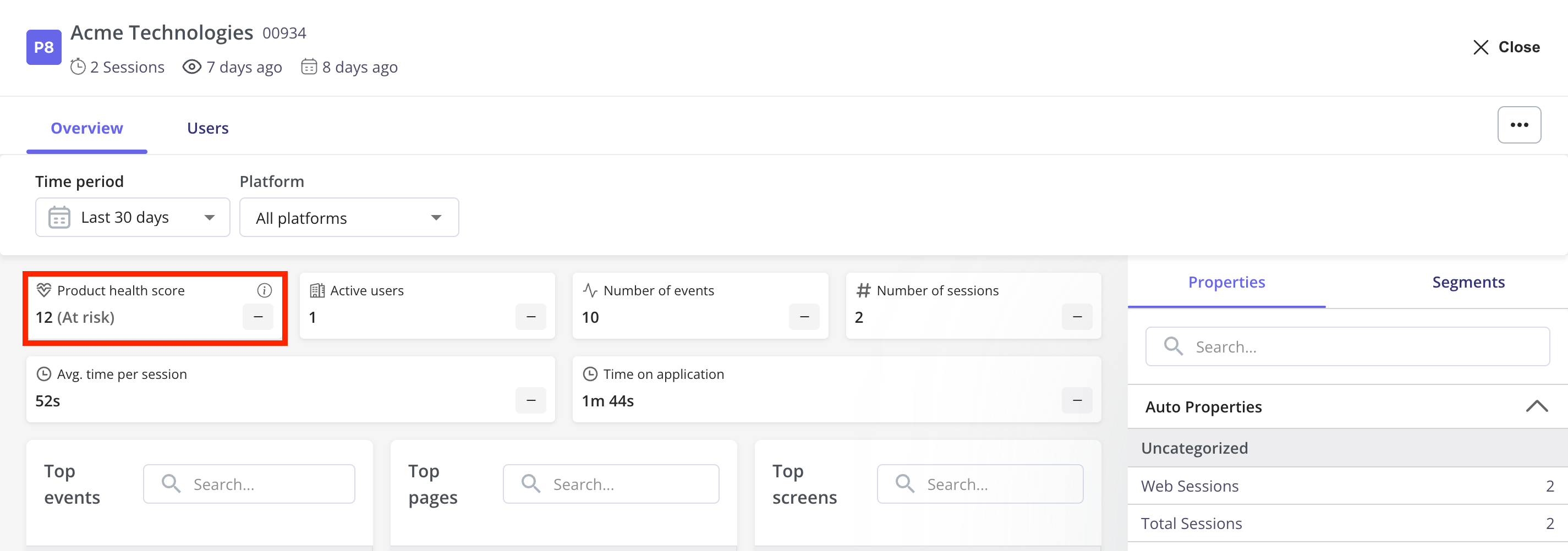
The profile overview shows:- The Product health score (0-100)
- The health status: At risk, Neutral, or Healthy
- A trend indicator compared to the previous period, for example ↑ +2% or ↓ -3%
Health properties
When you set up Product Health Score, Userpilot automatically creates and maintains two default properties:
They’re added as company or user properties, depending on your calculation level, and appear in the Company and User dashboards. They always hold the latest calculated value.
Build segments
Use the properties in segment conditions, for example:- Health Status is At risk
- Product Health Score is less than 50
Target in-app content
Use the same properties to target flows, emails, checklists, surveys, and other in-app content. For example, show a re-engagement checklist to at-risk accounts, or ask healthy accounts for a review or referral.Analyze in reports
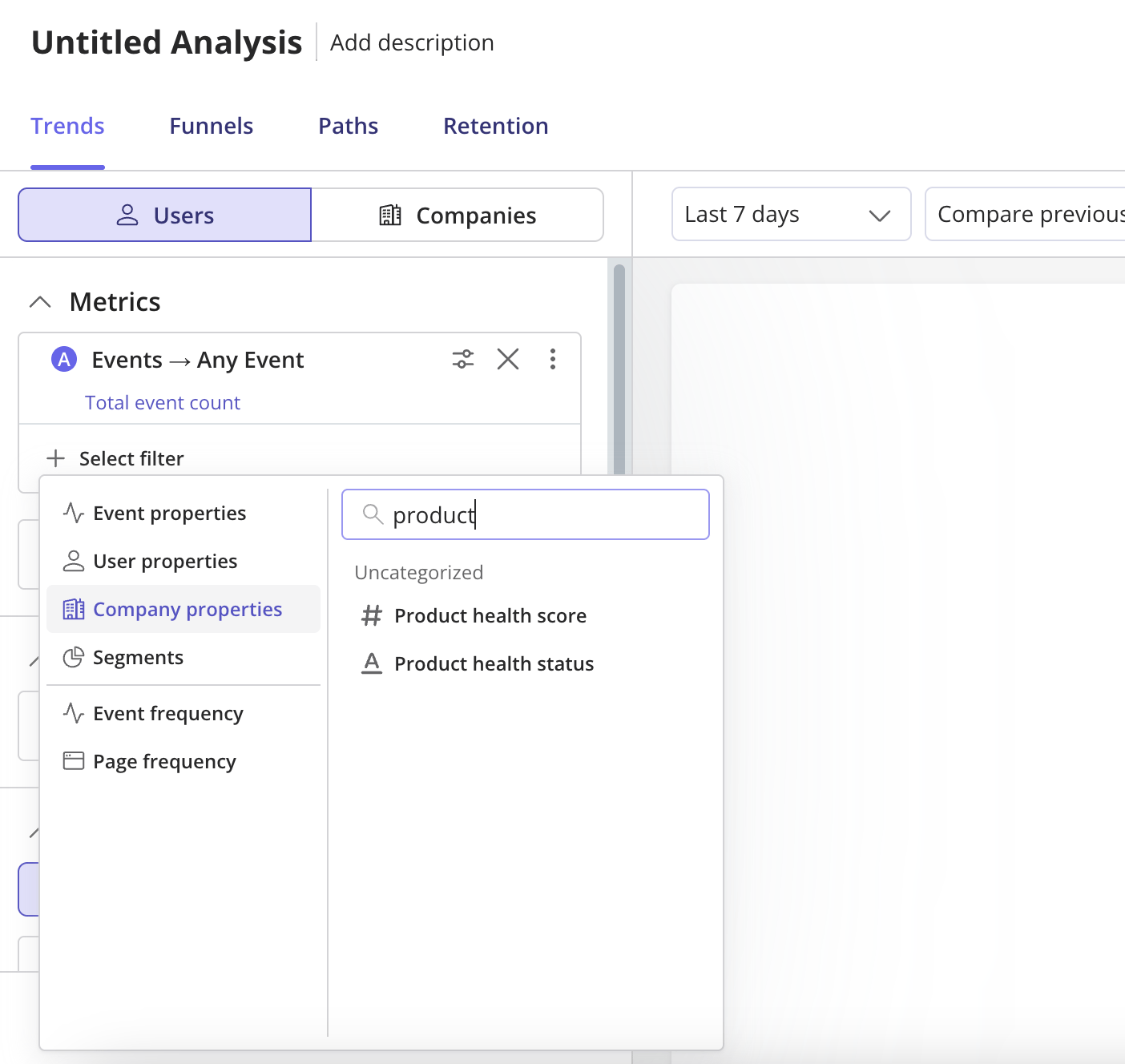
In the Report Builder, you can:- Filter events by health, for example, events where Company Health Status is At risk, or users with Health Score less than 50
- Break down Trends and Funnel reports by Health Status, or by Health Score ranges such as 0-49, 50-79, and 80-100
Signals
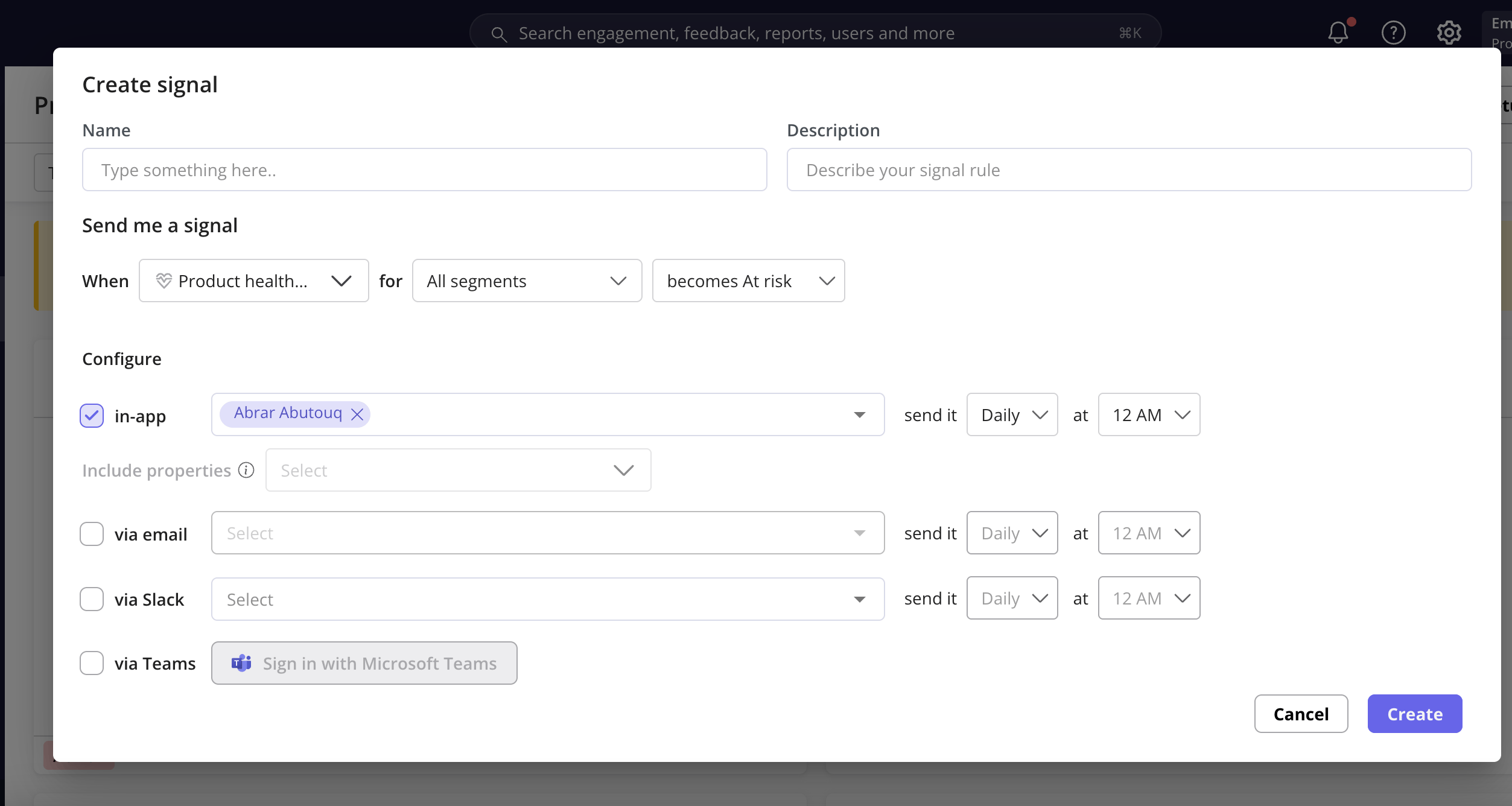
Get notified when health changes.- Create a signal and choose Product health score under Data
- Select the user or company segments you want to monitor
- Choose a trigger:
- Score drops below a value you set
- Score rises above a value you set
- Status changes to At risk
- Choose where to receive it: in-app, email, Microsoft Teams, or Slack
Signals don’t trigger while the score calculation is paused.
Digest email
Your digest email can include a Product Health Score summary at the end of its Data section, with the current health score of each configured segment and how it changed. The summary also shows how many companies or users are Healthy, Neutral, and At risk. The Product Health Score toggle is in your digest settings, under Data. It’s on by default.Integrations and webhooks
HubSpot/Salesforce
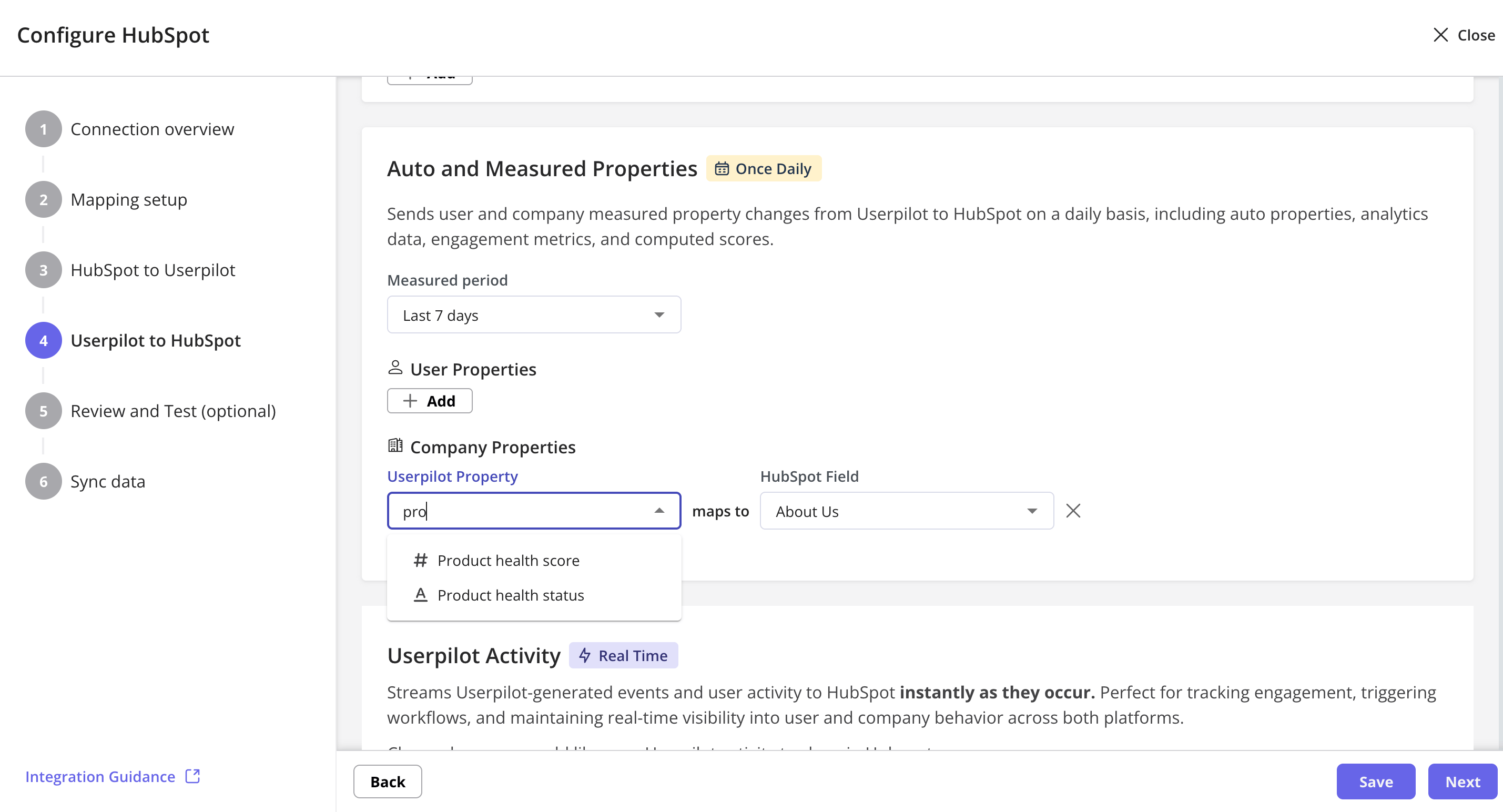
The Product Health Score and Health Status appear under Measured Properties in the HubSpot and Salesforce integration setup. Map them to company or user properties, depending on your calculation level, to sync them to your CRM.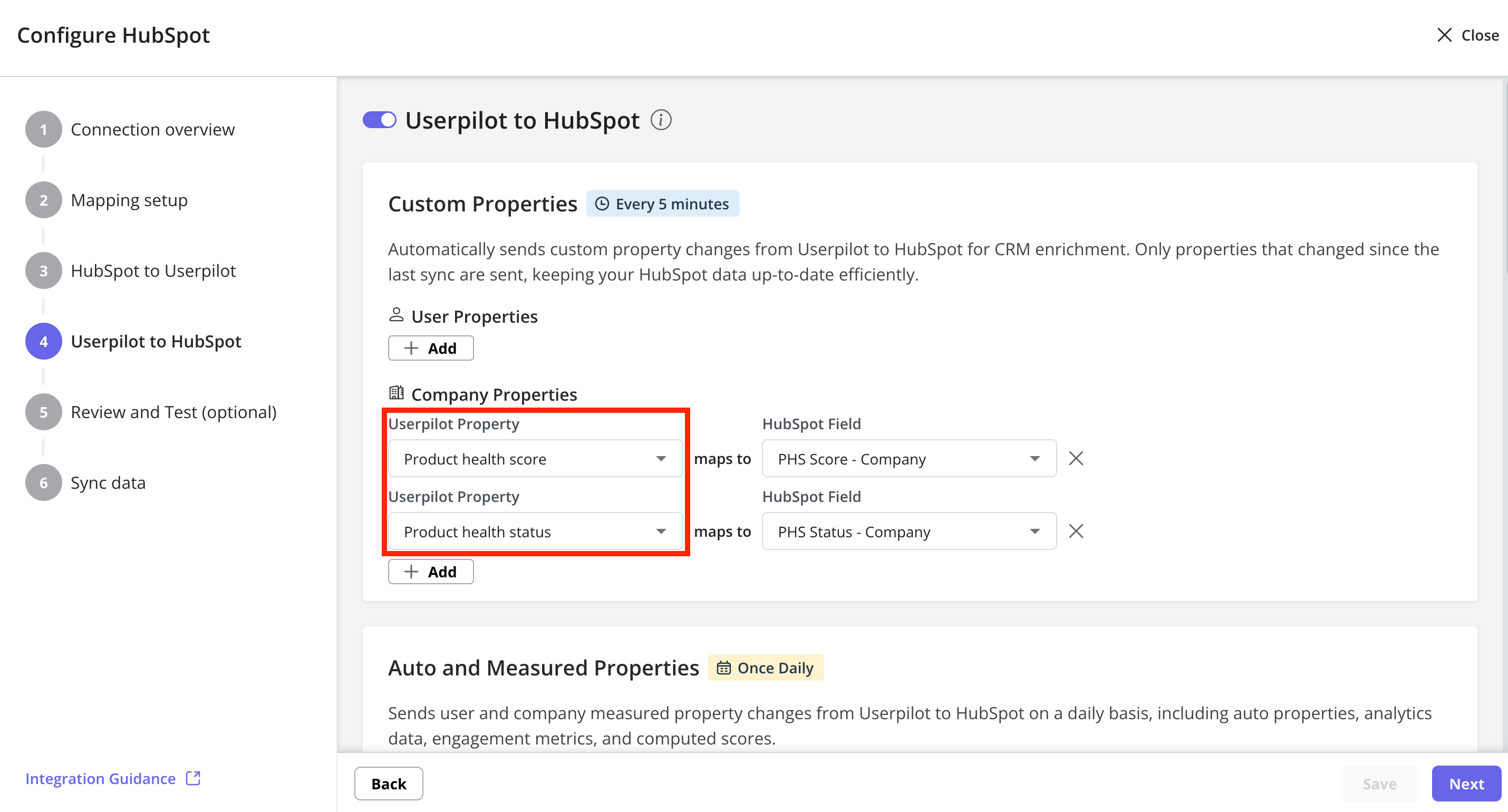
Webhooks
Product Health Score data is included in the user and company data sent through webhooks. It’s sent when a score is created, when it’s updated, and when the health status changes.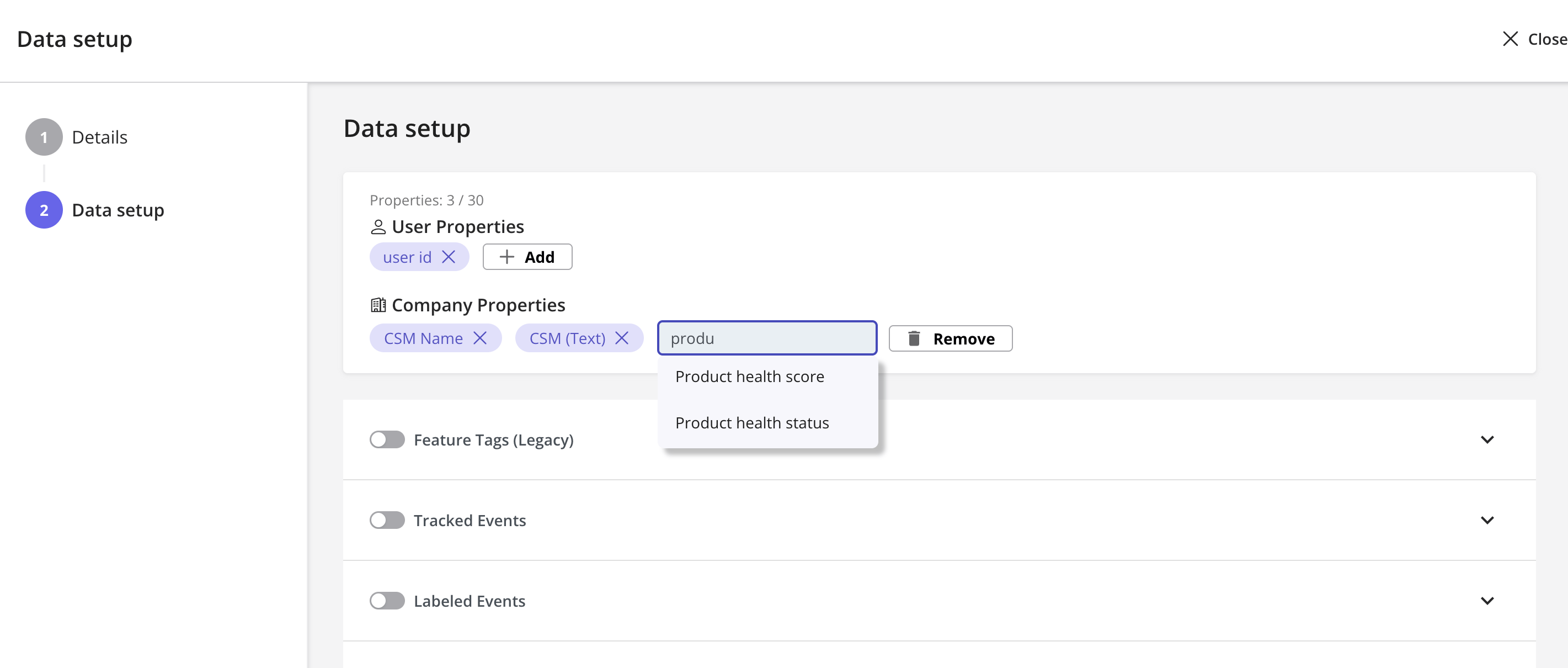
Once you select the PHS status or score properties and save the configuration, Userpilot will automatically send them to HubSpot, Salesforce, or the webhook. Salesforce and HubSpot are polled every 5 minutes.
Admin Console
If you manage multiple applications, the Applications page in the Admin Console shows each application’s latest Health Score and Health Status, so you can compare them in one place. Click a score to see its breakdown. If an application doesn’t have a score yet, it shows No score with a Setup button that opens its Product Health Score setup.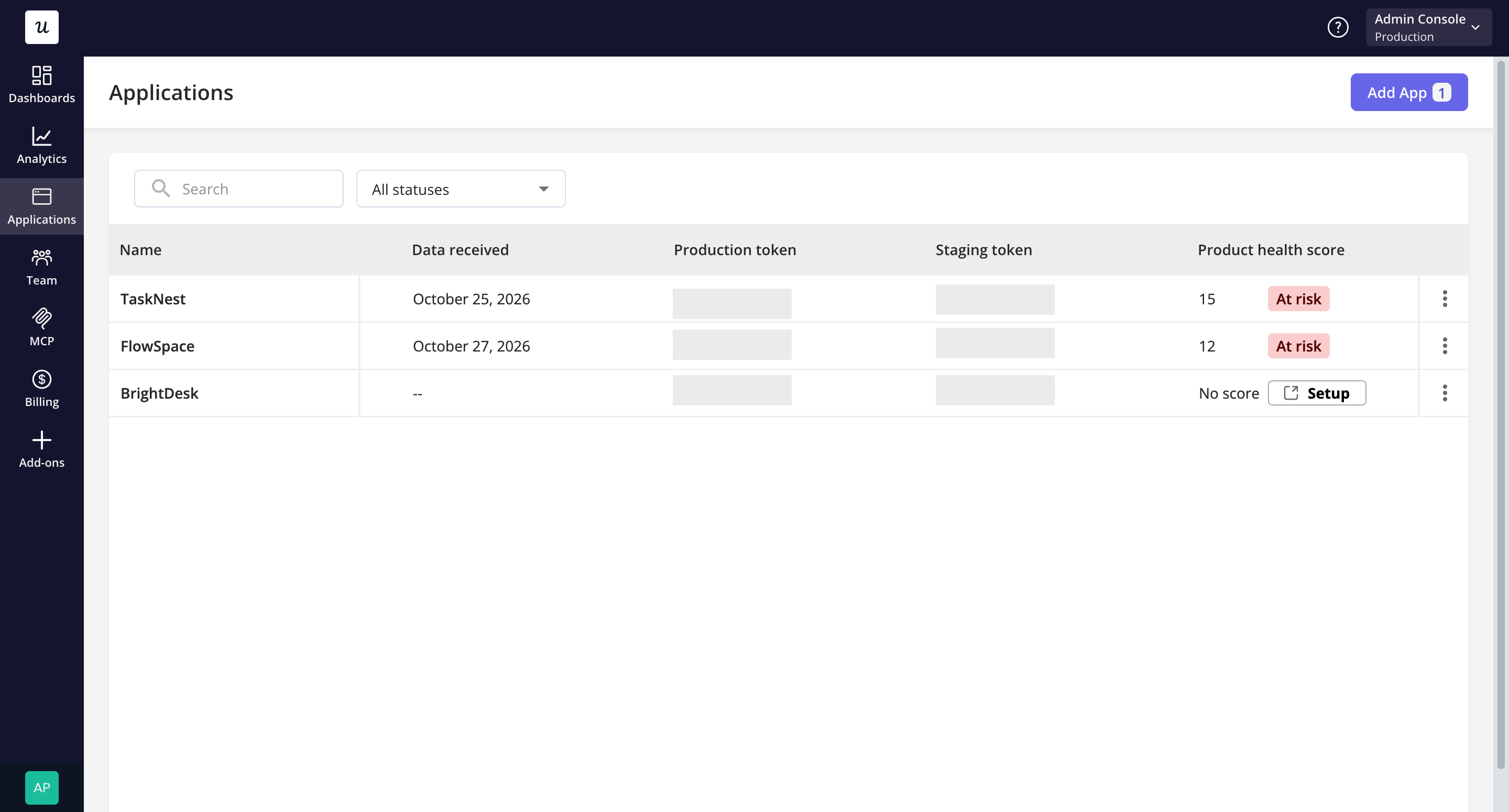
Best practices
- Create a saved segment for at-risk accounts and review it in your weekly Customer Success meeting
- Use a signal for Status changes to At risk on your highest-value segments, and send it to the Slack channel your account managers watch
- Sync Health Status to your CRM so renewal and expansion workflows can use it
- Pair health-based targeting with a goal, such as a feature engagement event, so you can see whether your content improves the score
- Pause the calculation before major setup changes, so automations and integrations don’t react to intermediate scores